9 min read
Document management in Xero Practice Manager: four options
By The XTK team · Product
Xero Practice Manager can store documents against a client, a job or a quote, and for a small number of small files that is genuinely enough. What it does not have is a folder structure worth the name, a generous upload limit, version history, anything client-facing, or e-signing. So practices past their first dozen clients keep documents somewhere else — and there are four somewhere-elses worth knowing about.
This is not a knock on XPM. It is a jobs, time and billing system, and it is a good one. Document management is simply a different product, and the useful question is not whether XPM should have built it. It is how far from the client record your documents end up living — because that distance is what decides whether your team files things properly or not at all.
What XPM gives you today
The Documents tab attaches files to a client, a job or a quote, and any other user in your practice can see and download them. You can group them into folders inside Practice Manager, and you can email documents and notes from a job or quote using XPM's collaboration features. Uploads are capped at 16MB per file, and documents list alphabetically.
That set of features has a real sweet spot: a signed form that belongs to one particular job, a note with a screenshot attached, a piece of correspondence that only ever needs to be found again from the job it relates to. If that describes your document flow, stop reading — you don't have a problem to solve.
Where it stops
Five gaps show up in roughly this order as a practice grows.
- No structure that survives people. Folders inside Practice Manager have no template and no enforcement, so “2026 / Tax / Workpapers” is a convention rather than a rule, and three people will express it three ways. The layer most practices reach for first is a folder per job and per quote, which XPM cannot give you in storage you own.
- The 16MB ceiling. A scanned bundle of source records, a financial statement pack, a set of photographed receipts — these routinely exceed it, and the workaround is always email.
- No version history. When you cannot see what changed, filenames start doing that job, which is how a folder ends up holding Accounts_FINAL, Accounts_FINAL_v2 and Accounts_FINAL_JS.
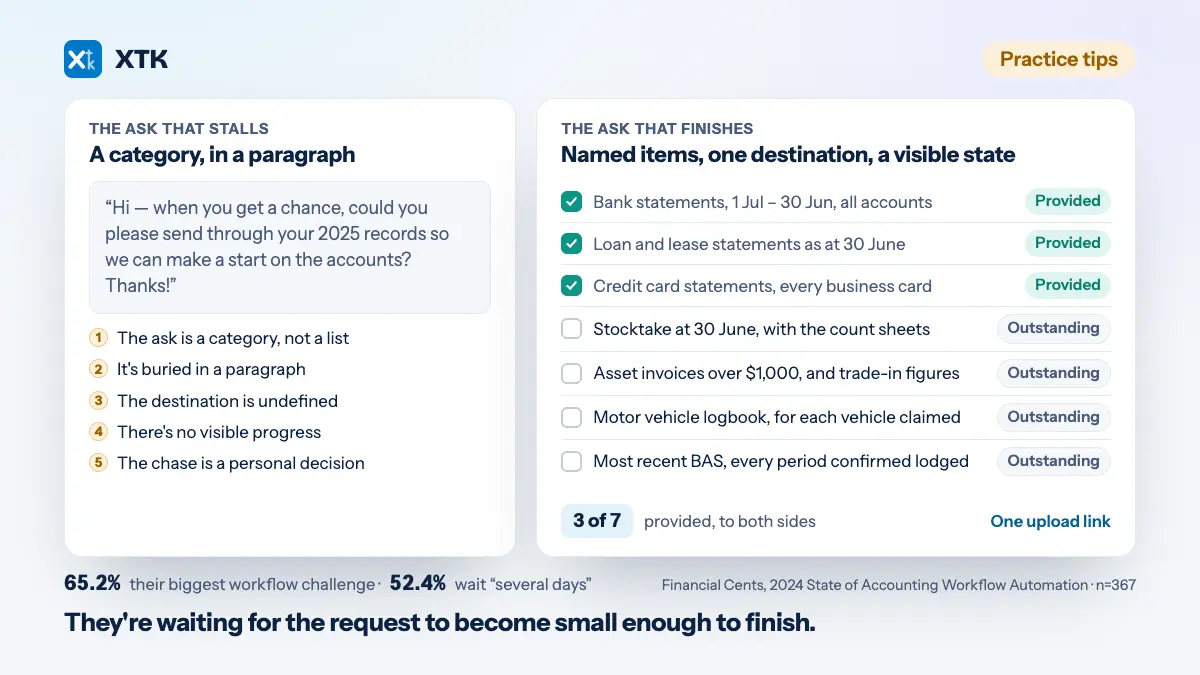
- Nothing client-facing. There is no portal and no upload link, so collecting records means asking for email attachments — and a file that arrives in an inbox has to be filed by a human before it counts as filed at all. That is a chase you can design out.
- No signing. Engagement letters leave for a separate e-signature tool and come back by hand, which means the signed copy lands wherever the person who downloaded it put it — and the audit trail you would need in a dispute lands there too.
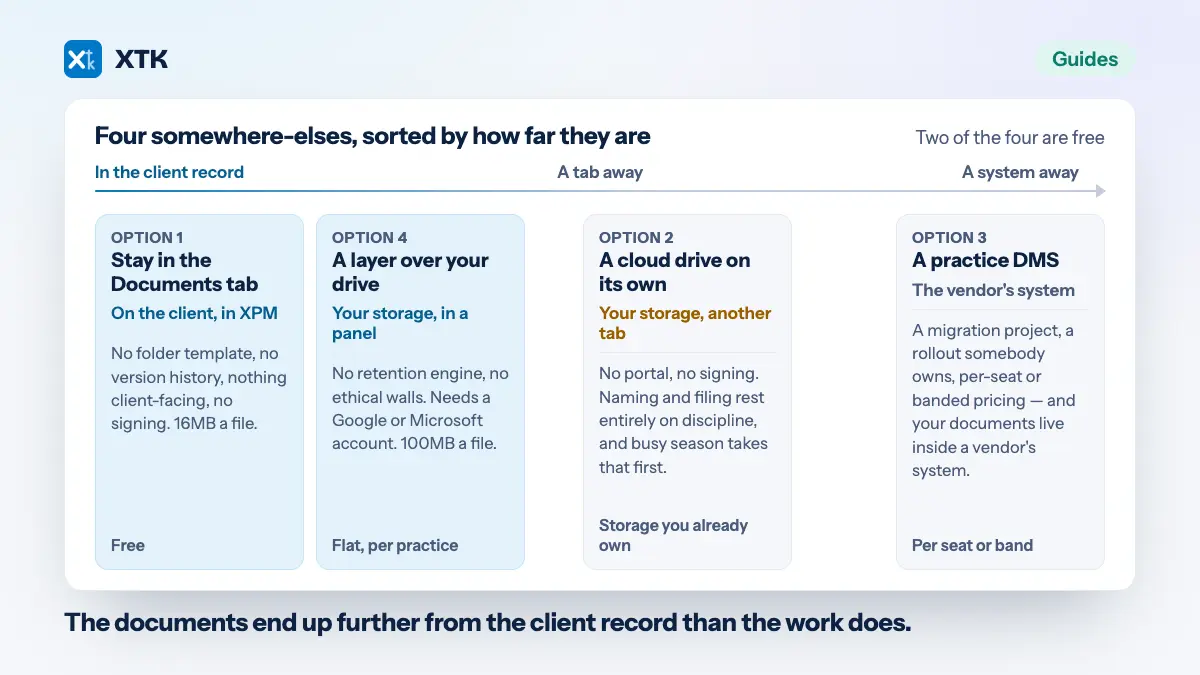
Every one of these gaps has the same shape: the documents end up further from the client record than the work does.
The four ways practices fill the gap
Almost every firm running on XPM has landed on one of these four. They are not four levels of sophistication — they suit genuinely different practices, and two of them are free.
1. Stay in the Documents tab
Free, already configured, nothing to learn. It holds up for a sole practitioner with light document flow and no client sharing to do. It stops holding up the first time a client needs to see something, or a file is too big — and because both of those arrive without warning, the practice usually discovers the limit mid-deadline.
2. A cloud drive on its own
One folder per client in Google Drive, OneDrive or SharePoint. You already pay for the storage, you own everything in it, there is nothing to migrate and no vendor to leave. This is where most practices actually are, and it is a perfectly respectable place to be — provided you are honest about the failure mode, which is distance. The drive is a different tab from the client record, so naming and filing rest entirely on discipline, and discipline is the first thing busy season takes.
There is also no portal and no signing here. Sharing means provider link-sharing, which is a permissions decision made in a hurry by whoever is sending the file.
3. A document management system built for practices
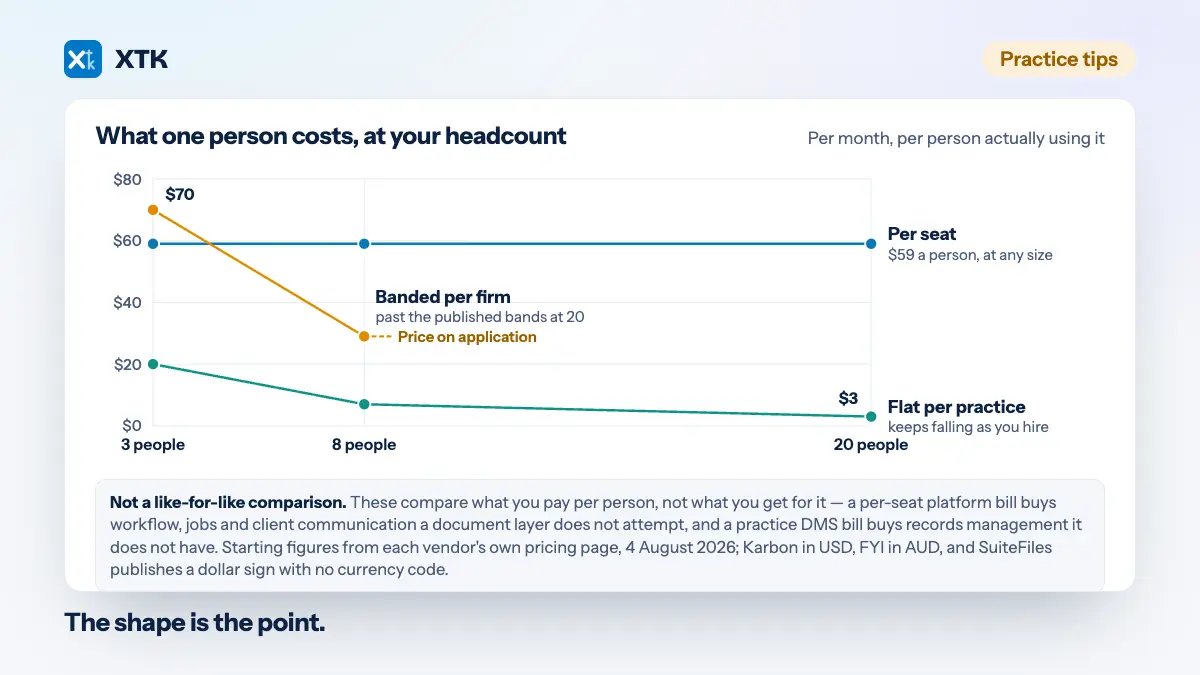
SuiteFiles, FYI, Virtual Cabinet, Nimbus, Workiro — or a practice platform such as Karbon or TaxDome that absorbs documents into a wider workflow suite. You get proper filing, retention controls, portals, signing and audit trails, designed by people who have seen a lot of accounting practices. What each one costs, and which firm it suits, is worth reading with the prices side by side.
The costs are real and worth stating plainly: a migration project, a rollout somebody has to own, per-seat or banded pricing at a materially higher level than the options above, and your documents now living inside a vendor's system. That last one is a trade rather than a flaw — a purpose-built repository is exactly what you are paying for. If you are ten or more people, or you have retention and records obligations that need enforcing rather than encouraging, this is the category to shop in.
4. A layer over the drive you already have
The newest option: leave the files in your own Google Drive, OneDrive or SharePoint, and add the missing pieces — the folder-per-client structure, the portal, the upload links, the signing, the templates — inside the Practice Manager tab where the client record already is. Nothing moves, so there is no migration, and the drive stops being a separate destination people have to remember.
What you give up is the depth of a mature DMS: no retention engine, no records-management policy enforcement, and you need a Google or Microsoft storage account for it to sit on top of. The trade is that the retention period runs against storage you own rather than a vendor's, enforced by policy rather than by software. This is the category XTK is in, and the honest summary is that it suits small-to-mid Xero-centric firms who want the gaps closed without moving anything.
| Compared on | XPM alone | Drive alone | Practice DMS | Layer over your drive |
|---|---|---|---|---|
| Files live in | XPM | Your storage | Vendor's system | Your storage |
| Upload limit | 16MB | Provider's | Generous | 100MB |
| Folder structure | Flat, by hand | Ad hoc | Enforced | Templated |
| Version history | None | Provider's | Built in | Provider's |
| Client portal | None | Link sharing | Yes | Yes |
| E-signatures | None | None | Usually | Yes |
| Inside XPM | Yes | No, separate tab | Varies | Yes, a panel |
| Migration | None | None | Yes, a project | None |
| Pricing shape | Included | Storage you own | Per seat or band | Flat, per practice |
| If you stop paying | Stays in XPM | Nothing changes | Export on request | Stays in your drive |
Whichever you pick, fix the client folder name first
One rule matters more than the rest, and it is free: one folder per client entity, named exactly as that client is named in XPM. That name is the only key your two systems share, so the moment “ACME Trading Ltd” also exists as “Acme” and “ACME (new)”, no amount of tooling will reconcile them. Getting it right the once, when the client is created, is the first step of onboarding for a reason. The wider structure question — how many levels, which evergreen folders, what to do with history — is worth a read on its own.
How XTK fits
XTK is the fourth option. Your practice connects one storage provider — Google Drive, OneDrive or SharePoint — and picks a Main Storage Folder. Each client then gets one folder inside it: if a folder of that name already exists it is adopted rather than duplicated, if none exists it is created, and if two match you choose. From then on the Documents tab in the XTK panel opens against whichever client you have open in Practice Manager, and takes the place of Xero's own Documents tab.
Files are ordinary files in a drive you own, which is why the version-history row above says “your provider's” rather than “none”: Google's and Microsoft's own file history applies, because XTK never took your documents anywhere. Uploads are capped at 100MB, deletes go to your provider's trash rather than vanishing, and bulk actions — move, copy, zip, merge PDFs — are fenced to the current client's folder, so one client's document cannot land in another's.
The gaps from the list above close in the same panel: a client portal where shares are markers pointing at your files rather than copies, document requests that land straight in the client's folder, e-signatures that file the completed PDF beside the original, and templates that fill themselves from the client's XPM details.
Two things worth saying because they cut against the pitch. Uploads go from your browser straight to Google or Microsoft, but downloads and any job that needs a document engine — zipping a selection, merging PDFs, generating from a template, flattening a signed PDF — stream through XTK's backend in flight; nothing is written to disk or kept. And “Convert to PDF” hands that one file to CloudConvert, an external service. The full account of what moves where is a guide of its own, and it is the one to read before you decide anything.
Pricing is one flat $59 a month for the whole practice — no per-seat maths, which matters more than it sounds when your headcount includes part-timers and seasonal help. Anyone you would have skipped buying a seat for is the person who keeps filing in email.
If you want to try the fourth option against one client rather than in theory, getting set up takes about ten minutes: install, connect a drive, open a client in Practice Manager.
The test that actually matters
Whichever of the four you land on, judge it the same way: can somebody who joined last week find last year's engagement letter for a client they have never worked on, in under a minute, without asking anyone? A practice that can do that has a document management system. A practice that cannot has a folder of files and a set of people who remember things.
Frequently asked questions
Does Xero Practice Manager have a client portal?
No. XPM has no client-facing portal for document exchange. You can email documents from a job or quote, but clients cannot log in to view or upload files, so practices that need a portal add a third-party product — a document management system, or a layer over their own cloud storage.
What is the file size limit for documents in Xero Practice Manager?
16MB per file in XPM's Documents tab, as of August 2026. Larger files — scanned record bundles, financial statement packs — have to go somewhere else, which in most practices means email or a cloud drive.
Can I connect Google Drive to Xero Practice Manager?
Not natively — XPM has no built-in Google Drive integration. You can keep client folders in Drive alongside XPM and switch between tabs, or use a third-party tool that brings your Drive folders into the Practice Manager screen. XTK does the latter for Google Drive, OneDrive and SharePoint.
Does XPM keep version history for documents?
No. XPM's Documents tab does not keep document version history, which is why filenames in practice folders tend to carry version information instead. Storing files in Google Drive, OneDrive or SharePoint gives you that provider's own file history.
Do I have to migrate my existing client folders?
It depends which option you choose. Moving to a practice DMS means a migration project. Staying on your own cloud storage — with or without a layer on top of it — means no migration, because the files never move. XTK adopts an existing client folder by name rather than creating a duplicate.