Updated 9 min read
Client portal for accountants: set up and share files
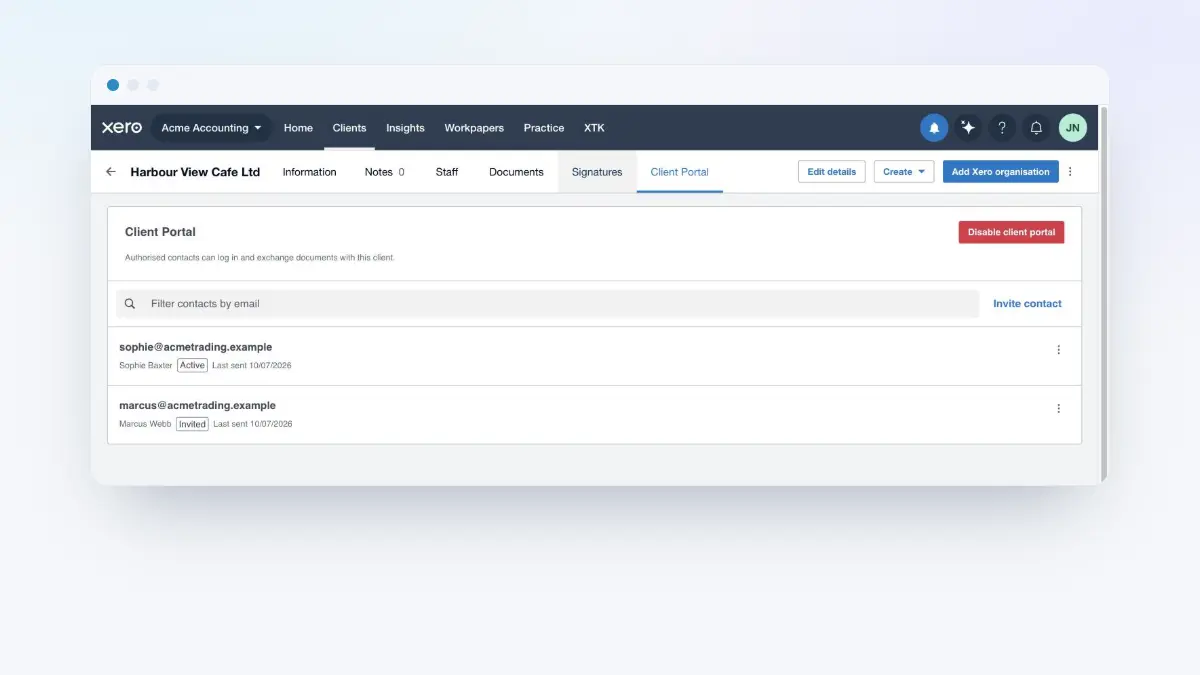
A client portal gives one of your clients a logged-in place to read the documents you share and to send you theirs. In XTK you switch it on per client from the “Client Portal” tab inside Xero Practice Manager (XPM), invite the people who need access by email, then mark folders and files as shared from that client's Documents tab. Nothing is copied: a Share is a marker on a file that stays in your practice's own Google Drive, OneDrive or SharePoint.
XTK is an independent product and is not affiliated with or endorsed by Xero Limited.
Enabling the portal emails your client immediately
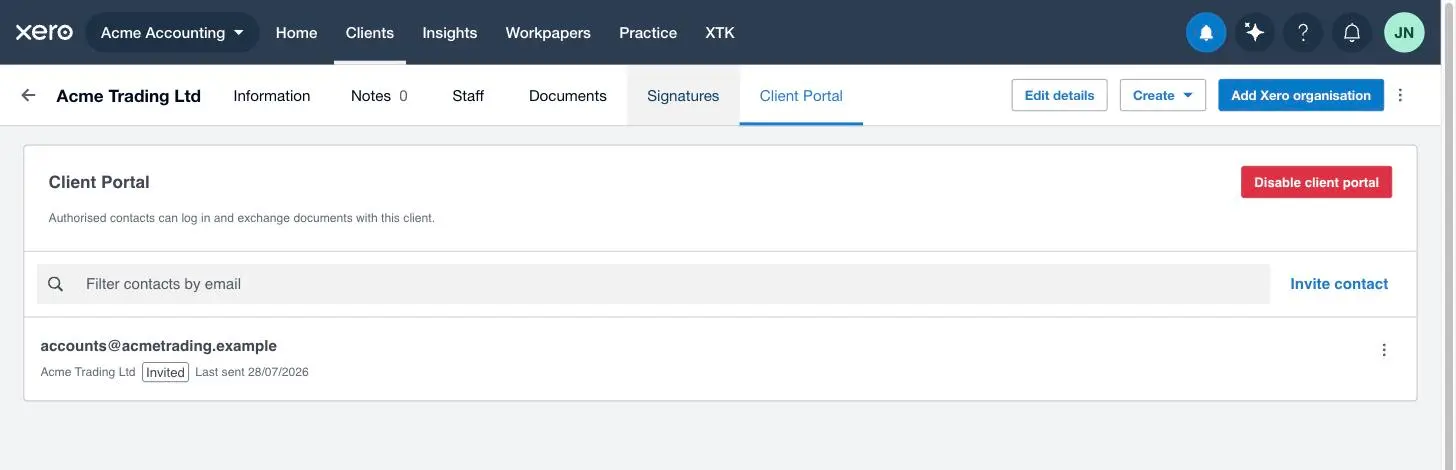
This is the one thing to know before you touch the feature. The button says “Enable client portal”, which sounds like it only turns something on. On a client whose primary email address XTK has read from XPM, the first enable also invites that address — no confirmation, no preview, no chance to reword. Worse, the roster you land on doesn't show it: it reads “No contacts yet” until you reload the page, at which point the invited contact appears.
Turn the portal on
Open the client's “Client Portal” tab
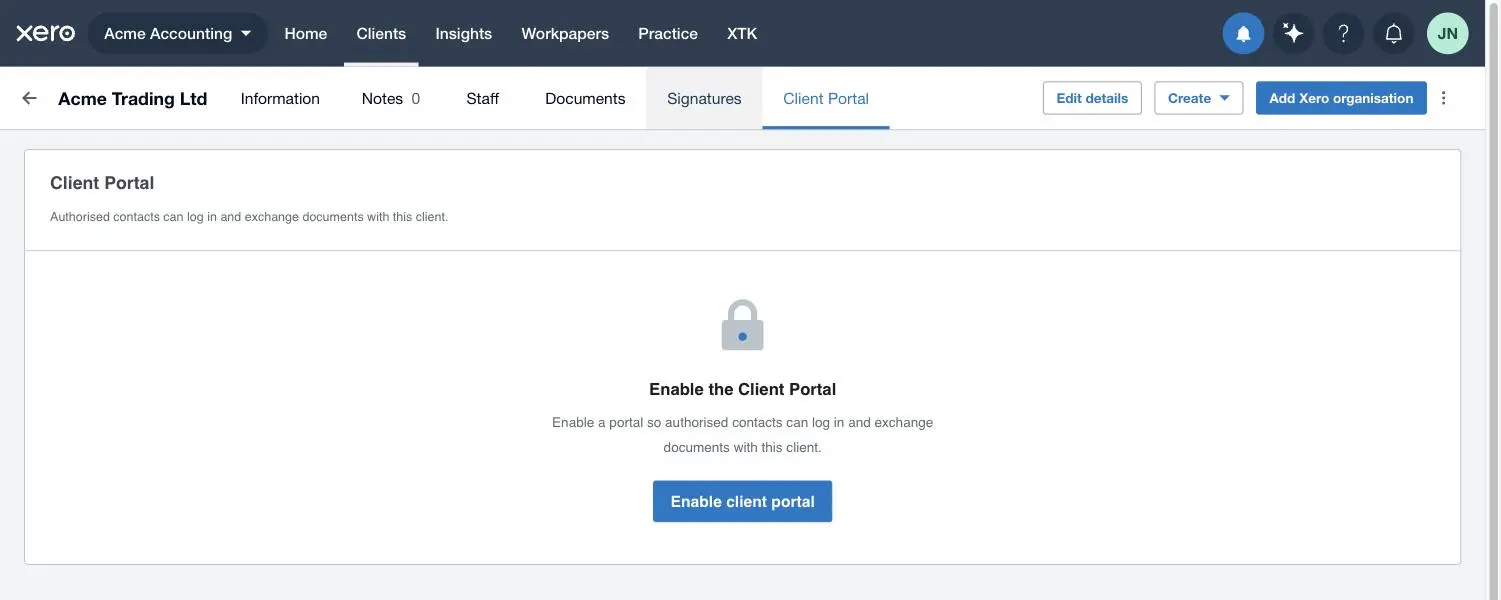
In Practice Manager, open the client, then click “Client Portal” in XTK's tab strip — beside “Documents” and “Signatures”. Before the portal exists you get an empty state headed “Enable the Client Portal”.
Check the client's primary email in XPM
Read the address flagged primary on the client's Information tab. If it isn't somewhere you're happy to email today, correct it in XPM first.
Click “Enable client portal”
The panel becomes the contact roster, headed “Client Portal” with a red “Disable client portal” button. It will say “No contacts yet” whether or not an invitation just went out.
Reload the page to see who was invited
This step is not optional, and it is the only way to find out what the enable did. After a reload the roster shows the contact XTK created from the client's primary email, at “Invited”, with “Last sent” today. Because the address came off the client record rather than from a person, the contact's name is the client's own business name.
How do I invite someone to the client portal?
Most clients need more than one person — an owner, a bookkeeper, a spouse who signs. “Invite contact” sits at the top right of the roster, and opens a two-step dialog: pick the person, then compose the email carrying their link.
Click “Invite contact”
The dialog opens on “Step 1 of 2 — Choose who to invite”.
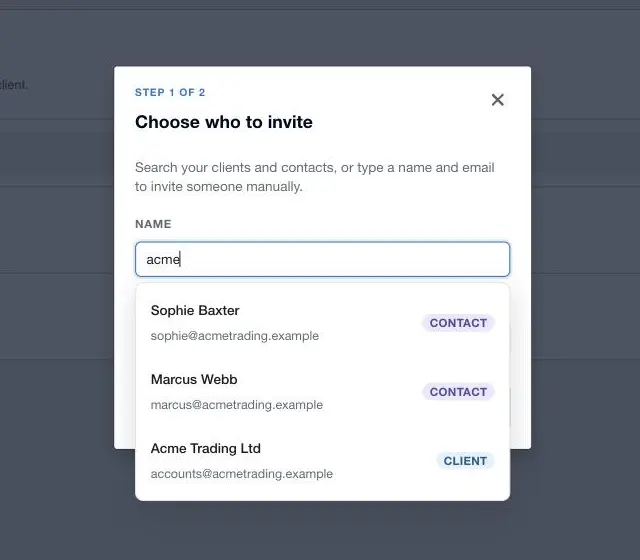
Find the person, or type them in
Type into “Name” and XTK searches the clients and contacts it has read from XPM, tagging each result “Client” or “Contact”; pick one and it fills the name and email. Typing both by hand works equally well — the invitation goes to whoever you name, and the portal still belongs to this client.
Click “Continue”
Nothing is created yet. XTK only checks the address looks valid — “That does not look like a valid email.” if not.
Choose a template and read the email
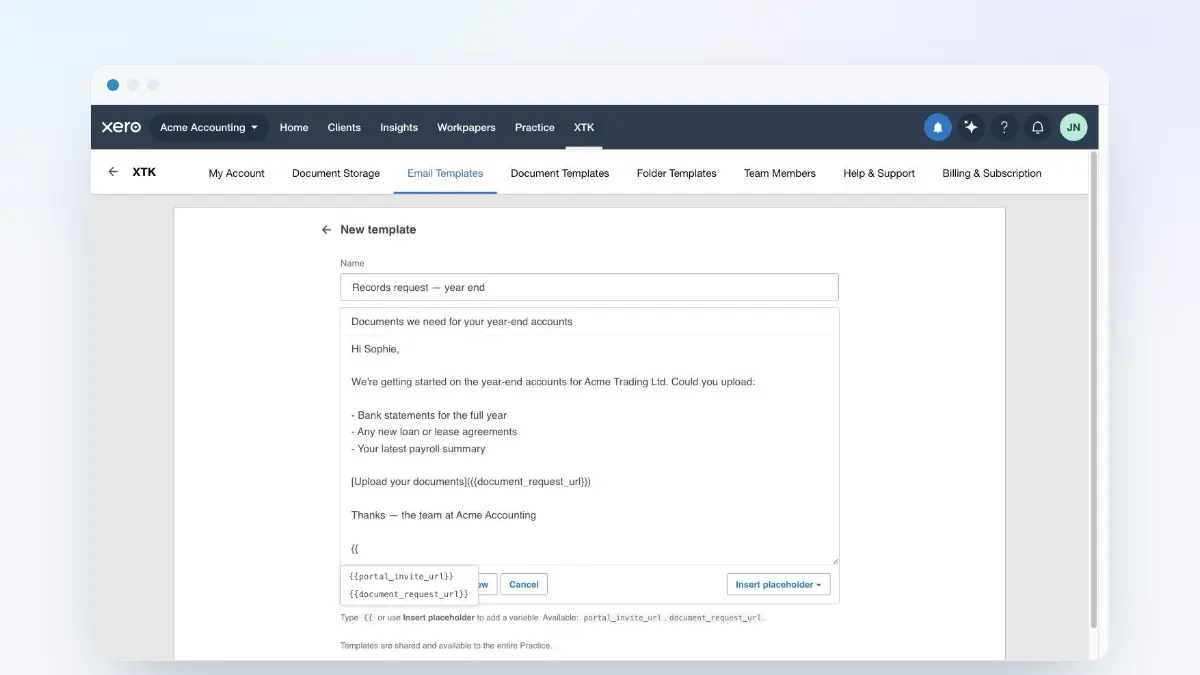
“Step 2 of 2 — Send portal invite” shows the recipient in a locked chip, so a personal invite link can't reach the wrong person, and a line reading “Sending from …”. Pick a “Template” — XTK preselects “Portal invite” — then adjust “Subject”, “Message” and “CC”. The message shows the literal {{portal_invite_url}}, with a note saying their personal link replaces it on send — the same for a brand-new contact and for someone you're re-inviting, because XTK never keeps a copy of the link it can show you.
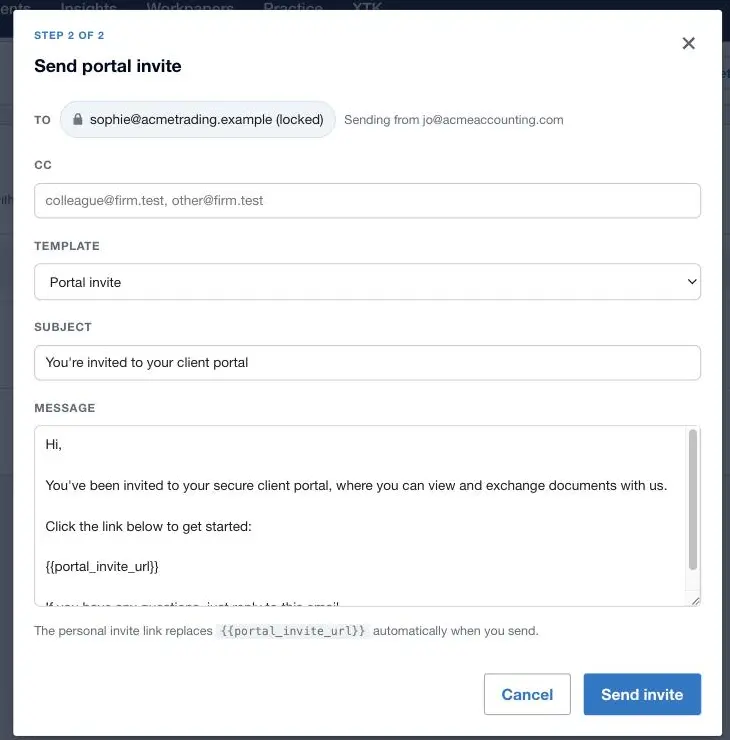
Click “Send invite”
This is the moment the contact is created and the email leaves; the dialog closing is what success looks like. The new row reads “Invited”, with “Last sent” today. If the send fails XTK removes the contact it just made and keeps your draft: “Could not send the invite. Your draft is kept — try again.”
The link is single-use and lasts 30 days. Clicking it asks a brand-new email to set a password, which creates the account and verifies the address in one step; someone already a Portal Member elsewhere simply accepts, with no password step. Either way the contact flips from “Invited” to “Active” — your signal that they're in.
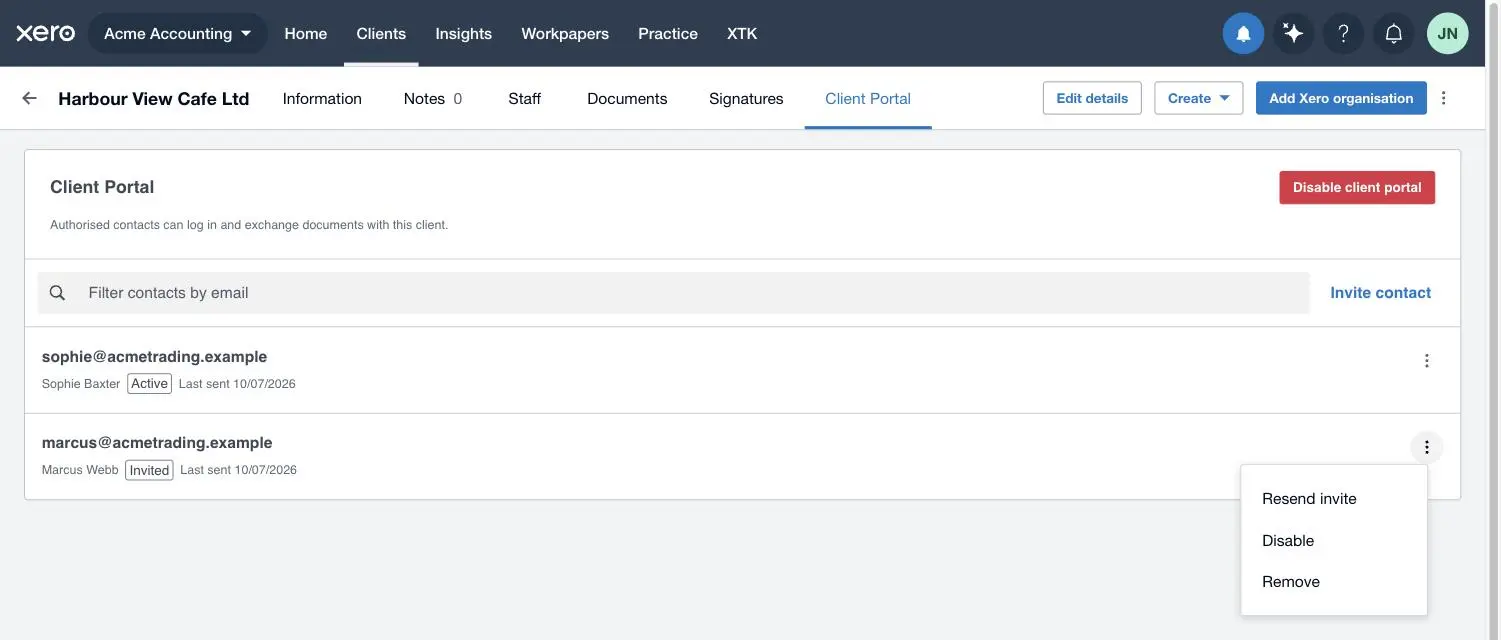
Invited, Active, Disabled: reading the roster
| Status | What it means | What the row's ⋮ menu offers |
|---|---|---|
| Invited | Emailed, or added but not yet emailed — no account yet | “Send invite” or “Resend invite” · “Disable” · “Remove” |
| Active | They accepted and can sign in to this client's portal | “Disable” · “Remove” |
| Disabled | Suspended: the row and their files stay, sign-in to this client is blocked | “Enable” · “Remove” |
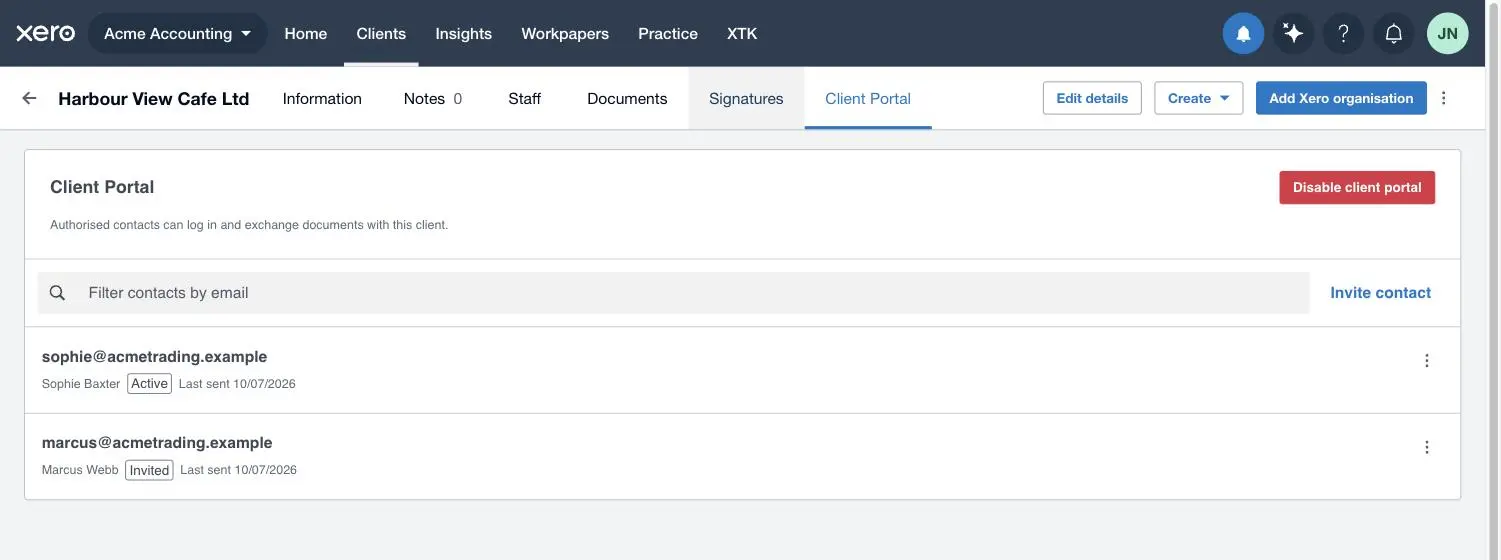
Two details catch people out. The filter box matches the email address only, not the name. And “Resend invite” appears only while a contact is “Invited”: once someone is “Active” there's nothing to resend, and a forgotten password is theirs to reset from the portal's sign-in page. For an existing contact the compose box also offers “Invalidate link already sent”, which kills the link in any invite you have already emailed without sending anything new — useful if an invite went to the wrong address or was forwarded on. Sending the invite again gives that person a fresh link, and the older one stops working at that point too.
How do I share files with the client portal?
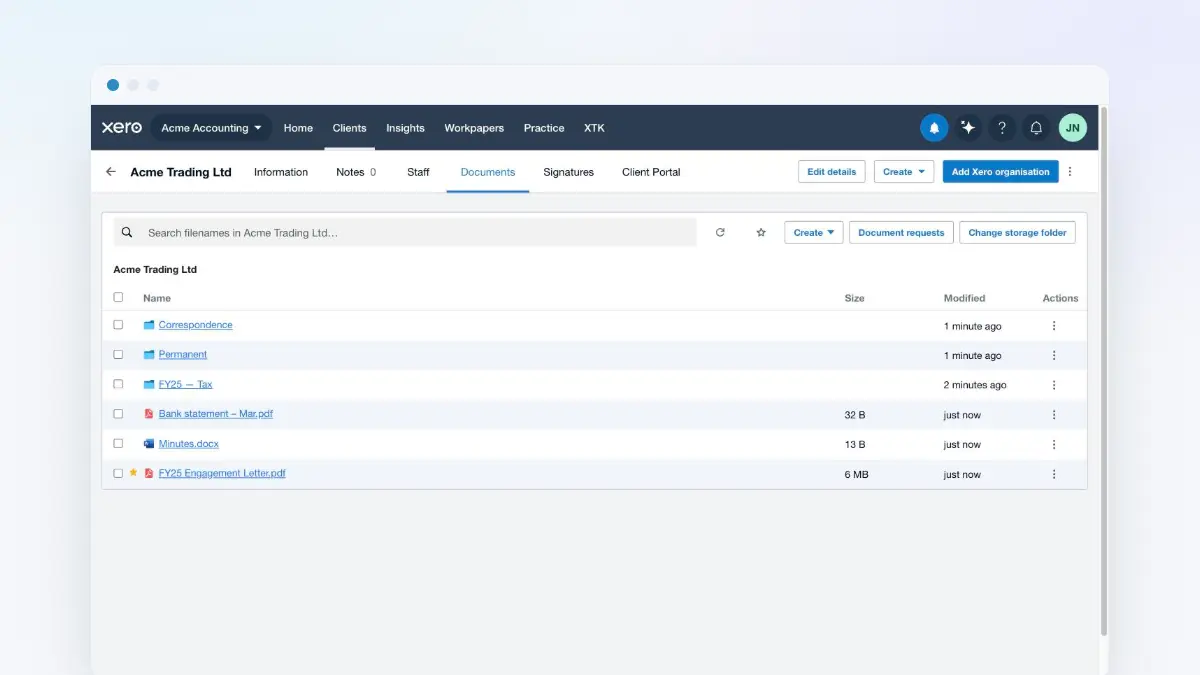
Not from the Client Portal tab — sharing lives in the client's Documents tab, beside the files. The portal tab is only the roster, and there's no list of what you've shared, so the “Shared” badge in the file browser is the record.
Open the client's Documents tab
Browse to the folder or file the client should see. Anything you share must already live inside this client's own storage folder.
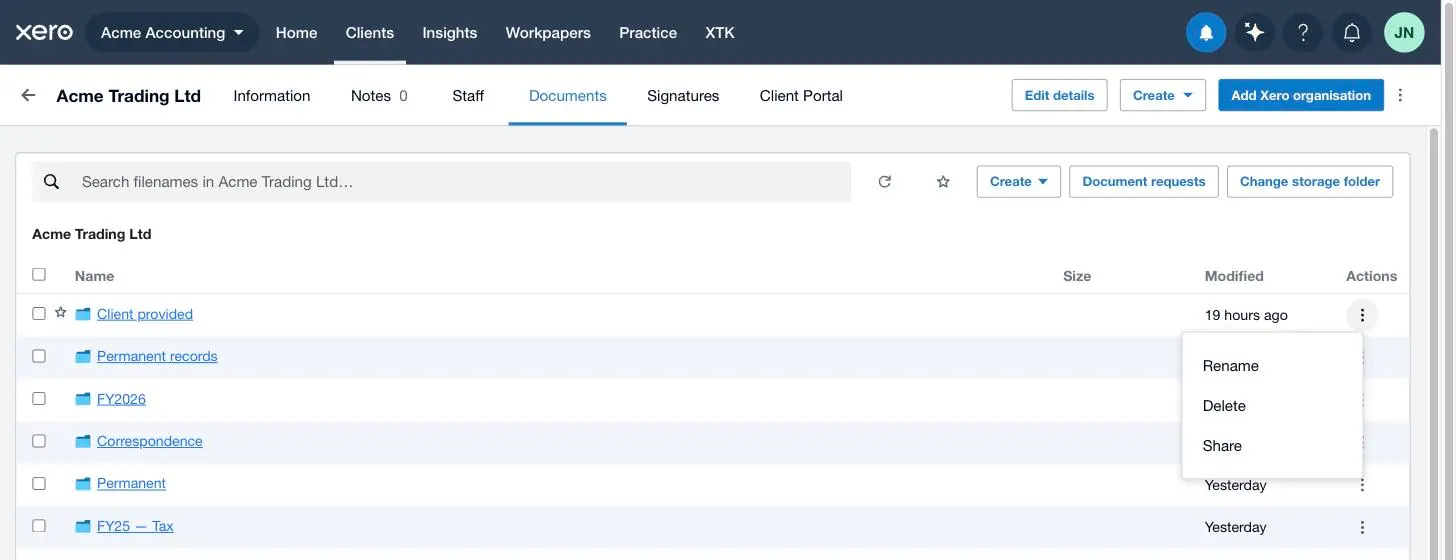
Open the row's ⋮ menu and click “Share”
It's the last item in the menu, under “Rename” and “Delete”. XTK picks the kind for you: a folder becomes a folder share, a file a file share.
Wait for the badge
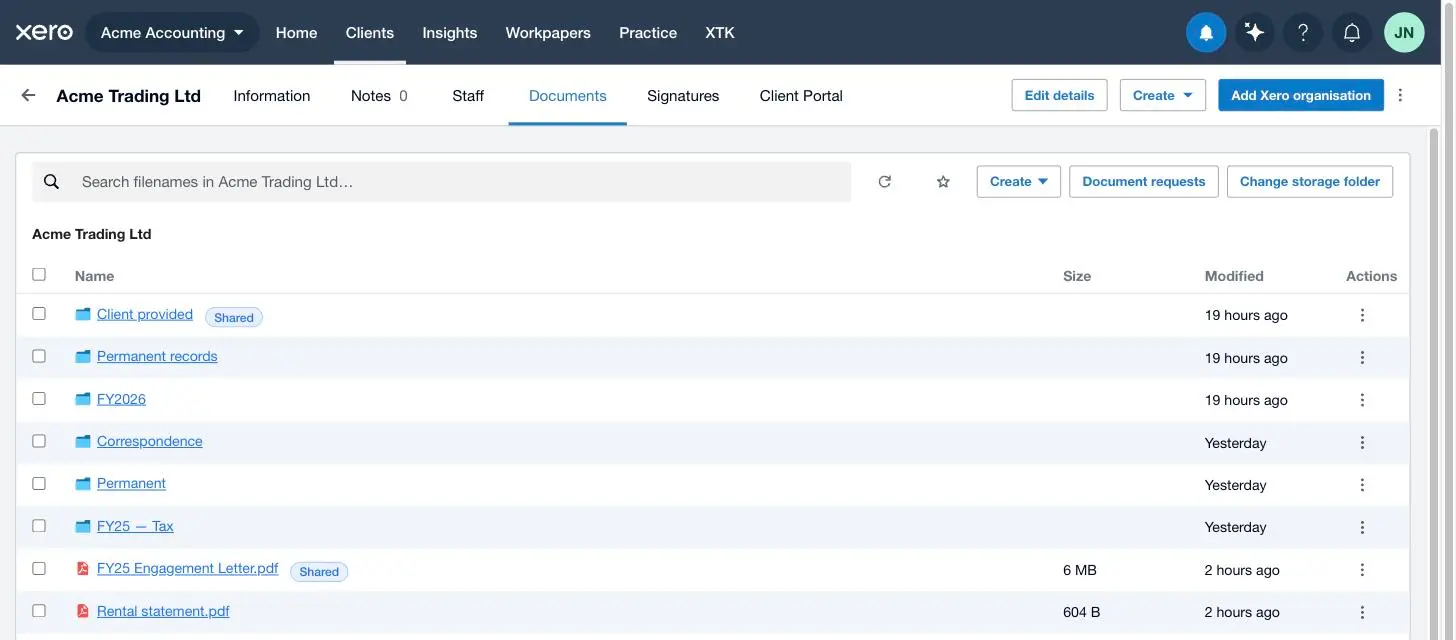
The row reads “Sharing…”, then settles on a “Shared” tag — your confirmation, visible in the browser and in search results.
Share several things at once
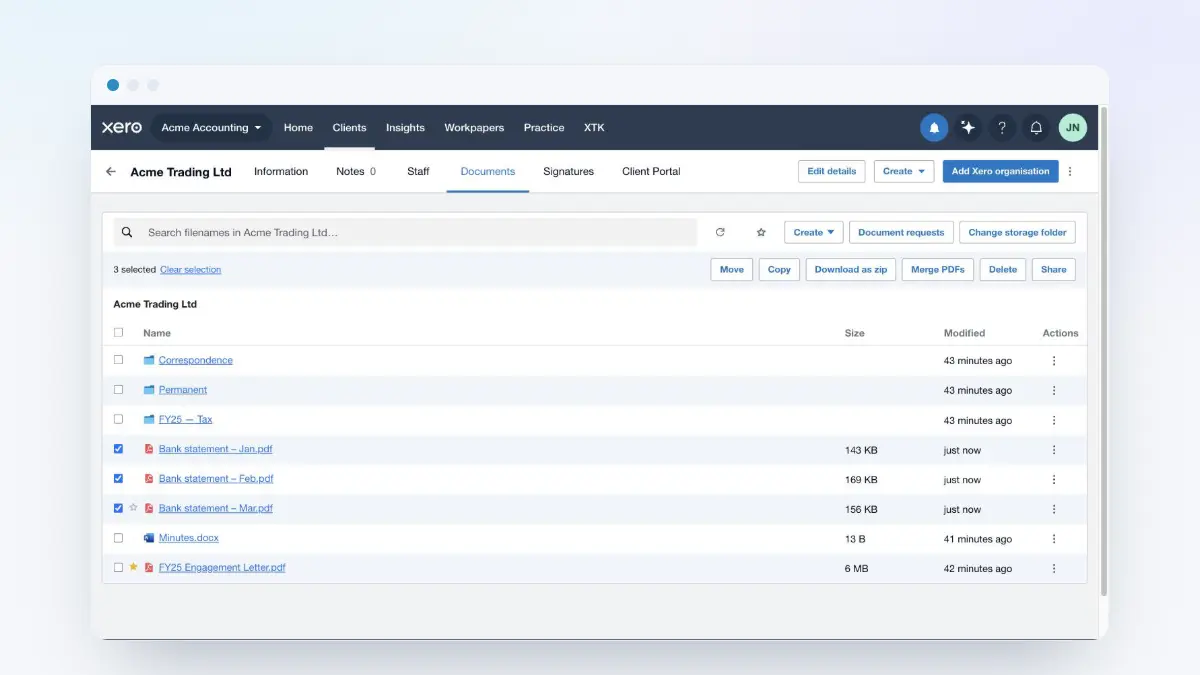
Tick more than one row and the selection bar offers “Share” and “Unshare”. XTK works through them one at a time, and stops at the first item it can't share.
Reversing it is the same menu: ⋮ → “Unshare”. That removes the marker and nothing else — no file is moved, renamed or deleted, and whatever your client uploaded into the folder stays in your storage and visible to you.
The four sharing rules worth knowing first
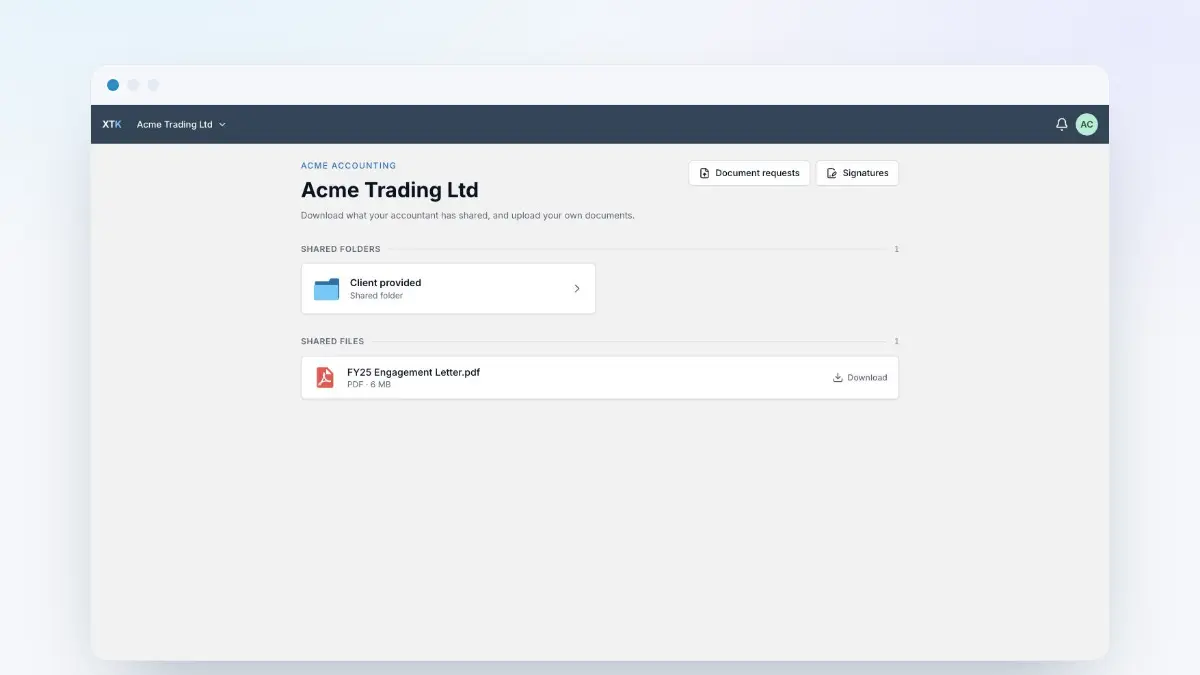
- A folder share is read-write. Your client can download from it, upload into it and create subfolders, and anything you add to the folder later appears for them automatically. Files they create are theirs to rename, move or delete for ten minutes; after that they're fixed. Your own files there are read-only to them throughout.
- A file share is read-only and doesn't reveal the folder around it. Individually shared files are gathered in the portal under a “Shared files” list rather than shown in place.
- Uploads need at least one shared folder. Share only files and your client has nowhere to write.
- Shares can't overlap: not a file inside a shared folder, nor a folder containing a share — “That item overlaps something already shared with this Client.” Sharing a folder is the deliberate way to expose everything under it, and while you're browsing inside one the “Share” action disappears.
Two prompts appear if you share too early. With the portal off: “Enable the Client Portal first.” With the client never opened in Documents, or storage not connected: “Open this Client's Documents and connect Drive before sharing.”
Switching access off: disable versus remove
| Action | What happens | What's kept |
|---|---|---|
| “Disable client portal” | Nobody can sign in to this client's portal; immediate, with no confirmation step | Every share, contact and file — re-enabling restores the lot and invites nobody again |
| “Disable” one contact | That person loses access to this client only; their other portals are untouched | Their roster row, so “Enable” restores them with no new invite |
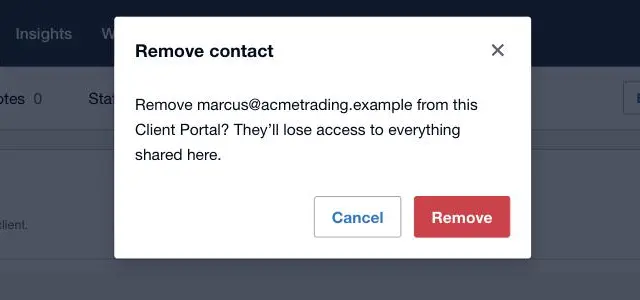
| “Remove” one contact | The row is dropped, after a confirmation naming the address | Their files; restoring access means inviting them afresh |
What XTK tells you about portal activity
Two notification types feed the XTK bell, both on by default under “Portal activity”: “A client accepts an invite” and “A client uploads or creates files”. The second rolls up per person per hour, so five documents in one sitting make one line — “Sophie Baxter added 5 files”. Clicking either marks it read and, for now, does nothing else, so open the client yourself.
Tips from practice
- Check the client's primary email in XPM before enabling. That one field decides who gets an unannounced invitation.
- Share one read-write folder per client and work inside it: they get somewhere to upload, and you avoid re-sharing every new document. Keep file shares for one-off, look-don't-touch documents.
- Name that folder for the client, not for you — its name is all they see, so “Send us these” beats “FY25 — Tax (client provided)”.
Where next
Write your invite wording once as an email template, so every invitation reads the same and always carries the link. If you'd rather ask for records than open a permanent portal, a document request does the one-off job with no account at all. And when your client asks what to do with the email, the client-facing guide is written for them — send it on.
Frequently asked questions
Does my client need to install anything or pay for the portal?
No. Your client signs in at XTK's web portal with an email address and a password they choose when they accept your invitation — nothing to install, and Portal Members are free: they don't count against your practice's user roster or your bill. One login can span several practices, so a client whose bookkeeper also uses XTK sees a switcher rather than two accounts.
Can my client see anything other than what I've shared?
No. The portal's top level is exactly the set of things you've shared, plus a “Shared files” list for individually shared files. Everything above or beside a share — the client's own folder, your main storage folder, every other client — is invisible and can't be reached by guessing a name or a URL, because the server re-checks each request against your shares before it touches your storage.
What happens to files my client uploaded if I remove them or turn the portal off?
The files stay. Disabling the portal, disabling a contact, removing a contact and unsharing a folder all leave every file exactly where it is in your Google Drive, OneDrive or SharePoint — a client's uploads are never auto-deleted, and you keep seeing them in the Documents tab. Only an explicit delete removes a file.
Can I copy the invite link and send it myself?
No — email is the only delivery path, and there's no copy-a-link fallback anywhere in the panel. XTK can't show you the link even if you want to see it: it stores only a fingerprint of each invite link, never the link itself, so nobody with a copy of the database can let themselves into your client's documents. That means a contact you've added but never emailed has no way to accept, and it makes your invite email template worth keeping tidy — if its body leaves out {{portal_invite_url}}, XTK adds the link at the end so the email still works, but it lands wherever XTK puts it rather than where your wording leads.
Why can't my client upload anything?
Almost always because you've only shared individual files. A file share is read-only, so it gives your client nowhere to write; uploading needs at least one shared folder, and until there is one they see a prompt asking their accountant to share one. The other cause is billing: while your practice is read-only after a trial expires or a subscription is cancelled, client uploads are blocked too.