Updated 10 min read
XTK notifications: the bell, settings and desktop alerts
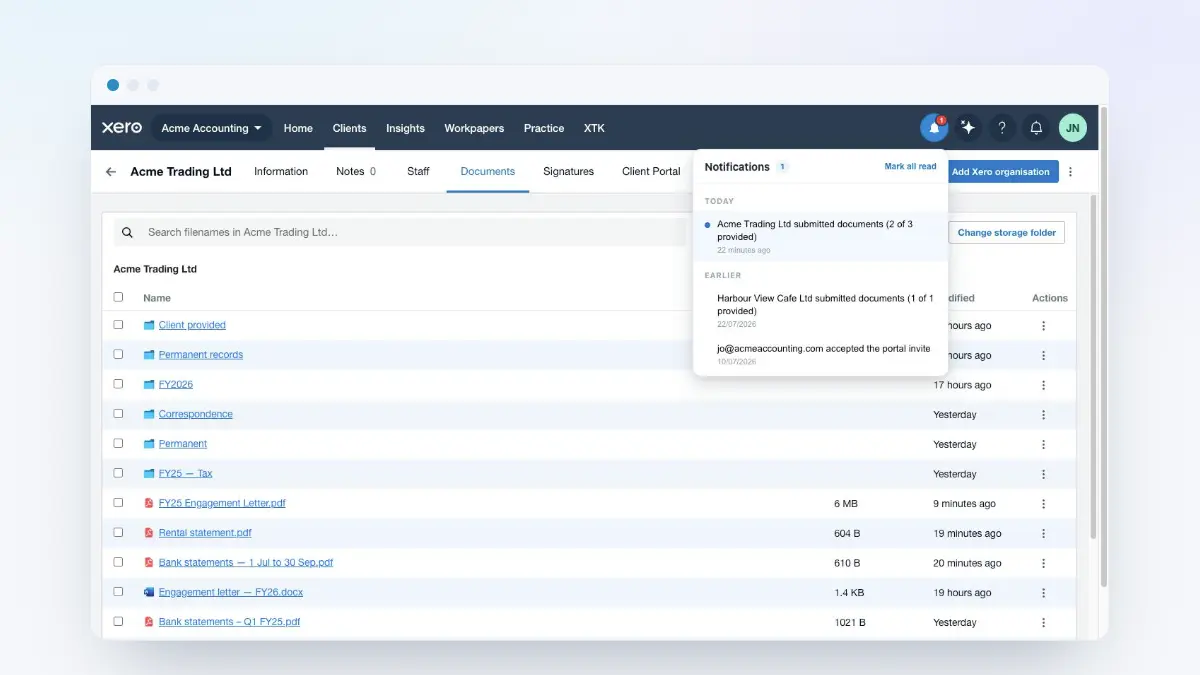
XTK adds its own notification bell to Xero Practice Manager (XPM), so you learn that a client has signed, uploaded or accepted an invitation without opening every client's tabs. Notifications live in three places: the bell and its tray in XPM's top bar, the settings in My Account (a Practice-or-Mine filter plus 13 switches), and desktop notifications for when no XPM tab is open.
XTK is an independent product and is not affiliated with or endorsed by Xero Limited.
Where is the XTK bell, and how is it different from Xero's?
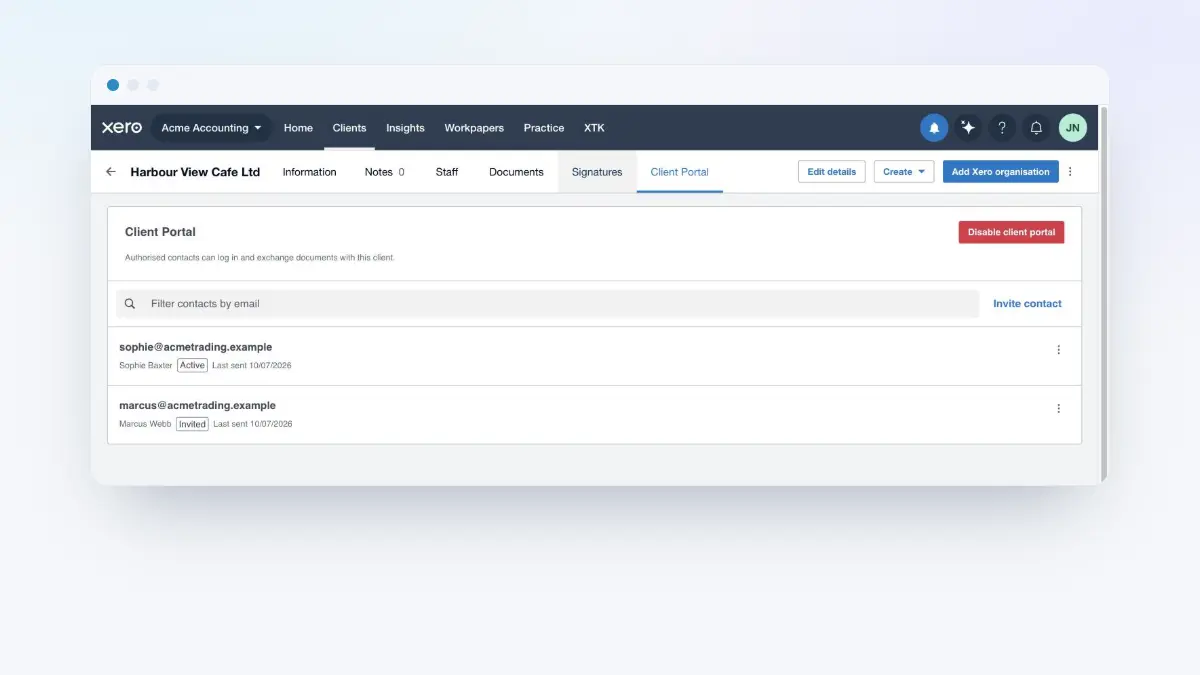
Look at the round icons at the top right of Practice Manager, beside your initials: XTK's filled blue bell is the first of them, immediately left of Xero's own icons — including Xero's bell, which keeps its own separate list. A red badge counts your unread notifications, capping at “9+”, and refreshes about every 50 seconds or whenever you open the tray.
The bell isn't only on the client-facing pages. It renders on Practice Manager's older screens too — the job and quote pages, which Xero serves from a different address — with the same tray and the same detail dialogs, so you don't have to go back to the client list to see what's happened.
How do I read and clear the tray?
Click the blue bell
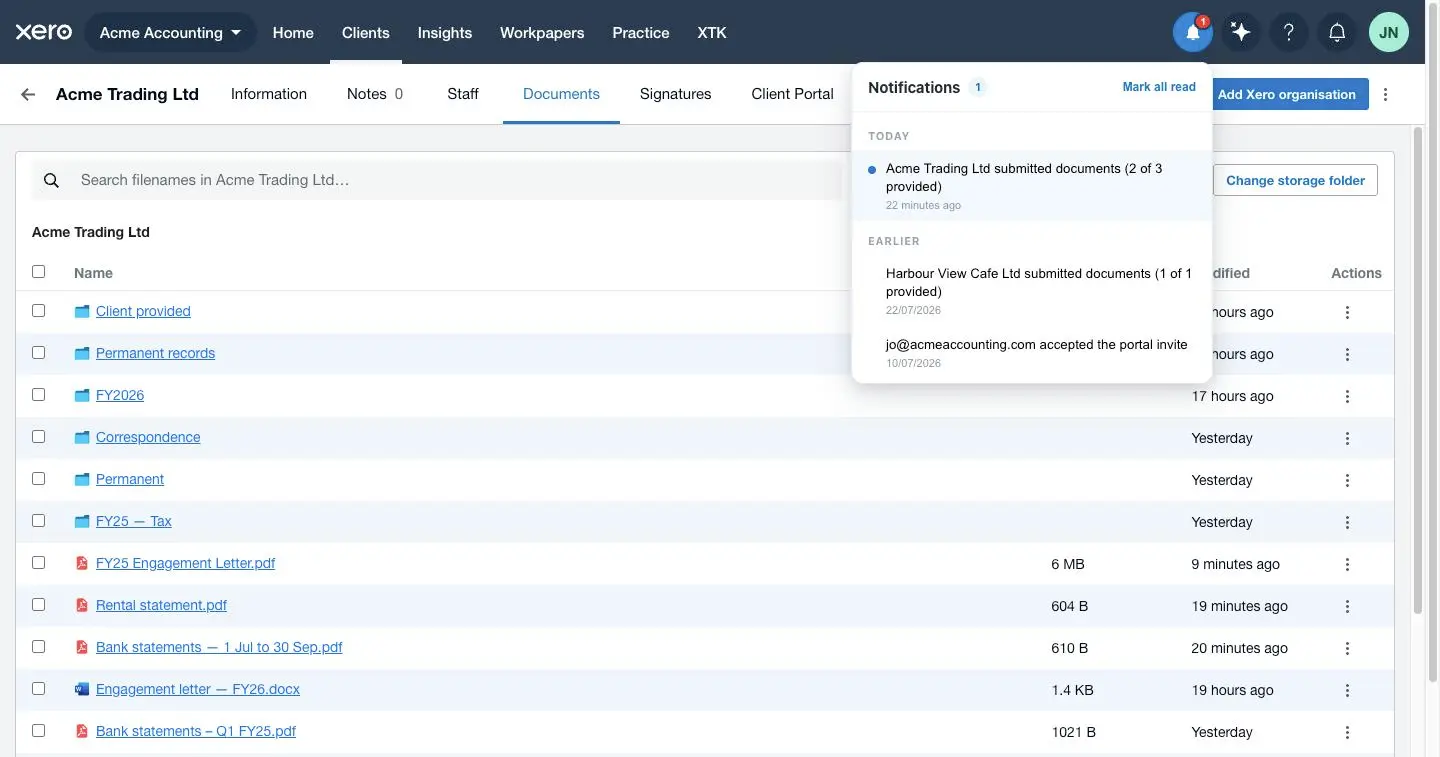
The tray opens beneath it, headed “Notifications” with your unread count. Clicking outside it, or pressing Esc, closes it again.
Read the list, newest first
Rows are grouped under “Today”, “Yesterday” and “Earlier”, each a single line timestamped “just now”, “31 minutes ago”, a time of day for yesterday, or a dd/MM/yyyy date. Unread rows carry a blue dot; with nothing to show, the tray says “You're all caught up”.
Click a row to open what it is about
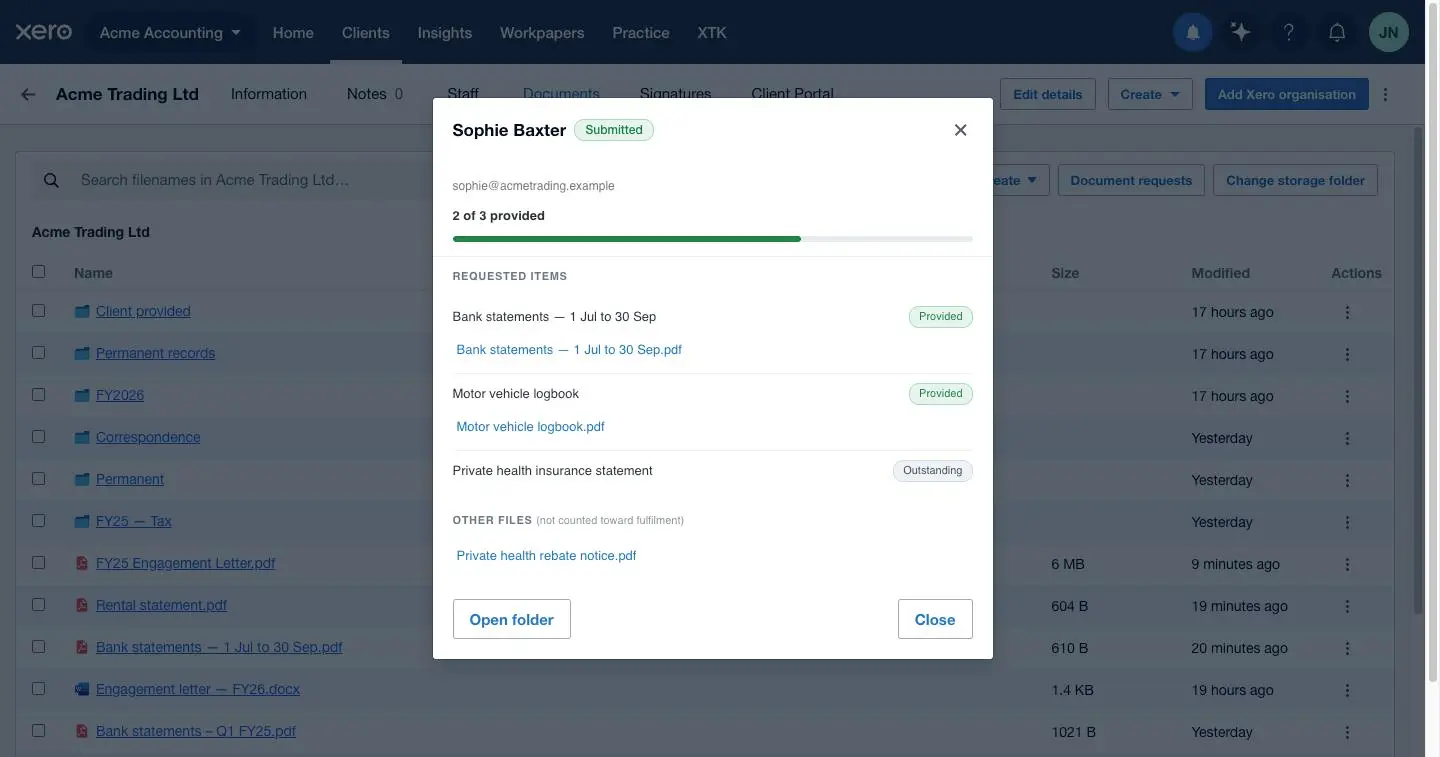
That marks it read and opens the matching detail dialog over the page, wherever you are in XPM.
Page back through older activity
The tray holds the 20 most recent notifications; “Load more” fetches the next 20, back to the 90-day limit.
Clear the badge with “Mark all read”
The link at the top right clears it for you and only you — your colleagues' badges are unaffected. It greys out when nothing is unread.
The tray is a launcher, not a workspace — where a click takes you depends on the type:
| Notification about | Clicking the row opens |
|---|---|
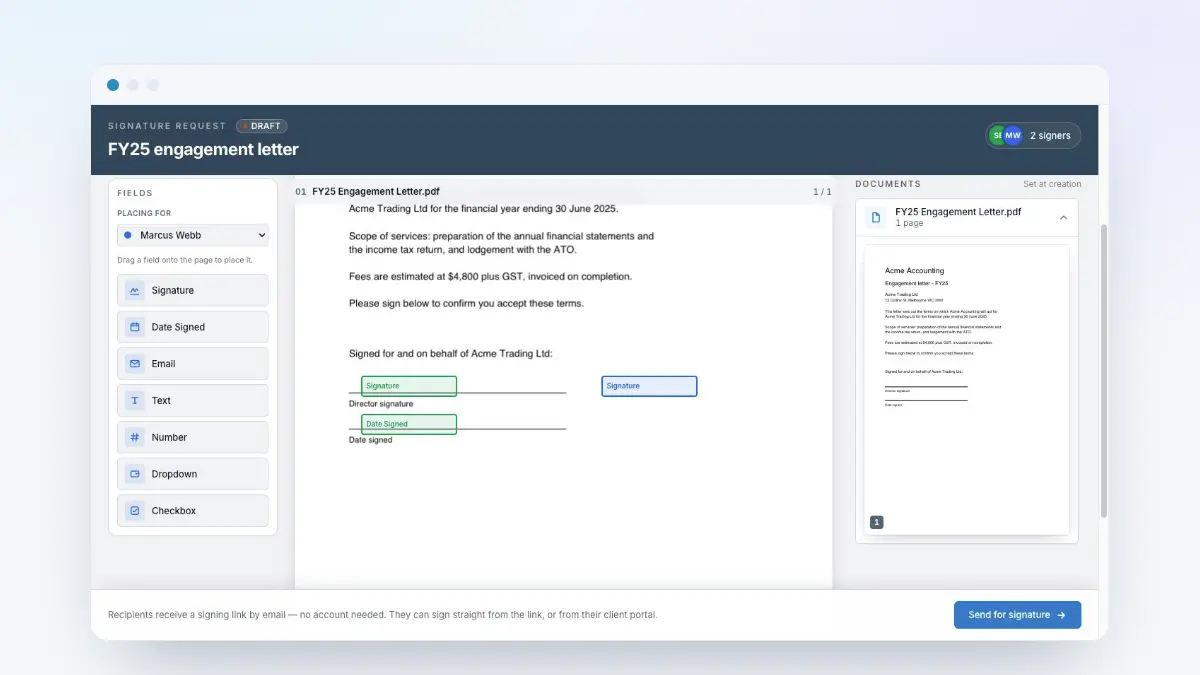
| A signature request | The signature request's detail dialog |
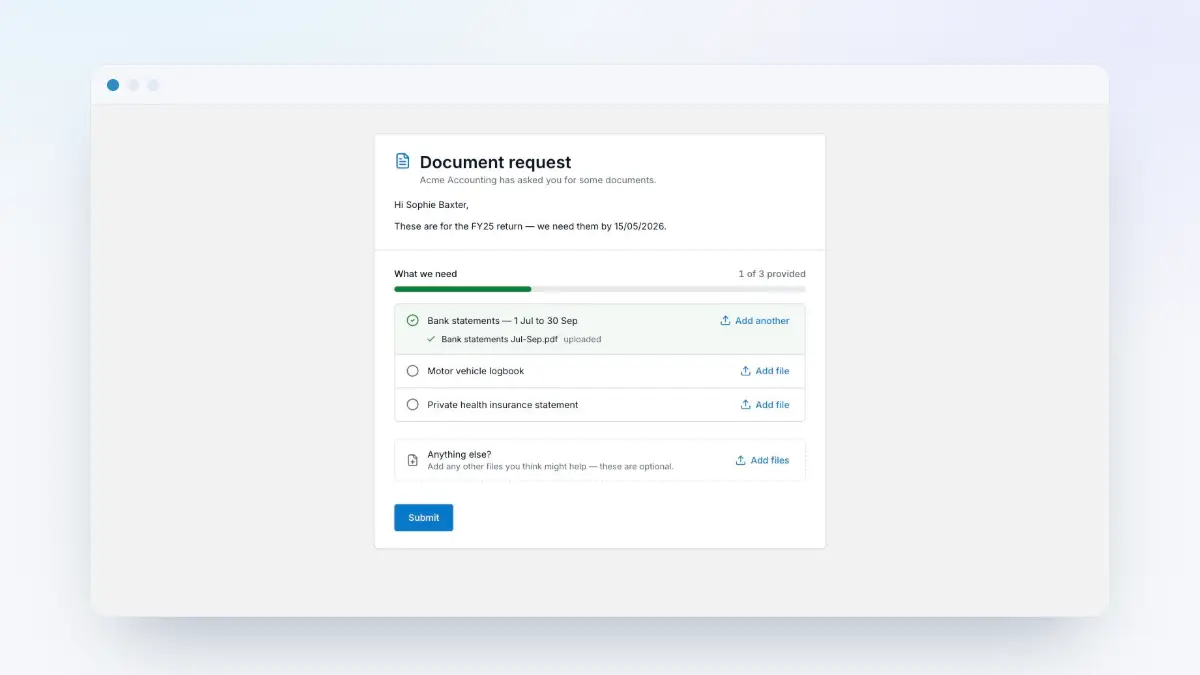
| A document request | The document request's detail dialog |
| An email that failed | The request the email belonged to |
| A connection needing attention | My Account, at that connection |
| Client portal activity | Nothing yet — it only marks it read |
| A client accepting an invite | Nothing yet — it only marks it read |
The signature dialog is the one the Signatures tab shows, and the document request dialog is its read-only twin. A warning such as “Drive needs reconnecting” means an account XTK depends on has lost permission, so file actions or outgoing email fail until an Admin reconnects it.
Should I see the whole practice's activity, or only mine?
Open the XTK panel
In Practice Manager, click “XTK” in the main navigation; the panel opens on “My Account”.
Find the “Notifications” column
It sits beside your login details, starting with the row “Show notifications for”.
Choose “Practice” or “Mine”
The two buttons are a single switch. It saves immediately and the bell updates without a reload — there is no Save button in this panel.
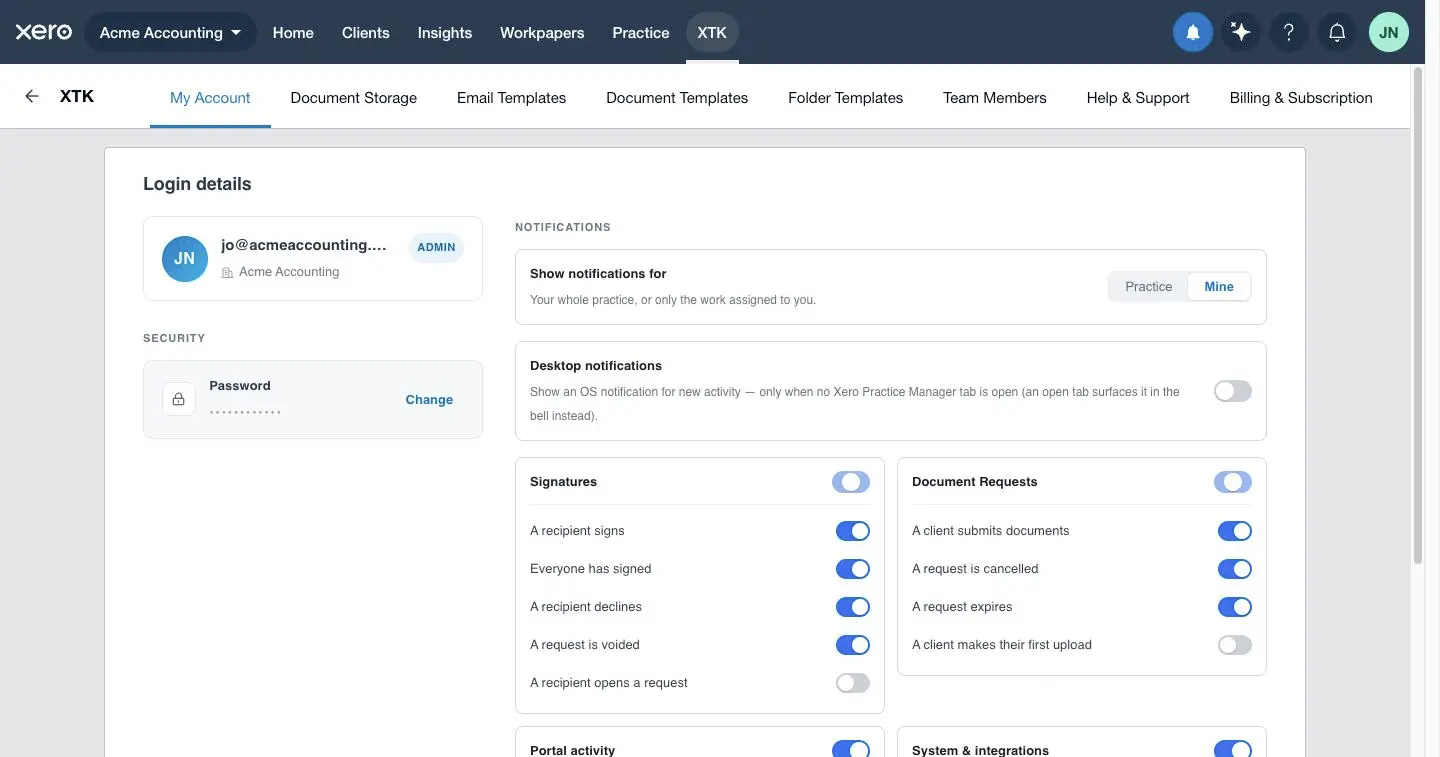
“Mine” is the default: only work you started — requests you created, activity on portals you enabled, and, if you are the Admin, connection warnings. “Practice” widens that to the whole practice. The setting filters your view rather than what XTK records, so switching either way is instant, retroactive and lossless.
Which notifications can I switch off?
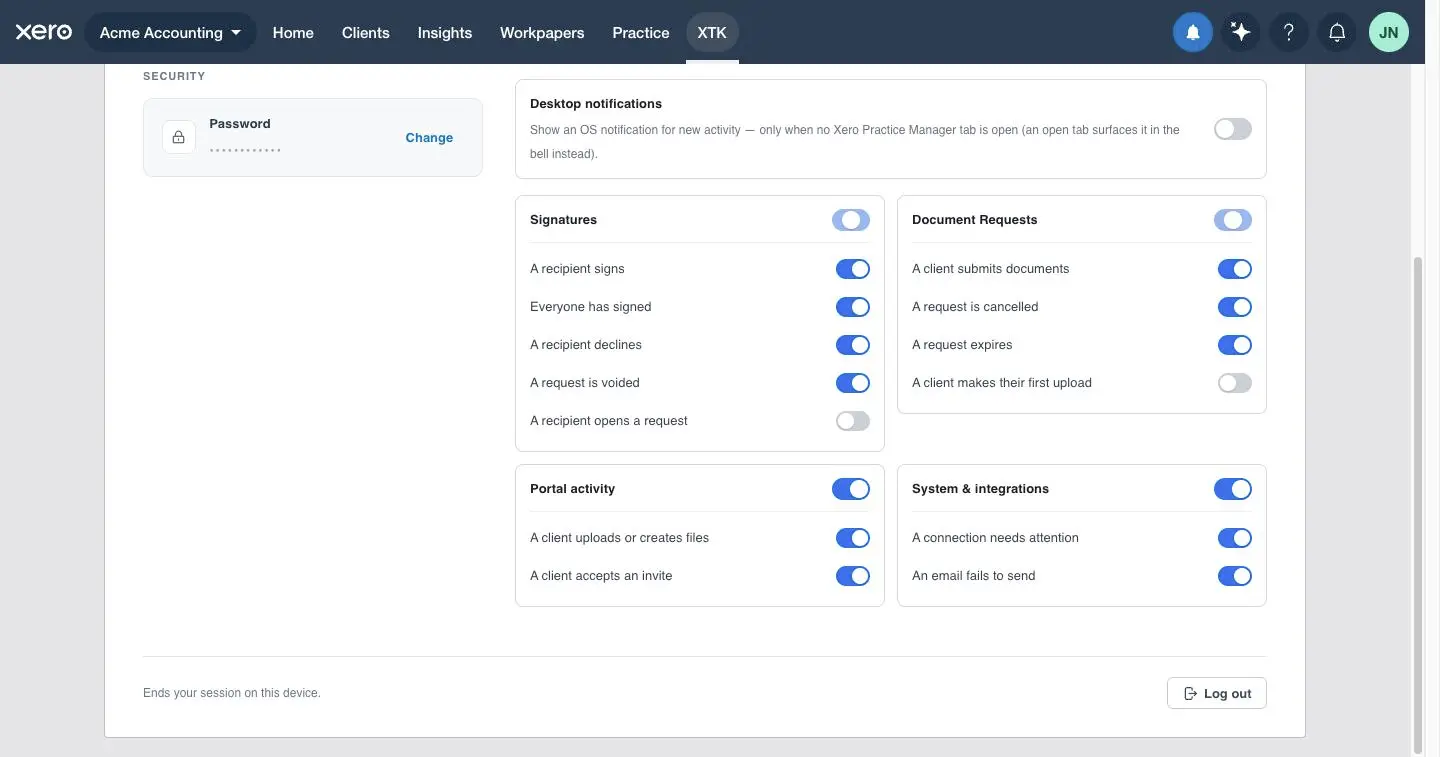
Below those two rows are four groups holding 13 switches. Each group header has a parent switch: click it to turn the whole group on, or off if it is already fully on. A group with mixed children shows a half-on parent — which is why Signatures and Document Requests start out looking partly on: two of the 13 are off by default, being the chattiest.
| Group | Switch | Default |
|---|---|---|
| Signatures | A recipient signs | On |
| Signatures | Everyone has signed | On |
| Signatures | A recipient declines | On |
| Signatures | A request is voided | On |
| Signatures | A recipient opens a request | Off |
| Document Requests | A client submits documents | On |
| Document Requests | A request is cancelled | On |
| Document Requests | A request expires | On |
| Document Requests | A client makes their first upload | Off |
| Portal activity | A client uploads or creates files | On |
| Portal activity | A client accepts an invite | On |
| System & integrations | A connection needs attention | On |
| System & integrations | An email fails to send | On |
How do I turn on desktop notifications?
Desktop notifications are your operating system's own alerts — the banner in the corner of the screen — for when you aren't looking at Practice Manager at all. They are off until you turn them on.
Open My Account in the XTK panel
Click “XTK” in Practice Manager's main navigation; the “Notifications” column is on the right.
Switch on “Desktop notifications”
The row's hint states the rule: “Show an OS notification for new activity — only when no Xero Practice Manager tab is open (an open tab surfaces it in the bell instead).”
Click “Send test notification”
The button appears under the row once the switch is on. It asks XTK's background worker for one alert immediately — titled “XTK”, reading “Test notification — desktop notifications are working.” — ignoring the rules about polling and open tabs, and notifying nobody but you.

Read the confirmation carefully
XTK reports “Sent.” once your browser accepted the alert, which is not the same as you seeing it — hence the rest of the message: if nothing appeared, check Do Not Disturb or Focus and your OS notification settings.
You won't see a permission pop-up: XTK asks for that permission at install. Switching the feature on saves your preference and checks whether your operating system is letting your browser post alerts at all. If it isn't, the switch still turns on and warns underneath: “Desktop notifications are on, but your browser is blocked from showing them. Allow notifications for your browser in your operating system settings.”
The bar at the top of the page asking me to turn them on
Because the setting is buried in My Account, XTK also nudges you from the top of the page: a slim blue bar under your trial or billing bar, reading “Turn on desktop notifications to get alerted about new activity in XTK — even when Xero isn't open.”
The bar carries a “Turn on” action, a “Send test” shortcut and a dismiss control. Dismissing it is remembered on that browser, so once you've made your choice it stops asking.
“Turn on” does exactly what the switch in My Account does, then leaves the bar up so you can press “Send test”. The “✕” dismisses it for good on that browser — remembered through reloads and sign-outs, and it doesn't return if you later switch desktop notifications off.
Troubleshooting: no desktop alert arrived
Work down the list — the first two explain most cases.
- Is an XPM tab open anywhere? That alone suppresses every desktop alert, by design. Close them all and trigger the activity again, or use “Send test notification”, which ignores the rule.
- Is the switch on? It is off by default — and in a read-only practice a change silently fails to save, so it will be back off after a reload.
- Did the test alert appear? If yes, allow a minute for polling, and remember the first check after enabling alerts you about nothing. If not, the cause is at the OS level.
- Is your OS letting your browser post notifications? Check Do Not Disturb or Focus, and your browser's entry in your OS notification settings.
- Is the type switched on, and is your scope right? A switched-off type never reaches the tray or an alert, and on “Mine” you aren't alerted about a colleague's requests.
- Was it a follow-up upload? Files added within the hour roll into the row already in your tray, and fire no second alert — though the bell shows it as new.
Where next
Notifications only have something to report once the workflows behind them are running, so the next steps are the events themselves: requesting documents from clients, sending documents for e-signature, and setting up a client portal. If XTK is new to you, start with the getting-started guide.
Frequently asked questions
Why didn't a desktop notification appear?
Almost always because an XPM tab was open: XTK alerts you only when none is open anywhere, and a background or minimised tab counts. Otherwise, check that the switch is on (it is off by default), that the browser is running, and that your operating system is allowing notifications for your browser — Do Not Disturb and Focus swallow them silently. “Send test notification” isolates that last cause, because it ignores the poll and the open-tab rule.
Do XTK notifications duplicate Xero's own notifications?
No — two bells, two lists. XTK's blue bell is the first icon in Practice Manager's row of tools, to the left of Xero's, and it reports only XTK activity: signature requests, document requests, client portal activity and your XTK connections. Xero's bell is untouched, and marking one tray read never affects the other.
Does everyone in my practice see the same notifications?
Everyone sees the same events but reads them independently: XTK stores one row per event for the whole practice, and your read state, badge and “Mark all read” affect only you. Two things narrow what you see — the Practice or Mine setting, and self-suppression, so you are never notified about your own actions. A new team member also starts empty, seeing only events from the moment they joined.
Will XTK email me as well?
No. XTK doesn't email staff about your own practice's activity — the bell, and optionally a desktop alert, is the staff surface. The emails XTK sends go outward, to clients and signers: invitations, document requests and completed signed documents. The one notification about email is “An email fails to send”, for when one of those didn't get through.
How long do notifications stay in the tray?
90 days, then XTK deletes them outright, read or unread, so the tray never becomes an archive. Within that window it loads the 20 most recent and “Load more” pages back through the rest. The badge displays at most “9+”, so 9+ can be any number from ten upwards.