Updated 6 min read
Invite your team to XTK: members, roles and admin transfer
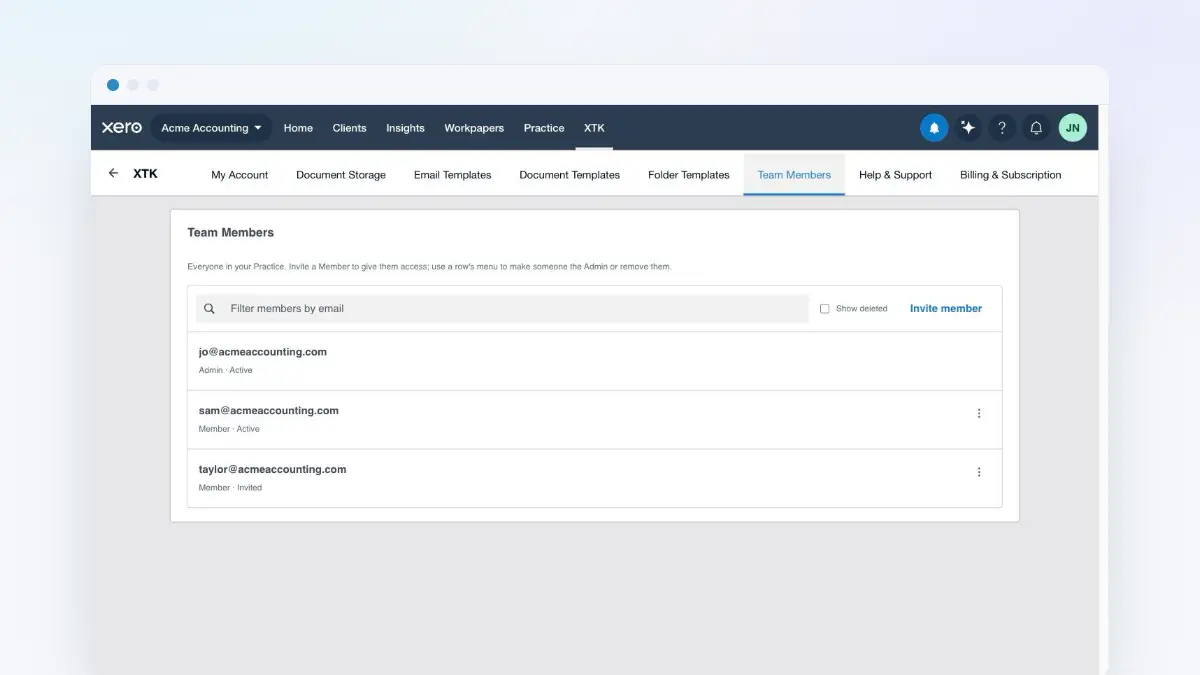
One XTK subscription covers your whole practice, so once you're set up the next step is bringing everyone else in. The practice Admin invites colleagues by email from the Team Members tab in the XTK panel; each person clicks their invite link, chooses a password and lands signed in — ready to use XTK inside Xero Practice Manager (XPM) with their own account. This guide covers inviting, what Members can and can't do, handing the Admin role to someone else, and removing or restoring a member.
XTK is an independent product and is not affiliated with or endorsed by Xero Limited.
How team access works in XTK
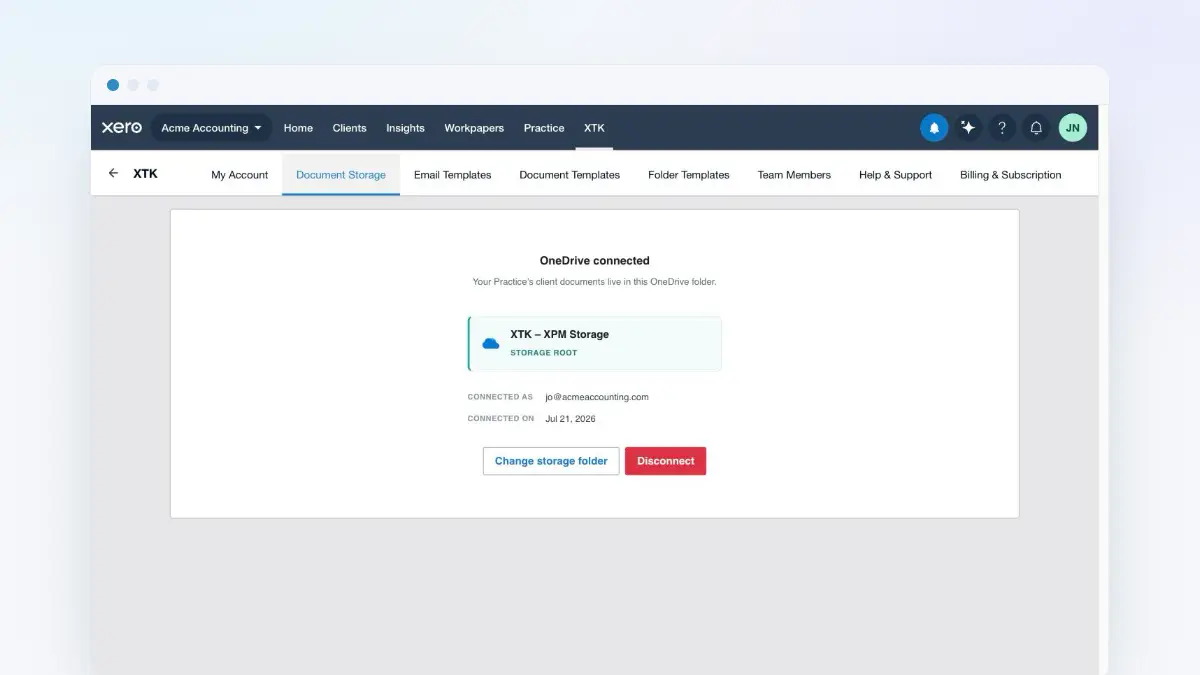
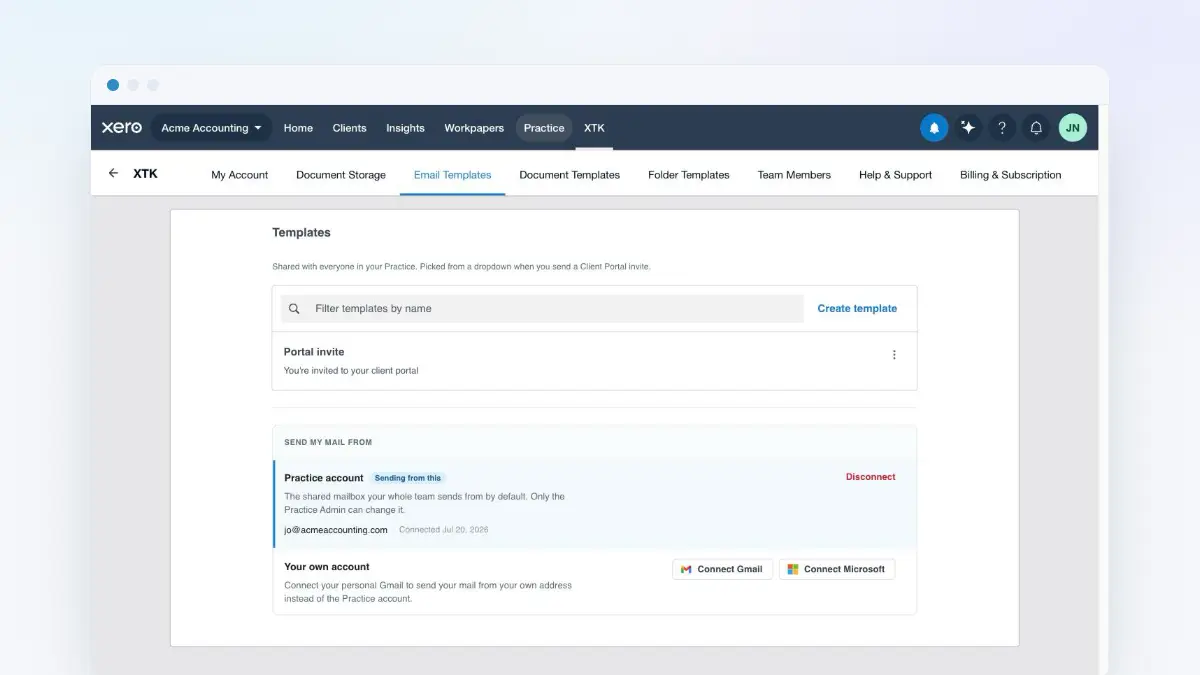
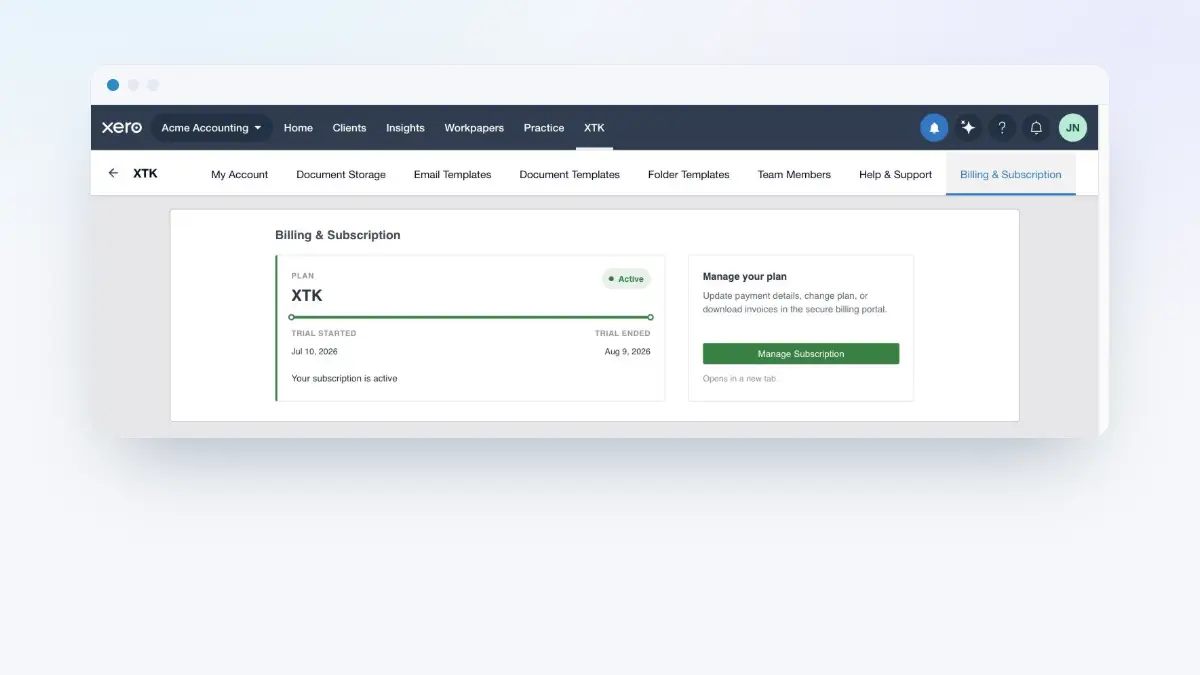
Every practice has exactly one Admin; everyone else is a Member. Members use all the day-to-day features — documents, templates, signatures, document requests and the client portal — on the same shared storage and practice mailbox. Four things are reserved for the Admin: connecting or changing document storage, connecting the shared practice mailbox, managing the team, and billing. Members see the Document Storage tab as read-only information, and the Team Members and Billing & Subscription tabs don't appear for them at all.
Invite a team member
Open the Team Members tab
In Practice Manager, click the XTK launcher — the last item in the main navigation — then click “Team Members”. You'll see everyone in your practice with their role and status.
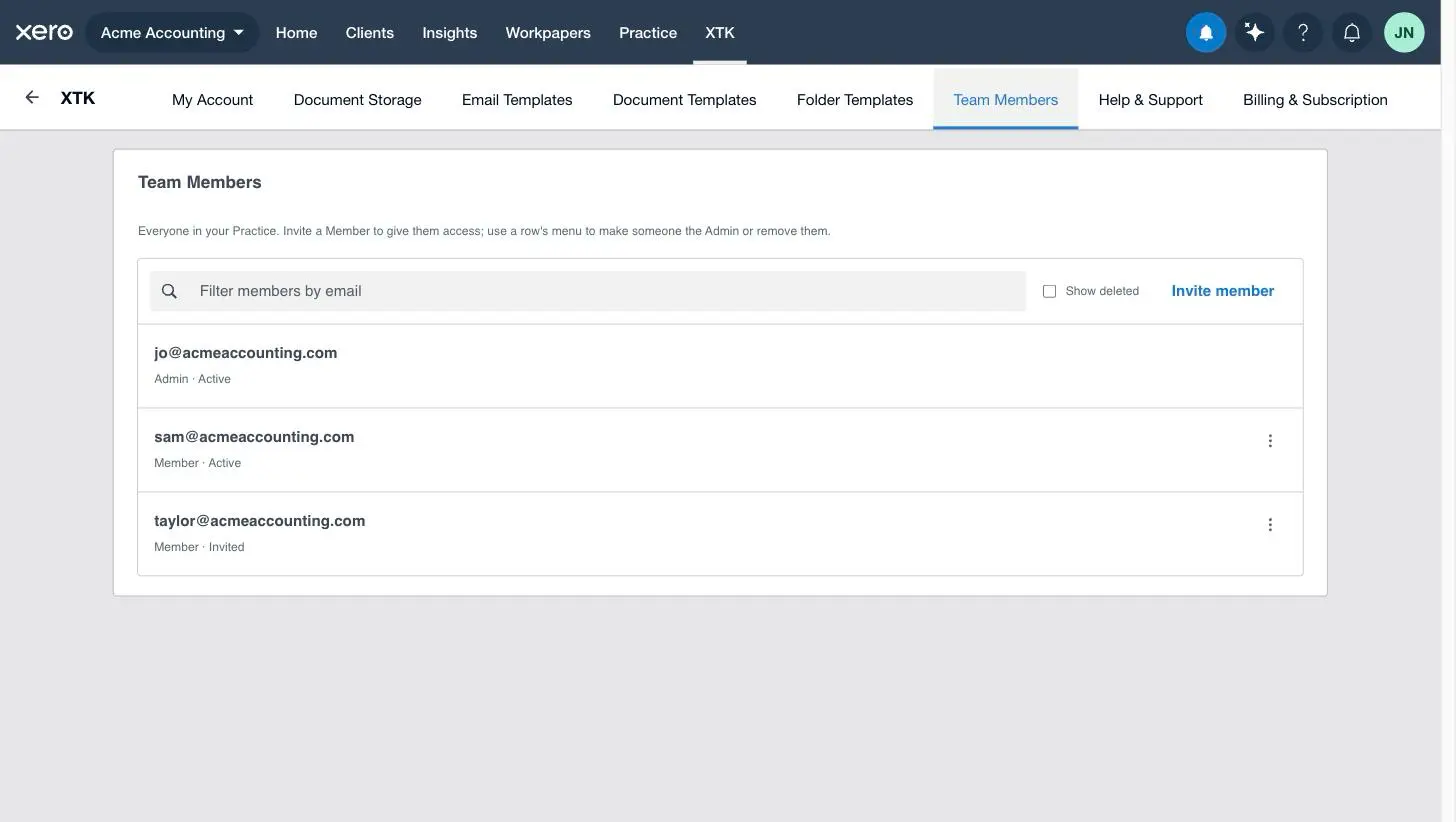
Click “Invite member”
The invite dialog opens with a single field.
Enter their email and click “Invite”
XTK emails your colleague a single-use invite link that's valid for 7 days.
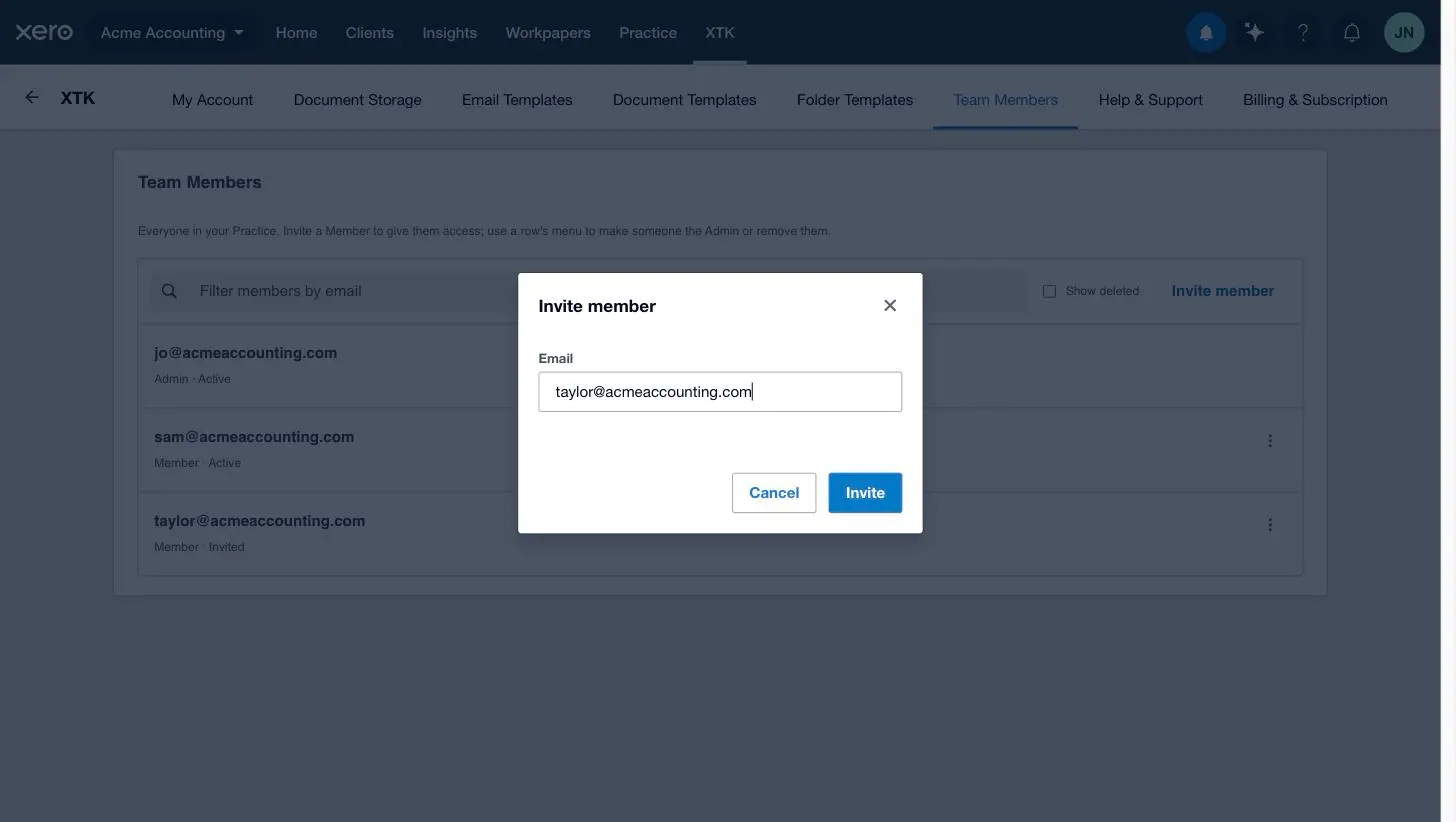
Watch for the new row
Your colleague appears in the list straight away as “Member · Invited”, flipping to “Active” once they accept.
What your colleague sees
They open the invite email
It's titled “You've been invited to XTK” and names your practice and the person who sent it. They click “Accept invitation” within 7 days.
They choose a password
The link opens the “Join your team on XTK” page, where they set a password of at least 8 characters and click “Set password and join”.
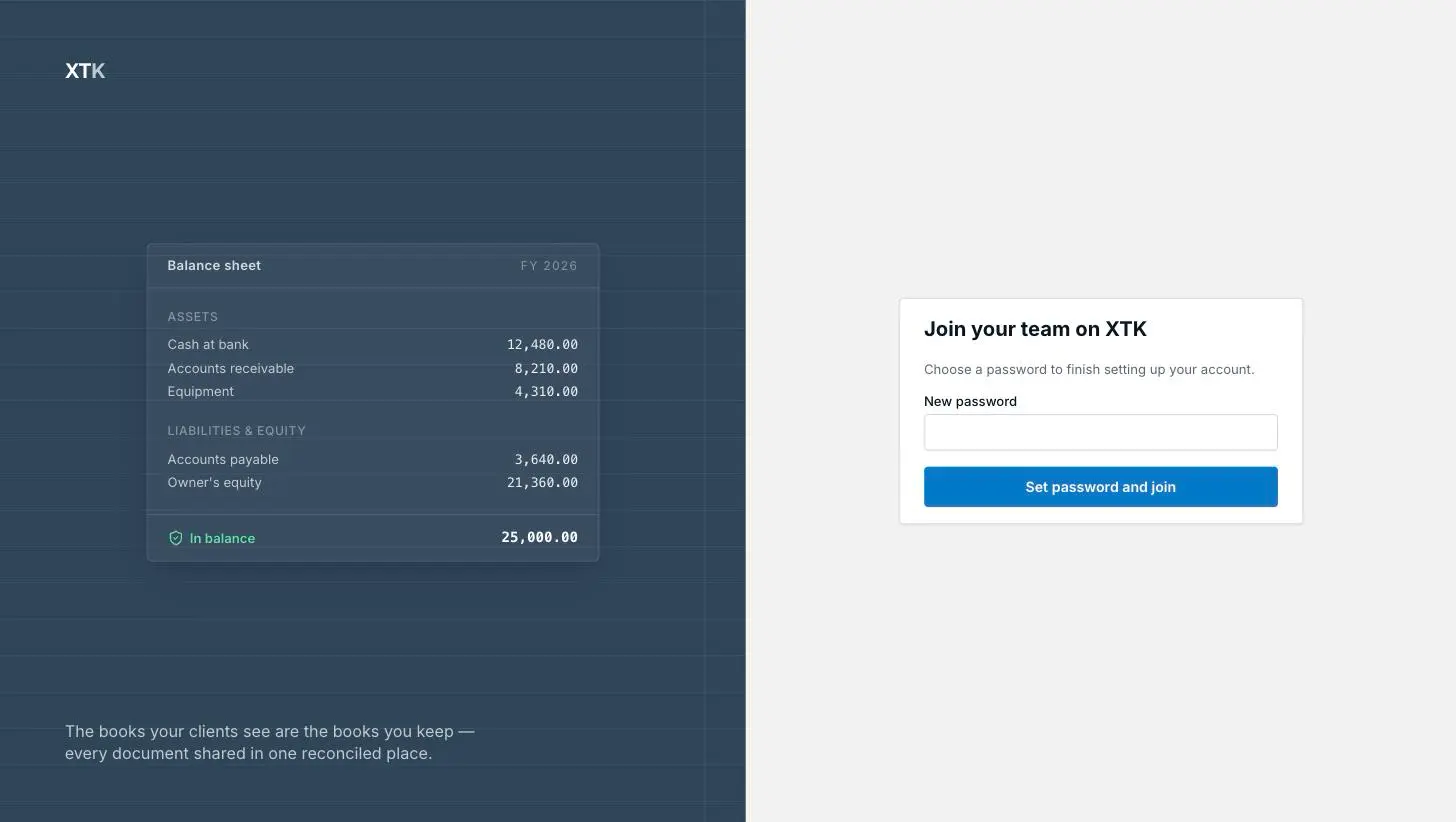
They're in — no verification step
Accepting the invite signs them straight in. With the XTK extension installed in their browser, they open Practice Manager and everything is already connected — storage, templates and the practice mailbox are shared automatically.
Transfer the Admin role
Handing over the practice — or just giving the role to the person who actually manages billing? The Admin role moves in one step, and because there is only ever one Admin, promoting a colleague automatically makes you a Member.
Open the member's row menu
In “Team Members”, click the three-dot menu on your colleague's row. “Make admin” is offered only for members who have accepted their invite — you can't hand the role to someone still marked Invited.
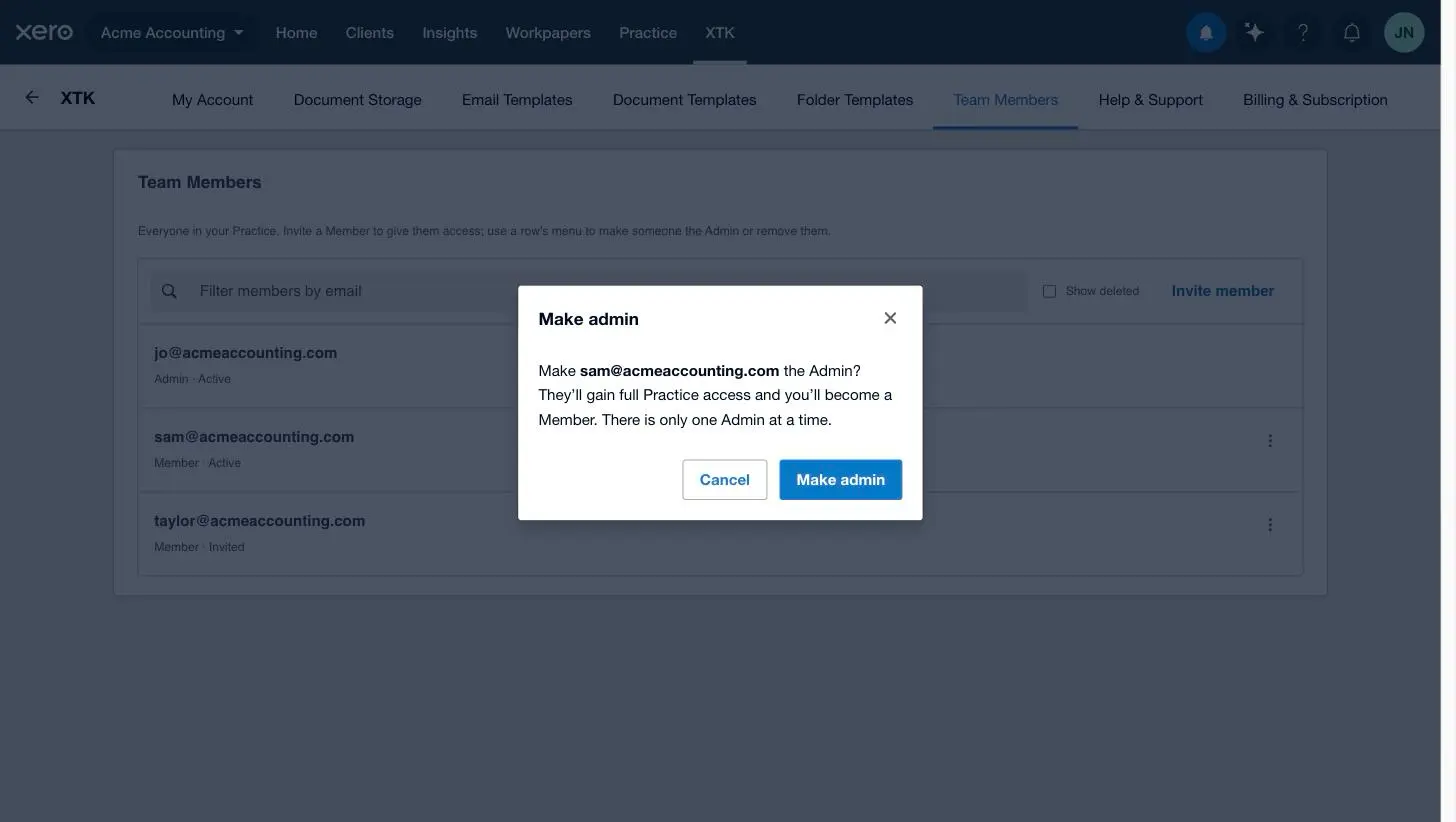
Click “Make admin” and confirm
XTK spells out what changes: they gain full practice access, and you become a Member.
The role moves instantly
Your colleague is now the Admin and the admin-only tabs leave your panel. If they have Practice Manager open at that moment, they should refresh the page to see their new Team Members and Billing tabs appear.
Remove a member — and bring them back
When someone leaves the practice, remove them from the same row menu: click the three-dot menu, choose “Delete” and confirm. They are signed out of XTK immediately on every device and their row disappears from the list. Nothing they worked on goes with them — client documents live in your practice's storage, and templates and requests belong to the practice.
Removal is reversible. Tick “Show deleted” above the list to see removed members, struck through with a “Deleted” status. To restore someone, invite the same email address again: they accept the fresh invite, choose a new password and rejoin as a Member.
Where next
With the team on board, everyone shares the same storage, templates and mailbox — so anything one person sets up benefits the whole practice. If you're still in your trial, the billing guide below explains what happens when it ends and how upgrading covers everyone at once.
Frequently asked questions
Does each team member need their own XTK subscription?
No. One subscription (or one free trial) covers the whole practice — there is no per-seat pricing. Invite as many colleagues as you like; each signs in with their own email and password.
Can our practice have two Admins?
No — there is exactly one Admin at a time. The Admin is the only person who can connect document storage, connect the shared practice mailbox, manage the team and handle billing. If the wrong person holds the role, transfer it from the Team Members tab: the moment you make a colleague the Admin, you become a Member.
What if the invite expires or never arrives?
Invite links are single-use and expire after 7 days. Just invite the same email again — XTK sends a fresh link and the old one stops working. If the email hasn't arrived at all, ask your colleague to check their spam folder before you resend.
Can I bring back someone I removed?
Yes. Removing a member hides them rather than erasing them — tick “Show deleted” to see removed members. To restore someone, simply invite the same email address again; they set a new password and rejoin with their old account.
Why is there no “forgot password” link on the staff sign-in page?
Staff passwords are changed from inside XTK: open the panel, go to My Account and choose Change password. If a colleague is locked out entirely, the Admin can remove them and re-invite the same email — accepting the fresh invite lets them set a brand-new password.