Get started with XTK
Install the extension, create your practice account, and XTK appears inside Xero Practice Manager — about ten minutes, all in the browser you already use. Your 30-day free trial covers the whole practice and needs no credit card.
Chrome
Also works in Chromium browsers that install from the Chrome Web Store.
Chrome Web Store
Firefox
The same extension, with the same features, for Firefox.
Firefox Add-ons
Install the extension
Add XTK to your browser
Use the button for your browser above. On the store listing, click Add to Chrome (or Add to Firefox) and confirm the permissions prompt.
Pin the XTK icon
Open your browser's extensions menu — the puzzle-piece icon — and pin XTK so its icon stays in the toolbar. That icon is how you check which account you're signed in as.
Let it open the sign-in tab
Right after installing, XTK opens its sign-in page in a new tab. If your practice already uses XTK, sign in there and skip to the tour below. Otherwise register your practice next.
Create your practice account
The person who registers becomes the practice Admin — the only role that can connect storage, invite colleagues and manage billing. If that should be a colleague, send them this page instead. Everyone else joins later by invitation, and no payment card is needed to start.
Open the registration form
On the sign-in page, click Create one under “No account yet?”, or go straight to the registration page.
Fill in your practice details
Enter your practice name, your email address, and a password of at least 8 characters, twice.
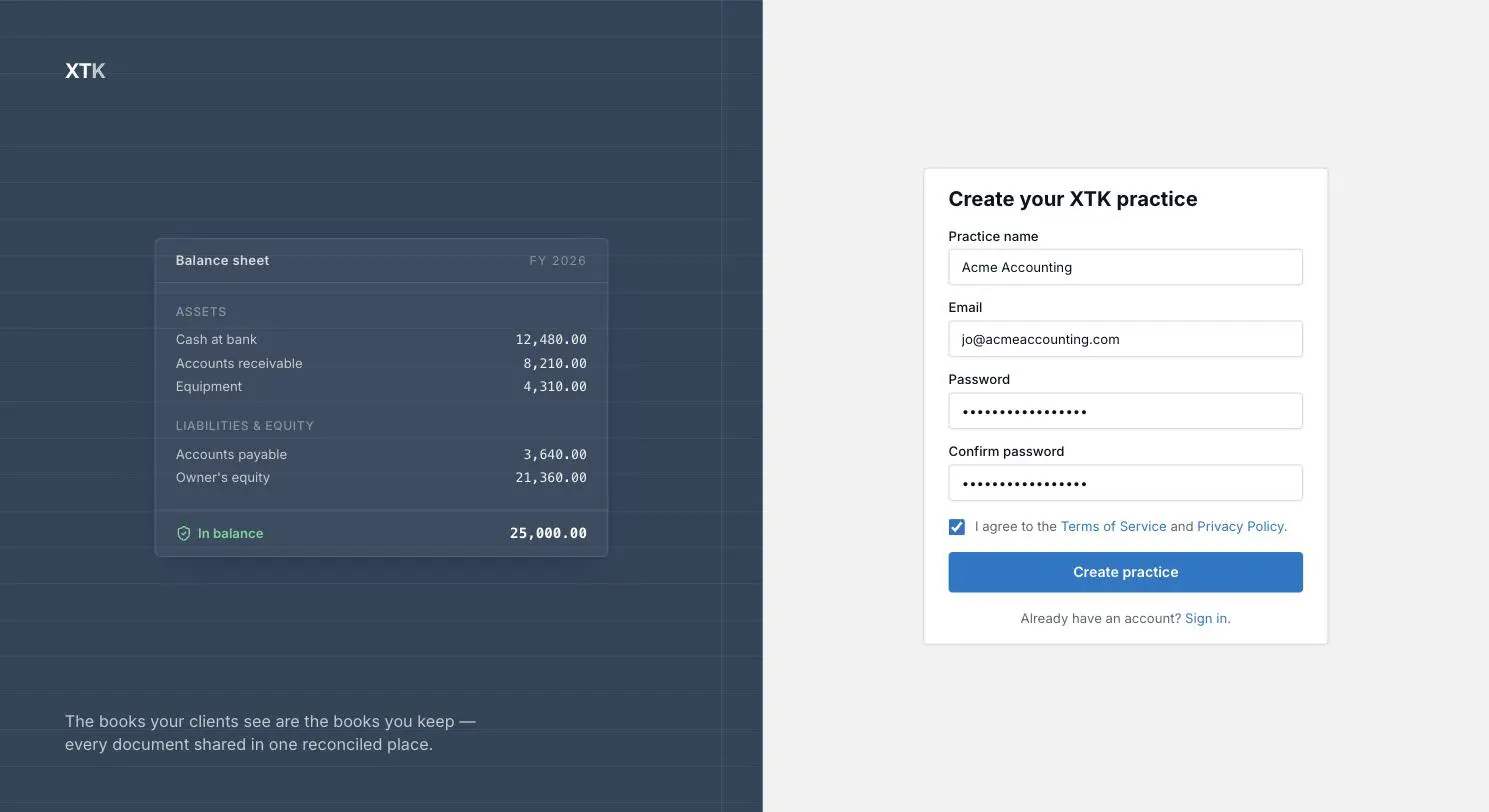
Accept the terms and submit
Tick “I agree to the Terms of Service and Privacy Policy”, then click Create practice.
Click the link in your inbox
XTK emails you a verification link. Click it within 15 minutes — that link is what activates your account.
Verify your email — your trial starts here
The verification link signs you in and hands the session straight to the extension. When you see “All set. You can close this tab and open the XTK toolbar.”, setup is finished — there is nothing else to configure in the browser, and your 30-day free trial has begun.
Find XTK inside Practice Manager
Open Xero Practice Manager at practicemanager.xero.com — the Partner Hub product, not Xero Blue — or refresh the tab if it was already open. XTK appears automatically in four places:
- The XTK banner at the very top of every page, showing your trial status — “Trial — 30 days left” — with an Upgrade button for the Admin.
- The XTK launcher, the last item in Practice Manager's main navigation. It opens the full XTK panel: Document Storage, Email Templates, Team Members, Billing, My Account and Help & Support.
- The notification bell, the first icon in Practice Manager's top-right tools row and separate from Xero's own. It collects XTK activity such as completed signatures and client uploads.
- Three new tabs on every client page: Documents, Signatures and Client Portal. XTK's Documents tab replaces Xero's native one, which is hidden while the extension is active.
The XTK icon in your browser toolbar is a status window rather than a control panel: it shows the email you're signed in with, your trial countdown, and Upgrade and Log out buttons. Everything you actually do with XTK happens inside Practice Manager itself.
If XTK doesn't appear
- Reload the Practice Manager tab. The extension only injects on page load, so a tab that was already open won't have it.
- Check the address bar reads practicemanager.xero.com. XTK does nothing on Xero Blue or any other website — that is by design.
- Click the XTK toolbar icon to confirm you're signed in, and with which email.
- Confirm the extension is enabled in your browser's extensions page — some managed browser profiles disable new extensions until an IT admin approves them.
- After you subscribe, reload Practice Manager. The banner does not refresh itself once payment goes through.
- Still stuck? Email support@octabyte.io with your practice name and browser, or use the Support tab in the XTK panel.
Finish setting up
XTK is installed, but it isn't connected to anything yet. Two short jobs finish the picture — both Admin-only, and storage comes first.
Prefer the long version, with a screenshot at every step? Read Getting started with XTK, or browse every user guide.
Questions before you install
Which browsers can I install XTK in?
Google Chrome and Firefox. The same extension is published for both and behaves identically — install it in whichever browser you use for Practice Manager.
When does the 30-day free trial start?
When you click the verification link in your email — not when you submit the registration form. The trial covers your whole practice and needs no payment card.
See what the plan includes →Does XTK need access to my Xero account?
No. XTK never asks you to authorise it with Xero and holds no server-side access to your Xero data. It reads client details live inside your own signed-in Practice Manager tab, and only on practicemanager.xero.com.
How XTK handles your data →Does everyone in the practice install it themselves?
Yes — each person installs the extension in their own browser and signs in with their own account, but one subscription covers the whole practice. The Admin invites the team from the XTK panel once setup is done.
Invite your team →Where do my files end up?
In your practice's own Google Drive, OneDrive or SharePoint, in one folder per client. Connecting that storage is the first thing to do after installing, and it is an Admin-only job.
Connect document storage →Ready when you are
Install the extension, connect your Drive, and open your first client — your whole practice can be working in context today.
30-day free trial for your whole practice — no credit card required.
Rather talk to someone first? Book twenty minutes and tell us where your documents live now.