Updated 5 min read
Connect Gmail or Outlook so XTK can send email for you
XTK sends real email on your behalf — client portal invites, document requests and e-signature emails. Connect a Gmail or Microsoft (Outlook) mailbox and those messages go out from your practice's own address rather than a generic one, replies come straight back to you, and every message lands in your own Sent folder. Connecting takes a couple of minutes in the XTK panel inside Xero Practice Manager (XPM).
XTK is an independent product and is not affiliated with or endorsed by Xero Limited.
What does XTK send email for?
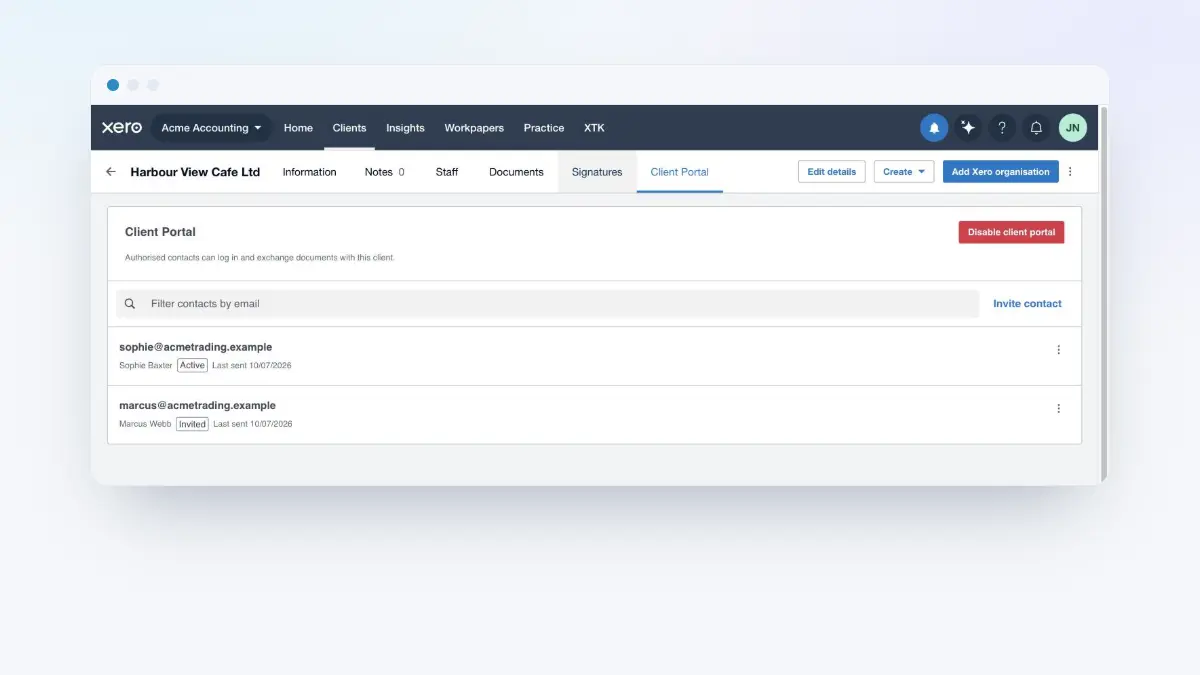
- Client portal invites — the email that gives a client access to their portal.
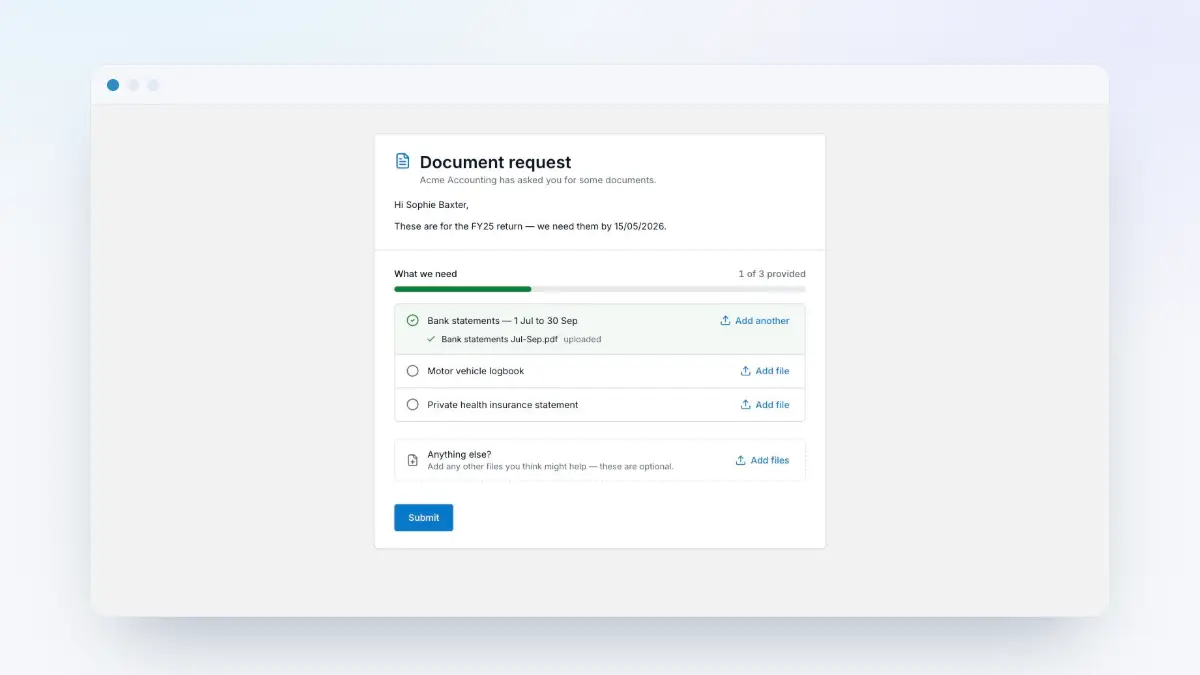
- Document requests — the checklist link a client uses to send you records.
- E-signature emails — signing invitations, and the completion email with the signed PDF attached.
Two kinds of mailbox can do that sending. The Practice account is one shared mailbox — say info@yourpractice.com — that the Admin connects once; it's the default sender for the whole team. Your own account is personal: anyone can connect their own Gmail or Microsoft mailbox and have their mail go out under their own name instead. You can use either, or both.
Connect the Practice account (Admin only)
Open the XTK panel
In Practice Manager, click the XTK launcher — the last item in the main navigation.
Go to Email Templates
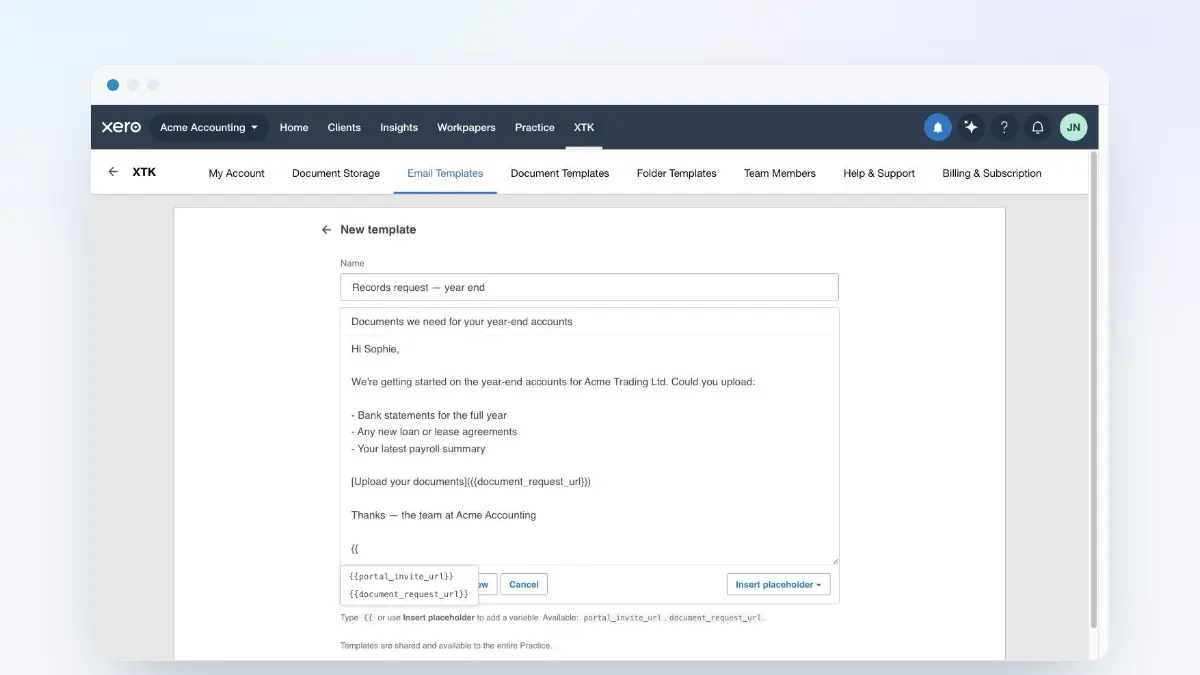
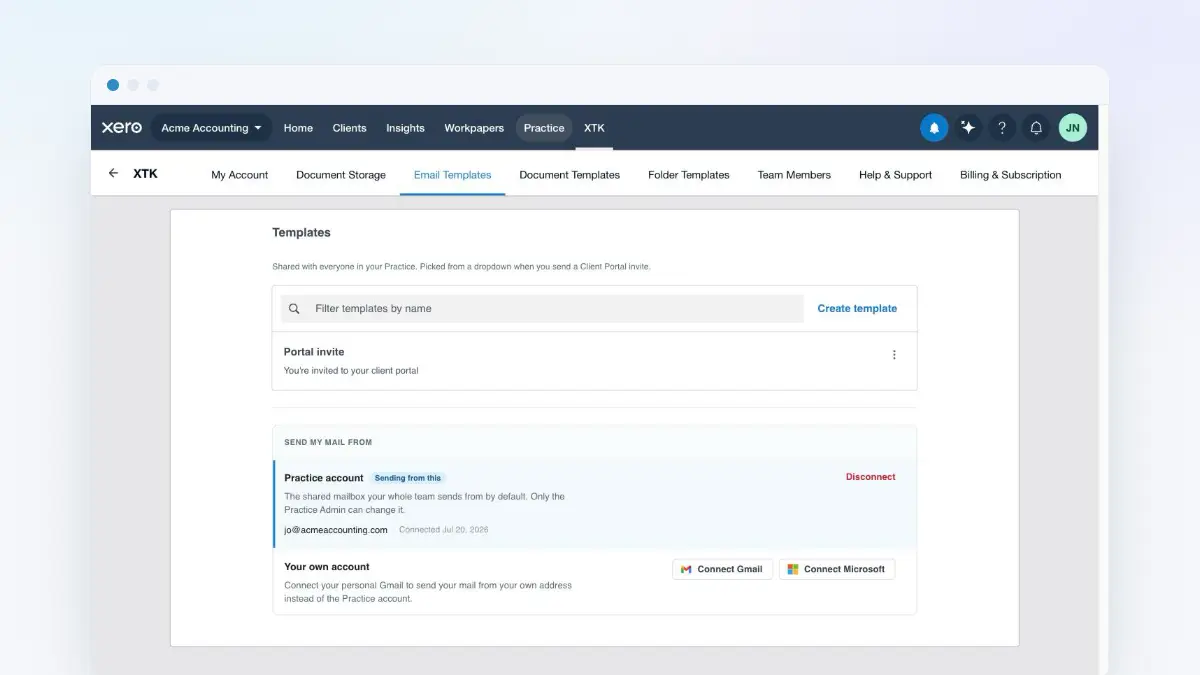
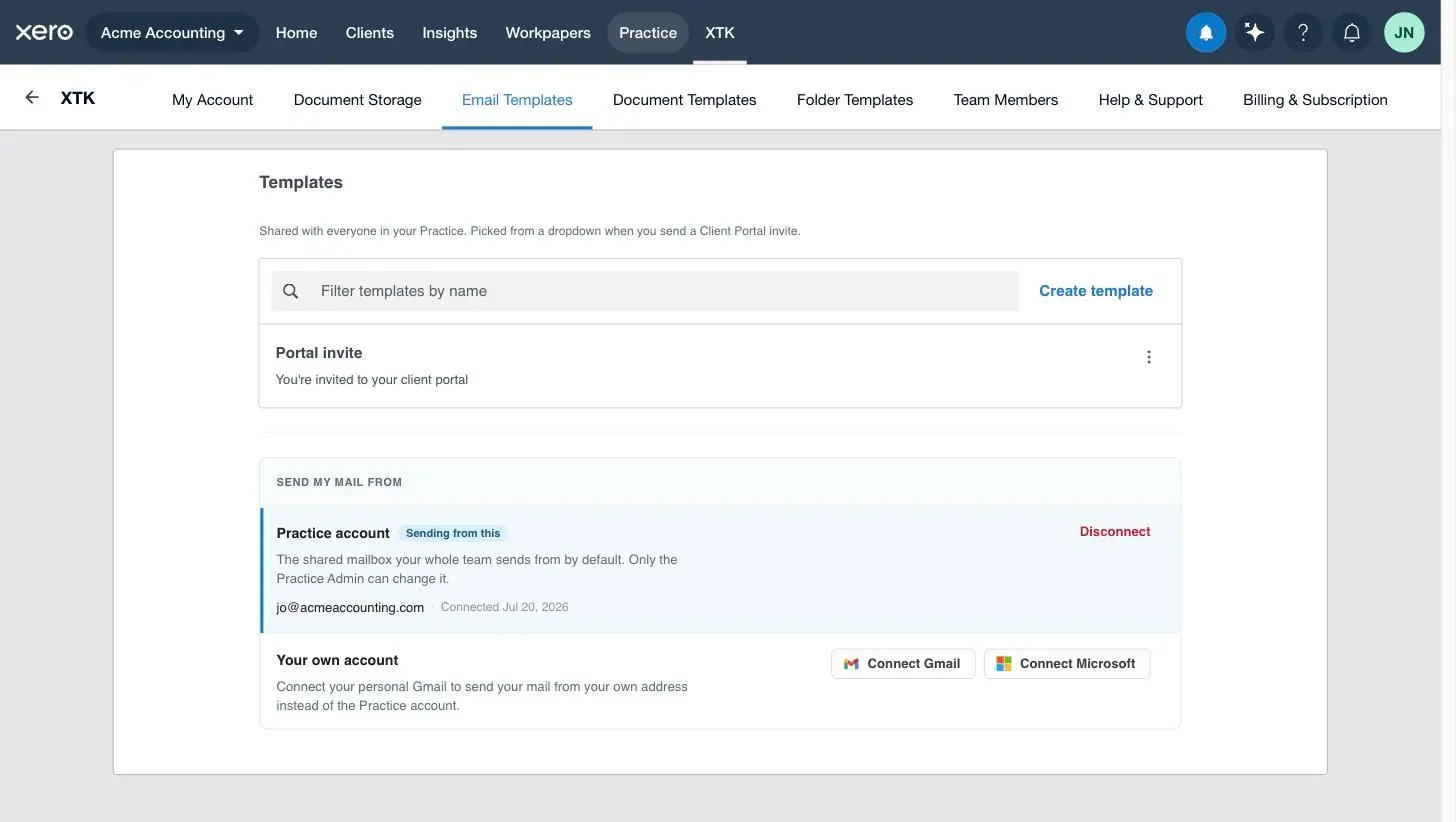
Click the “Email Templates” tab. Below the templates list you'll find the “Send my mail from” section with two rows: “Practice account” and “Your own account”.
Connect the shared mailbox
On the “Practice account” row, click “Connect Gmail” or “Connect Microsoft”, whichever matches the mailbox your practice sends from.
Approve send-only access
Your browser opens the Google or Microsoft consent screen. Sign in with the shared mailbox and approve. You're returned to XTK, and the row now shows the connected address, the date, and a “Sending from this” tag.
From this moment every team member's mail sends from the shared address automatically — nobody else has to do anything. Members see the Practice account row read-only, marked “Managed by your Practice Admin.”
Connect your own mailbox
Open the same section
XTK panel → “Email Templates” → “Send my mail from”. This works for every team member, not just the Admin.
Connect on the “Your own account” row
Click “Connect Gmail” or “Connect Microsoft”, sign in with your personal work mailbox and approve.
You're now the sender
Connecting your own mailbox automatically switches your sending to it — your row gains the “Sending from this” tag. Mail you send through XTK now goes out under your own name.
Choose which address your mail sends from
Once your own mailbox is connected, the two rows under “Send my mail from” become a picker — click a row to make it your sender, and the “Sending from this” tag moves with your choice. It's a personal setting: your colleagues' choices are their own, and anyone who hasn't connected a personal mailbox simply sends from the Practice account. There is no per-message sender picker — you choose once here, and every portal invite, document request and signature email you send follows it.
What your clients see
Whatever mailbox does the sending, XTK dresses the message in the same tidy, practice-branded email layout — your clients get a consistent look whether the invite came from the shared address or a colleague's own. And because the mail genuinely goes through Gmail or Microsoft, a copy sits in that mailbox's Sent folder and replies come back to the real address.
Nothing connected? Mail still sends
You don't have to connect a mailbox to use XTK. With nothing connected, portal invites, document requests and signature emails send from XTK's own shared address, and the Email Templates tab shows a “Sending from a shared address” notice with the exact address your clients will see. It's a perfectly good fallback — but clients recognise your own name more readily, so connecting a mailbox is worth the two minutes.
One exception goes the other way: messages you send to XTK's support team from the Help & Support tab always travel via XTK's own address, never through your mailbox.
Disconnect a mailbox
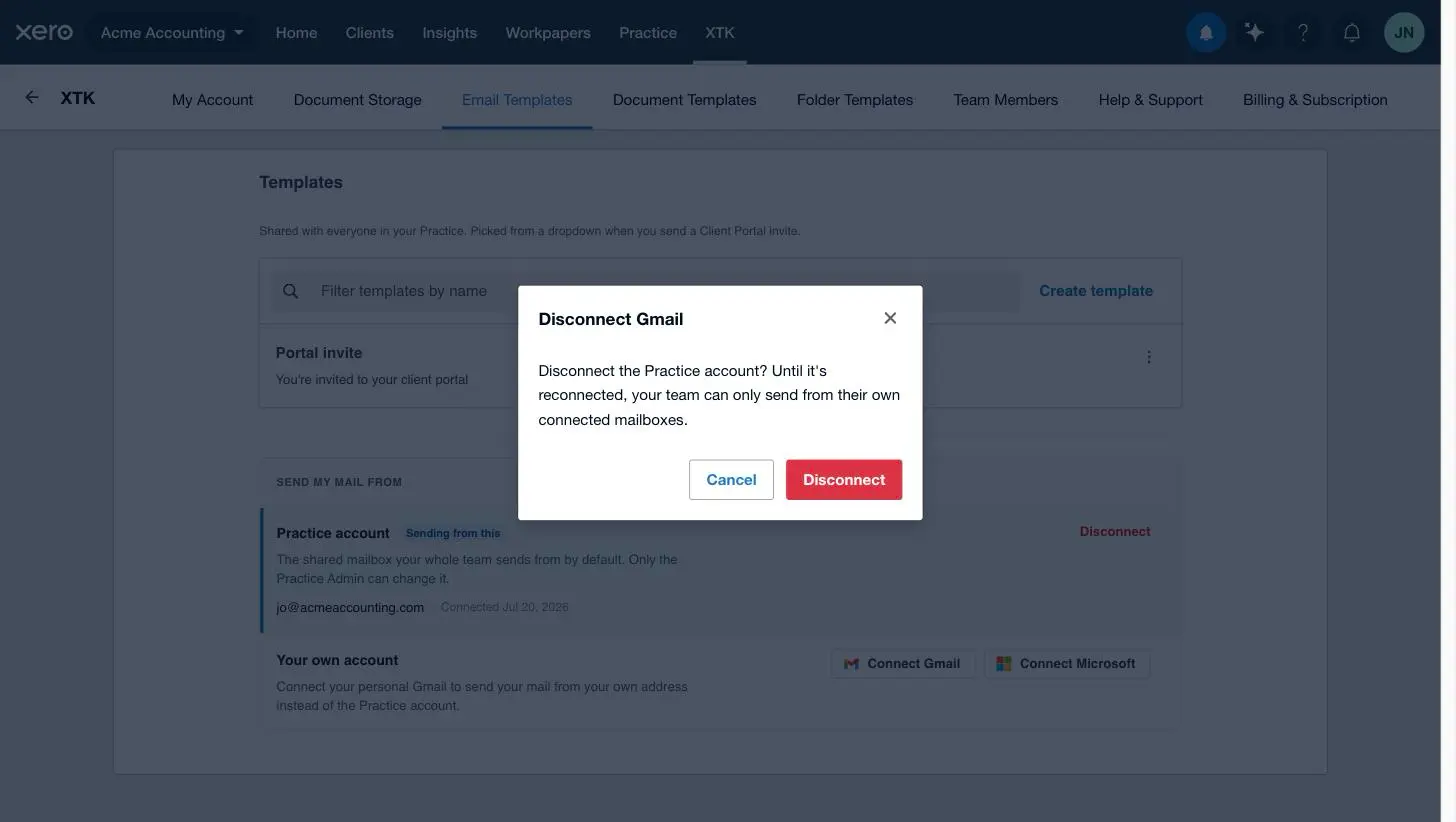
Both rows have a “Disconnect” action next to their connected address. Disconnecting your own mailbox flips your sending back to the Practice account. Disconnecting the Practice account (Admin only) leaves colleagues without a personal connection sending from the XTK address until it's reconnected — XTK spells out the consequence and asks you to confirm first.
Where next
With a mailbox connected, the features that use it are ready: write reusable email templates for invites and requests, ask clients for records with a document request, or set up a client portal — all covered in the related guides below.
Frequently asked questions
Can XTK read my email?
No. XTK asks Google or Microsoft for send-only permission — the Gmail “send” scope or Microsoft's Mail.Send. It can send messages from your address when you use an XTK feature that sends email, and nothing else: it cannot read, search or delete anything in your mailbox.
Do emails sent by XTK appear in my Sent folder?
Yes. Mail sent through a connected Gmail account lands in that account's Sent folder, and mail sent through a connected Microsoft account lands in its Sent Items — so you always have your own copy of what went to the client.
What happens if we don't connect any mailbox?
Everything still works. Portal invites, document requests and signature emails send from XTK's own shared address instead, and the Email Templates tab shows a “Sending from a shared address” notice. Connect a mailbox whenever you're ready and your mail switches to your own name.
Can I pick a different sender for each email?
No — there is no per-message sender picker. Each person has one saved choice under “Send my mail from”: the Practice account or their own connected mailbox. Change it any time in the XTK panel's Email Templates tab.
Can we connect both Gmail and Microsoft?
Each slot holds exactly one mailbox — the Practice account is either a Gmail or a Microsoft account, and so is each person's own connection. To switch providers, disconnect and reconnect. The two slots are independent, though: a practice can happily pair a shared Gmail with your personal Outlook.