8 min read
The email bounced: how to know a document never arrived
By The XTK team · Product
Part of our series on e-signatures for accounting practices. Start with the overview for the full picture.
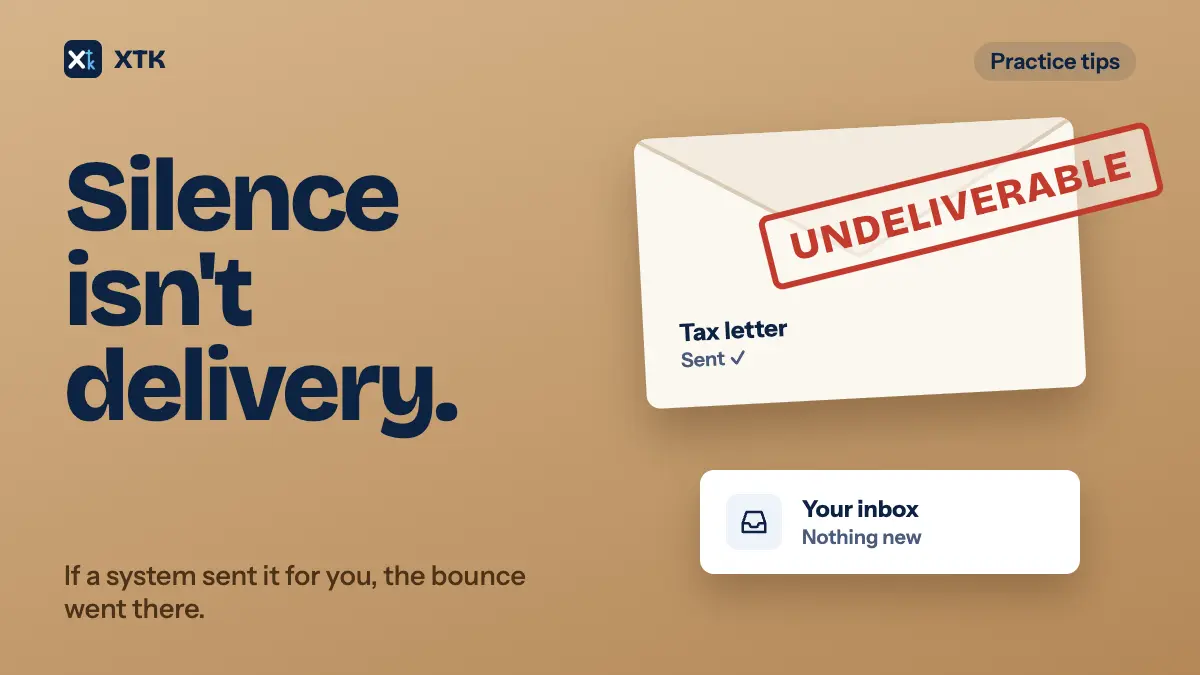
When an email can't be delivered, the receiving server sends a bounce back to the mailbox it came from. If your practice sent the email from its own mailbox, you see it. If Xero or another system sent it for you, the bounce goes back to that system, and you may never hear about it. Send client documents from a mailbox someone in the practice reads, filter bounces so they stand out, and treat silence on anything with a deadline as a reason to check. When an address bounces, fix it on the client record before you send again.
This article covers why bounces go missing, the failures that never bounce at all, how to catch both, and what to fix before you resend. For signature requests, the e-signatures overview covers the other things that go wrong after you send.
Why doesn't anyone tell you an email bounced?
A bounce is just another email. When a server can't deliver a message, because the address doesn't exist or the mailbox is full or blocked, it writes a report and sends it back to the address the message came from. In Gmail it arrives from “Mail Delivery Subsystem” with a subject like “Delivery Status Notification (Failure)”. In Outlook it comes from “Microsoft Outlook” with a subject starting “Undeliverable:”. It goes to the sending mailbox and nowhere else.
That works well when you send from your own mailbox. It works badly when a system sends on your behalf: a tax letter from Xero Tax, a document pack, an invoice. The message goes out through the system's own email service, so the bounce goes back there. Whether you hear about it depends on whether that system passes it on.
Practices say that Xero often doesn't. On 19 October 2026 the idea NZ Tax Letters – Notification when Tax Letter email fails to send had 51 votes and was marked Accepted, though Xero's community manager wrote in December 2025 that it is “not currently on the roadmap”. The original post calls the current position “blind faith that all letters are sent”. One practice found out weeks later, when the client missed their tax payment, that the letter had never gone because the client had no email address in Practice Manager. Another lost penalties and interest for a client because Gmail blocked Xero's email. A third commenter describes a client whose address had been blocked from all Xero mail, which only Xero support could see.
It isn't only tax letters. NZ Tax – Ability to have bounce back email when email address is invalid (15 votes) comes from a practice sending “600+ tax emails 4 times per year”, and a commenter there says the same happens with invoices and quotes. Document Packs – Email notification if email bounced asks for the same thing for signing packs. Between them, 74 votes, and comments from practices that have paid for it.
What are the ways an email fails to arrive?
Not every failure produces a bounce. It helps to know which kind you're dealing with, because each one is found a different way.
| What went wrong | Is there a bounce? | How you find out |
|---|---|---|
| A typo, an old address, a closed mailbox | Yes, within minutes | The bounce, if it reaches a mailbox you read |
| The mailbox is full or the server is down | Usually a delay notice first, then a failure days later | The same, but late |
| Delivered, but to spam, a quarantine or a filtered folder | No | Only by noticing the client hasn't acted |
| Delivered to a mailbox nobody reads | No | The same |
| Never sent: no address on the record, or the send failed | No | The sending system has to tell you |
The bottom three rows are why a bounce filter on its own isn't enough. An email that went to spam was delivered, as far as any server is concerned. The practice in the Xero thread whose client only got tax letters half the time, despite adding Xero to his safe senders, wasn't getting bounces. It was getting silence.
How do you make sure bounces reach someone?
Start with where the email leaves from, because that's where its bounce comes back to.
- Send client documents from a mailbox at your own domain where you can. A tax letter you send yourself from Outlook is more work than one Xero sends in bulk, which is exactly the trade one practice in the thread made: they stopped sending tax letters through Xero and send them from Outlook instead, so they can see what was delivered and read.
- If you use a shared mailbox, such as admin@ or tax@, decide who reads it. A bounce that lands in a shared inbox nobody owns is no better than one that goes to Xero.
- Make bounces stand out. In Gmail, a filter on “from:mailer-daemon” that applies a label and stars the message. In Outlook, a rule on messages from “Microsoft Outlook” or with “Undeliverable” in the subject that moves them to a folder and flags them. Check that folder every day you send anything with a deadline.
- Read the whole bounce, not just the subject. It quotes the address it tried and gives a reason: “address not found”, “mailbox full”, “message rejected”. The first means the address is wrong. The second means it's right but try again later. The third usually means the client's server is filtering you, and the client needs to know.
How do you spot the emails that never bounce?
For the silent failures, the only signal is that nothing happens. So decide in advance how long silence can last before someone checks.
- Give anything with a deadline a check-by date. A tax payment letter, a return to sign before lodgment, a request for documents you need this week. If the client hasn't opened, signed, uploaded or replied by that date, it's a call, not another email.
- Use whatever the sending system tells you. Many signing and request tools show whether a link has been opened. An email that was opened and ignored needs a nudge. One that was never opened may never have arrived.
- Phone or text to confirm the address, not to chase. “We emailed your tax letter on Monday to sophie@acmetrading.example. Did it come through?” finds a typo, a spam folder and an address the client stopped using, all in one call.
- Ask clients to add your sending address to their contacts when they join, and again when you change how you send. It won't beat every filter, but it helps with personal Gmail and Outlook accounts.
- Before a bulk run, look for clients with no email address at all. That's the failure in the Xero thread that cost a client their payment deadline, and it's the easiest to find in advance.
When an address bounces, what do you fix first?
Fix the address where it lives, then resend. If you only correct it in the send, the old address is still on the client record, and the next letter, pack or request goes straight back to it.
- Confirm the right address with the client, by phone or another channel you know works. A bounce tells you the address is wrong, not what the right one is.
- Update the client or contact record in Practice Manager. Check for a second contact or a duplicate client record holding the same old address. Stale duplicates are often where it lives, as our article on duplicate client records explains.
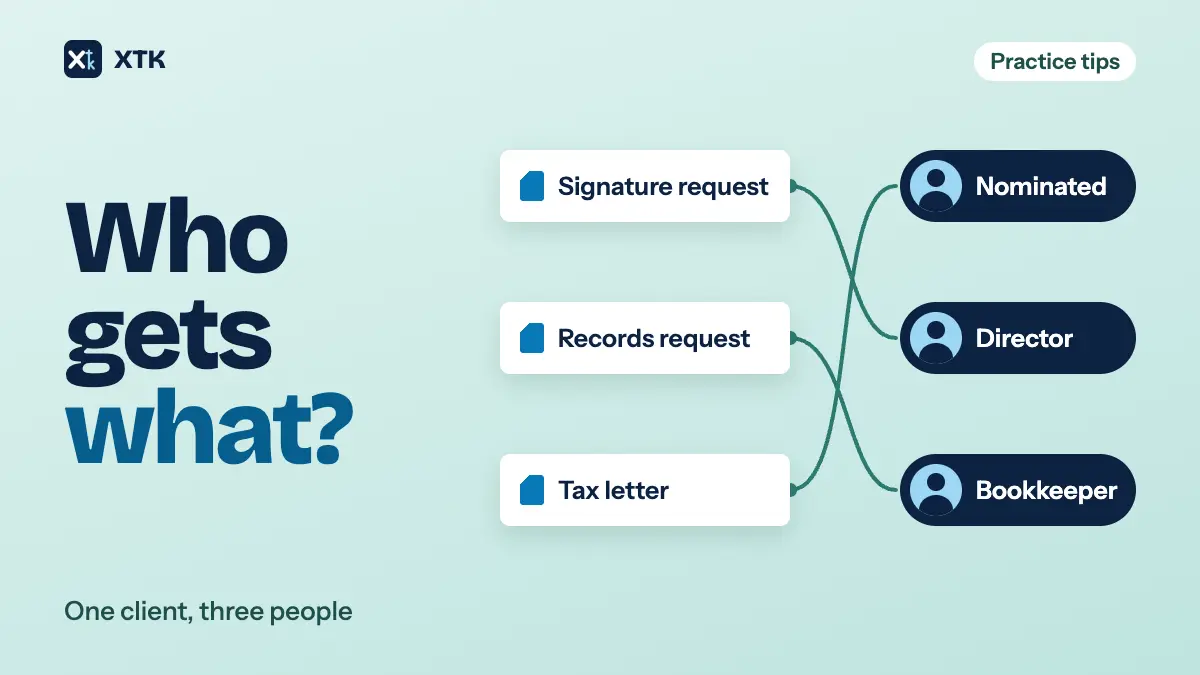
- Update anywhere else the address is stored: a custom field for the signing email, a contact in your document system or client portal. Our article on which client contact gets which document covers practices that keep several.
- Resend. In many tools, including Xero's document packs, a resend goes to the address the request was first sent to. Changing the address means cancelling the request and sending a new one. Our article on fixing a signature request after it's gone walks through it.
- Note what happened on the client record: which email bounced, when, why, and when you resent it. If a late payment is ever disputed, that note is your account of it.
How does XTK handle bounced emails?
XTK is a browser extension that adds documents, e-signatures, document requests and a client portal to each client in Practice Manager. Every email it sends to a client, whether a signature request, a resent link, a document request or a portal invite, goes out through a Gmail or Microsoft mailbox your practice connects. That's either your own mailbox or the practice's shared one, depending on what you've chosen. As the email connection guide explains, a copy lands in that mailbox's Sent folder and replies come back to it. Bounces do too. Gmail or Microsoft sends them to the mailbox the email left from, the same as anything else you send.
- Know whose mailbox gets them. Emails that belong to a signature request, including resent links and the email to the next signer, always go from the mailbox of the person who created the request, even when a colleague clicks “Resend link”. Document request resends work the same way. So a bounce on one of those comes back to the creator's mailbox, or to the shared mailbox if that's the one they send from.
- Watch for “Sent” without “Viewed”. A signature request shows each signer as “Sent” until they open the link, then “Viewed, not signed”, and the request's History records when. A signer still on “Sent” a few days later may never have received it. You can also turn on the “A recipient opens a request” notification, which is off by default. See sending documents for signature.
- Read document requests and portal invites differently. A document request stays “Sent” until the client uploads their first file, with no signal for opening the email. A portal contact stays “Invited” until they accept, and then shows “Active”.
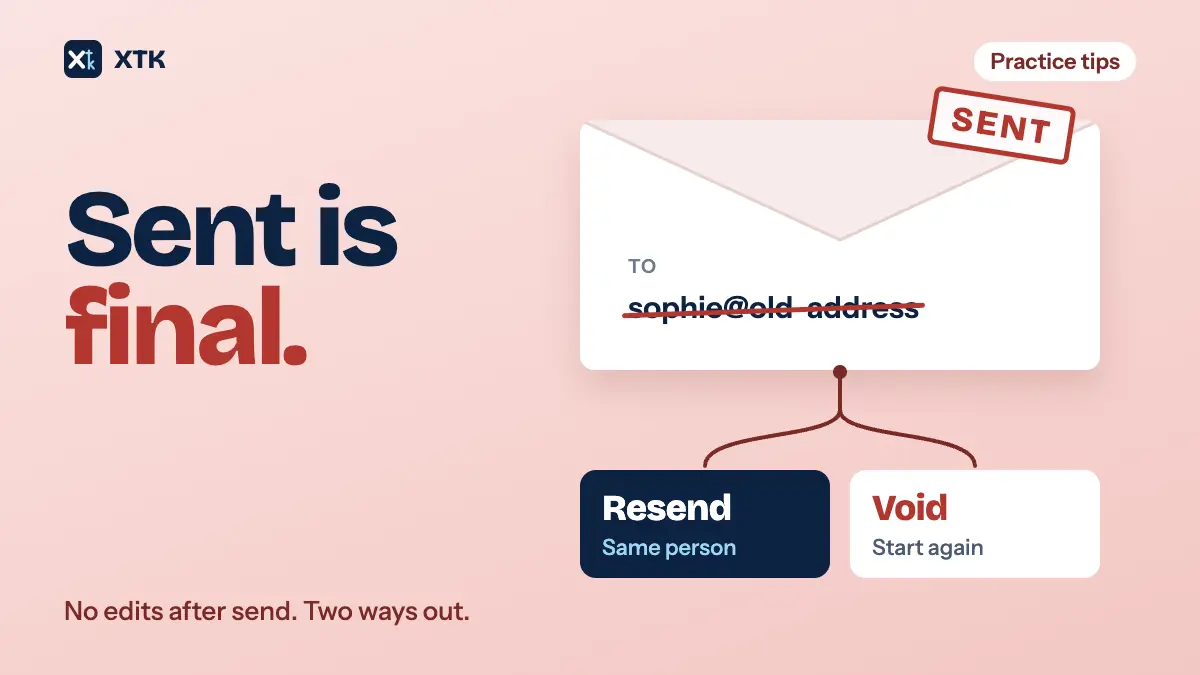
- Resend to the same address, or start again for a new one. “Resend link” on a signature request and “Resend email” on a document request both go to the original address. A resent link replaces the old one, and a document request resend doesn't extend its 30-day deadline. To use a corrected address, void the signature request or cancel the document request, update the client's record, and send a new one.
XTK is $59 USD a month for the whole practice after a 30-day trial, so connecting a mailbox and sending from it costs nothing per email.
The short version
- A bounce goes back to the mailbox the email left from. If a system sent it for you, you may never see it.
- Send client documents from a mailbox at your own domain, and make sure someone reads it.
- Filter bounces into a folder you check every day you send something with a deadline.
- Spam, filtered folders and unread inboxes never bounce, so give deadline emails a check-by date and phone when it passes.
- Fix a bounced address on the client record before you resend, and look for duplicates that hold the old one.
- Keep the bounce with the client's correspondence. It's part of the record of what you sent.
Frequently asked questions
Does Xero tell you when a tax letter or document pack email bounces?
Practices on Xero Product Ideas say it often doesn't. The idea asking for a notification when a tax letter fails to send had 51 votes on 19 October 2026, and in December 2025 Xero said it was not currently on the roadmap. For anything with a deadline, don't rely on hearing about a failure: check that the client acted.
Where does a bounce go?
To the mailbox the email was sent from. If you sent it from your own Gmail or Outlook, it arrives there from “Mail Delivery Subsystem” or “Microsoft Outlook”. If a system sent it on your behalf, the bounce goes to that system's email service, and you only hear about it if the system passes it on.
Can an email fail without bouncing?
Yes. An email delivered to spam, a quarantine or a mailbox nobody reads counts as delivered, so no bounce is sent. An email that was never sent, because the client had no address on file, doesn't bounce either. The only signal is that the client doesn't act, which is why emails with a deadline need a date by which you check.
What should I do when a client's email bounces?
Confirm the right address with the client by phone, update it on the client record in Practice Manager and anywhere else it's stored, then send again. If your tool's resend only goes to the original address, cancel the request and send a new one. Keep the bounce with the client's correspondence.