12 min read
Which client contact gets which document? Signatures, requests and tax letters
By The XTK team · Product
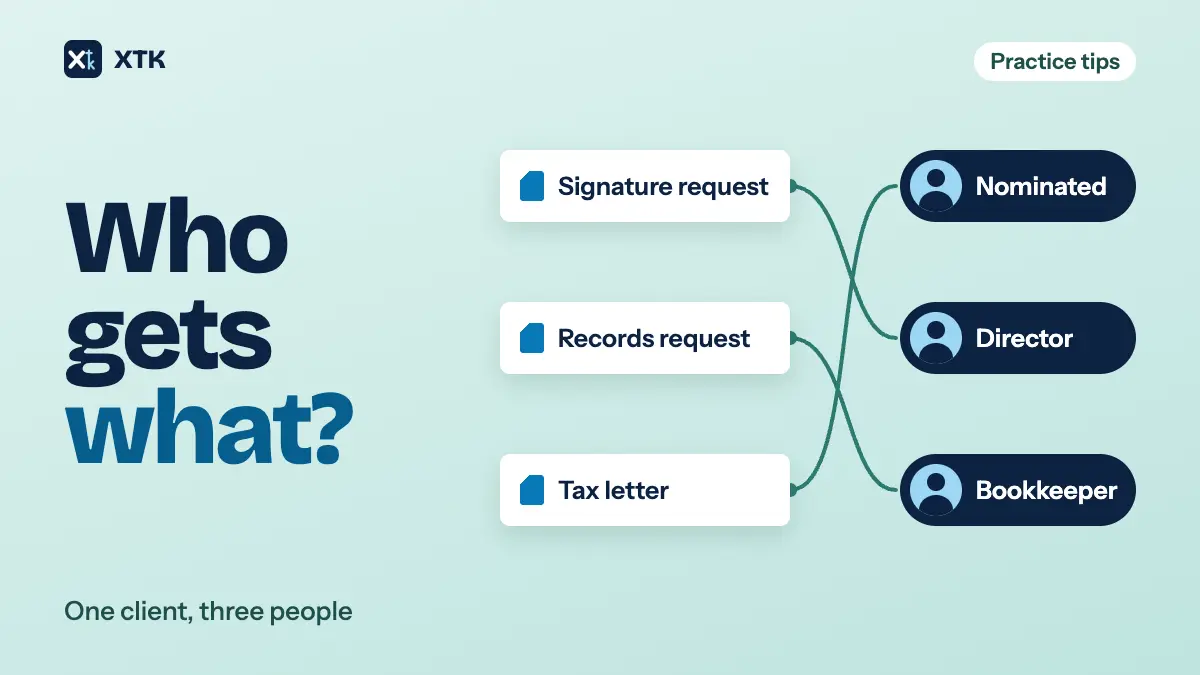
Decide who receives a document by what it asks them to do, not by which email is at the top of the client record. Anything to be signed goes to the person signing, at their own address. A request for records goes to whoever keeps the records. Letters and notices go to the address the client has told you to use, in writing. Then write those choices down once per client, in the place the person sending will be looking, because Xero Practice Manager (XPM) has no setting for it and nor does XTK.
This is a small problem that happens many times a day. A company client might have a director who signs, a bookkeeper who has the bank statements, and a shared accounts inbox that several of the client's staff can read. Send everything to one address and the wrong person sees the wrong thing, or the right person never sees it at all. This article sets out how to route each kind of document, where to record the routing, and what the tools will and won't do for you.
Why isn't one email per client enough?
In Practice Manager, a client record can hold more than one email address, with one marked primary, and a list of contacts, with one marked as the primary contact. What it can't hold is a purpose. Nothing on the record says which address is for tax notices, which is for invoices and which is for signing, so every send falls back on whoever the sender remembers, or on the primary address.
Practices have been asking Xero for exactly this. The idea Clients – Ability to set an email for a specific purpose was posted by Xero's community team on 19 September 2025 and had 114 votes, marked Gaining support, when we read it on 28 September 2026. The comments describe the same few cases again and again: invoices to an admin person and tax notices somewhere else; a separate address that some clients use only for signing; one practice with hundreds of clients whose tax letter goes to a different address from everything else, sometimes to two. Another says clients' accounts inboxes can be read by their employees, which is not where a signature request or a tax return belongs.
One comment adds a twist. Xero's own document packs need each signer's Xero login, and some clients sign in to Xero with a different address from the one they read every day. That practice created a custom field in Practice Manager just to hold the signing email. Until something like the idea ships, a workaround of that kind is what every practice is running, whether it has written it down or not.
Route by what the document asks the reader to do
The simplest rule that holds up is to ask what the document wants from the person receiving it. A signature wants a named person's agreement. A records request wants someone to find and upload files. A notice or letter wants someone to know something and possibly act on it. An invoice wants paying. Those are often four different people, and the client's primary email is only ever one of them.
| Document | Send to | Avoid |
|---|---|---|
| Signature request | Each signer, personally | Shared inboxes |
| Records request | Whoever keeps records | The director, by default |
| Tax letters, notices | Nominated address | Guessing |
| Invoices | Accounts contact | The signer's inbox |
| Portal access | People trusted with everything | Casual additions |
Signatures go to the person who signs
An e-signature is evidence that a particular person agreed to a particular document. That evidence is only as good as the link between the person and the email address the request went to. A request sent to accounts@ and signed by whoever opened it first proves very little, even if the name typed in the box is the director's. So each signer gets their own request at an address only they read, and a director who signs for two companies signs twice, once on each company's request.
Where several people sign, decide the order deliberately. Trustees or directors who all have to agree can sign in parallel. A letter your practice countersigns after the client usually wants the client first. People who only need a copy of the signed document are not signers, so don't add them as one to keep them informed. Our article on building a year-end pack covers splitting a pack into one document per signer, so nobody signs pages meant for someone else.
Requests for records go to whoever keeps them
A request for bank statements, receipts or a fixed asset list is a job, and it should land with the person who will do it. For many small companies that is an outside bookkeeper or the office manager, not the director, who will forward it and then forget it was ever sent. Copy the director in if they want to know it has been asked for, but address it to the person who holds the records. If nobody at the client keeps records, the director is the right recipient after all; the point is to decide, not to default.
This matters most when the deadline matters. A request that sits in the wrong inbox for a fortnight is a fortnight lost, and chasing the wrong person makes it worse. Our article on chasing clients for documents is about getting the request right. Getting the recipient right comes first.
Letters and notices go where the client told you
Tax letters, summaries of a return, notices you are passing on and anything else that carries the client's financial position should go to the address the client has nominated, and the nomination should be in writing. Some clients want their tax letters at a personal address rather than the business one. Some want a spouse or a financial adviser copied. One comment on the Xero idea mentions clients whose revenue authority notices go to a third party altogether. None of those can be worked out from the client record. You have to ask.
Written matters because confidentiality is the client's call, not yours. If a client says their business partner shouldn't see their personal return, and a letter about it goes to the shared business inbox, the fact that the address was on the client record won't help. A line in the engagement letter or the onboarding form, naming who receives what, settles it and gives you something to point to.
Who should be on the client portal?
A portal is different from an email, because it gives access to a place rather than delivering one document. Check how yours decides who sees what. On XTK's, everyone invited to a client's portal can see everything shared on it, and where that is true the portal question isn't “who needs this document?” but “who may see everything we put here for this client?”. For a sole trader that is simply the client. For a company it may be the directors and the bookkeeper. For a family with a trust and a company it might be nobody but the two people who control both.
When someone needs one document but shouldn't see the rest, send them that document another way, rather than adding them to the portal. Our article on sending documents without attachments sets out the options.
Where to write the routing down
The routing only works if the person sending sees it at the moment they send. A note in the manager's head, or in an email thread from onboarding, is invisible to the staff member doing the send two years later. Keep it on the client record in Practice Manager, where it is in front of anyone who opens the client.
- Add every person who receives something as a contact on the client, with a position that says what they are, such as Director, Bookkeeper or Trustee.
- Make the person who signs most often the primary contact, since letter templates tend to address the primary contact.
- Keep the client's primary email for the address the client wants correspondence at, and add other addresses to the record rather than overwriting it.
- Record the routing itself, in a client note or a custom field: signatures to whom, requests to whom, letters and notices to whom, invoices to whom, and who is on the portal.
- Ask the question at onboarding, and again at the annual engagement letter, because bookkeepers, directors and inboxes change.
The routing belongs in onboarding for the same reason the engagement letter does: it is cheap to ask on day one and expensive to discover after a mistake. Our client onboarding checklist has a step for checking the client record before the first invitation goes out. Add this question to it.
What XTK does, and what it doesn't
XTK is a browser extension that adds a Documents tab to each client in Practice Manager, with signatures, document requests and a client portal alongside it. It reads your clients and contacts from Xero as you work, and it doesn't keep a copy. It has no per-purpose email setting either. The choice of recipient is made at send time, every time, so the routing note above is what makes it reliable. Here is how each send picks its recipient.
- Every send starts from the client's primary email. A signature request adds the client as its first signer, a document request fills “Recipient name” and “Recipient email” with them, and enabling the client portal offers to invite them. Each of those is a suggestion you can change, and changing it is the whole point of this article.
- To pick someone else, start typing in the name field. XTK searches the clients and contacts it can read from Practice Manager, tags each result “Client” or “Contact”, and fills in the name and email when you pick one. You can also type any name and email yourself, for someone who isn't in Practice Manager at all.
- The search covers your whole practice, not just this client. A common name will bring up contacts from other clients too, so check the email address before you send, not just the name.
- A signature request can have several signers. Use the arrows to set the order: “Signs first”, “Then signs”, and people on the same step sign together. Only the first step is emailed when you send; the next step is emailed once everyone before it has signed. “Add me as a signer” puts your own email in the form for a countersignature.
- There is no copy-only role on a signature request: everyone on it is a signer. When signing is complete, every signer is emailed the signed PDF with the Certificate of Completion attached, and the signed copy is saved in the client's folder. The sender isn't emailed; XTK's notification bell tells them instead.
- A document request goes to one recipient, with an optional “CC (optional)” field for anyone who should see the request go out. The upload link lasts 30 days.
- A client portal can have several people. Everyone on it sees every file and folder shared on that client's portal; there is no sharing with one person only. Signature and document requests are different: in the portal, each one shows only to the person it was sent to. Setting up a client portal walks through inviting each person.
- Emails go out from your own Gmail or Outlook mailbox when one is connected, so the copy of what went, and to whom, is in your Sent folder. If no mailbox is connected, XTK sends from its own address and there is no Sent copy.
For letters built from a document template, the contact placeholders follow the client's contact list in Practice Manager. [CONTACT:PRIMARY:NAME] is the contact marked primary. [CONTACT:SECONDARY:NAME] is the first contact that isn't primary, and [CONTACT:ANY:NAME] is the first contact listed. The same goes for EMAIL, POSITION and the other contact fields. [CLIENT:EMAIL] is the client's own primary email, and [CLIENT:SECONDARY_EMAIL] is its first other address.
XTK is $59 USD a month for the whole practice after a 30-day trial, with no per-user charge. The pricing page has the detail.
The short version
- Route each document by what it asks the reader to do: sign, upload, read or pay.
- Send signature requests to each signer personally, never to a shared inbox.
- Send records requests to whoever keeps the records, and copy in the director if they want to know.
- Send letters and notices to the address the client nominated in writing.
- Put on the portal only the people trusted with everything shared there.
- Write the routing on the client record in Practice Manager, and ask again every year.
- At send time, change the suggested recipient whenever it isn't the right person.
Frequently asked questions
Can Xero Practice Manager send tax letters and invoices to different email addresses?
Not by setting. A Practice Manager client record can hold several email addresses and several contacts, with one of each marked primary, but it has no field that says which address is for which purpose. Practices choose the recipient at send time, and record the client's preferences in a client note or a custom field. A request for purpose-specific emails is on Xero's ideas board, marked Gaining support in September 2026.
Should a signature request go to a shared accounts inbox?
It's better not to. An e-signature is evidence that a named person agreed, and that evidence depends on the request reaching an address only that person reads. Send each signer their own request at their own address. People who only need a copy of the signed document shouldn't be added as signers.
Can I send one signature request to several people in XTK?
Yes. A signature request can have several signers, and you set the order with the arrows: people on the same step sign together, and later steps are emailed once the earlier ones have signed. Everyone on a request is a signer, and each receives the signed PDF when signing is complete.
Does everyone on an XTK client portal see the same files?
Yes, for files and folders: everything shared on a client's portal is visible to every person invited to it. Signature requests and document requests are the exception. In the portal, each one is shown only to the person it was sent to.
Does XTK remember which contact gets which document?
No. XTK suggests the client's primary email on each send and lets you search for any client or contact in your practice, or type any address. It doesn't store a default recipient per client or per document type, so keep the routing on the client record in Practice Manager where the sender will see it.