13 min read
How to build a year-end pack in Xero Practice Manager
By The XTK team · Product
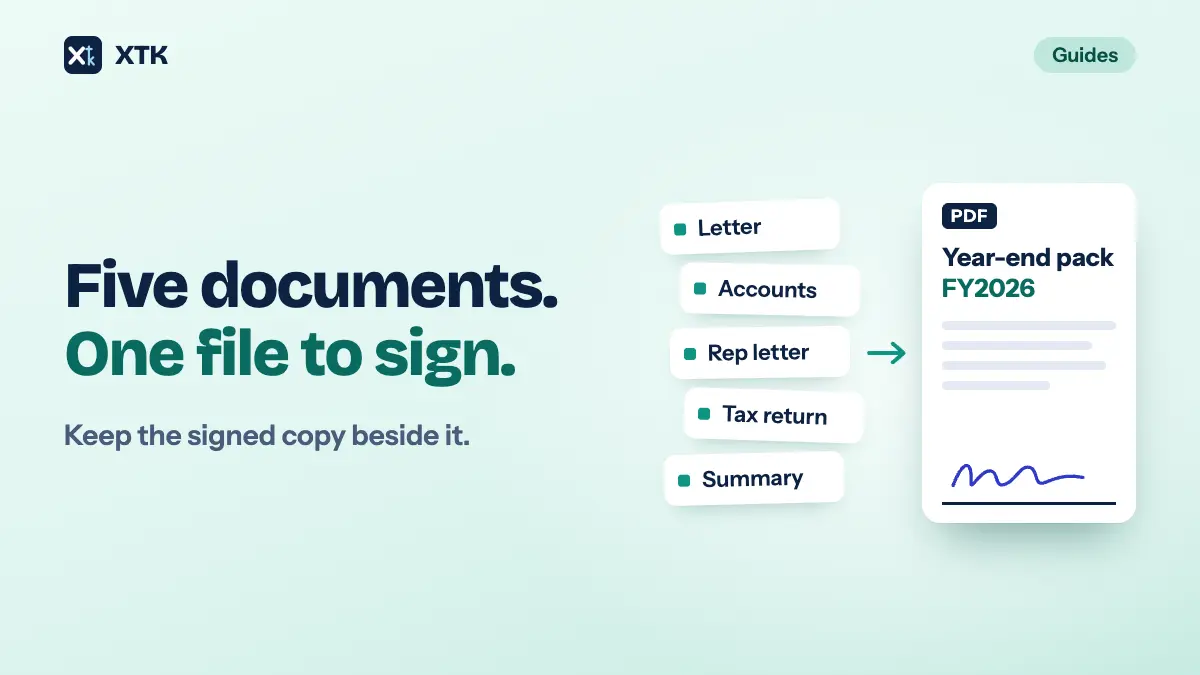
Build a year-end pack as one PDF for each person who has to sign it: a covering letter first, then the documents that person signs, then anything they only need to read, named for the client, the pack and the year. Make it from source files you keep, send that one file for signature, and file the signed copy beside the sources rather than in place of them. Everything else in this article is the reasoning behind those three sentences.
It covers what goes in a pack, what order it goes in, when to merge and when not to, what Xero Practice Manager (XPM) and Xero's own document packs will and won't do, and what to keep afterwards. It is about assembling and filing the pack, not preparing what goes in it: collecting the client's records is a different problem, and so is naming the files, though both come up.
What is a year-end pack?
It is the set of documents a practice sends a client at the end of the year's work, for the client to read, approve and sign, and which the practice then keeps as the record of what the client approved. The contents change with the client and the country. The shape does not: something that explains, something to sign, and something to keep.
| Part | Typical contents | Signed? |
|---|---|---|
| Covering letter | What's enclosed, what to check, by when | No |
| Accounts | Financial statements for the year | Yes |
| Representation letter | The client's confirmations to you | Yes |
| Tax return | Return or computation, with declaration | Yes |
| For information | Tax payable, dates, notes | No |
Two things make assembling one a document problem rather than an accounting one. The parts come from different places: the accounts and the return out of tax software, the letter out of a template, the summary out of a spreadsheet, so they arrive as separate files with separate names. And the pack is really two records, the one you sent and the one that came back signed. Most year-end filing trouble is one of those two going missing, or one being mistaken for the other.
Should a year-end pack be one PDF or several files?
One PDF for everything a single person reads and signs at one sitting, and a separate file wherever the signer or the occasion changes. A director approving a company's accounts and the same director signing their personal return are two packs, because they are two approvals by two different taxpayers, and a signed file should be the record of exactly one of them.
The case for merging is that a pack is read like a printed bundle. One file opens in one place, in the order you chose, on whatever device the client has to hand, and it carries one name everywhere it goes. Five attachments arrive in whatever order the email app likes, and the client signs the one they found first.
The case against merging too much is size and status. Practice Manager accepts uploads of up to 16MB. Xero's document packs take up to 10MB per document. A tool that tracks signatures per document can tell you the accounts are signed and the representation letter is not, but only if they are different documents. So merge by signer, not by client, and check the size of the result before you plan to send it anywhere.
What order should a year-end pack be in?
- The covering letter. What is enclosed, what the client should check, what they need to sign, and by when. For some clients it is the only page they will read closely, so it has to work on its own.
- The documents that need a signature, in the order the letter lists them.
- Documents for information: the tax payable and when, next year's dates, notes the client should keep.
Refer to pages, not bookmarks. Merged PDFs often lose the bookmarks their sources had, and a client reading on a phone would not see them anyway. If the letter says the signature is on page 14, the client finds page 14. That does mean the letter is the last part to finish, once the order and page count are settled.
What can Practice Manager do with the pack on its own?
Store it. Xero Central's page on documents, now titled for Xero Partner Hub, describes uploading files of up to 16MB to a client, job or quote, editing a document's title and note, and deleting it; documents are stored in Practice Manager unless you connect a document management system, and listed in alphabetical order. It describes no way to merge files, reorder pages or download several documents at once. So in XPM alone, a pack is assembled somewhere else — a PDF editor, or the export options in whatever produced the accounts — and uploaded as a finished file.
That leaves the sending, and for sending Xero has built something specific.
What do Xero's document packs do?
Document packs, in Xero HQ and Xero Partner Hub, collect a client's documents into one pack, add e-signature requests through Xero Sign, powered by Adobe Acrobat Sign, and send the client a link to a secure Xero portal where they read and sign. Xero launched them for Australian partners first and for UK partners in October 2022, and they are available in New Zealand too. A pack can hold published reports from the client's Xero organisation, tax returns from Xero Tax once they are marked Approved, and PDFs uploaded from your computer.
| Xero Central says | Limit |
|---|---|
| Documents per pack | Up to 15 |
| Size per document | 10MB |
| E-signature requests | At least one per pack |
| Each signer | Their own Xero login |
| Who can see packs | Everyone in the practice |
| Unsigned after 12 months | Expired, removed from portal |
| Signatures | Bought in Xero Sign bundles |
For tax returns it is the natural tool, because the return goes into the pack with its signature request already attached and locked, and the pack's status tells you who has signed. Before relying on it as the whole year-end process, four details on those pages are worth reading twice.
- It is a way of sending, not a place to file. Packs are listed under the Practice menu, and Xero Central describes downloading the documents in a pack but not where the signed copies go afterwards. If you use packs, make saving the signed documents into the client's file a named step, with a named owner.
- Everyone can see them. Xero Central warns that all Xero Partner Hub users in the practice can open document packs and view what is in them, and recommends not adding restricted or confidential information.
- Assembly still happens first. Uploaded documents come from your computer, one PDF each, so the merging, ordering and naming happen before the pack does, inside the 15-document and 10MB limits.
- Signatures are paid for separately. In the UK, Xero Sign bundles run from 100 transactions for £60 to 2,500 for £600, excluding VAT, and expire 12 months after purchase. Xero counts a transaction as a document with at least one e-signature, and caps each at 100 pages or 10MB — so how you split a pack changes both what it costs and whether it fits.
How do you assemble a year-end pack step by step?
Whatever the tools, the order of work is the same, and doing it in this order is what keeps the sources and the two records apart.
- Make a folder for the pack inside the year's folder, or inside the year-end job's folder if you file by job: FY2026 / Year-end pack.
- Copy, don't move, the final version of each part into it. The accounts stay where the job keeps them, and the pack gets a copy. It is the same rule that applies to a workpaper pack: a pack is a bundle for one purpose, not the file.
- Turn every part into a PDF, and name each one so it would make sense on its own: Accounts - Acme Trading Ltd - FY2026.pdf.
- Merge the parts for each signer, in order, into one file named for what it is: Year-end pack - Acme Trading Ltd - FY2026.pdf. The client's name belongs in it, because the person receiving it has no folder to tell them whose it is.
- Open the merged file and check it: the page count, that every signature page is there, and that the pages the letter refers to are the right ones.
- Send it for signature, then file what comes back in the same folder, beside the pack as sent.
What should you keep once the client has signed?
Three things, together in the pack's folder, each as its own file.
- The sources, as they were when the pack was made.
- The pack as sent. If the client asks for a change, make a new pack and name its state — Year-end pack - Acme Trading Ltd - FY2026 - revised 2026-10-02.pdf — rather than overwriting the first. The version the client queried is part of the record of how the accounts were agreed.
- The pack as signed, with whatever record of the signing your tool produces.
Then leave the signed file alone. Don't merge it into a bigger bundle, don't combine it with next year's, and don't replace it with a tidier copy. The signed file, with its signing record, is the evidence of what the client approved; a merge makes a new file that contains a picture of the signature but is not the thing that was signed. If a lender wants everything in one PDF, make that as a copy and keep the original as it came back.
How do you send the pack to a lender or broker?
Send the signed files, not the pack as sent, and send them as they are. A lender or mortgage broker usually asks months later, for the last two years' signed accounts and returns, which is when a folder that holds the signed copies beside the packs pays for itself. If several files go at once in a zip, remember that a zip is flat: each file arrives with its own name and nothing else, so two files both called Accounts.pdf from two years become indistinguishable. Names that carry the client and the year survive the trip.
How does this work in XTK?
XTK is a browser extension that adds a Documents tab to each client, job and quote in Practice Manager, showing that client's folder in your practice's own Google Drive, OneDrive or SharePoint. The assembly steps above map onto actions in the client's Documents tab, so the pack is built, sent and filed without leaving XPM.
- Select the finished parts and use “Copy” to put them in the pack folder. Bulk actions take up to 200 items at a time, only ever within the same client's folder, and XTK checks every item before touching any of them.
- Generate the covering letter from a document template. Templates are Word files and produce a Word file, with placeholders such as [CLIENT:NAME] filled from XPM. There is no placeholder for the year end or the job, so type the year into the letter. Then use “Convert to PDF” on it.
- Select the letter and the other PDFs and choose “Merge PDFs”. Drag the files into order, replace the suggested Merged.pdf with the pack's real name, and pick the pack folder as the destination. The sources are left exactly where they were.
- Send the merged pack for signature. Signers can be anyone with an email address, so a second director is simply a second signer, and they can sign at the same time or in turn. Place signature and date fields on the pages each person signs.
- When everyone has signed, XTK saves a new file beside the pack — Year-end pack - Acme Trading Ltd - FY2026 (signed).pdf — with a certificate of completion as its last page, and leaves the pack as sent untouched. That is the two records, filed side by side, without anyone remembering to do it.
Two hedges this site owes on every article like this. Files live in your own storage, and uploads go straight from the browser to Google or Microsoft, but merging, zipping, generating from a template and flattening signatures all stream the file through XTK's backend in flight; “Convert to PDF” hands the Word file to CloudConvert. How XTK handles your data and the sub-processors page have the detail. XTK is $59 USD a month for the whole practice after a 30-day trial, with no per-user charge — the pricing page has the rest.
The year-end pack checklist
- One pack per signer and occasion, not per client.
- Covering letter first, then what to sign, then what to read.
- Page numbers in the letter, not bookmarks.
- A pack folder inside the year or the job, with copies of the parts, never the originals.
- Every part a PDF, named so it makes sense on its own.
- The pack named for the client, the pack and the year.
- Check the page count and the signature pages before sending.
- Keep the sources, the pack as sent and the pack as signed, side by side.
- Never merge, replace or tidy a signed file. Copy it.
- Send lenders the signed files, named to survive a zip.
Frequently asked questions
What goes in a year-end pack for an accounting client?
Usually a covering letter explaining what is enclosed and what needs signing, the financial statements, a representation letter, the tax return or computation with its declaration, and information-only documents such as the tax payable and upcoming deadlines. A company's pack is typically the fullest; an individual's may be just a letter and a return.
Should a year-end pack be one PDF or separate files?
One PDF for everything a single person reads and signs at one sitting, in order: letter, documents to sign, documents for information. Keep separate packs where the signer changes, such as a company's accounts and a director's personal return, so each signed file records exactly one approval. Check the merged file's size: Xero Practice Manager accepts uploads of up to 16MB and Xero's document packs take up to 10MB per document.
Can Xero Practice Manager merge PDFs?
Xero Central's page on Practice Manager documents, read on 14 September 2026, describes uploading, editing and deleting documents but no way to merge them or download several at once. Xero's document packs group documents for e-signature but hold them as separate documents. Merging needs a PDF editor or an add-on that works inside Practice Manager.
How many documents can a Xero document pack hold?
Up to 15 documents, with a maximum file size of 10MB each, according to Xero Central as read on 14 September 2026. Each pack needs at least one e-signature request, each signer needs their own Xero login, and Xero's UK pricing page caps a signed document at 100 pages. Signatures are bought in Xero Sign bundles that expire 12 months after purchase.
Should signed documents be merged into one file?
No. Keep each signed document exactly as it came back, with its signing record, because that file is the evidence of what the client approved. A merge creates a new file that shows the signature but is not the signed document. If someone needs a single PDF, make it as a copy and keep the originals.