Updated 6 min read
Bulk file actions: merge PDFs in Xero Practice Manager
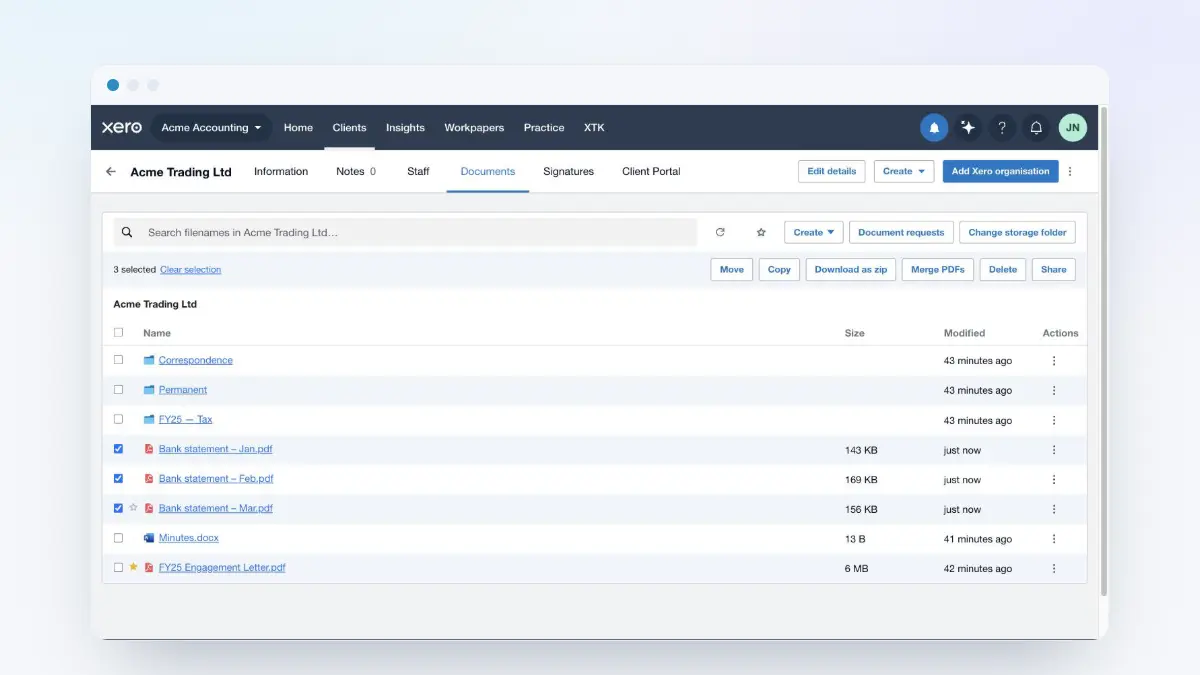
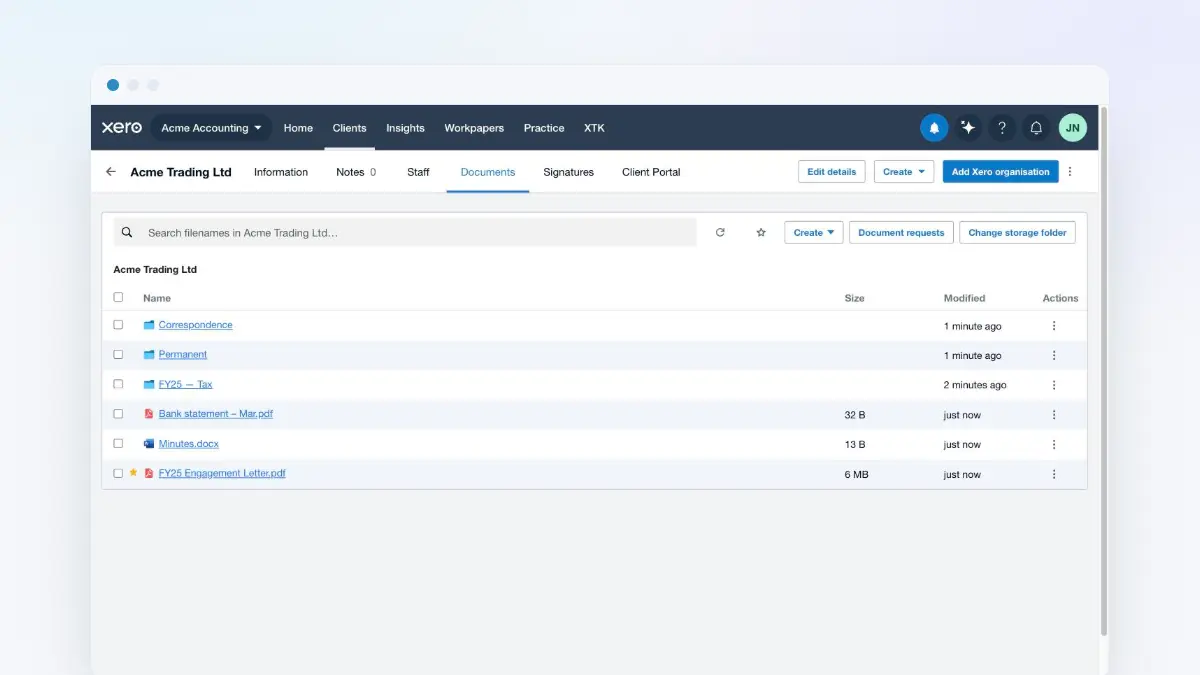
Tick more than one file in XTK's Documents tab and a selection bar appears with actions that work on the whole selection: move, copy, download as zip, merge PDFs, convert to PDF, delete, and share to the client portal. It's the fastest way to reorganise a client's folder, bundle records for a lender, or combine a season's bank statements into one PDF — all inside Xero Practice Manager (XPM), with every file staying in your practice's own storage.
XTK is an independent product and is not affiliated with or endorsed by Xero Limited.
Select files and meet the selection bar
Every row in the Documents tab has a checkbox on the left, and the checkbox in the header row selects everything in the current folder. As soon as anything is ticked, the selection bar appears above the list: a “3 selected” count with “Clear selection” on the left, and the bulk actions on the right.
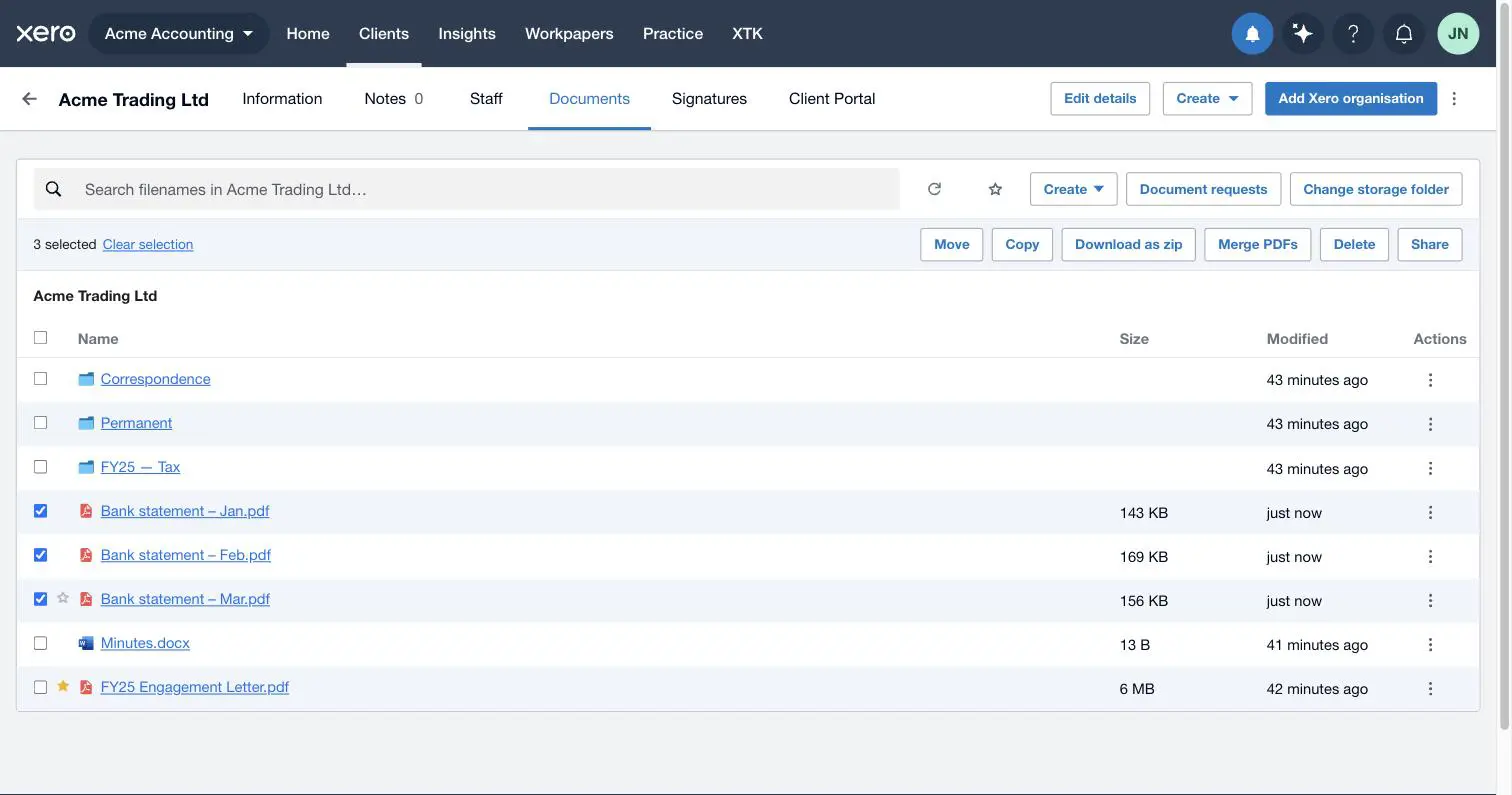
The bar only shows actions your selection can actually perform, so it changes as you tick and untick: “Download” appears when exactly one file is selected, “Convert to PDF” when that one file is a Word document, “Merge PDFs” only when everything selected is a PDF, and “Download as zip” refuses folders. If a button you expected is missing, look at what's ticked — there's usually a folder or an odd file type in the mix.
Move or copy files between folders
Select the files or folders
Tick anything you want to relocate — files, folders, or a mix.
Click “Move” (or “Copy”)
A folder picker opens, rooted at the client's storage folder. Filter folders by name, or click “New folder” to create the destination on the spot.
Pick the destination
Click “Move here” next to a folder, or open a folder and click “Move in current folder” to drop the selection exactly where you're looking.
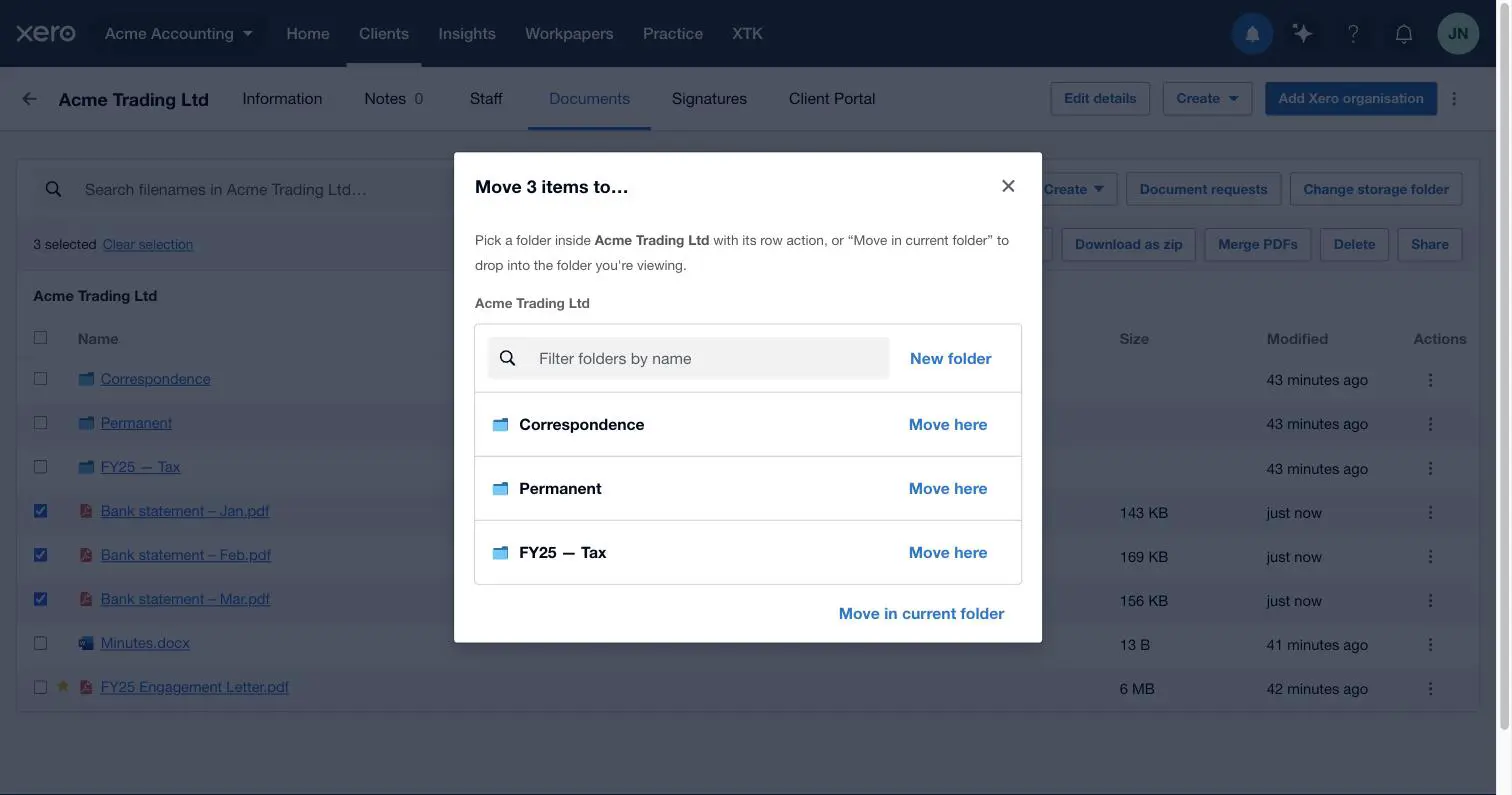
Move relocates the originals; Copy leaves them in place and creates duplicates in the destination. Either way the destination list never leaves the client's own storage folder — that's the containment guarantee, and it's why bulk filing can't scatter documents into another client's folder. XTK also checks every item before touching anything, so a bulk move either happens completely or not at all.
Download several files as a zip
With two or more files selected, “Download as zip” bundles them into a single download named after the client's storage folder and the date — “Acme Trading Ltd - 2026-07-27.zip”, ready to forward or archive. The date is the UTC date, so a zip made on an Australian or New Zealand morning can carry yesterday's. Inside, the zip is flat: each file keeps its own name and nothing else, so two selected files with the same name arrive as two entries with that name. Folders can't be included: if one is ticked the button is greyed out with a hint to select individual files, so open the folder and select its contents instead (the select-all checkbox makes that quick).
How do I merge PDFs?
Merging combines the pages of several PDFs into one new file — engagement letter packs, board packs, or a quarter's bank statements in one document. Select at least two PDFs (and nothing else) and “Merge PDFs” appears in the bar:
Select the PDFs and click “Merge PDFs”
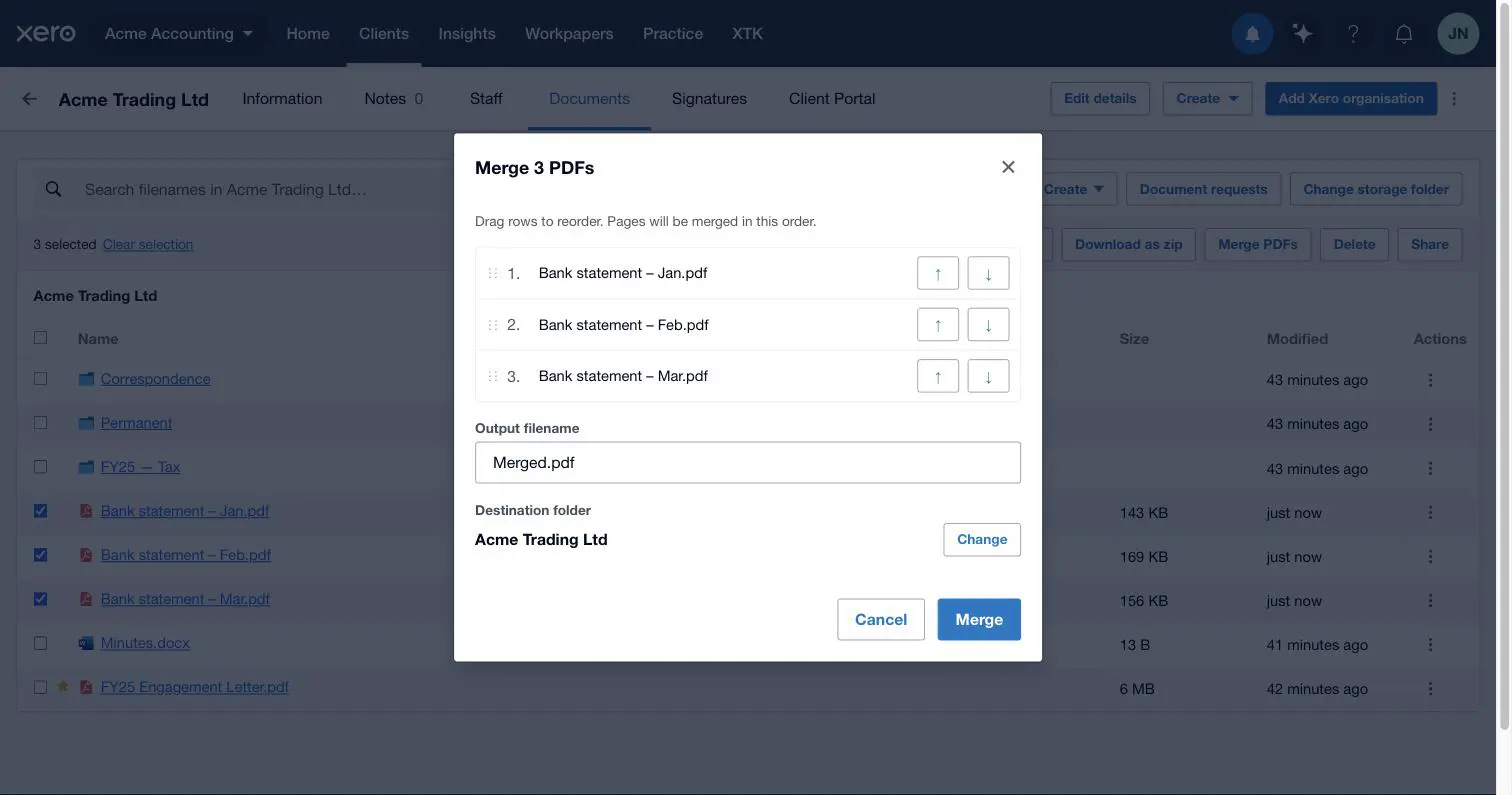
The merge dialog lists your files in the order their pages will appear in the result.
Put the files in order
Drag rows to reorder them, or use the ↑ and ↓ buttons on each row.
Name the result and pick its folder
Replace the default “Merged.pdf” with something meaningful — the .pdf extension is added for you if you leave it off. The destination defaults to the folder the sources came from; if they came from different folders, click “Pick destination” and choose one.
Click “Merge”
XTK combines the pages and files the new PDF into the destination folder — your original PDFs are untouched.
Convert a Word document to PDF
Select exactly one Word document (.doc or .docx) and “Convert to PDF” appears in the bar — the same action as the row menu offers. It creates a PDF copy beside the original, which is the usual first step when you want to merge a letter with existing PDFs or send it for e-signature.
Delete several files at once
“Delete” asks for confirmation and lists everything you're about to remove, so there are no surprises. Like single-file deletes, it's a soft delete — “Move to Trash” sends the items to your storage provider's trash, where they can be restored for around 30 days.
Share or unshare with the client portal
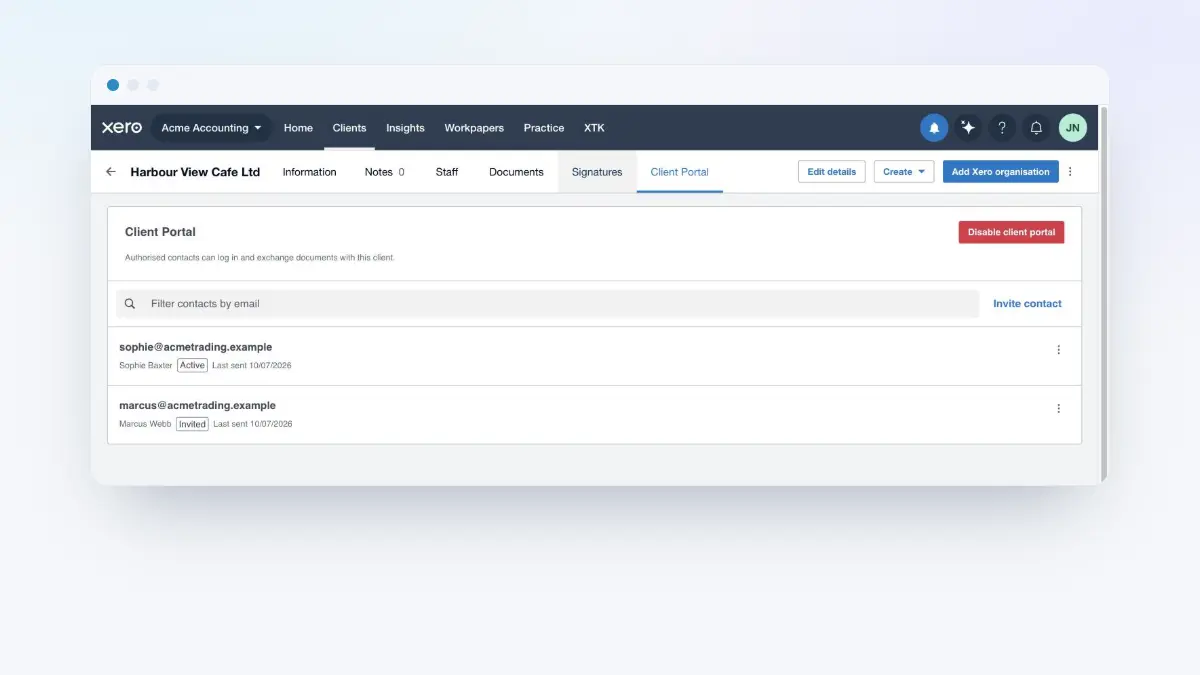
If this client's portal is set up, the bar also offers “Share” (when the selection includes items not yet shared) and “Unshare” (when it includes shared ones). XTK works through the selection one item at a time so you can watch each row update. Shared folders are read-write for the client and shared files read-only — the client portal guide covers the rules in full.
Where next
Bulk actions cover organising what's already in the client's folder. The rest of the series fills the folder for you: document templates generate client letters, folder templates lay down a standard structure, and document requests collect records straight from the client.
Frequently asked questions
Why don't I see the Merge PDFs button?
It appears only when everything you've selected is a PDF and you've selected at least two. If a Word document, image or folder is in the selection, the button stays hidden — untick the non-PDFs and it appears.
Does merging change or delete my original PDFs?
No. Merging creates a brand-new PDF in the destination folder you choose; the source files stay exactly where they were. If you don't need the originals afterwards, delete them separately.
Can I download a whole folder as a zip?
Not directly — the zip download takes files only. Open the folder, tick the select-all checkbox at the top of the list, and use “Download as zip” on its contents instead.
Can I move files to a different client?
No. Move and copy destinations are limited to folders inside the same client's storage folder — that containment is what stops documents ending up under the wrong client. For a genuine cross-client move, work in Google Drive, OneDrive or SharePoint directly.
Is there a limit on merging?
You can merge up to 50 PDFs at a time, as long as the sources add up to no more than 100 MB. Bigger jobs work fine in batches: merge in groups, then merge the results.