4 min read
E-signatures that never leave Practice Manager
By The XTK team · Product
Signature season in most practices looks like this: generate the engagement letter from a template, download it, upload it to an e-signature tool, retype the client's email address, send, and then — days later — try to remember which client's letter is still sitting unsigned.
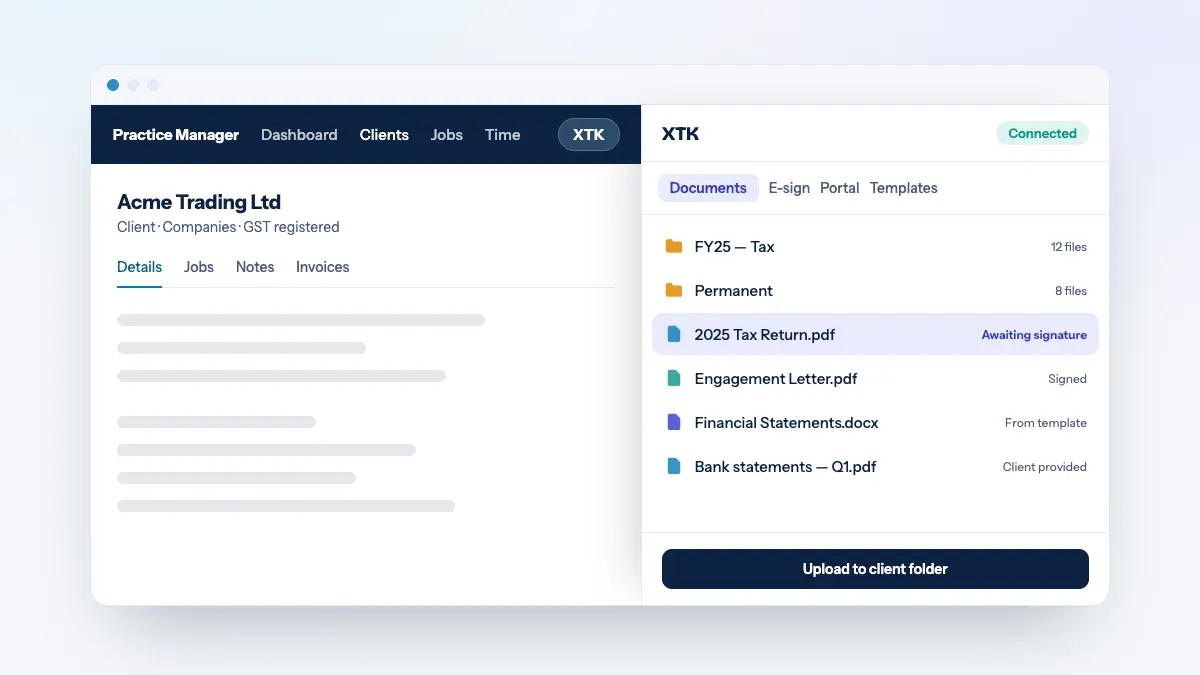
Every one of those steps exists because the e-sign tool doesn't know about your practice. It doesn't know the client, the job, or where the signed copy should end up. XTK closes that gap by starting the signature request from the client record itself.
From client record to signed copy
- Open the client in Practice Manager and pick a document — or generate one from a template, pre-filled with the client's details.
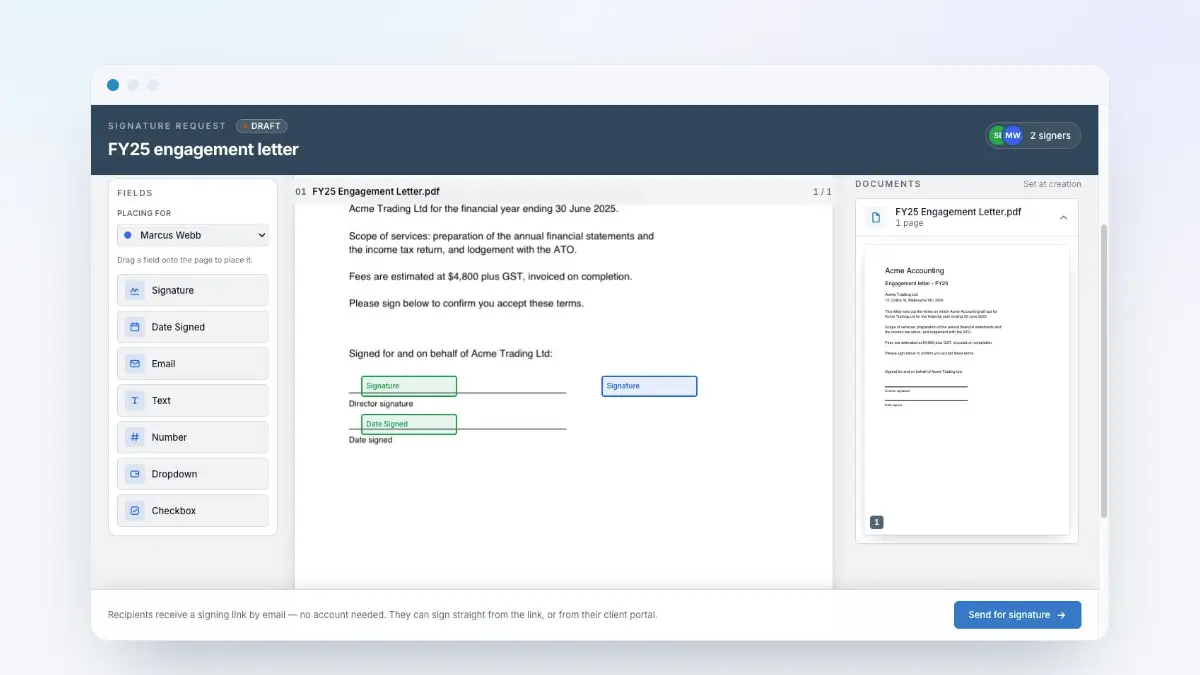
- Drop signature, initial and date fields onto the page. XTK already knows the signer's name and email from the client record.
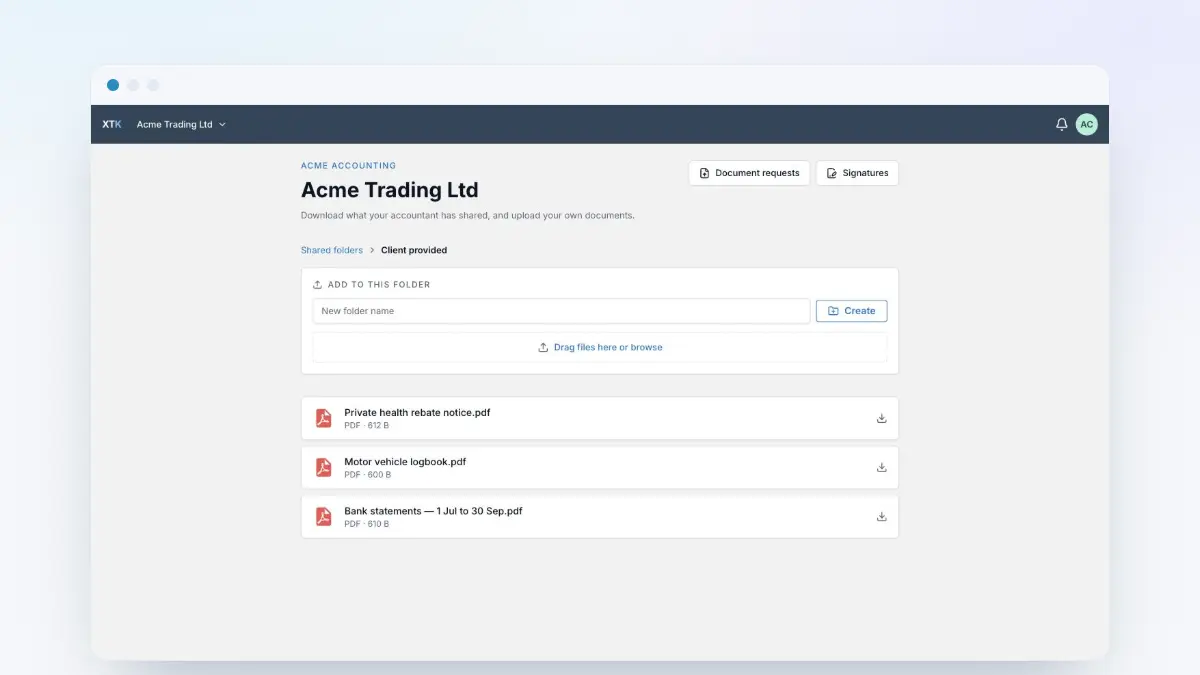
- Send. The client signs from any device — no account, no app, no password.
- The signed PDF and its completion certificate land in the client's Drive folder automatically.
The part you'll feel in July
The real win isn't sending — it's tracking. Because every request is tied to a client, that client's Signatures tab lists every request against them and how far each one has got: who has been emailed, who has viewed, who has signed, who declined. The Status dialog goes further, down to a timestamped history of every event — the record behind the Certificate of Completion.
Two things it deliberately doesn't do. There is no scheduler, so chasing a slow signer is a decision you make — “Resend link”, from the same dialog — rather than one XTK makes for you. And the tracking is per client rather than one practice-wide queue: you check a client, not a dashboard. What it does buy you is never again searching an inbox for the words “signed copy attached”.
If your engagement letter run still involves a download folder and a second login, try sending one letter through XTK instead. It takes about a minute, and the signed copy files itself.