12 min read
More than a signature: e-sign forms your clients fill in
By The XTK team · Product
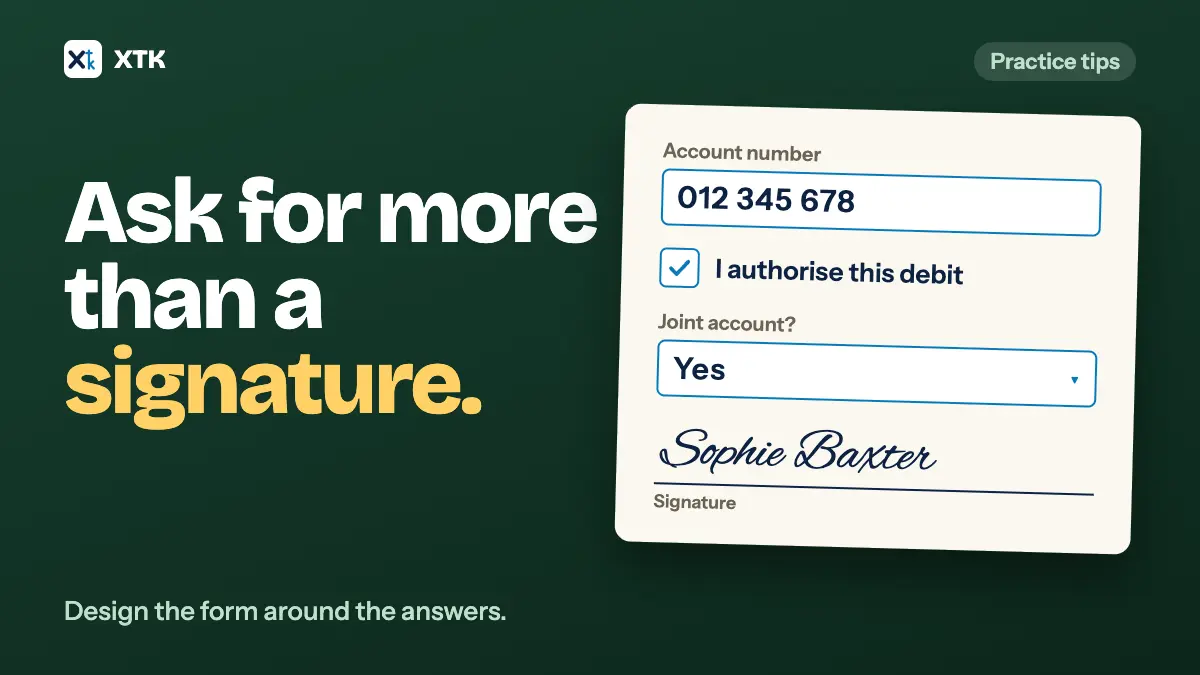
An e-signature form can ask the client for more than a signature: an account number, a tick against a statement, a choice from a list, a date. Design it backwards from what you will do with each answer. Give every answer its own field of the right type, make a field required only when you can't go on without it, and remember that the signed PDF is usually the only place the answers end up.
This article covers why practices on Xero document packs end up printing these forms, how to choose a field for each answer, the mistakes that only show up in the signed copy, and what to do with the answers once they come back.
Can a Xero document pack ask for anything but a signature?
Not according to Xero's own help. The Xero Central article Add or remove e-signature requests in a document pack describes adding a signer to a document and moving the e-signature request to where they should sign. It mentions no other kind of field.
Practices have asked for more since 2022. The idea Document Packs – Text box for documents within a pack was posted in July 2022 by a practice that sends authority forms on which clients must write their bank account details before signing. It asks for text, numbers and yes/no ticks. It had 58 votes when we read it on 5 October 2026 and is marked Submitted. Be careful with that number, though. The idea first also asked for email templates, and most of its comments are about those, so not every vote is for fields.
A smaller idea, Xero Sign – Ability to add a ‘Date’ field, had 12 votes the same day. It has been Submitted since March 2023, and its latest comment is from September 2025. The comments on both describe the same workarounds: a second e-signing tool for anything that isn't a tax return, asking clients to write the date by hand, or printing and scanning.
The advice below applies whichever tool you use, including paper.
Start from what you will do with each answer
Before you place a single field, list every answer the form collects and write next to it where that answer goes. A bank account number goes into a direct debit setup. A date of birth goes into the client's record in Xero Practice Manager. A tick against “I have provided all income” goes nowhere: it is the client's statement, and its value is that it is on the signed page.
Any answer with nowhere to go should come off the form. Each one is a field the client has to fill in, a value someone has to check, and, if it is personal information, something your practice now holds. The forms that come back complete are the short ones.
Which field type fits each answer?
Pick the field from the shape of the answer, not from what the paper form looked like.
| The answer is | Use | Why |
|---|---|---|
| A code: account number, BSB, phone, postcode, ABN | Text | Codes keep their leading zeros and spacing |
| An amount or a count | Number | Only a number is accepted |
| An email address | The shape is checked before signing | |
| Yes or no, with both answers allowed | Dropdown: Yes, No | Skipped can't pass for no |
| Agreement to a statement | Checkbox, required | The tick is the agreement |
| One of a known set | Dropdown | No spelling to check later |
| The day they signed | Date Signed | Filled in automatically |
| Any other date | Text, with the format shown | Unless your tool has a date picker |
Two rows catch practices out.
- An account number is not a number. Nobody adds account numbers together. Put one in a number field and a tool may drop the leading zero, refuse the hyphen in a BSB, or print it with commas, depending on how the field is formatted. Anything you would never do arithmetic on goes in a text field.
- A single checkbox can't ask a yes/no question. Left unticked, it means no, or the client didn't see it, and you can't tell which. If it's required, the client can only answer yes. Use a checkbox where ticking is the whole point, such as agreeing to the terms of an authority, and a two-option dropdown wherever “no” is a real answer.
Required, or optional?
Make a field required when the form is useless without it: the account number on a direct debit authority, the agreement on a declaration. Leave it optional when some clients genuinely have nothing to write, such as a second phone number or a previous address.
Requiring too much has a cost too. A client who must fill in a box they can't answer types something to get past it, such as “n/a”, “0” or a date they made up, and that is worse than a blank, because it looks like an answer. If a required field might not apply to everyone, add “Not applicable” as a dropdown option, or make it optional and say so on the page.
Put the question on the page, not in the field
The signed PDF shows the document and the answers stamped onto it. It doesn't show the hint text, tooltips or internal labels you set on each field. So a box with “123456789” in it means something only if the document itself says “Account number” next to it.
- Print a label beside every box in the document itself. If you are adapting a paper form, its labels are already there. If you are writing a new one, add them before you upload.
- Use the field's tooltip or hint for help, not for the question: “As shown on your bank statement, without spaces” or “DD/MM/YYYY”.
- Size each box for the longest likely answer. Some tools, XTK among them, print a typed answer on one line at a size set by the box's height, so a long answer in a short box runs past its edge.
- Keep a little space between boxes, so a long answer in one doesn't run into the next.
Who fills in what
Most e-signing tools assign each field to one signer. On a form with two directors, decide who supplies the details and who only signs, and give the details fields to one of them. Don't place the same question for both, or you will get two answers that differ.
Check what the second signer sees, because tools differ. In XTK, for example, a signer sees only their own fields filled in. Another signer's answers appear only in the finished PDF. If the second director is meant to approve the bank details the first one typed, they can't do it on the signing page. Either have them check the signed copy, or ask for the details first and send a form that already contains them.
Think twice about sensitive details
Collecting bank details or a date of birth on a signed form is convenient, and it puts that information in places you may not have thought about. The signed PDF is filed in the client's folder, and it is often emailed as an attachment to every signer as well. Ask only for what the form exists to collect.
- Leave tax file numbers off these forms entirely. They have their own handling rules, and a PDF attached to emails is the wrong place for one.
- Collect identity details for verification the way your practice already does, not on a form that will be emailed to several people.
- If a form collects bank details, check who receives the signed copy. On a joint authority that is everyone who signs.
Getting the answers back out
In most practices, the signed PDF is the only place the answers live. Nothing types the new address into Practice Manager or the account number into your direct debit system for you. That is fine as long as someone is responsible for it.
- Make updating the records a task on the job, in the same step as filing the signed copy.
- Have the person who updates the record check the answer against the signed PDF, not against an email or a note.
- Keep the signed PDF as the record of what the client gave you and when. The e-signature audit trail covers who signed and when; the stamped values are the content.
Test the form on yourself first
Send the form to yourself once before it goes to any client. Fill it in the way a hurried client would: the longest name you can think of, an account number starting with zero, an optional field left blank, every required field skipped once to see what stops you. Then open the signed PDF and read it as if you were the person updating the client's record. Fix what is unclear, and keep that tested version as the one you send from.
How does XTK handle form fields?
XTK is a browser extension that adds a Documents tab to each client in Practice Manager. You send a PDF for signature from the client's folder and place fields on it in your browser. Seven field types can be placed today.
- Signature, which the signer draws or types.
- Text, Number and Email, which the signer types. A Number field takes only a number, an Email field checks the shape of the address, and Number has a “Number format” setting: “Plain”, “Thousands”, “Thousands + 2 decimals” or “Currency (AUD)”.
- Dropdown, with your options one per line, and Checkbox, stamped as an empty square or a ticked one.
- Date Signed, filled in automatically in the date format you choose.
- Each field belongs to one signer, chosen under “Placing for”, and has “Required” (on by default), a “Data label” and a “Tooltip”.
- Required fields carry a red asterisk on the signing page, “Next field” jumps to the next empty one, and “Finish signing” is refused while a required field is empty or an email or number doesn't check out.
- When the last signer finishes, XTK stamps every answer into a new “… (signed).pdf” with a Certificate of Completion, files it beside the original in the client's folder, and emails it to every signer. The original isn't changed.
- XTK won't send a request that asks the signer for nothing, for example one whose only field is Date Signed.
Because fields are placed per request, keep the tested form as a ready-to-sign PDF with its labels printed, and a one-line note of which fields go where. Placing seven fields on a form you know takes a couple of minutes. If you get one wrong after sending, our article on fixing a sent signature request covers voiding and resending.
The short version
- List every answer the form collects and where it goes. Drop the ones that go nowhere.
- Pick the field from the answer's shape. Codes such as account numbers go in text fields, never number fields.
- Use a checkbox for agreement and a Yes/No dropdown for a real question.
- Require only what the form can't do without, and offer “Not applicable” where it might not apply.
- Print the question beside each box in the document itself. Hints and labels don't reach the PDF.
- Give each answer to one signer, and remember other signers won't see it until the end.
- Keep tax file numbers off emailed forms, and ask for bank details only where the form exists for them.
- Make updating the client's records a task, checked against the signed PDF.
- Test the form on yourself before any client sees it.
Frequently asked questions
Can I add a text box to a Xero document pack?
Not according to Xero's help article on adding e-signature requests to a document pack, which describes placing signatures only. The idea asking for text boxes, numbers and yes/no ticks was posted in July 2022, had 58 votes on 5 October 2026, and is marked Submitted. Practices in its comments use a second e-signing tool for forms that need answers.
Should a bank account number go in a number field or a text field?
A text field. An account number, BSB, phone number or postcode is a code, not a quantity. A number field can drop a leading zero, reject a hyphen, or print the value with thousands separators. Keep number fields for amounts and counts.
How do I ask a yes/no question on an e-signature form?
With a dropdown or a pair of options offering Yes and No, marked required. A single checkbox can't tell “no” from “didn't see the question”, and a required checkbox can only be answered yes. Use a checkbox when ticking it is the agreement itself.
Where do the answers go once the client has signed?
Usually into the signed PDF and nowhere else. Someone in the practice still has to copy them into Practice Manager or wherever they're needed, so make that a task on the job and check it against the signed copy.