11 min read
The covering email: what to write when you send a client documents to sign
By The XTK team · Product
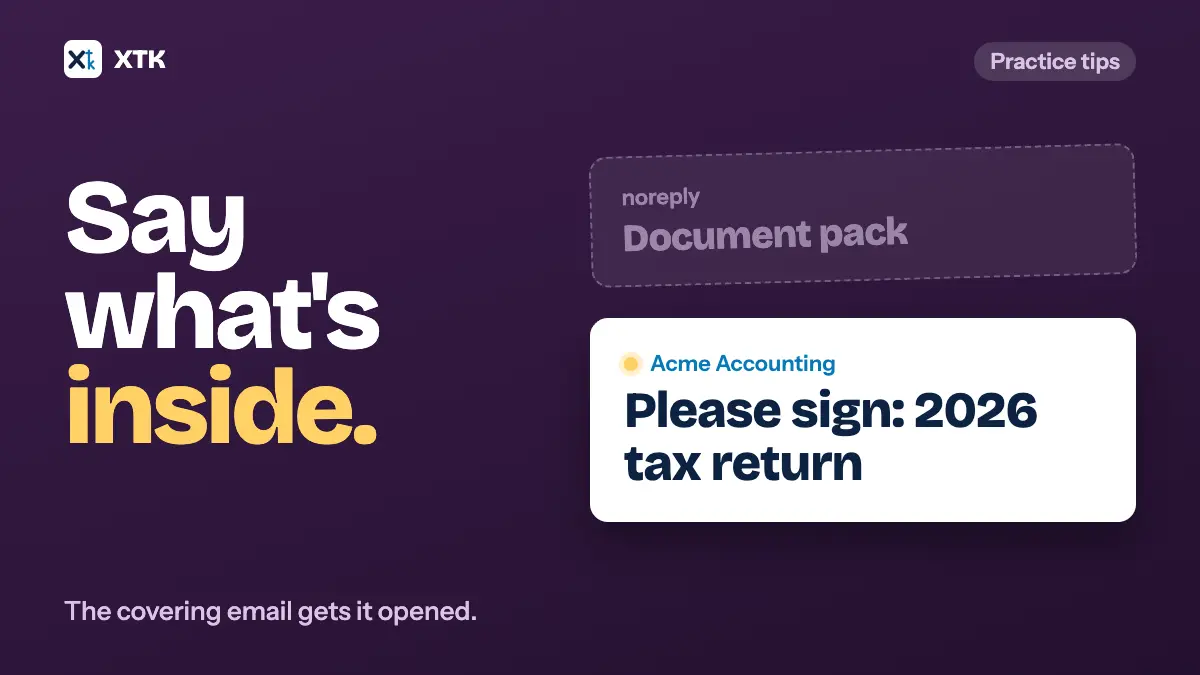
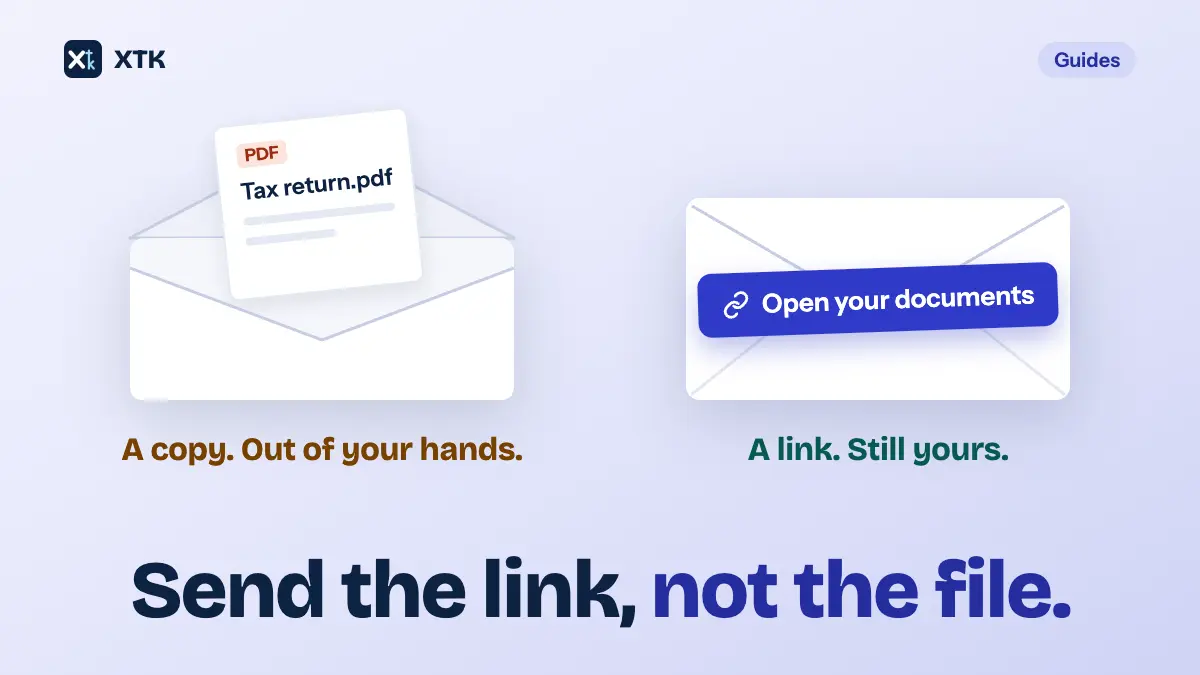
The covering email is the short message that arrives with a link to sign or upload something. It decides whether the document gets opened. A good one tells the client who it is from, what is inside, what to do and by when, in a subject line and a few sentences. Write that wording once for each kind of thing you send, keep the set small, and stop relying on the default text your software supplies.
This article covers what the email has to say, how to write the subject line, a wording you can copy, which standard emails are worth keeping, and what to do when your tool won't save them for you.
Can you save an email template for a Xero document pack?
No. When you send a document pack, Xero's help article Send a document pack lists an optional step to edit the email before sending, and says every recipient of the pack receives the same email. So you can change the wording for one pack. You can't save your wording and have it there next time.
Practices have asked for that since June 2022. The idea Document Packs Email Templates – Ability to edit had 72 votes when we read it on 1 October 2026. It has been marked Submitted since 13 June 2022, and the latest comment is from 31 August 2026. A second idea about document packs has the same request mixed into its comments, and in November 2022 Xero's community manager pointed those commenters to the first one.
The comments say the same things for four years. The default wording doesn't sound like the practice. Rewriting it for every pack takes time and lets mistakes in, and several people describe pasting the same paragraph into the box each time. One practitioner says some clients took the email for junk. Others ask for more than one saved wording, for the client's first name to be filled in, for different text for companies and individuals, for a practice logo, and for the email to list the documents in the pack.
That list is a good description of what a covering email should do. You can meet most of it today with a few minutes of writing, whatever tool sends the email.
What does the covering email have to do?
A client reading it should be able to answer five questions without opening anything.
- Who is this from? Your practice name, and a person's name, in words the client already knows.
- What is inside? The documents, named the way the client thinks of them: your 2026 tax return, not your document pack.
- What do I do? Read and sign, or upload, or just keep a copy. Say how long it takes and whether they need an account.
- By when, and why? A date, and the reason for it, such as a lodgment deadline.
- What happens next, and who do I ask? What they'll receive once it's done, and a name and number for questions.
Five short answers fit in six or seven sentences. Anything longer belongs in the document itself or in a letter inside the pack. The email's job is to get the client to open the link, knowing what they'll find.
Write the subject line first
The subject line is all a client sees before deciding whether to open the email, and it is what they search for three weeks later. Put the action first, then what the document is, then who it is for.
| Instead of | Write |
|---|---|
| Document pack | Please sign: 2026 tax return, Sophie Baxter |
| Signature request | Please sign: FY26 accounts, Acme Trading |
| FY26_ITR_final_v3.pdf | Please sign: 2026 tax return |
| Documents required | Records we need for your 2026 return |
| URGENT action needed | Please sign by 16 October: BAS, Acme Trading |
- Name the entity whenever the client has several. A director with a company, a trust and a personal return gets three emails that look alike otherwise.
- Use the same opening words every time. A client who has seen “Please sign:” from you before knows what the next one is.
- Keep amounts and tax file numbers out of it. A subject line shows on lock screens and in shared inboxes.
- Don't use a file name. A file name is written for your filing, not for the client.
- Save “urgent” for when it is true, and give the date instead.
A covering email you can copy
Here is a signature request for a company's year-end documents. Change the names, the documents and the date, and keep the rest.
Hi Sophie, the 2026 tax return and financial statements for Acme Trading are ready for you to sign. There are three documents: the company tax return, the financial statements and the directors' declaration. Please read them, then sign where marked. It takes about five minutes and you don't need an account. We need your signature by Friday 16 October so we can lodge on time. When everyone has signed, you'll receive the signed copies by email. If anything looks wrong, don't sign. Reply to this email or call Sam on 03 9555 1000.
It answers the five questions in order. It also tells the client what to do if something is wrong, which is the sentence most covering emails leave out. A client who spots a mistake and has no instruction will either sign anyway or do nothing.
Should the email list the documents?
Yes, when there is more than one. A client who is told there are three documents, and what they are, can check that they have seen all three before they finish. It also separates what they are signing from what they are only being given to read, which matters when a pack holds a return to sign and a set of notes that needs no signature.
Use plain names, in the order the client will meet them, and leave the figures out. The refund or the amount payable belongs in the document or in your cover letter inside it, because an email can still reach the wrong person. Our article on sending documents without attachments explains why the email should carry the notice and not the content.
Why do clients take it for junk?
An email from an address the client has never seen, with a generic subject and a link, looks like every phishing email they have been warned about. Three things change that.
- Tell clients in advance. At onboarding, and again in the email you send with your engagement letter, say which address signing emails come from and what the subject line will start with.
- Send from your own address where the tool allows it. A reply then reaches a person, and the client has seen the address before.
- Make the email specific. A real name, the entity, the financial year and a phone number are details a mass phishing email doesn't have.
If your signing tool sends from its own address and you can't change that, the first point does most of the work. A one-line note from your own mailbox saying that a signing email is on its way, and what it's called, takes less time than the phone call asking whether it is real.
Keep a small set, not one per client
Most practices send the same six or seven emails all year. Write each one once.
| The line it must have | |
|---|---|
| Tax return to sign | Sign by this date so we can lodge |
| Accounts to sign | Who signs, and in what order |
| Engagement letter | What changed since last year |
| Records request | What to upload, and where |
| Portal invite | What the portal is for |
| Reminder | The date, and that the link still works |
| Cancelled, resending | Nothing is wrong with the work |
- Write a second version only where the wording really differs. A company email says the directors sign on the company's behalf, and an individual's doesn't. That is two versions of one email, not a reason for a wording per client.
- Name each one by what it is for, so anyone on your team picks the right one.
- Leave the greeting, the entity, the document list and the date as the parts you fill in each time. Everything else stays fixed.
- Keep them where everyone can reach them. If your tool saves templates, use that. If it doesn't, a shared document your team pastes from gives you the same consistency. Our article on fixing a sent signature request has the wording for the cancellation note.
- Read the set once a year, before your busy season, and have one person own the changes.
Read the emails you don't write
The covering email is the one you control. Most signing tools also send reminders, cancellation notices and a completion email, and their wording is often fixed. Send a test request to yourself once, sign it, and read everything that arrives.
Then use your covering email to prepare the client for the rest. If signed copies arrive by email as attachments, say so. If the completion email goes out under the same subject as the request, expect a client to ask why they are being asked to sign again, and say in the first email that a second message with the signed copies will follow.
How does XTK handle the covering email?
XTK is a browser extension that adds a Documents tab to each client in Practice Manager. It has saved email templates, but not for every kind of email, so here is where they apply and where they don't.
- Email templates are shared across the practice. Each has a name, a subject and a body, with bold, bullet lists and links, and a “Preview” that shows the email as the client will receive it.
- A document request has an “Email template” dropdown on its last step. It starts on XTK's own short wording, and choosing a template replaces the subject and body with yours. You can still edit both, and add CC addresses, before sending.
- A client portal invite always starts from a template. Every practice begins with one called “Portal invite”, which you can rewrite.
- A signature request has a “Subject” and an optional “Message”, typed each time. Your message goes above a fixed line asking the recipient to review and sign, with the link. A dashed list in the message comes out as bullets, so a document list reads cleanly.
- Mail goes from your own Gmail or Microsoft mailbox once it's connected, either a shared practice address or your own. A copy lands in that mailbox's Sent folder and replies come back to it. Your practice name is the heading of every client email.
Two habits follow from that. Write the signature message so it still makes sense at the top of the completion email, by saying in it that signed copies will follow. And keep your signature wording in the same shared place as the rest of the set, so the one email XTK doesn't template is still the same from everyone on your team.
The short version
- The covering email decides whether the document is opened. Say who it's from, what's inside, what to do, by when, and what happens next.
- Write the subject as action, document, and who it is for. Never a file name or the tool's default.
- List the documents when there is more than one, and keep the figures out.
- Tell clients in advance which address signing emails come from.
- Keep about seven standard emails, named by purpose, in one shared place.
- A Xero document pack's email can be edited per pack but not saved. Paste from your shared set.
- Send yourself a test and read the automatic emails, so your covering email can prepare the client for them.
Frequently asked questions
Can I create an email template for Xero document packs?
Not a saved one. Xero's help article on sending a document pack lets you edit the email before each send, and every recipient of the pack gets the same email. Practices have asked for saved templates since June 2022. The idea had 72 votes on 1 October 2026 and is still marked Submitted. Until that changes, keep your wording in a shared document and paste it in.
What should the subject line of a signature request say?
The action, the document and who it is for, in that order: “Please sign: 2026 tax return, Sophie Baxter”. Start every signing email with the same words so clients recognise them, name the entity when a client has more than one, and keep amounts, tax file numbers and file names out of it.
Should a covering email list the documents being sent?
Yes, when there is more than one. Name each document plainly, in the order the client will see them, and say which need a signature and which are only for reading. Leave figures such as a refund or an amount payable in the documents themselves.
How many email templates does a practice need?
About seven: a tax return to sign, accounts to sign, an engagement letter, a records request, a portal invite, a reminder, and a note for when a request is cancelled and resent. Add a second version only where the wording differs, such as a company and an individual.
Can XTK email templates insert the client's name?
No. XTK's email templates fill in two links only, the document request link and the client portal invite link. The greeting and any client details are typed in the compose box before sending. Templates apply to document requests and portal invites. Signature requests take a subject and a message typed each time.