9 min read
“I can't log in”: getting clients to sign without an account
By The XTK team · Product
Part of our series on e-signatures for accounting practices. Start with the overview for the full picture.
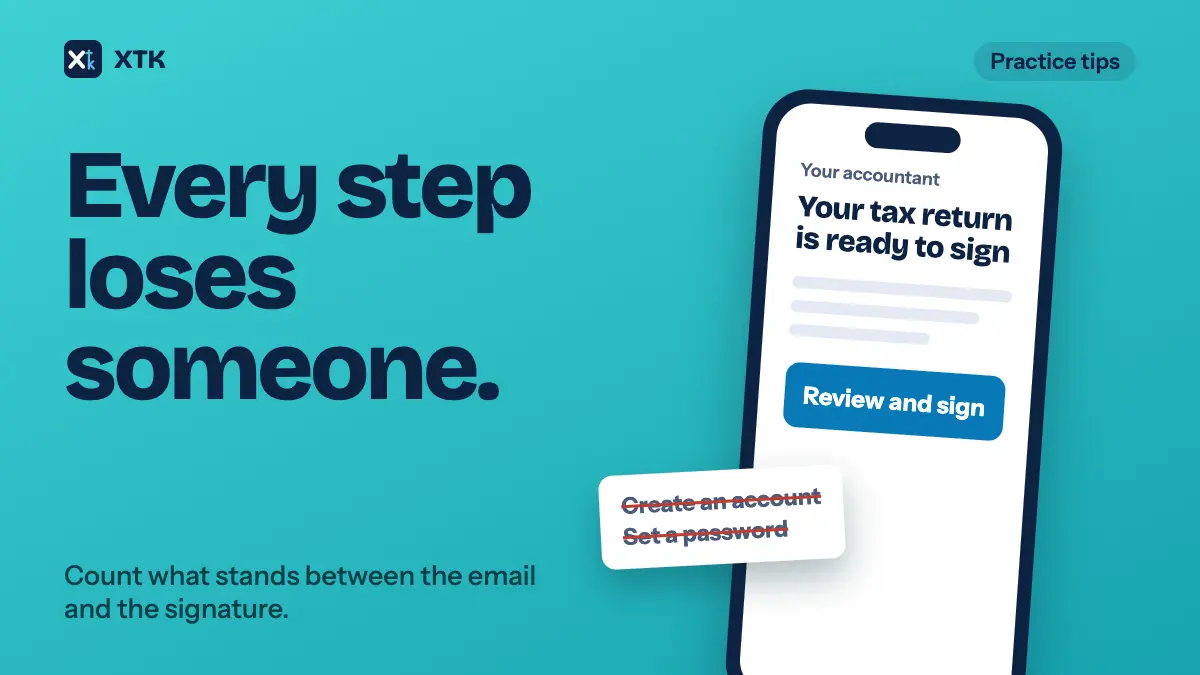
Every step between the signing email and the signature loses some clients: creating an account, remembering a password, a reset that lands on the wrong page, a document that won't display on a phone. Count the steps your signing tool asks for, remove the ones you control, and tell the client about the rest in the covering email. Decide on a fallback before the first client gets stuck, not after you've cancelled a paid pack.
This article covers where clients get stuck, which steps you can remove, what to warn them about, what to do when they still can't get in, and what you give up when signing needs no login at all. For the steps either side of the signing page, see e-signatures from inside Xero Practice Manager.
Why do clients get stuck before they sign?
Because the signing tool asks for more than a signature. Xero's document packs are a common example. Xero's own document packs page says clients are asked to visit a secure Xero portal, where they “can sign in with their Xero login or create a free login to access the documents”. For a client who signs twice a year, that's an account to create, a password to forget and a login page to find again.
Practices say this costs them. On 21 October 2026 the idea Xero sign – Simplify client login for signing documents had 13 votes and nine comments, the latest from June 2026. One practice gets “numerous daily phone calls on how to create a free account” and ends up cancelling packs that are already paid for, then resending the documents another way. Several describe a password reset that sends the client to a Xero sign-up page for a free trial instead of back to the portal. Another says clients lose sight of what was sent once they change their email address, and that they avoid Xero Sign where they can.
The other threads are about the steps either side of the login. In Xero Sign – Change wording to “Click to review and sign” (9 votes), clients call because they think “Click to sign” means signing before they've read anything. Default to ‘unpaginated’ for e-devices, phones and tablets (2 votes, posted August 2026) reports a blank, unscrollable document on phones and tablets until the client finds an “unpaginate” link. AU Tax – SMS option for sending BAS and tax returns for e-signing (11 votes) asks for a text message, because clients answer texts faster than emails. The vote counts are small, 38 across five ideas, but the comments come from practices fielding the calls.
Count the steps between the email and the signature
Send yourself a signing request from your own tool, to a personal address that has never used it, and open it on your phone. Write down every screen between the email and “signed”. Most practices have never done this, and it's the quickest way to see what clients see.
| Step | Where clients get stuck | Who controls it |
|---|---|---|
| Find the email | Spam, an old address, a subject that doesn't say it needs action | You: the address and the wording |
| Know what to do | “Your activity statement is ready” reads as information, not a task | You, if the tool lets you edit it |
| Get in | Creating an account, an old login under another email, a password reset | The signing tool |
| See the document | A blank or tiny page on a phone | Mostly the tool, partly the client's device |
| Trust the button | Fear that “sign” means signing before reading | The tool, and your covering email |
| Sign | Drawing a signature with a finger | The tool |
| Know it's done | No copy, or a copy behind the same login | The tool, and you |
Which steps can you remove?
- Send to the address the client actually reads. Most “I can't log in” calls are really “I'm looking in the wrong inbox”, or an account made under an old address. Check the address with the client when you agree the work, not when the pack goes out. Our article on which client contact gets which document covers practices with several.
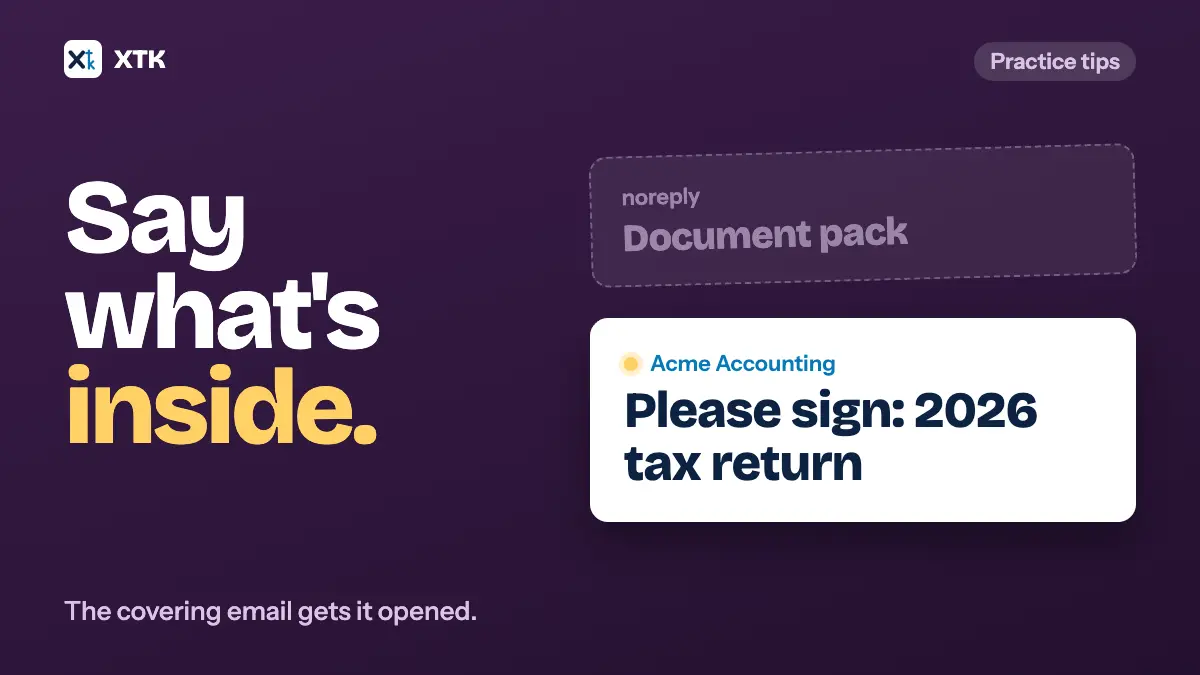
- Make the subject line a task. “Please sign: 2026 tax return, Acme Trading” gets acted on. “Your document pack” gets filed. Where your tool's email can't be changed, send your own short note first saying what's coming and what it's called.
- Choose the signing tool for occasional signers. A client who signs twice a year should not need an account. If your tool needs one, weigh that against what the tool does for you, and count the calls it costs in a busy month.
- Keep one signing tool. A client who signed in one place last year and is asked to log in somewhere else this year has two sets of instructions to forget.
What should the covering email warn the client about?
The steps you can't remove, you can explain. Add a short paragraph to the email that goes with the request, or to the note you send ahead of it. Our article on what to write in the covering email has the rest of the wording.
- Say whether they need an account, and if so which email to use. “You'll be asked to sign in or create a free login. Use sophie@acmetrading.example, the address this email came to.”
- Say that they can read everything before signing. “The button opens the documents. Nothing is signed until you finish.” That answers the “Click to sign” worry before it becomes a call.
- Give the deadline as a date. Signing links often expire, and the email may not say when.
- Name the device that works. If your tool displays badly on phones, say “It's easiest on a computer” rather than waiting for the call.
- Give a name and number. “If anything won't open, call Priya on 09 555 0100” turns a stuck client into a two-minute call instead of a lost week.
What should you do when a client still can't get in?
Decide this before busy season, so the answer isn't made up on the phone. A fallback chosen in advance is faster than troubleshooting someone else's login screen with a client who is already annoyed.
- Set a limit. If one call doesn't get the client through, stop troubleshooting and switch to the fallback. A second call rarely fixes a login problem that the first one couldn't.
- Know what cancelling costs. Practices in the Xero thread describe cancelling packs that were already paid for. Cancelling and resending in the same tool won't fix a login problem either, so only resend there if something else has changed, such as the client's address.
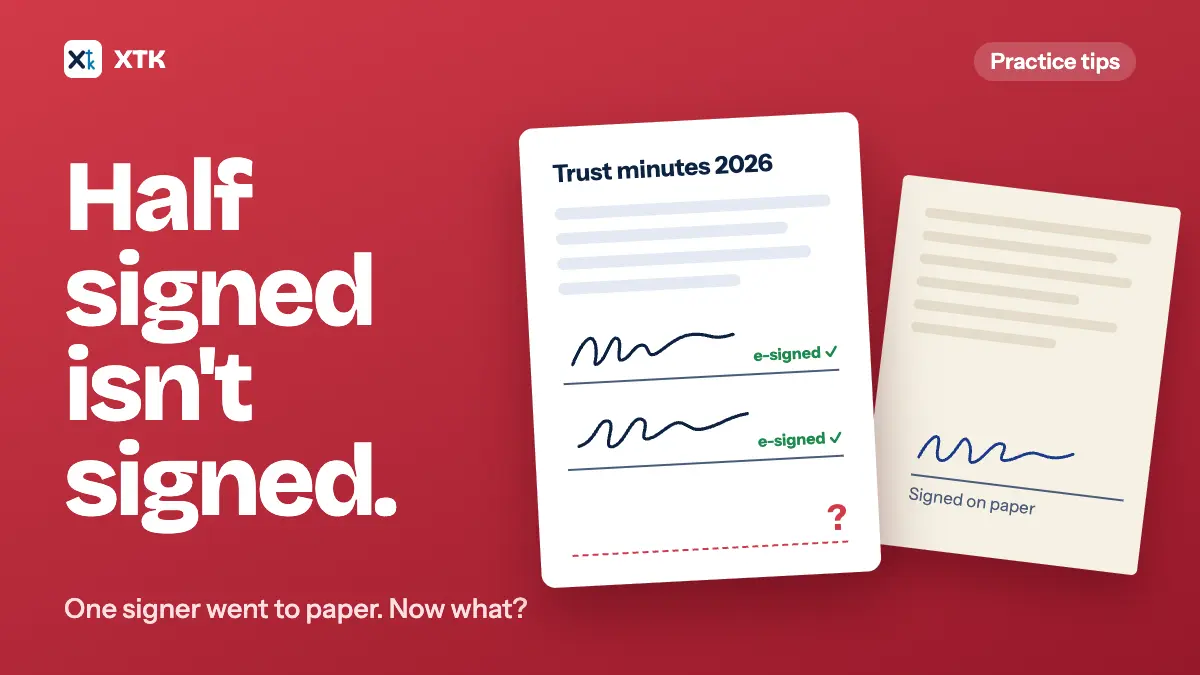
- Have a second route ready. That might be another signing tool that needs no account, or a printed copy signed and scanned back. If you go to paper, record it properly. Our article on a signer who signed on paper covers closing out an e-signature that was half done.
- Don't ask the client to forward the email to their spouse or co-director. Each signer should get their own request at their own address. If someone else needs to sign, add them, which in most tools means a new request. See fixing a signature request after it's gone.
- Note what happened on the client record: which route failed and which one worked. Next year, send it the way that worked first.
Is signing without a login less secure?
It moves the check, rather than removing it. With no account, the link in the email is the access. Whoever can open that mailbox can open the link, so the check is whether the email reached the right person. With an account, the client also needs a password, but the account is usually created from that same email address, so a password reset goes back to the same mailbox anyway.
For an engagement letter or a tax return, an emailed link to an address you've confirmed with the client is the usual standard. What matters afterwards is the record: who the link went to, when it was opened, when it was signed, and from which device. For something unusual, such as a document where a forged signature would be costly, add a check outside the tool: a phone call to confirm the client signed, noted on the file.
How does XTK handle client signing?
XTK is a browser extension that adds documents, e-signatures, document requests and a client portal to each client in Practice Manager. Signers need no account, no password and nothing to install. Each signer gets their own email with a link, and the link is the access. The guide to what your client sees walks through it screen by screen.
- The email carries your subject and message, then “Please review and sign the document” with an “Open the signing page” link. It goes out through the Gmail or Microsoft mailbox your practice connects. It doesn't state an expiry date, so put your deadline in your message.
- The link opens straight onto the documents, with nothing to click first. The pages run as one scroll and fit the width of the screen, so a phone shows the whole page. “Next field” jumps to each place they need to fill in, and typing a name is the easiest way to sign on a phone. Nothing is signed until they click “Finish signing”.
- The link works for 30 days and can be opened as often as they like until they sign. Once they've signed it shows “This document has already been signed”.
- When the last signer finishes, every signer is emailed the signed PDF, with a Certificate of Completion as its last page. That email is their copy.
- If the email is lost, “Resend link” emails a fresh link to the same address and retires the old one. The request's History shows when each signer first opened their link, and the “A recipient opens a request” notification, off by default, tells you as it happens. See sending documents for signature.
XTK is $59 USD a month for the whole practice after a 30-day trial, with no charge per signature, so a request you void and send again costs nothing extra.
The short version
- Every screen between the signing email and the signature loses some clients. Send yourself a request and count them.
- Fix the steps you control first: the address, the subject line, and how many tools you ask clients to use.
- Warn clients about the rest: whether they need an account and which email to use, that they can read before signing, the deadline, the device that works, and who to call.
- Set a limit on troubleshooting, and have a second route ready before you need it.
- Signing without a login moves the check to the mailbox. Confirm the address, and keep the record of who signed, when and from where.
Frequently asked questions
Do clients need a Xero login to sign a document pack?
Xero's document packs page says clients sign in through a secure Xero portal, using their Xero login or a free login they create. Practices on Xero Product Ideas report clients struggling with that step, including a password reset that sends them to a free-trial sign-up page.
What should I tell a client who can't log in to sign?
Check they're using the email address the request was sent to, since an account made under an old address is a common cause. If one call doesn't get them through, switch to your fallback, such as a signing tool that needs no account, rather than troubleshooting the login further.
Is it safe to let clients sign without an account?
It is as safe as the mailbox the link goes to, which is also where an account's password reset would go. Confirm the address with the client, keep the signing record of when and from where each signature was made, and for an unusual or high-value document confirm by phone as well.
Can clients sign on a phone?
Usually, but some signing tools display documents badly on small screens. Test yours on a phone before you send to clients, and if it struggles, tell clients in the covering email that a computer is easier.