10 min read
One signer signed on paper: closing a half-finished e-signature
By The XTK team · Product
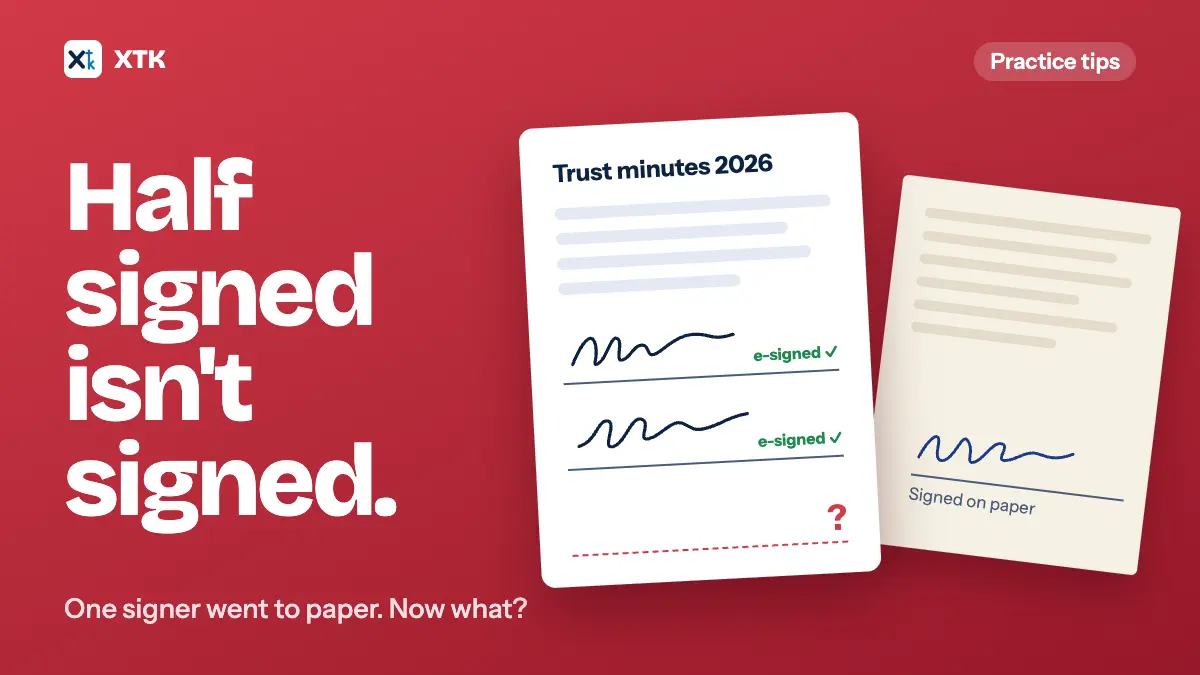
When some signers have e-signed and one signs a printed copy instead, no e-signing tool can finish the request. It stays at “sent” for good, or you cancel it, which emails everyone and usually leaves no copy of the e-signatures already given. Don't try to stitch the two halves together afterwards. Pick a route that ends in one document with every signature on it: everyone signs on paper, or the paper signer signs first and the others e-sign the scan. Then plan for it before the next send.
This article covers why a request can't be marked complete, what you actually hold when one signer goes to paper, three ways to finish, how to close the old request, and how to set up the next one so a paper signer costs less.
Why can't you just mark the request as complete?
Because nothing in the tool can see the paper signature. Practices have asked Xero for exactly this. The idea Document Packs – Ability to mark as complete was posted in February 2023 and had 24 votes when we read it on 14 October 2026. A second, Document Packs: Mark as complete when missing signatures, had 19. Both are marked Submitted, and the most recent comment is from January 2026.
The situations in the comments are ordinary ones. A director drops into the office and signs the financials in person. Trustees refuse to sign through the pack after the clients already have. Someone can't sign in to Xero, which Xero's document packs require of every signer. Each time, the practice is left with a pack that will sit at Sent indefinitely, or a cancellation that annoys clients who have already signed. One commenter also wants to attach the hard copy to the pack, so the record is in one place.
There is a reason the button doesn't exist. In most e-signing tools, completion is the moment the signed document is made: every signature is stamped into the PDF and a certificate is added listing who signed and when. A “complete” with a signature missing would produce a document that looks finished and isn't, with a certificate that can't account for the person who signed on paper. So the tools leave it open, and the job of closing it falls to you.
What do you actually have when one signer goes to paper?
Three pieces, in three places, and none of them is a complete signed document on its own.
| Piece | Where it is | A signed document? |
|---|---|---|
| The e-signatures | Inside the signing tool | Often not on any PDF yet |
| The paper signature | A printed copy, then a scan | Yes, but only one signer |
| The history | The request's event log | No, it's evidence |
The first row is the one that catches practices out. Tools differ on whether you can download a part-signed copy. Commenters on the Xero ideas describe printing partly signed documents for the last signer, but another found that a new pack wouldn't accept a PDF with signatures already embedded. Other tools, including XTK, only produce the signed PDF when the last person signs, so until then the e-signatures exist only inside the tool. If you cancel, they never reach a document at all, and the history is all that shows they were given.
The printed copy has its own problem. Unless it was printed from a part-signed download, it shows the paper signer's signature and nobody else's. Put that scan beside an e-signing history and you have two records that each need the other to make sense, which is exactly what the commenters mean by a pack they can't tidy up.
Three ways to finish
Each route below ends in a record you can file. They differ in who has to sign again and in how strong the result is.
| Route | Who signs again | What you end up with |
|---|---|---|
| Everyone on paper | The e-signers, on paper | One paper document |
| Paper first, then e-sign the scan | The e-signers, electronically | One PDF, every signature |
| Keep the two halves | Nobody | A scan plus a history |
Everyone on paper is the simplest. Cancel the request, print the documents, and have every signer sign the same copy. It works best when the signers can meet, such as a couple signing in the office, and worst when they are spread out and the paper has to travel from one to the next.
Paper first, then e-sign the scan, is usually the best of the three. The paper signer signs a printed copy. You scan the whole document, not only the signature page, and send that scan as a new e-signature request to everyone else. When they finish, the signed PDF holds the paper signature as part of the scanned page and the e-signatures on top, and the e-signing certificate covers the people who signed electronically. It costs the e-signers one more signature, but they do it from their inbox, and you have one document instead of two halves.
Keeping the two halves means filing the paper scan beside the e-signing history and closing the request without anyone signing again. It is tempting because it costs the client nothing. But whether separately signed copies count as one signed document depends on the document and on the law where you practise, and the e-signatures may not exist on any page you can show. Use it only where whoever drafted the document has confirmed it can be signed in separate copies, and keep a note saying so.
How do you close the old request?
However you finish, the old request still has to be dealt with, and cancelling it sends everyone an email. Do it in this order.
- Tell the signers first, from your own mailbox. The people who already e-signed are about to be told their request was cancelled, and they will assume something is wrong. Say that nothing is wrong, why it is being replaced, and what they'll be asked to do next. Our article on fixing a signature request after it's sent has a short note you can adapt.
- Cancel the request rather than leaving it at Sent. A request that will never complete is noise on every list somebody checks, and our earlier advice to keep a list of what's back but not done only works if dead requests come off it.
- Keep the cancelled request. It records who was sent what, when, and who had e-signed before you switched, which explains why the client has two lots of emails from you.
- File the paper scan in the client's folder beside the original, with a name that says what it is, such as “Trust minutes 2026 - signed on paper - J Smith”. Our article on naming client files covers the pattern.
- Write one line on the job saying what happened: who signed on paper, on what date, and which route you took. Whoever picks the file up next year won't have to work it out from two emails and a scan.
Plan the paper signer before you send
Most paper signers are predictable. The older trustee who has never used e-signing, the director who is overseas with patchy email, the co-signer who has told you before they won't sign online. A minute of planning at send time decides whether one of them costs you a re-sign from everyone or nothing at all.
- Ask before you send. When a request has several signers, a one-line email asking whether everyone is happy to sign electronically is cheaper than a cancelled request.
- Put the likely paper signer first. If your tool supports signing order, put them on the first step on their own and everyone else after them. If they go to paper, nobody else has signed yet, so there is nothing to lose: you take the paper-first route from the start.
- Split what doesn't need to be together. If the paper signer only signs some of the documents, send those on their own request, so the rest can finish electronically.
- Set a date to switch. Decide how long you'll chase an e-signature before offering paper, and put that date on the job, so the request doesn't sit at Sent while everyone waits.
- Say which route you'll use. Agree in the practice that paper first, then e-sign the scan, is the default when a signer can't e-sign, so nobody improvises a two-halves record under deadline.
How does XTK handle a signer who signs on paper?
XTK is a browser extension that adds a Documents tab to each client in Practice Manager, where you can send documents for e-signature. Signers sign from an emailed link and don't need an account of any kind, which removes the commonest reason commenters give for going to paper. When someone still does, here is what XTK gives you.
- Signers sit on numbered steps. Everyone on step 1 is emailed when you send, and a later step is only emailed once the step before it has finished. That is what lets you put a likely paper signer first, on their own.
- “Void request”, in the request's ⋮ menu or its Status dialog, cancels a request that is Sent or In progress. Every signing link stops working, and the request stays in the client's Signatures list, marked Voided, with its History.
- The History lists each event with the date and time: Sent, Viewed, Signed, and so on, with the signer's email address on each line. That is the record of who had e-signed before you voided.
- For the paper-first route, scan the signed paper copy to PDF and add it to the client's folder with “Create”, then “Upload” in the Documents tab, or by dragging it in. See managing client documents. Then send that PDF as a new signature request to the remaining signers.
- When the last of them signs, XTK saves a signed copy beside the scan, named after it with “(signed)” on the end, with a Certificate of Completion on its last page listing each e-signer. The scan itself isn't changed.
XTK is $59 USD a month for the whole practice after a 30-day trial, with no charge per request, so the voided request and its replacement cost nothing extra.
The short version
- No e-signing tool can complete a request with a signature missing, and Xero's ideas asking for it are still Submitted.
- Cancelling usually leaves the e-signatures already given on no document at all.
- Aim for one document with every signature: everyone on paper, or paper first, then e-sign the scan.
- Keep two halves only where the document can be signed in separate copies, and note who confirmed it.
- Tell the signers before you cancel, keep the cancelled request, and file the scan with a clear name.
- Put a likely paper signer on the first step, alone, so switching to paper costs nobody a signature.
Frequently asked questions
Can I mark a Xero document pack as complete if one person signed on paper?
Not according to practices on Xero Product Ideas. Two ideas asking for it had 24 and 19 votes on 14 October 2026 and are both marked Submitted. The pack stays at Sent until you cancel it, and cancelling emails the signers.
What happens to the e-signatures if I cancel a part-signed request?
It depends on the tool. Many tools, including XTK, only stamp signatures into the PDF when the last person signs, so a cancelled request leaves the e-signatures in the tool's history and on no document. Plan on the people who e-signed signing again.
One signer can only sign on paper. What's the best way to combine the signatures?
Have the paper signer sign first, scan the whole signed document, and send the scan as a new e-signature request to everyone else. The finished PDF then shows every signature, and the e-signing certificate covers the people who signed electronically.
How do we stop this happening on the next request?
Ask signers before you send whether they're happy to sign electronically, put anyone likely to sign on paper on the first signing step on their own, and send documents they don't need to sign on a separate request.