Updated 7 min read
Manage client documents inside Xero Practice Manager
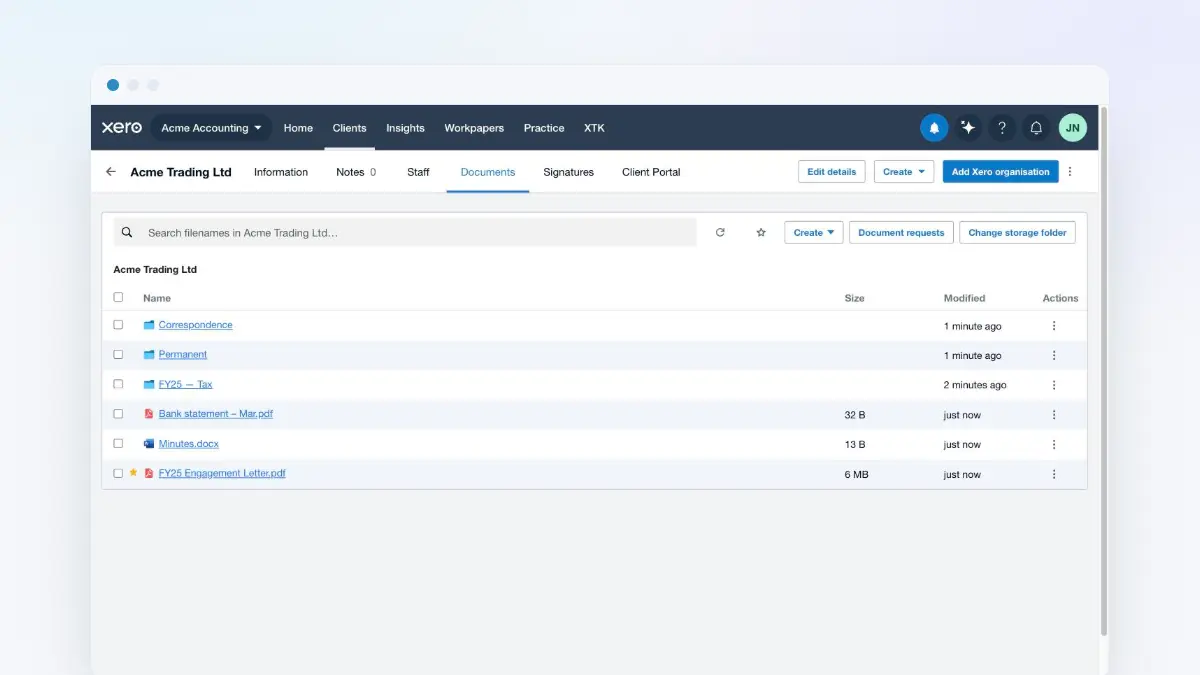
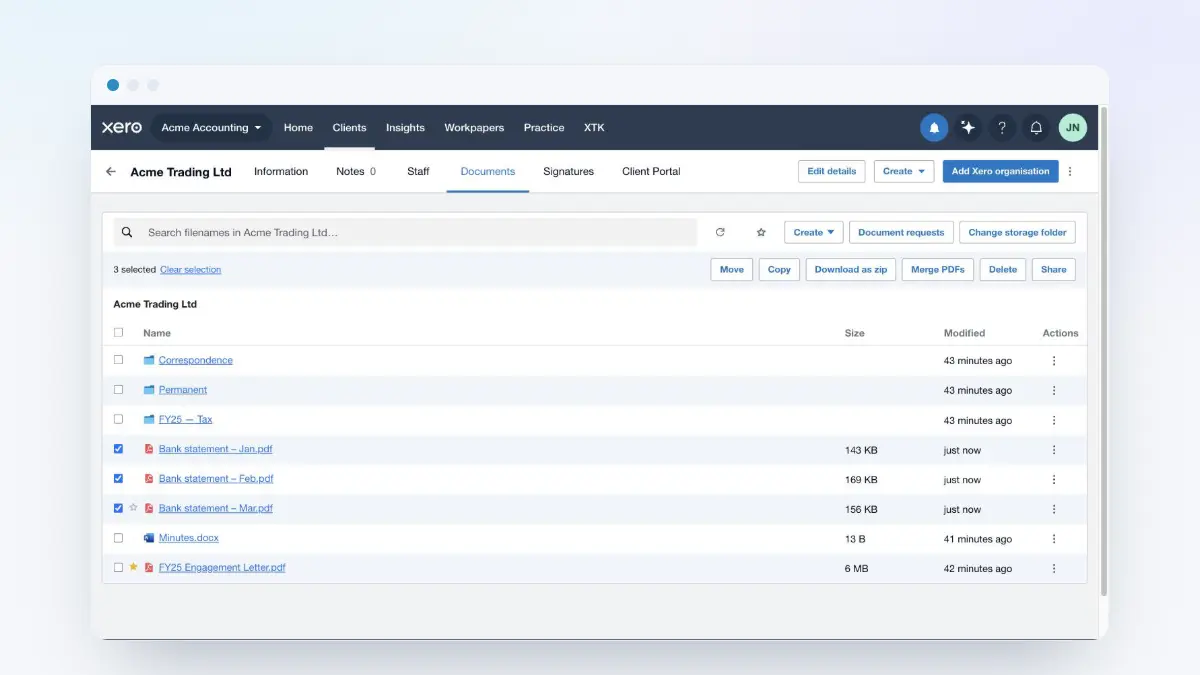
Every client in Xero Practice Manager (XPM) gets a Documents tab from XTK: a full file manager for that client's folder in your practice's own Google Drive, OneDrive or SharePoint. You can browse, search, upload, rename, favourite, share and organise client files without leaving Practice Manager — and because it's your storage underneath, everything you do here is just ordinary files and folders in your own drive.
XTK is an independent product and is not affiliated with or endorsed by Xero Limited.
Open a client's documents
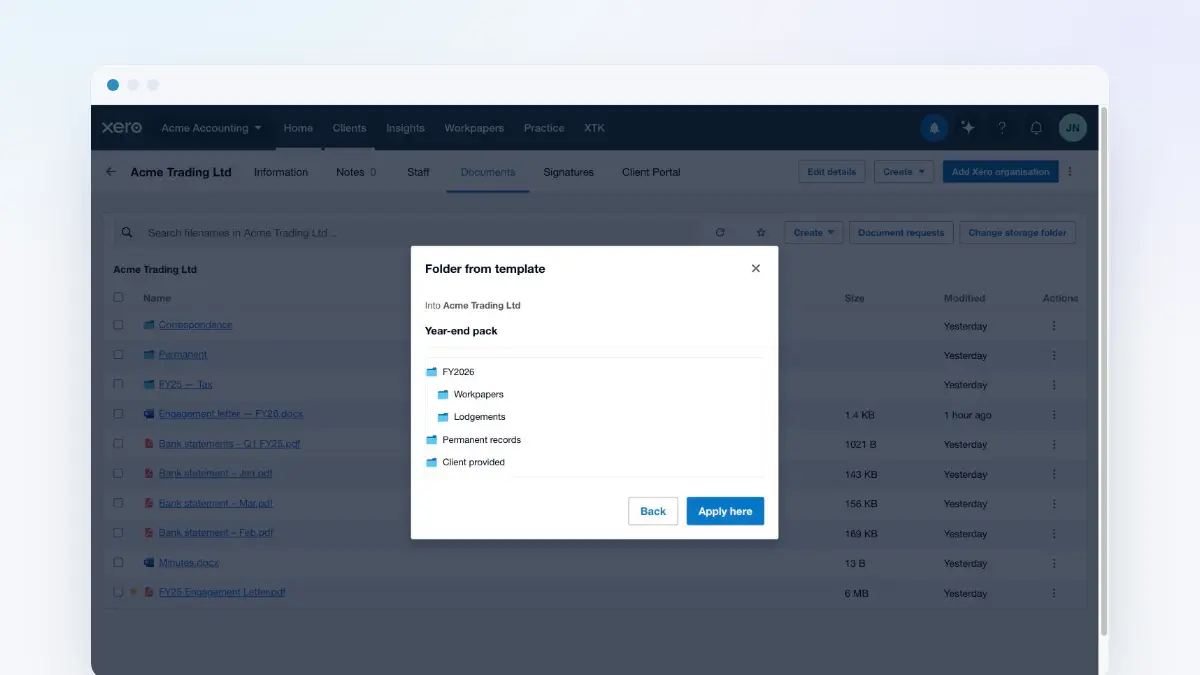
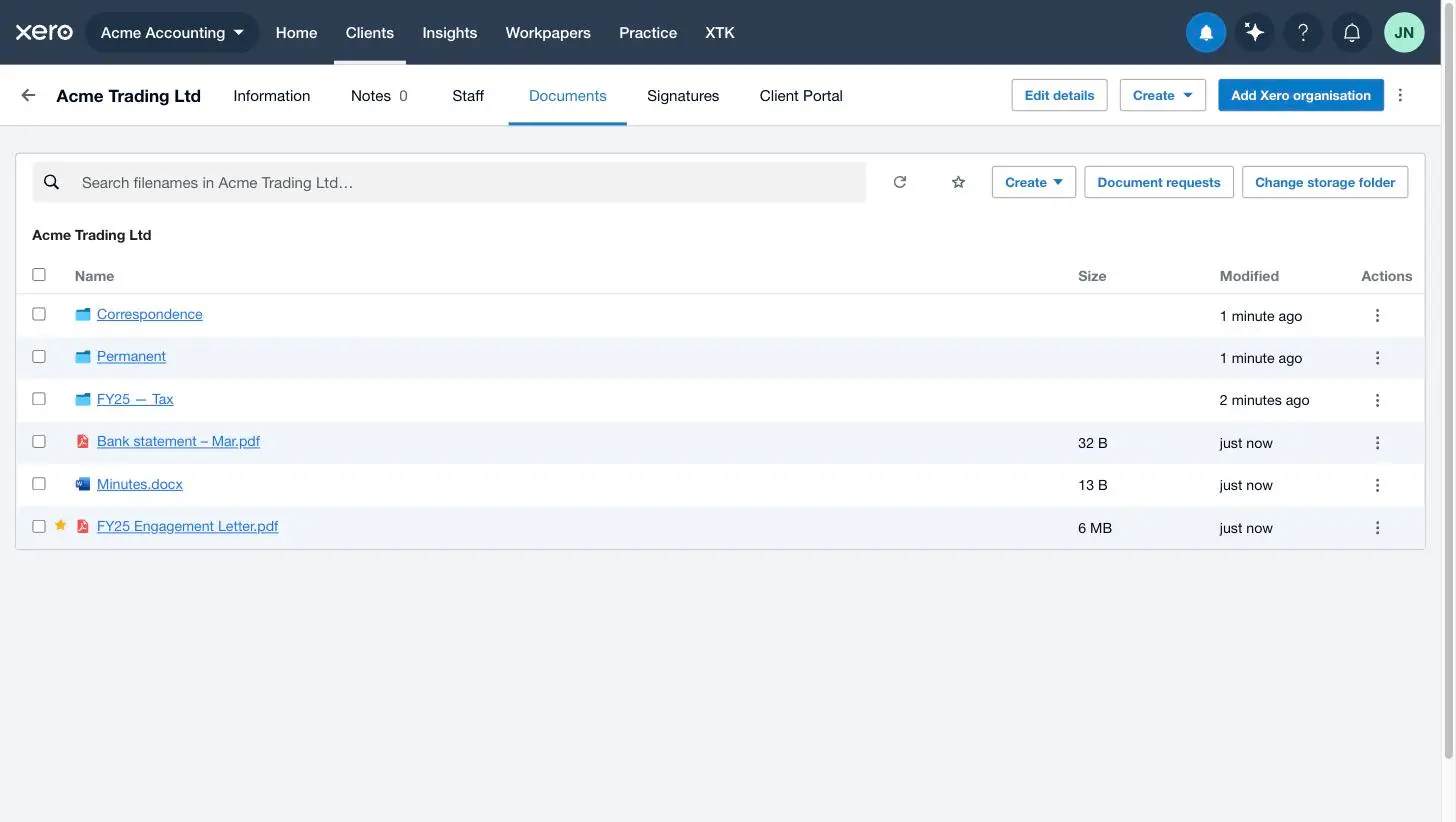
Open any client in Practice Manager and click the “Documents” tab — XTK replaces Xero's native Documents tab with its own. What you're looking at is the client's own folder in your practice's storage: files and folders listed with size and modified date, a search box, and a toolbar for everything you can create.
How XTK finds the client's folder
The first time anyone opens a client's Documents tab, XTK looks inside your Main Storage Folder for a folder named after the client:
- Exactly one folder matches the client's name — XTK adopts it, and your existing files appear immediately.
- No folder matches — XTK creates one named after the client, so brand-new clients need no setup at all.
- Two or more folders match — XTK asks you to pick the right one (or create a fresh one) rather than guess.
Picked the wrong folder, or reorganised your drive? Click “Change storage folder” at the right of the toolbar and choose again. It only re-points XTK — nothing in your drive is moved or deleted.
Find files: browse, search, favourites
- Browse: click a folder to open it, and use the breadcrumb above the list to step back up. Click a file's name to open it in Google Drive, OneDrive or SharePoint in a new tab.
- Search: type in the search box to find files by name — it searches the folder you're in and every subfolder beneath it, and each result shows the folder path it lives in. Click the × to return to browsing.
- Favourites: hover over a row and click the star to bookmark files or folders you keep coming back to. The star button in the toolbar filters the list to your favourites only — they're personal, so your stars are yours alone.
- Refresh: the circular-arrow button re-reads the folder — handy when a colleague has just filed something.
Upload files
Open the Create menu
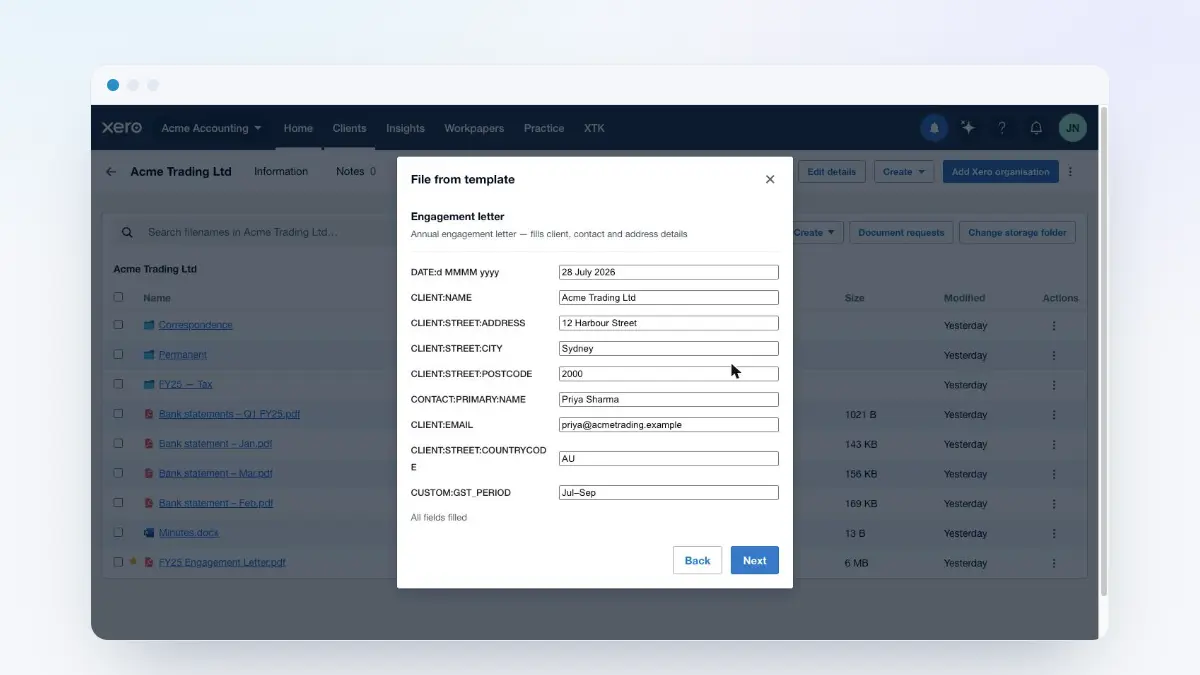
Click “Create” in the toolbar. Everything you can add to the folder lives here: “Upload”, “Create folder”, “File from template”, “Folder from template” and “Request documents”.
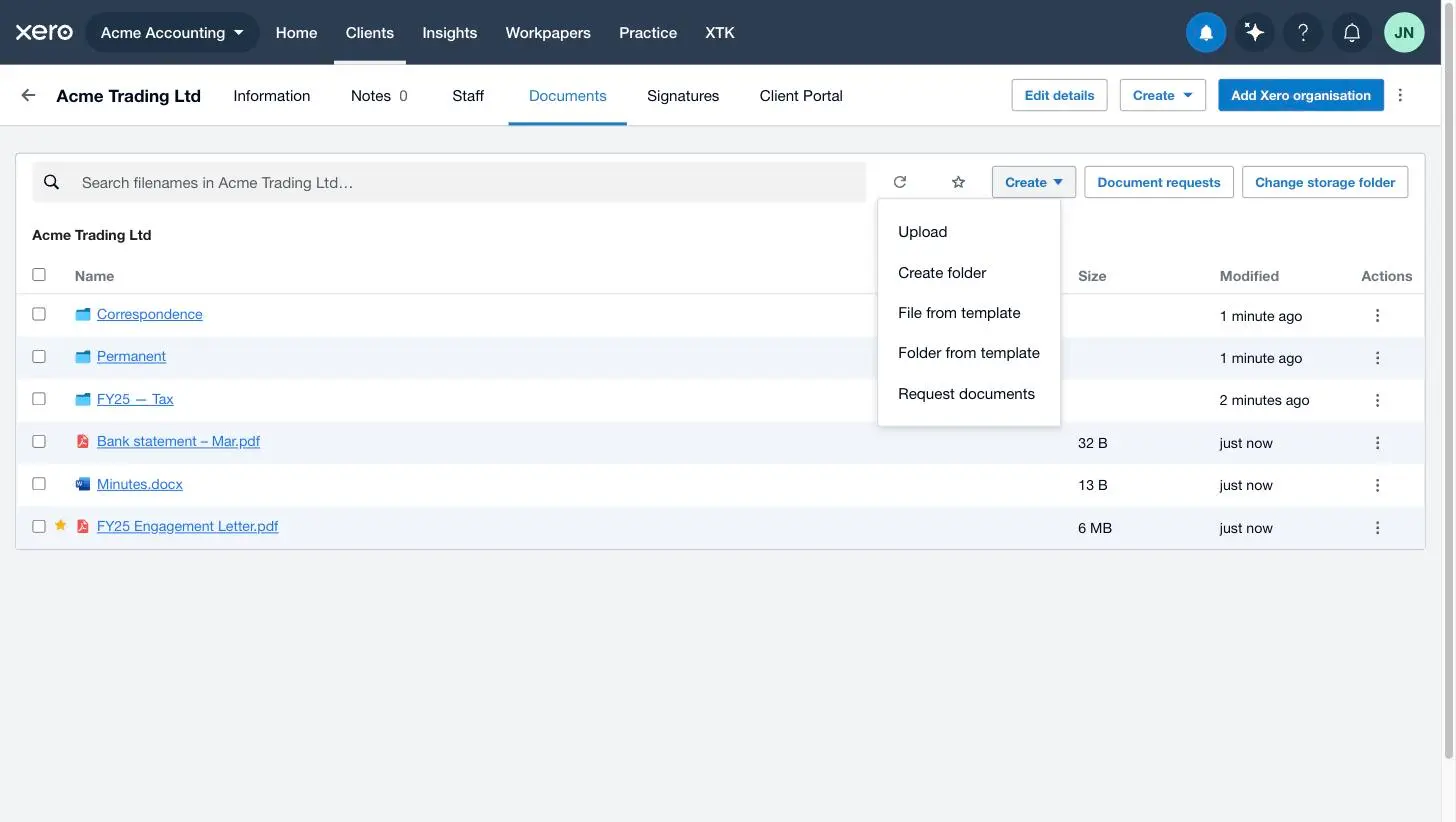
Choose “Upload” and pick your files
Select one file or many — each can be up to 100 MB. The upload starts as soon as you confirm the picker.
Watch the upload tray
A tray appears at the bottom of the tab listing each file's progress. Files travel straight from your browser to Google or Microsoft — if one fails, click “Retry” next to it (or “Retry all failed”), and click “Clear” to dismiss the tray when everything's done.
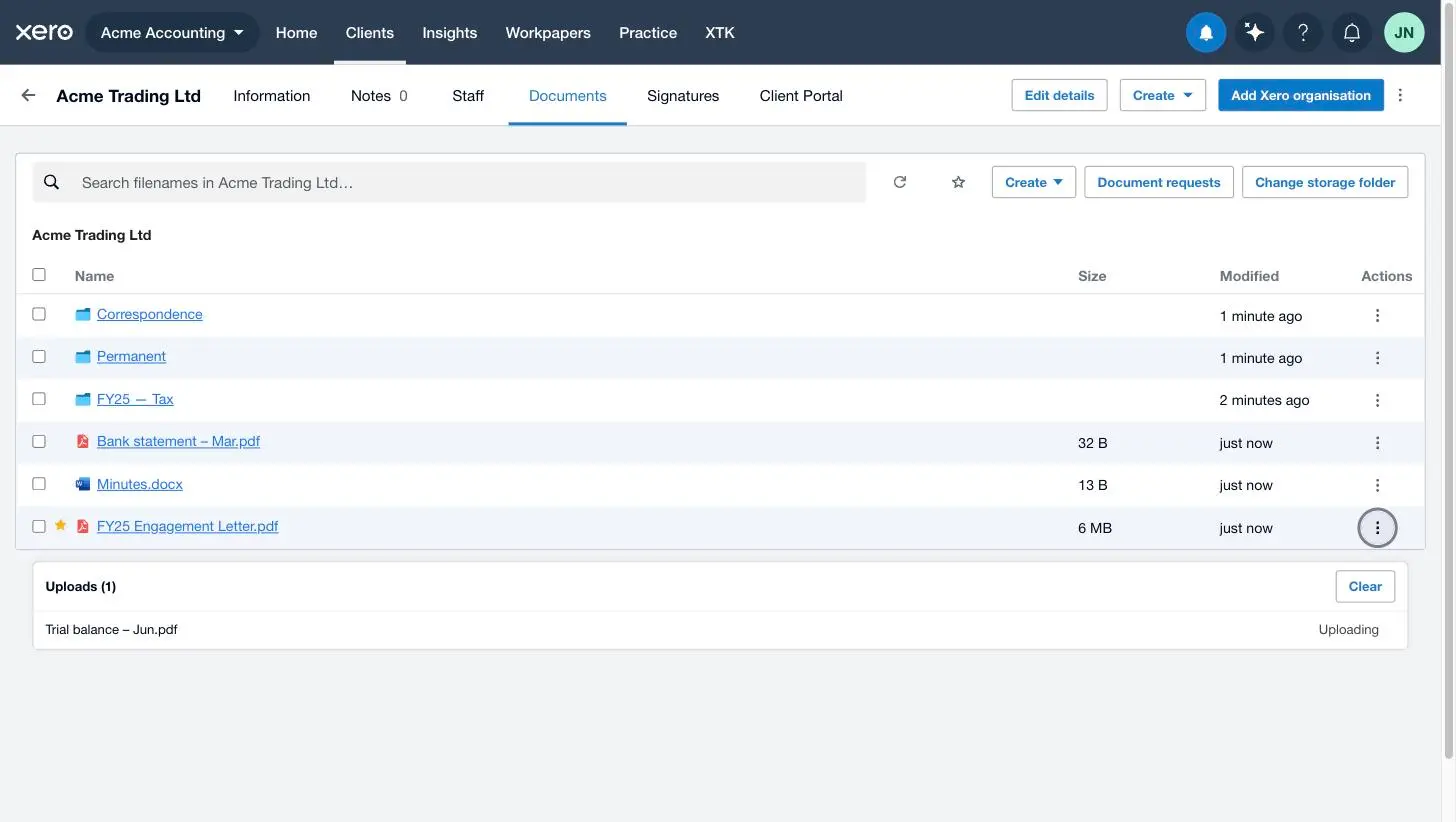
To add a folder, use “Create” → “Create folder”, name it, and it appears in the listing — inside the client's folder, like everything else here. If your practice files every client the same way, folder templates can create the whole structure in one action.
Rename, download and more: the row menu
Each row has a ⋮ menu at the right, and it only offers what makes sense for that item:
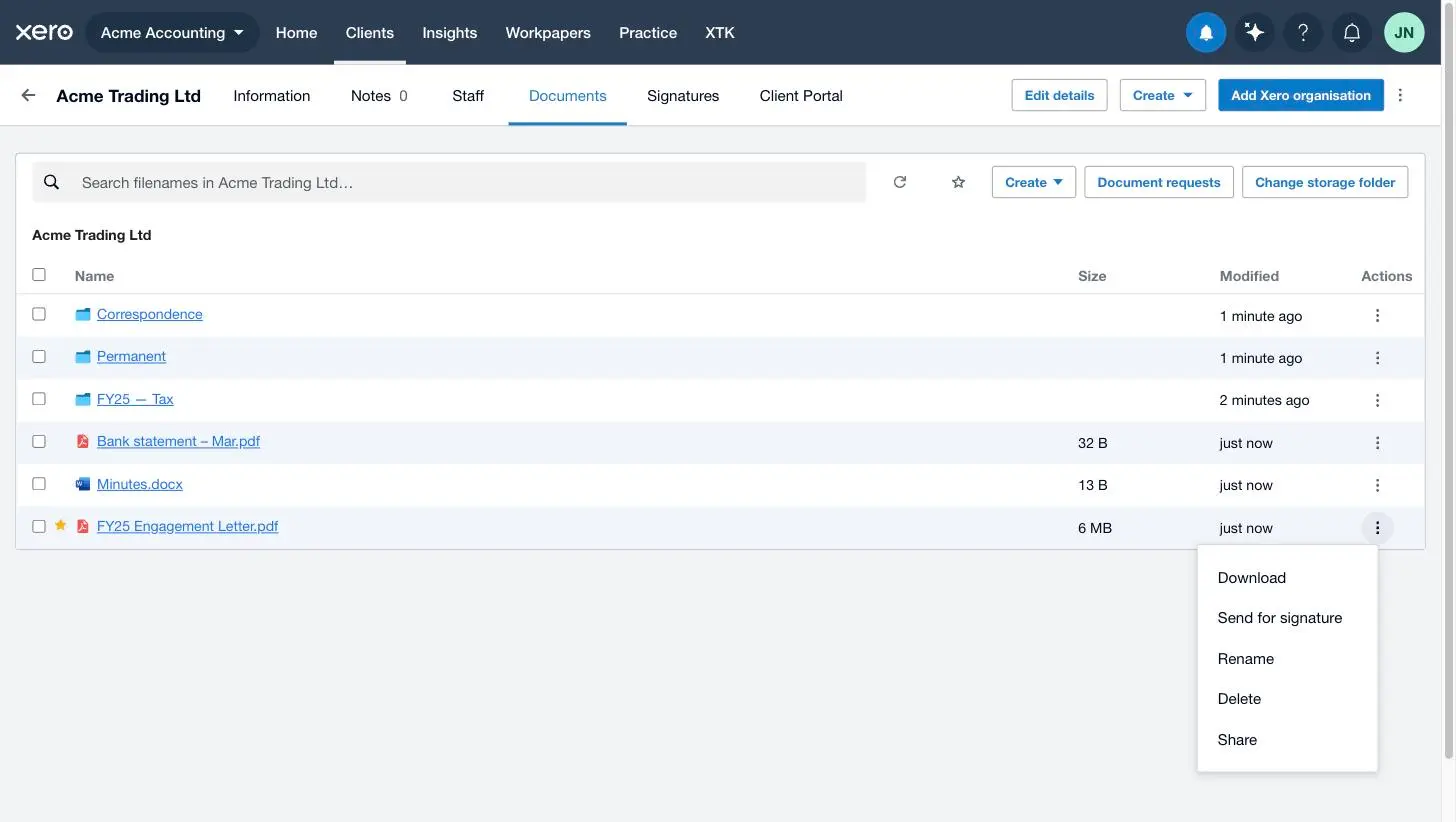
- Download — saves the file through your browser.
- Convert to PDF — Word documents only: creates a PDF copy beside the original, keeping both.
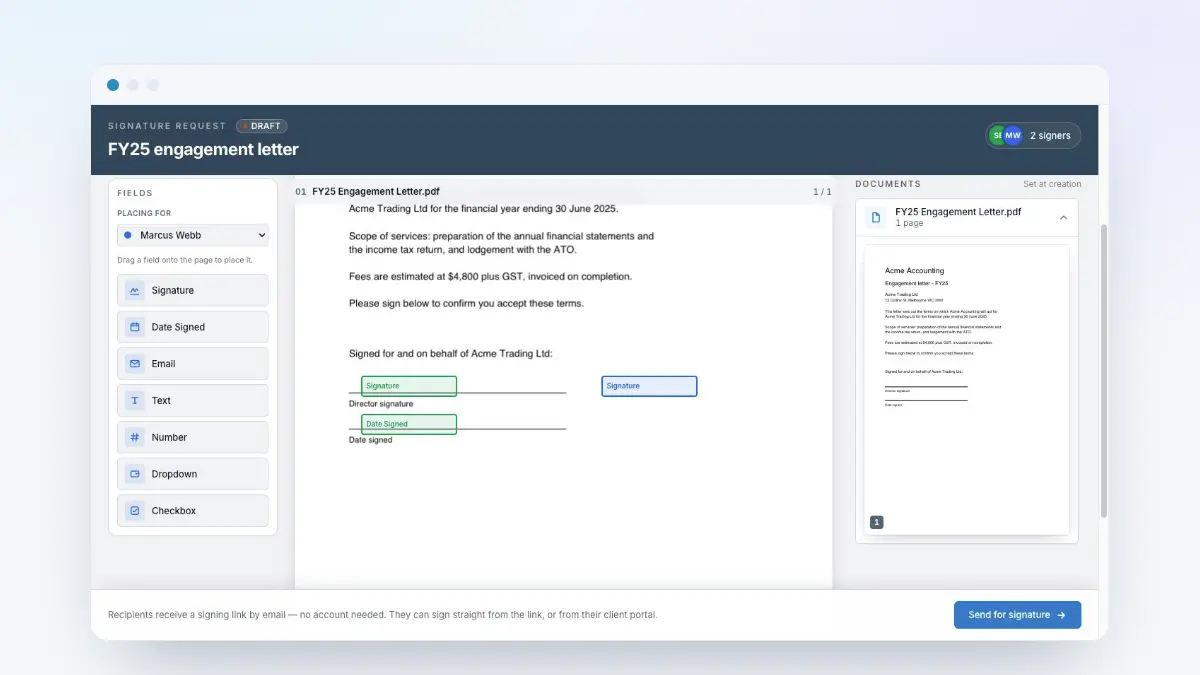
- Send for signature — PDFs only: starts an e-signature request for this file (covered in its own guide).
- Rename — the name becomes editable in place; type the new name and press Enter.
- Delete — moves the item to your storage provider's trash (more below).
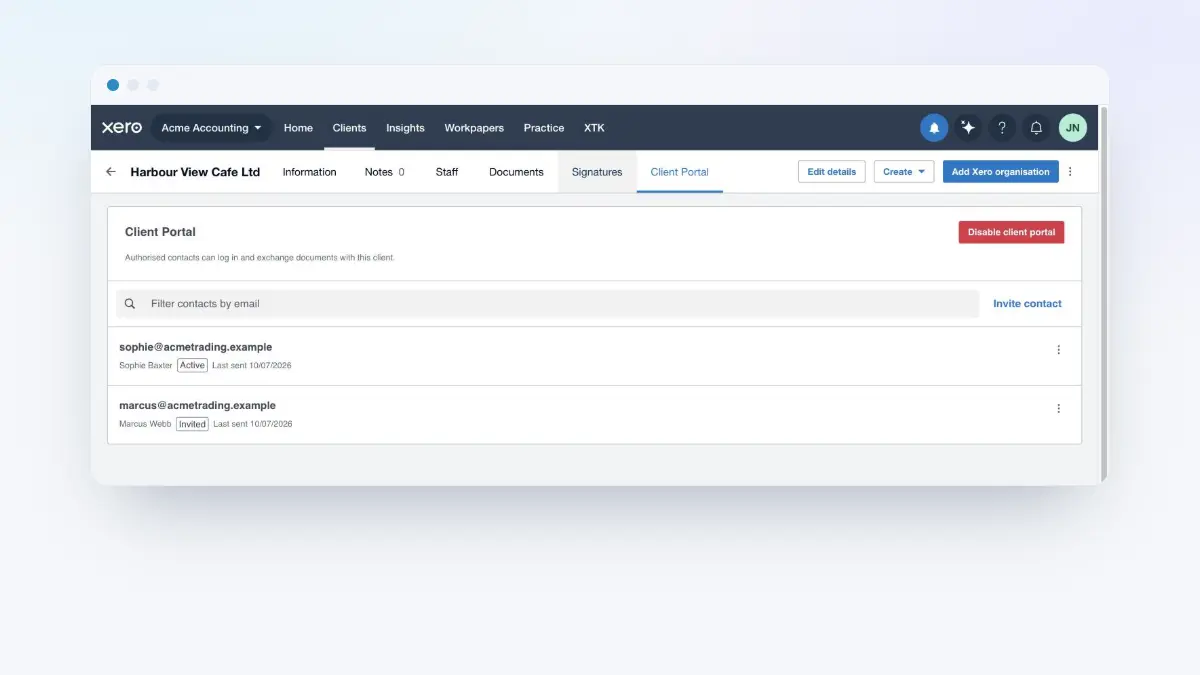
- Share / Unshare — publishes the file or folder to this client's portal, once the portal is enabled (covered in its own guide).
Delete a file — and get it back
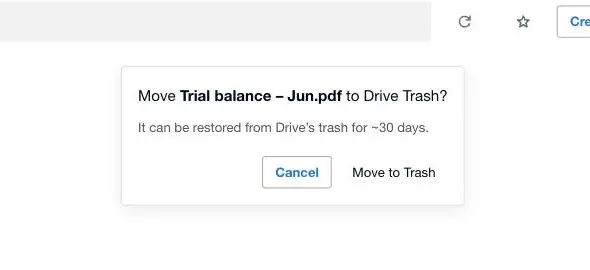
Deleting asks for confirmation, and it's a soft delete: the file moves to your storage provider's trash, where it can be restored for around 30 days. Nothing is permanently destroyed from the Documents tab.
Working with several files at once
Tick the checkboxes at the left of the list and a selection bar appears with bulk actions: move, copy, download as zip, merge PDFs, convert to PDF, delete and share — a guide of its own.
Where next
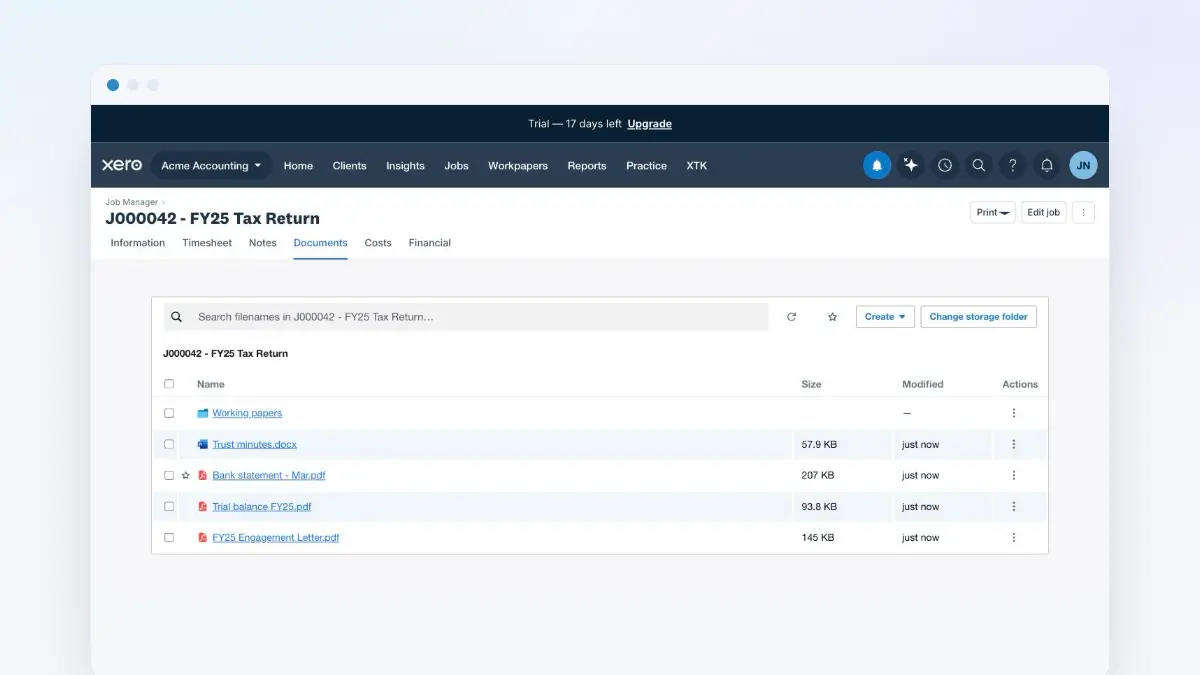
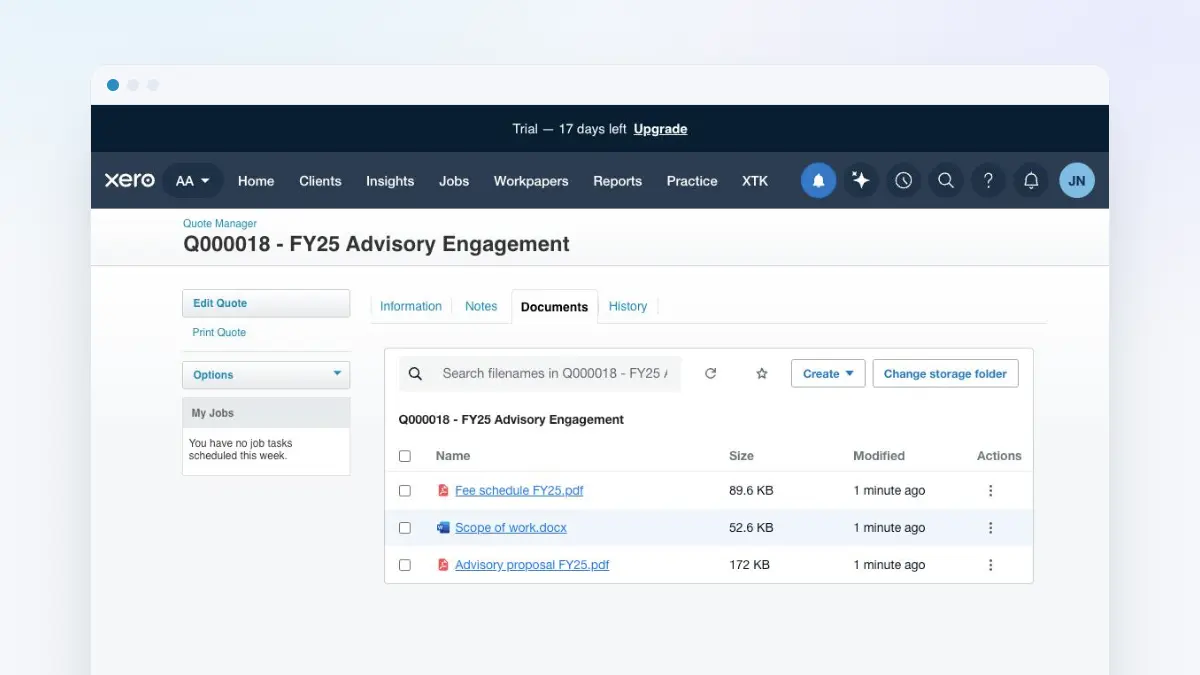
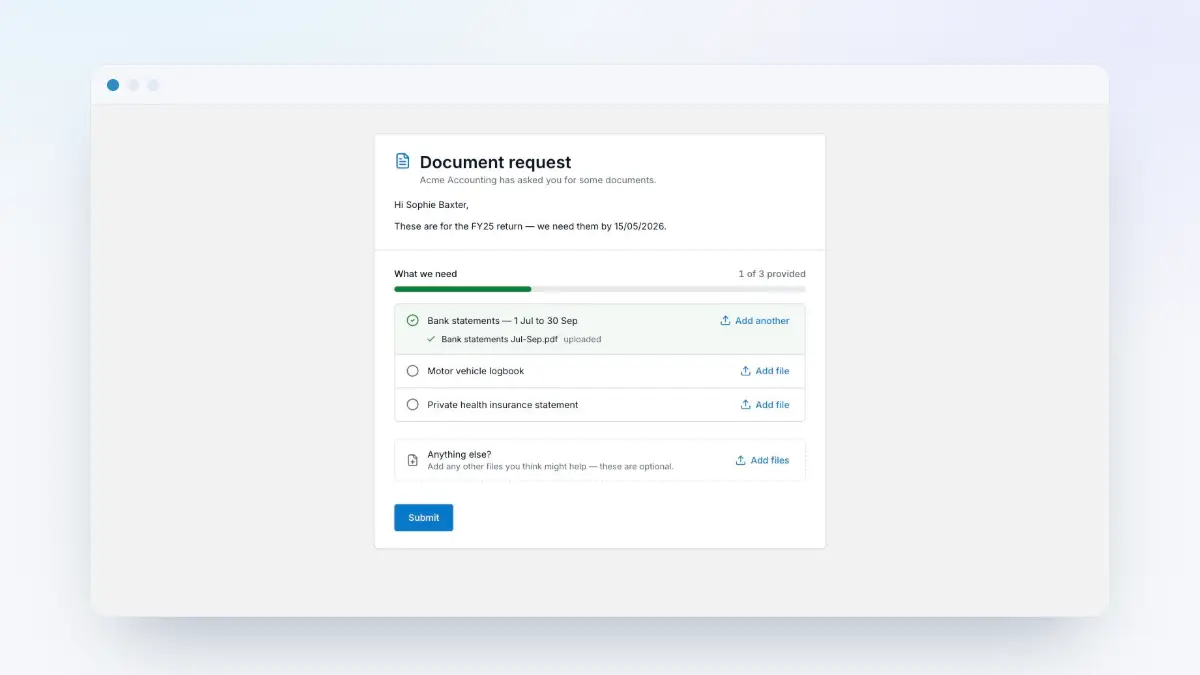
With filing sorted, the rest of the Documents series builds on this tab: bulk actions for moving and merging, document templates that write client letters for you, and folder templates for a standard structure. When you need something from the client instead, “Create” → “Request documents” sends them a checklist — that's the document requests guide. And when a document belongs to one piece of work rather than the client as a whole, XTK puts the same Documents tab on the job itself — see job documents in Xero Practice Manager — and on the quote, in quote documents in Xero Practice Manager.
Frequently asked questions
Where are the files actually stored?
In your practice's own Google Drive, OneDrive or SharePoint — one folder per client inside your Main Storage Folder. The Documents tab is a window onto that folder. Uploads travel straight from your browser to Google or Microsoft; downloads stream through XTK's servers, which pass the bytes along without storing them. Either way, XTK's servers never hold your file contents.
What happened to Xero's own Documents tab?
XTK hides Xero's native Documents tab on client pages and replaces it with its own, so there's one place to look. Anything you previously stored through Xero's tab is still in Xero — XTK doesn't touch it — but new filing happens in your practice's connected storage.
Can I move a file from one client to another?
Not from the Documents tab. Every XTK file operation is contained inside the client's own folder — move and copy destinations can't leave it, which is what stops documents ending up under the wrong client. For a genuine cross-client move, use Google Drive, OneDrive or SharePoint directly.
Are my favourite stars visible to colleagues?
No — favourites are personal bookmarks. Starring a file or folder changes what you see when you switch on the favourites filter, and nothing for anyone else.
Is there a file size limit on uploads?
Yes, 100 MB per file. There's no practical limit on how many files you upload — pick as many as you like in one go and the upload tray works through them.
I deleted a file by mistake — can I get it back?
Yes. Delete moves files to your storage provider's trash (for example Drive's bin), where they can be restored for around 30 days. Restore it there and press refresh in the Documents tab.