Updated 5 min read
Quote documents in Xero Practice Manager
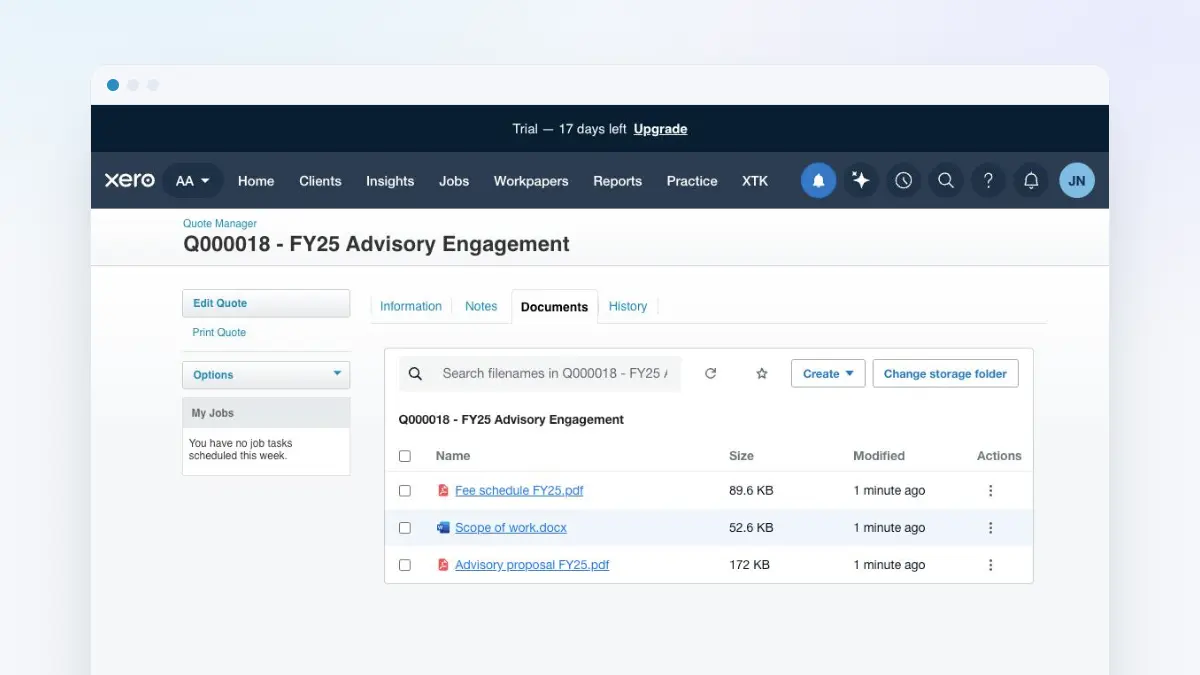
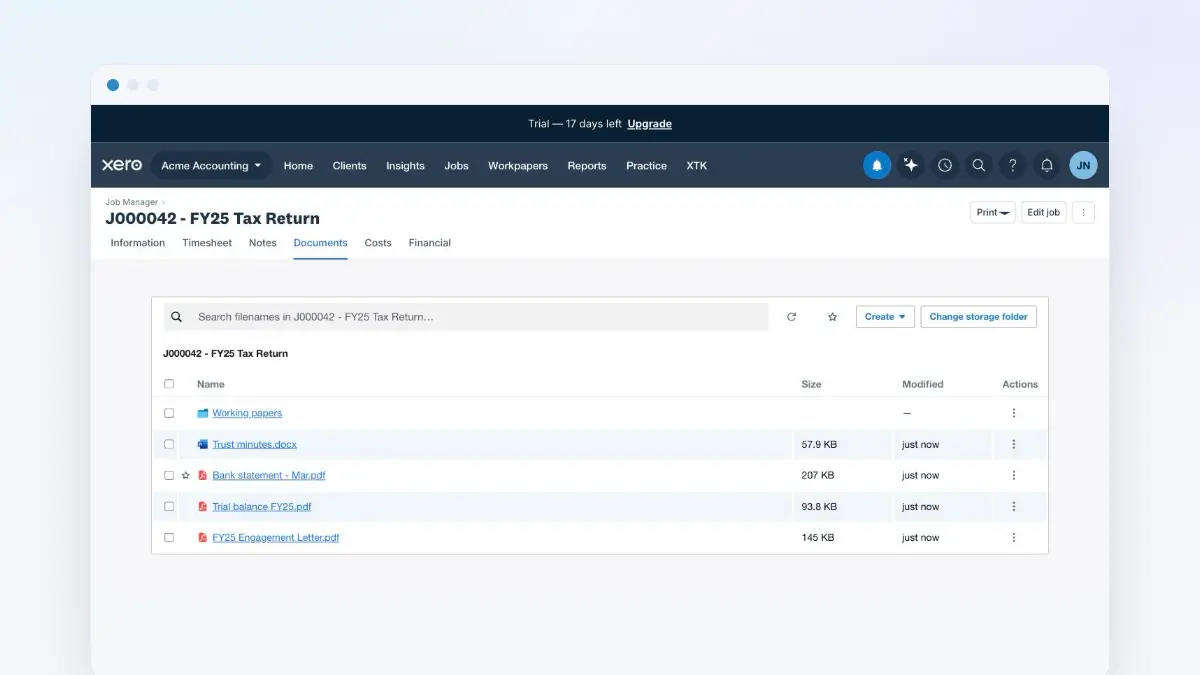
XTK adds its own Documents tab to every quote page in Xero Practice Manager (XPM), so the proposal, the fee schedule and the scope of work sit on the quote itself. The files land in your practice's own Google Drive, OneDrive or SharePoint, in a folder XTK creates for the quote the first time you open the tab — and because XPM treats estimates as quotes, the tab appears on those too.
XTK is an independent product and is not affiliated with or endorsed by Xero Limited.
Where the Documents tab appears on a quote
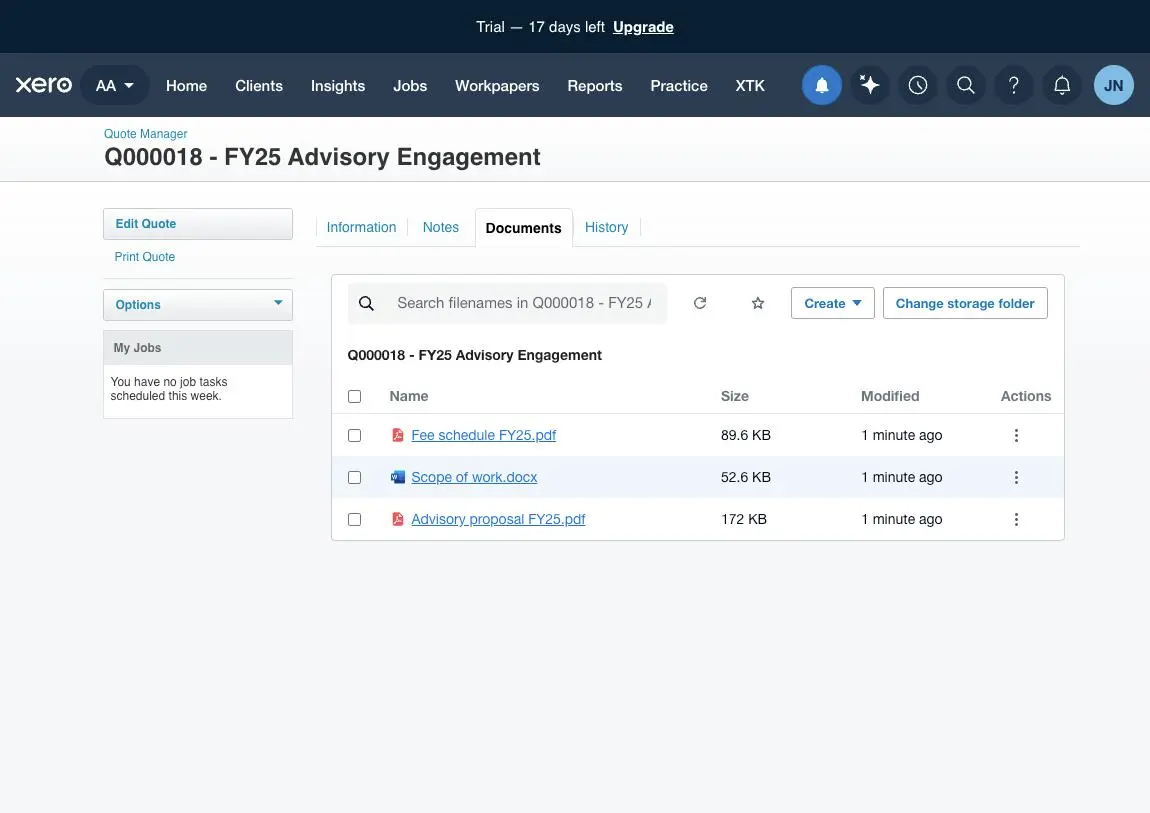
Open any quote — from Quote Manager, from a client's Quotes tab, or from the Financial tab of a job — and look at the quote's tab strip. There are four tabs, and XTK's Documents sits third, between Notes and History, exactly where Xero's own Documents tab was. Xero's is hidden while XTK's is there, so you get one Documents tab rather than two.

Clicking it opens the quote's folder straight away, with no page reload. Click Information, Notes or History afterwards and Xero's page comes back exactly as it was served.
Where do a quote's files actually go?
Inside the client's folder, under a Quotes layer:
Acme Trading Ltd / Quotes / Q000018 - FY25 Advisory Engagement
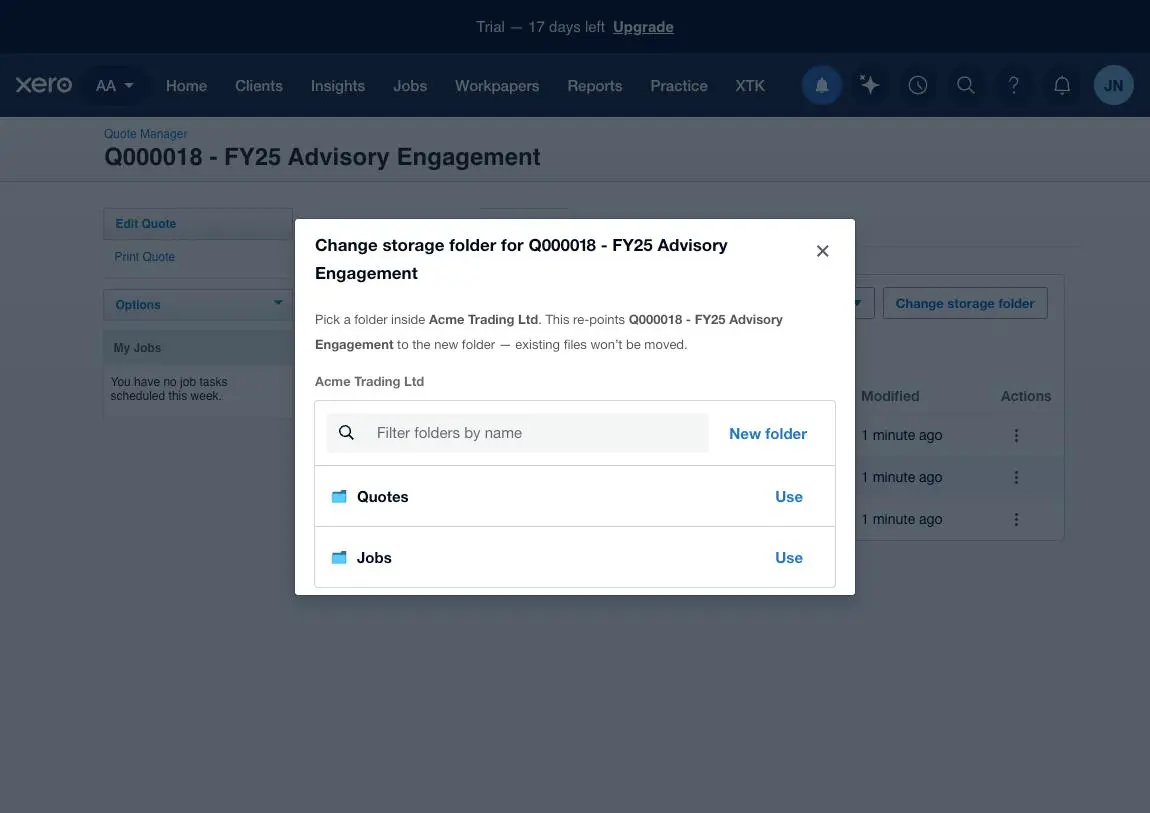
Quotes is a sibling of the Jobs layer, both sitting directly inside the client's folder. You can see both of them in the “Change storage folder” dialog, which is rooted at the client and can't leave it.
- The folder name is composed from the quote's number and its name, so it matches what the quote header says however you reached the page.
- If a correctly-named folder already exists, XTK adopts it, contents and all. If nothing matches, it creates the Quotes layer and the quote's folder silently the first time someone opens the tab.
- If two folders match the name, XTK stops and asks you to choose — and creates nothing while it's asking.
- Rename the folder in Drive afterwards and XTK keeps pointing at it; the breadcrumb then shows the folder's live name.
A quote is filed under its client, never under the job
This is the one thing worth knowing that a job's Documents tab won't teach you. A quote's page links back to a job, and a job's Financial tab lists its quotes — but that link is navigation, not filing. Whichever way you arrive, the quote's documents go in the client's Quotes layer.
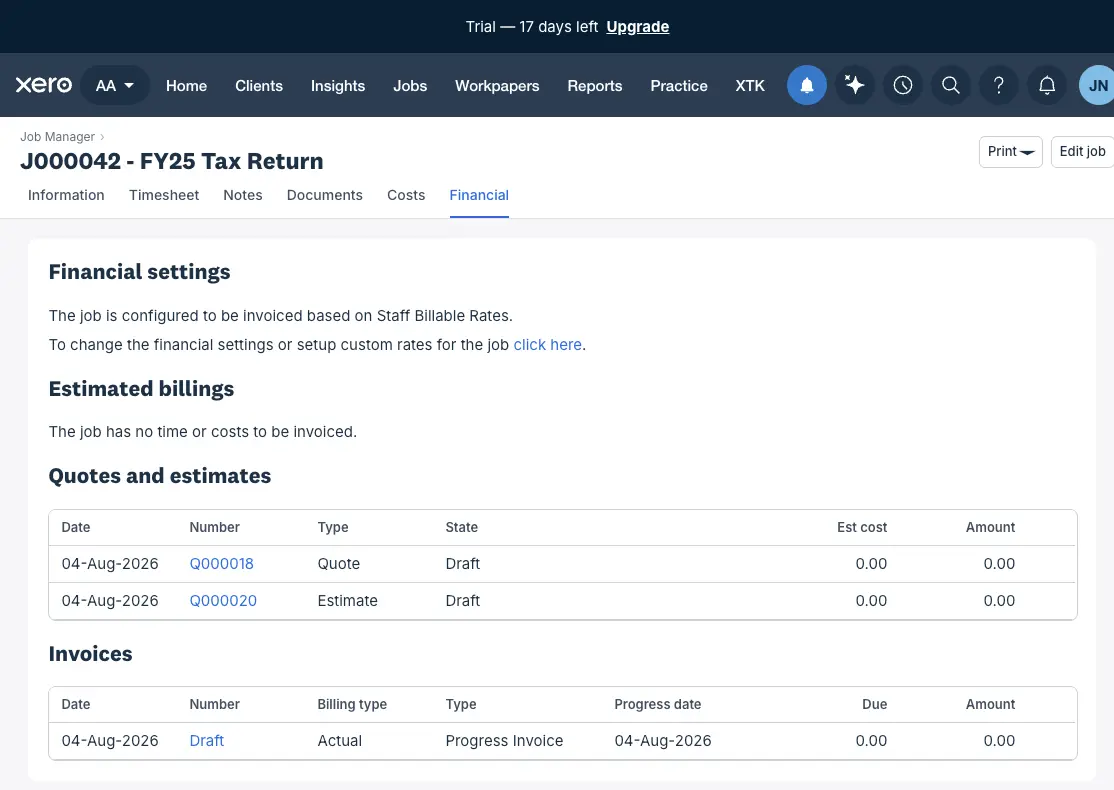
It matters because the alternative is worse than it sounds: file by the route the person took and the same quote's paperwork ends up in two places, depending on who opened it and from where. One quote, one folder, under the client whose work it is.
How do I file a document on a quote?
Open the quote in Xero Practice Manager
From Quote Manager, the client's Quotes tab, or the job's Financial tab — all three land on the same folder.
Click the Documents tab
Third in the quote's tab strip, between Notes and History. It opens without reloading the page, on the quote's own folder.
Click Create ▾ → Upload
Pick one file or several. Uploads go straight from your browser to your practice's Drive, with a progress tray at the bottom of the panel.
Organise as you go
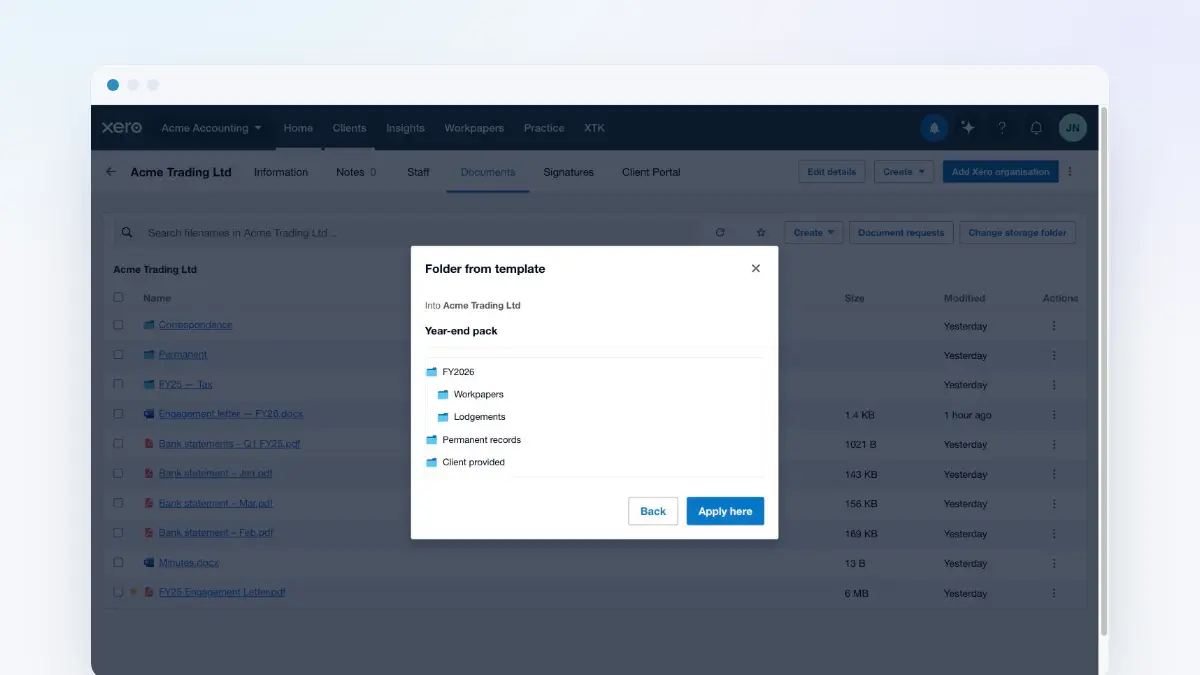
Create folder adds a subfolder inside the quote, and Folder from template lays down your practice's standard structure — applying a folder template twice is safe, because it merges by name rather than duplicating.
What a quote's Documents tab can and can't do
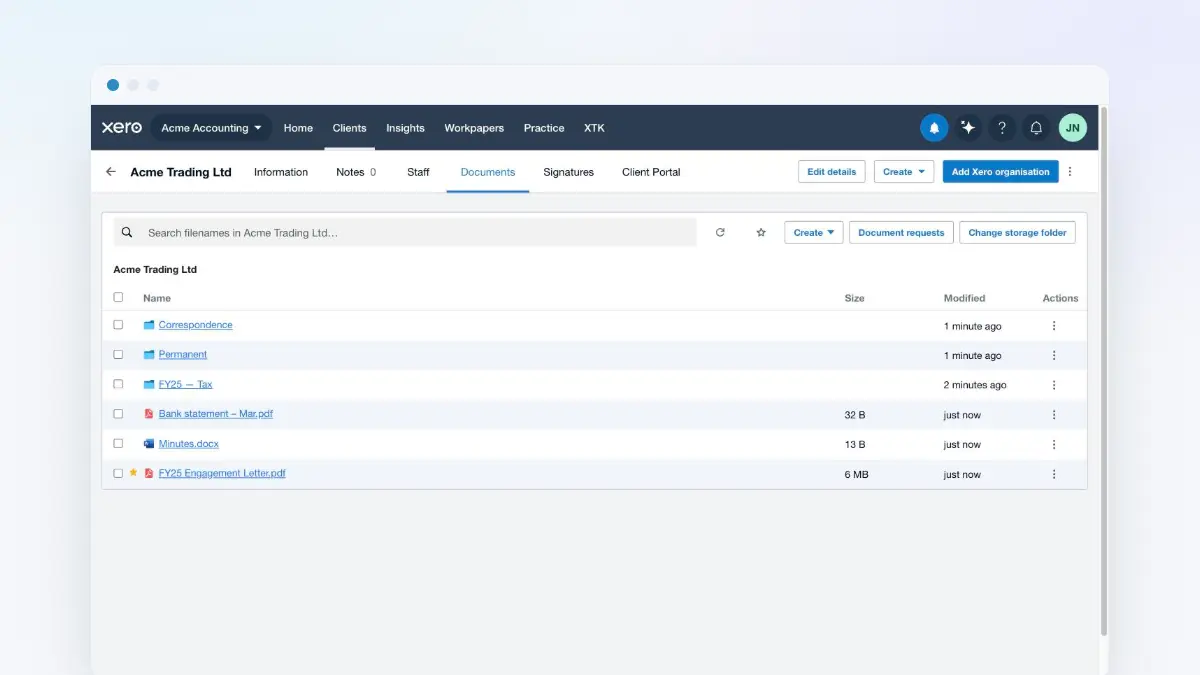
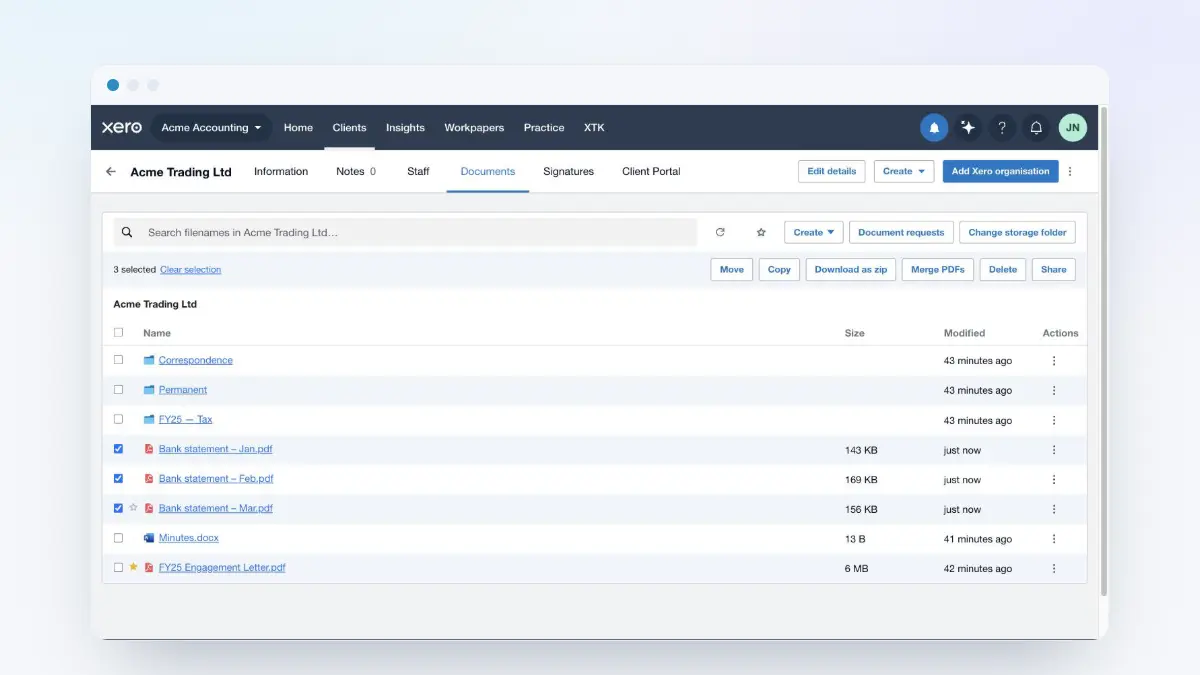
It's the same document manager as the client Documents tab, pointed at the quote's folder: upload, create subfolders, rename, move, copy, download, delete to the provider's trash, star favourites, convert a Word document to PDF, and search by filename. Tick two or more rows and the bulk actions appear — Move, Copy, Download as zip, Merge PDFs and Delete.
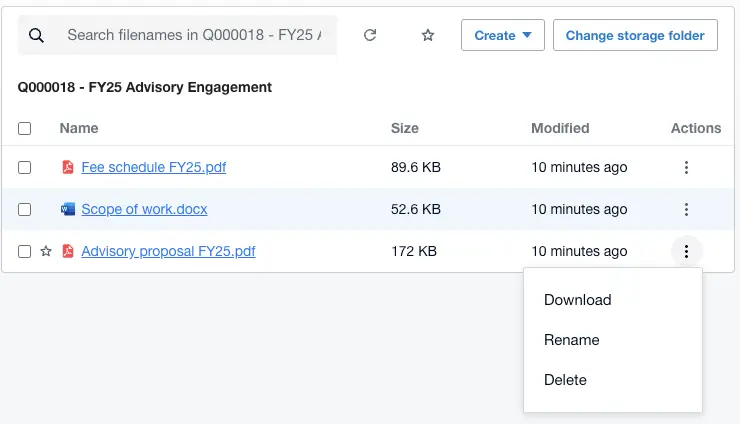
Everything stays inside the quote's folder
Move, copy and merge destinations are rooted at the quote's own folder, and so is search — searching here never turns up a file from the client's other folders, let alone another client's. Re-pointing is the one exception, and it is fenced one level wider: “Change storage folder” browses the client's folder so you can pick a different home for this quote, and existing files aren't moved when you do.
Subfolders behave as you'd expect, with a breadcrumb back to the quote's folder. The address bar updates as you move around, so a subfolder deep inside a quote can be bookmarked or pasted into a note, and the link reopens the quote page with that folder showing.
When XTK can't open the folder
The same handful of situations stop XTK short here as on a job — a trial that has ended (“Filing paused — upgrade to continue”, with quotes already filed unaffected), storage not connected yet, or two folders matching one name. Each says what's happening in plain words, and each keeps an “Open XPM's own Documents” link beside it, so hiding Xero's tab never leaves you without a document surface. The job documents guide sets all of them out in a table.
That escape link carries the quote page's current web address with it, which matters most for the case this guide is about: follow it from a quote you reached through a job, and you land somewhere that still knows about the job.
Frequently asked questions
Where does XTK put a quote's files?
In your practice's own storage, inside the client's folder: <client folder>/Quotes/<quote number> - <quote name>. So Q000018 - FY25 Advisory Engagement for Acme Trading Ltd lands in Acme Trading Ltd/Quotes/Q000018 - FY25 Advisory Engagement. Quotes sits beside Jobs, and both are created the first time someone opens the Documents tab on that quote or job — never before.
I opened the quote from a job. Does it file under the job?
No. A quote is always filed under its client, in the Quotes layer, whichever route you took to reach it — Quote Manager, the client's Quotes tab, or the job's Financial tab. Filing by the route taken would put the same quote's documents in two different places depending on who opened it.
Does this work on estimates as well as quotes?
Yes. Xero Practice Manager keeps quotes and estimates on the same screen — a job's Financial tab is headed “Quotes and estimates” and gives both a Q number — so XTK's Documents tab appears on an estimate exactly as it does on a quote, and files it in the same Quotes layer.
Why is there no “Send for signature” on a quote's documents?
A quote's Documents tab is deliberately files-only. Sending for signature, requesting documents, generating a file from a template and sharing to the client portal all need the client's own details, and Xero's older quote pages don't carry those for XTK to read. All four live on the client's Documents tab, which files into the same storage.
What happened to Xero's own Documents tab on the quote?
XTK hides it and stands in its place, so there's one Documents tab rather than two. Whenever XTK can't show you the folder it renders an “Open XPM's own Documents” link beside the explanation — and that link keeps the quote's current web address, so a quote you reached from a job still knows about the job. Xero's tab reappears the moment you sign out of XTK.