Updated 10 min read
Connect Google Drive, OneDrive or SharePoint to XTK
Connect your practice's own Google Drive, OneDrive or SharePoint to XTK and every client document you handle in Xero Practice Manager (XPM) stays in storage you control. It's a one-off job for the practice Admin: choose a provider, approve access, and pick one main storage folder. From then on the whole team works with the same client folders without leaving Practice Manager. Still weighing this against a purpose-built document system? SuiteFiles, FYI, Karbon and your own Drive, compared says plainly which firms should buy which.
XTK is an independent product and is not affiliated with or endorsed by Xero Limited.
Why connect storage first?
Almost everything XTK does ends up as a file: the Documents tab, generated letters, records clients send you, signed PDFs and their completion certificates, and everything you share through the client portal. Until storage is connected, none of that has anywhere to live — your colleagues will simply see “Your Practice Admin hasn't connected document storage yet.” Connect it once and every other feature lights up.
Already keep client documents in a drive? Keep using it
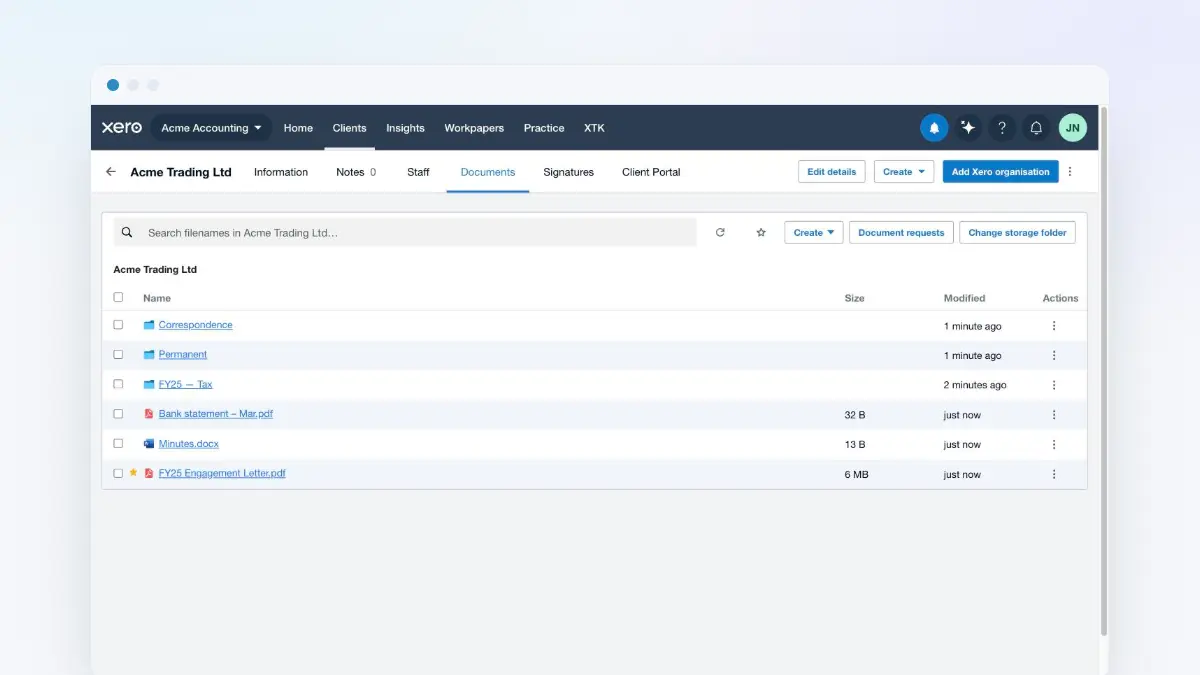
Nothing moves. If your practice already keeps client documents in Google Drive, OneDrive or SharePoint, you carry on using exactly that — XTK points at the folders you already have instead of importing them. There is no migration step, no copy, and no second place your files live afterwards. You pick the one folder that encloses your per-client folders (your Main Storage Folder, set in the last step below), and each client's existing documents appear in Practice Manager the first time someone opens that client.
The matching happens one client at a time, on first open: XTK looks inside your Main Storage Folder for a folder named after that client in XPM. There are only three possible outcomes:
- Exactly one folder matches the client's name — XTK adopts it, and everything already inside appears immediately, subfolders and all.
- No folder matches — XTK creates one named after the client, so clients you haven't filed anything for yet need no setup.
- Two or more folders match — XTK asks you to pick the right one rather than guess.
| What you already have | What XTK does with it |
|---|---|
| A folder per client, named as in XPM | Adopts it as that client's folder, untouched |
| Subfolders and files inside them | Shows them as they are — same names, same nesting |
| A folder whose name differs from XPM | No match, so XTK makes a new, empty one |
| Two folders with the client's name | Asks you to pick one, and remembers it |
| Files outside your Main Storage Folder | Leaves them alone — XTK reads only inside your root |
| Folders your team made by hand before XTK | Treated exactly like ones XTK created itself |
Adoption matches on the folder name, so this goes smoothest for practices whose drive already agrees with Practice Manager. If yours doesn't — an old “ACME (new)” where Practice Manager says “ACME Trading Ltd” — XTK finds no match and creates a new, empty folder under the Practice Manager name the first time that client is opened. Nothing is lost: click “Change storage folder” on that client's Documents tab and point it at the old folder, once, and the choice is remembered. Matching ignores capital letters and stray spaces at either end, but nothing else. It is quicker to rename folders to match before you connect, and a folder structure that survives busy season is the shape worth tidying towards.
Because adoption is only a pointer, your folders stay ordinary folders in your own drive: still usable directly in Google Drive, OneDrive or SharePoint, still shared with whoever you had shared them with, and still there in full if you disconnect XTK later. That is also why XTK won't tidy your drive for you — it works with the structure it finds.
Choose your provider and approve access
Open the XTK panel
In Practice Manager, click the XTK launcher — the last item in the main navigation. The full-page XTK panel opens.
Go to Document Storage
Click the “Document Storage” tab. You'll see “Connect your document storage” with three choices: “Google Drive”, “OneDrive” and “SharePoint”.
Pick your provider
Click the provider your practice uses. A practice connects exactly one. If you're a Microsoft shop, choose “SharePoint” when client files live in a SharePoint site's document library, and “OneDrive” when they live in a single OneDrive — the choice matters, because it decides what access XTK asks Microsoft for.
Sign in and approve
Your browser opens the Google or Microsoft consent screen. Sign in with the account that holds (or should hold) your practice's documents and approve the access. You're returned to XTK automatically, and the panel moves on to storage setup.
Tell XTK where your documents live
Depending on the provider, XTK may ask one more question before the folder step — it wants to anchor itself on the drive your team actually uses. Everything XTK ever stores stays inside the drive you pick here.
- Google Drive: if your account has Shared Drives, XTK asks “Where do your client documents live?” — click “Use My Drive” for your personal drive, or “Use this drive” next to a Shared Drive your team shares. If you have no Shared Drives, this step is skipped.
- OneDrive: there's only one drive, so XTK goes straight to the folder step.
- SharePoint: pick your site first — sites you follow are listed, and you can search for any other site in your organisation. If the site has more than one document library, pick the one that holds your client documents.
Changed your mind mid-way? Click “← Choose a different storage option” to go back and pick another drive or provider — nothing is committed until the storage folder is set.
Set your main storage folder
XTK keeps everything it manages inside one folder — your Main Storage Folder — with one subfolder per client. On this step XTK searches the drive you picked for an existing folder named “XTK – XPM Storage”, and you have three ways to finish:
- Adopt the folder XTK found: if your practice has used XTK before, the existing folder appears as a card — click “Use this folder” and you're done, with all your client folders intact.
- Create a fresh one: choose the create option and XTK makes a new, empty folder named “XTK – XPM Storage” at the top level of the drive you picked.
- Browse and choose your own: click “Browse…” and pick any folder. Choose the folder that encloses your existing per-client folders — it becomes your practice's storage root.
One more folder appears later without any setup: “XTK – Templates”, created automatically inside your Main Storage Folder the first time your practice uses document templates.
What your team sees
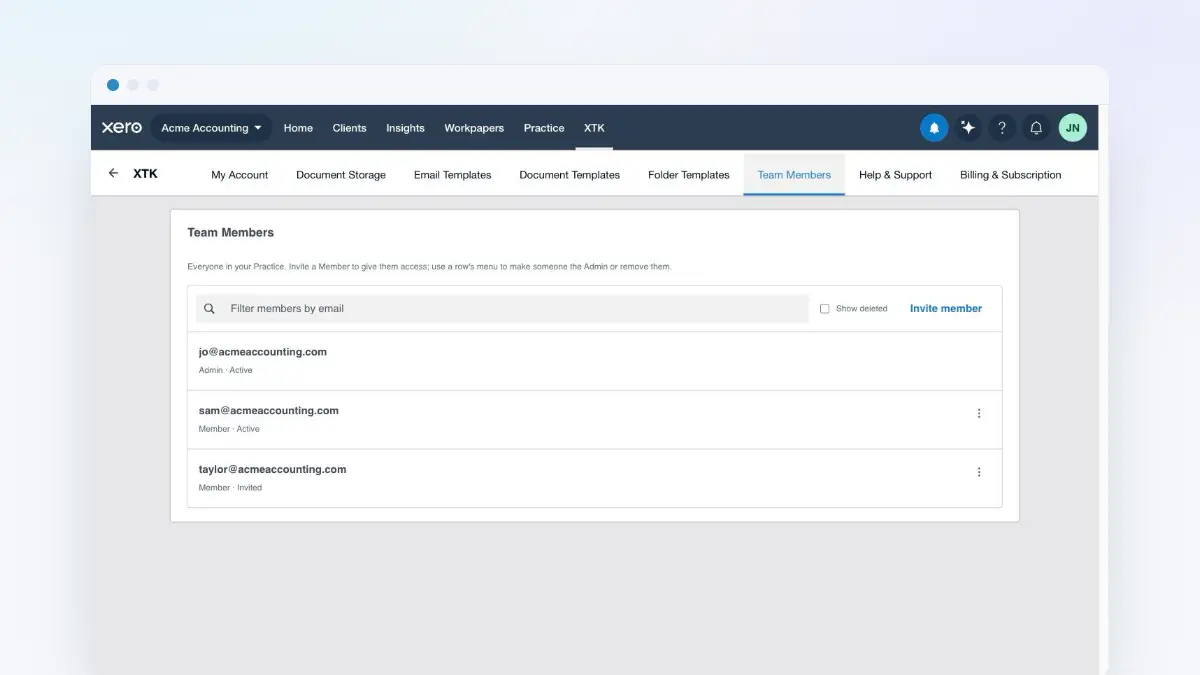
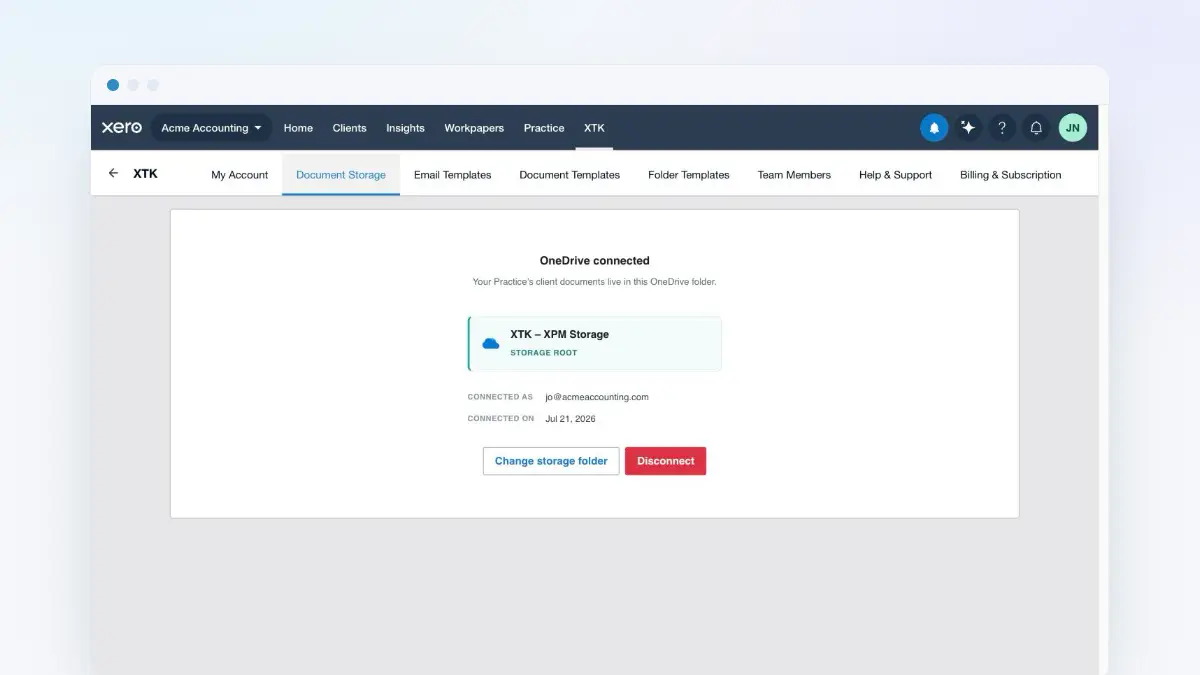
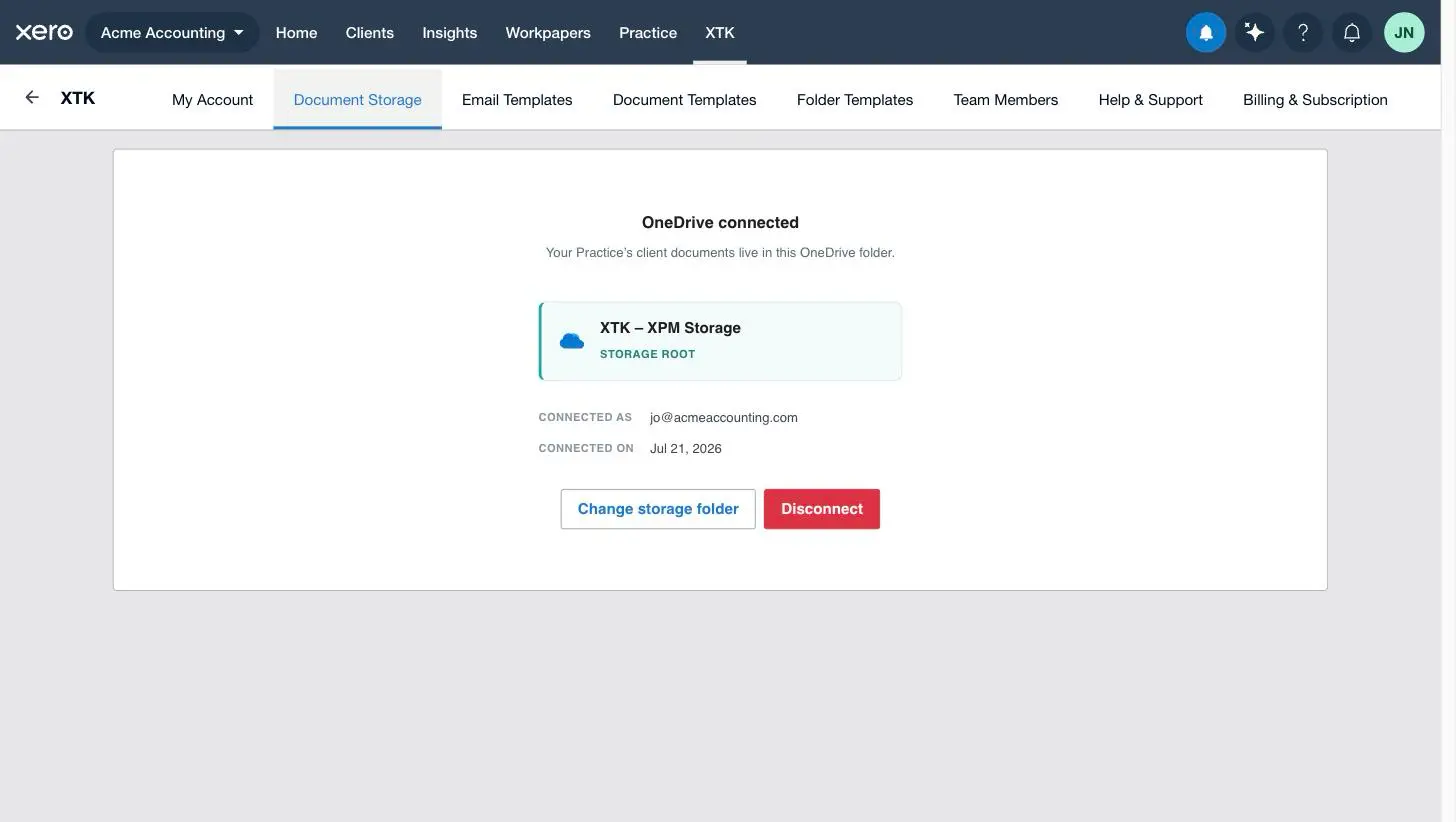
Once connected, the Document Storage tab shows the provider, your storage root folder, the account it's connected as, and the date it was connected. Members see the same summary with a note — “Read-only — only the Practice Admin can change the Drive connection.” Nobody else signs in to Google or Microsoft; the whole team works through the practice connection, and client folders simply appear in each client's Documents tab.
Change the storage folder later
Open Document Storage
In the XTK panel, go to “Document Storage”. As Admin you'll see two buttons under the connection summary.
Click “Change storage folder”
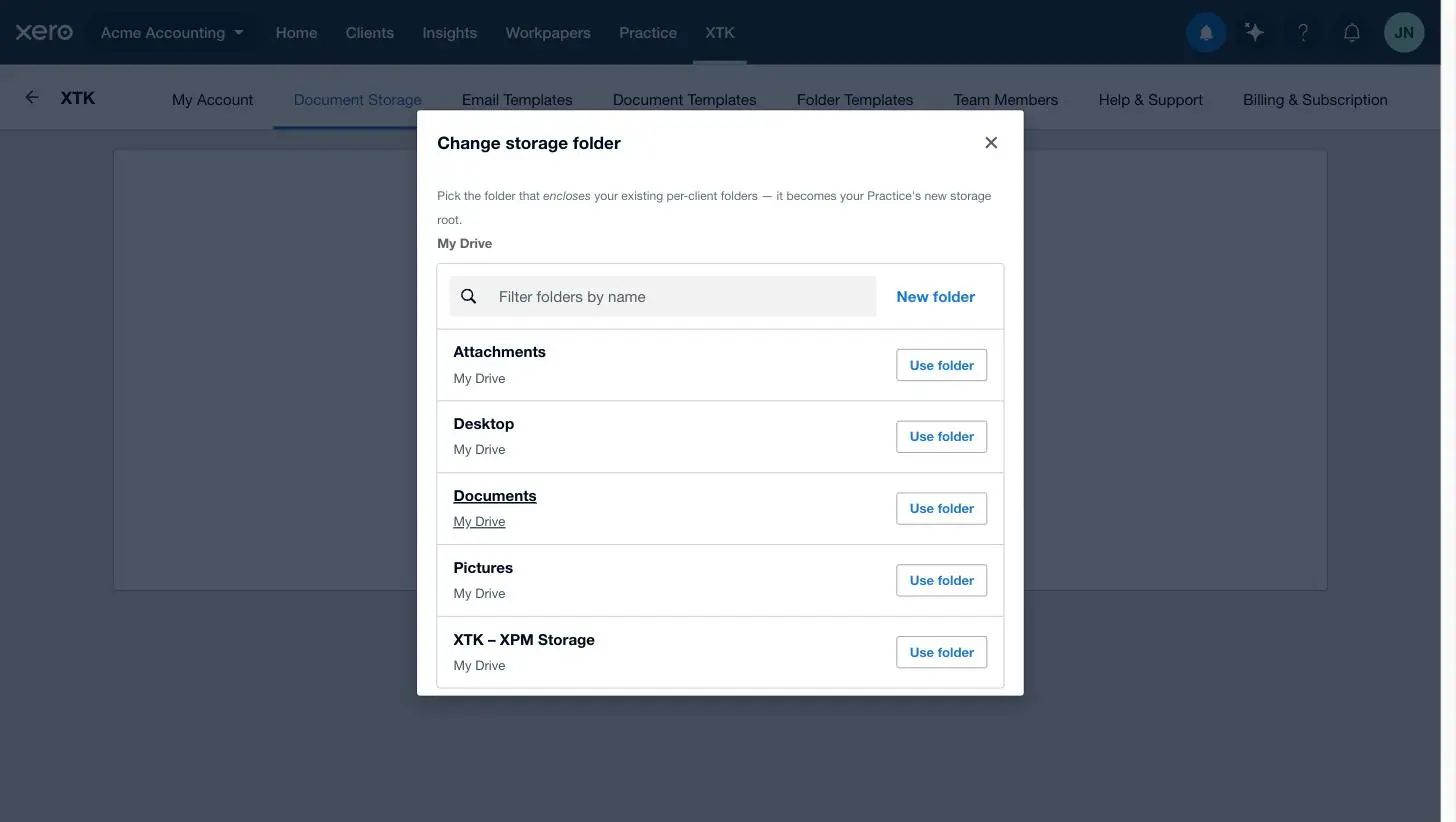
A folder browser opens. Pick the folder that encloses your per-client folders — it becomes the new storage root.
Confirm the move
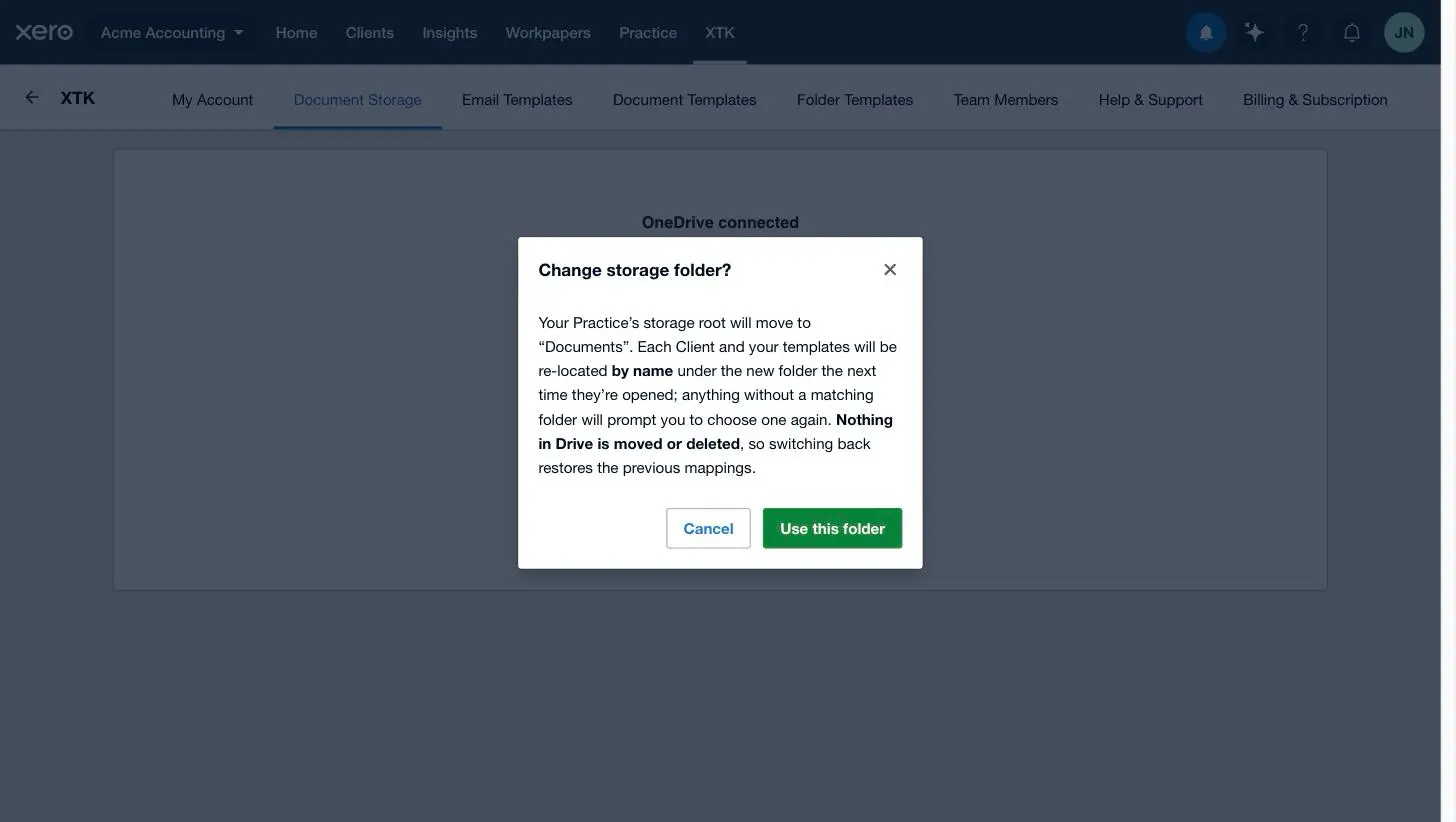
XTK explains exactly what changes: each client and your templates are re-located by name under the new folder the next time they're opened, and anything without a matching folder will ask you to choose one again. Click “Use this folder” to confirm.
Disconnect document storage
On the same tab, the Admin can click “Disconnect”. XTK asks you to confirm, with a plain warning: members will lose access to client folders until you reconnect. Your files are untouched — disconnecting only removes XTK's access to the account. Reconnecting walks the same setup again, and adopting your existing “XTK – XPM Storage” folder brings everything back as it was.
Your files never leave your storage
This connection is also XTK's core privacy promise. Files are stored only in your practice's Google Drive, OneDrive or SharePoint, and XTK's servers never keep your file contents. Uploads travel straight from your browser to Google or Microsoft; downloads and jobs like merging PDFs or generating a document from a template stream through XTK's servers, which pass the bytes along without storing them. Every file operation stays inside the client's own folder, so nothing you do in XTK can scatter documents around your drive. Even client portal sharing works by marking files, not copying them out. The full story is in the related guide on how XTK handles your data.
Where next
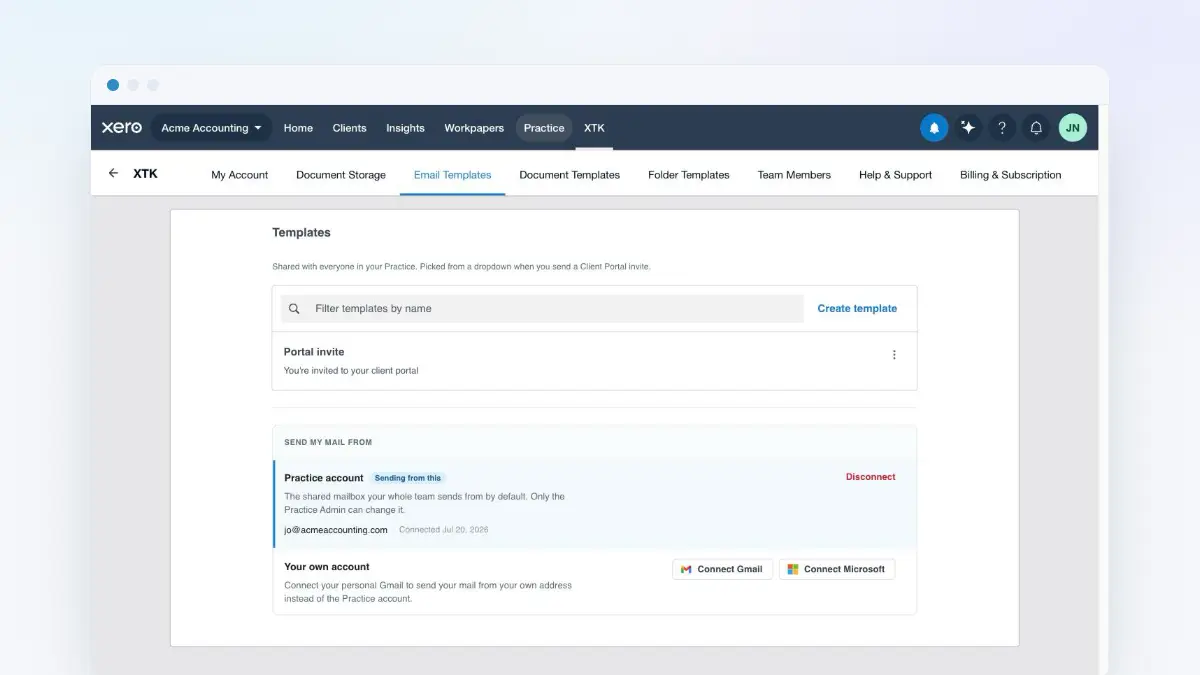
With storage connected, open any client in Practice Manager and the Documents tab is ready to use — that's the next guide. And if you also connect your email, XTK can send document requests and portal invites for you from your own address.
Frequently asked questions
Do we have to move our files into XTK?
No. XTK has nowhere to move them to — it works inside the Google Drive, OneDrive or SharePoint your practice already uses. During setup you point it at the folder that encloses your existing per-client folders, and from then on each client's Documents tab in Practice Manager shows the folder you already had, with the files already in it. There is no import, no migration and no copy.
Can we connect more than one storage provider?
No — a practice uses exactly one of Google Drive, OneDrive or SharePoint at a time. To switch providers, the Admin disconnects the current one and connects the new one. Your files stay where they are; XTK only ever points at storage, it doesn't hold it.
Do my team members connect their own Google or Microsoft accounts?
No. The Admin connects once for the whole practice, and everyone works through that connection. Members see a read-only summary of what's connected in the XTK panel — they never sign in to the storage account themselves.
We already have client folders in Drive — will XTK duplicate them?
No, if you point XTK at them. During setup, choose Browse and pick the folder that encloses your existing per-client folders. When someone first opens a client, XTK adopts the folder with the matching name instead of creating a new one.
Does XTK copy our files to its own servers?
No. Files stay in your practice's own Google Drive, OneDrive or SharePoint. Uploads go straight from your browser to Google or Microsoft. Downloads and a handful of server-side jobs — merging PDFs, zipping a multi-file download, generating a document from a template, flattening a signed PDF — stream through XTK's servers, because that's where those engines run, but the bytes are only passed along, never written to disk or kept in XTK's database. What XTK's servers do store is account and request details, not your file contents.
What happens to our files if we disconnect?
Nothing. Disconnecting only removes XTK's access — every folder and file stays exactly where it is in your storage, as ordinary folders and files. Members lose access to client folders through XTK until you reconnect, and adopting the same folder again picks up where you left off.