11 min read
SharePoint or OneDrive for Xero Practice Manager client files
By The XTK team · Product
Xero Practice Manager (XPM) does not integrate with SharePoint or OneDrive. Files you upload in XPM are stored in Practice Manager itself, 16MB at most, unless you connect one of the document management systems it supports — and Microsoft 365 is not one of them. A request to add SharePoint has sat on Xero's product ideas board since August 2023, still marked “submitted”, with its most recent comment posted on 18 August 2026: “Please allow us to use Sharepoint for our document storage.”
That leaves a practice running on Microsoft 365 paying for storage it cannot use from the screen it works in all day. This article is about closing that gap, and most of it is worth doing whether or not you ever install anything. It starts with the decision that matters more than any tool: which of Microsoft's two places your client files live in. For a practice with staff, the answer is a SharePoint document library, not anybody's OneDrive — and the reason is what Microsoft does to a OneDrive when its owner leaves.
Does Xero Practice Manager integrate with SharePoint or OneDrive?
No. Xero Central's article on uploading and managing documents in Practice Manager describes two places a file can go: into Practice Manager, with a 16MB maximum upload, or into a document management system you have integrated. The SharePoint request on Xero's ideas board, posted in August 2023, opens by noting that XPM lists four other cloud document systems and asks for SharePoint to be added alongside them. It has 26 votes, and one comment from February 2024 puts the case in two sentences: “We already pay for Microsoft 365 for our organization. We do not want to pay more to duplicate functionality we already have.”
So there are three honest ways to use Microsoft 365 with XPM today. Keep client files in SharePoint and XPM in separate browser tabs, and live with filing everything twice in your head. Move to a document management system with its own storage, which is a real option with a real price. Or leave the files in SharePoint and use a tool that shows each client's folder inside Practice Manager. All three start from the same place: a library set up properly.
Should client files live in OneDrive or SharePoint?
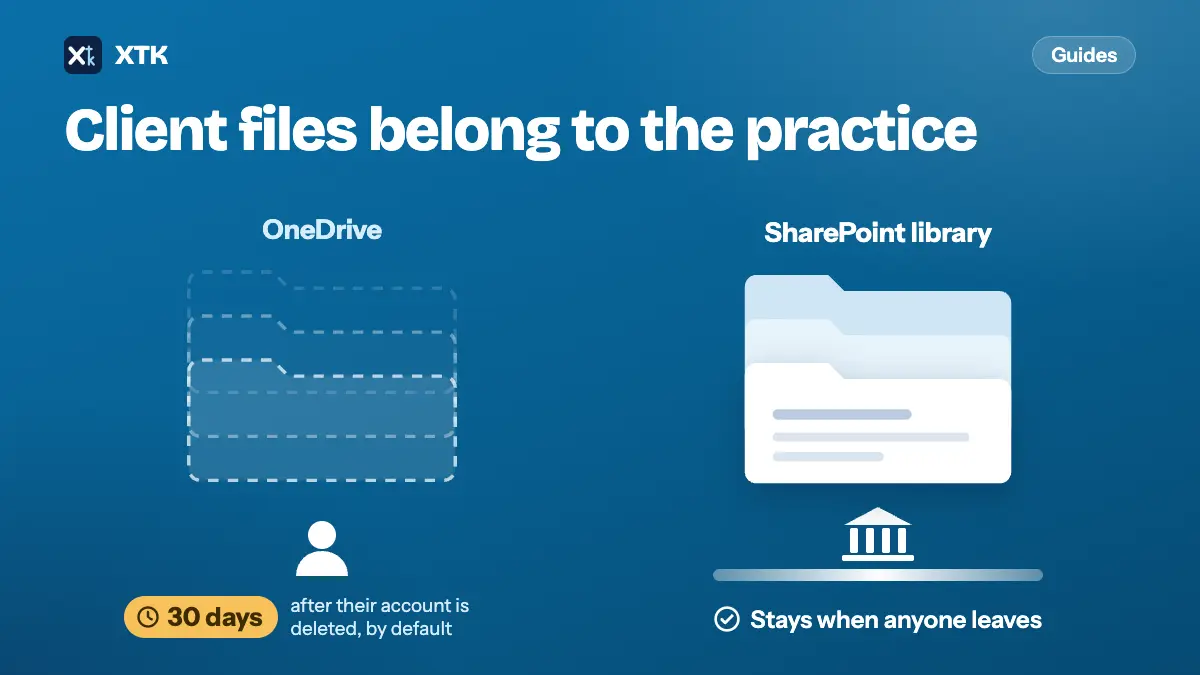
In SharePoint. The two look almost identical in a browser, sync to a desktop the same way and open files in the same Word, which is why practices mix them up. The difference is who they belong to. A OneDrive belongs to one person's Microsoft 365 account. A SharePoint document library belongs to a site, and the site belongs to the practice.
| OneDrive | SharePoint library | |
|---|---|---|
| Belongs to | One person's account | A practice site |
| When that person leaves | Deleted after retention | Unaffected |
| Default grace period | 30 days | Not applicable |
| Storage | Counted per user | 1 TB + 10 GB per licence |
| Suits | Your own working files | Client files |
Every Microsoft 365 Business plan includes SharePoint, so for most practices this costs nothing extra. It is also the thing XPM users have been asking Xero for by name.
What happens to a OneDrive when someone leaves?
It is deleted, on a timer that starts when their account is. Microsoft's page on OneDrive retention and deletion sets out the sequence. When a user is deleted from Microsoft 365, their manager is given access to the OneDrive by default and emailed that it will be deleted at the end of the retention period — 30 days unless your administrator has changed it. A reminder goes out seven days before the end. Then the OneDrive moves to a recycle bin for 93 days, during which nobody can reach anything that was shared from it, and restoring it takes PowerShell.
Two details make this worse than it sounds for a practice. The manager hand-off only works if a manager is set on the user, or a secondary owner has been named in the SharePoint admin centre; if neither is, Microsoft says nobody gets automatic access and nobody is warned. And the clock starts on deletion, not on departure: blocking someone's sign-in or removing their licence does not start it, but Microsoft archives any OneDrive that has been unlicensed for 93 days. Either way, the practice's client files are sitting on a timer attached to one employee.
A sole practitioner using their own OneDrive is not in that position, and there is nothing wrong with it. The day you hire, move client files into a library before anybody's working life starts filling their OneDrive with things only they can find.
How should you set up SharePoint for client documents?
Keep it flat and boring. Everything below works in plain SharePoint, and all of it makes a client folder easier to find from anywhere — including from Practice Manager, if you later connect a tool to it.
- Create one site for client work — a team site called “Clients” is enough — and use its default Documents library. One library per practice, not one per client or per partner.
- Inside the library, make one top-level folder that holds every client folder. It gives any tool, and any new starter, a single place to begin.
- Name each client folder exactly as the client is named in XPM — same spelling, same “Ltd”. Matching names is what lets a tool find the right folder without asking, and it is what a folder structure that survives busy season starts from.
- Put years inside clients, not clients inside years, and keep the tree shallow. Microsoft caps the full path of a file — every folder name plus the file name — at 400 characters, and a deep tree of long names reaches it sooner than you would think.
- Give staff access at the library, and resist breaking permissions per client folder. Microsoft recommends staying under 5,000 unique permissions in a library, and every exception is one more thing to audit when someone leaves.
- Do not sync the whole library to everyone's laptop. Microsoft recommends syncing no more than 300,000 files across the libraries a person syncs, and a practice's client library passes that faster than any one person's work needs.
Why does Microsoft 365 say an app needs admin approval?
Because Microsoft changed the default. Any tool that shows your client folders inside Practice Manager — or anywhere else — has to ask Microsoft for access to files and sites, and those are exactly the permissions Microsoft no longer lets ordinary users approve. Its page on app consent policies describes the setting “Let Microsoft manage your consent settings” as the default for a new tenant, and lists what users cannot consent to under it: among others, Files.Read.All, Files.ReadWrite.All, Sites.Read.All and Sites.ReadWrite.All. Microsoft announced the change in June 2025 and began applying it to existing tenants still on the default setting from mid-July 2025.
So if you see a screen that says an app needs admin approval, nothing is broken. Either sign in as a Global Administrator and approve it for your organisation, or ask whoever manages your Microsoft 365 to do so — and if that is an outside IT provider, it is worth asking them to turn on the admin consent workflow, which lets a user send the request to an administrator from the same screen instead of hitting a dead end.
Before anyone approves, read what the app is asking for and ask why. The broad “All” permissions are normal for this kind of tool, because the narrower ones only let an app see files it created itself — which would hide every client folder you already have. A vendor should be able to tell you which permissions it requests and what each is for. XTK's answer is in the next section.
What does XTK add to a SharePoint library?
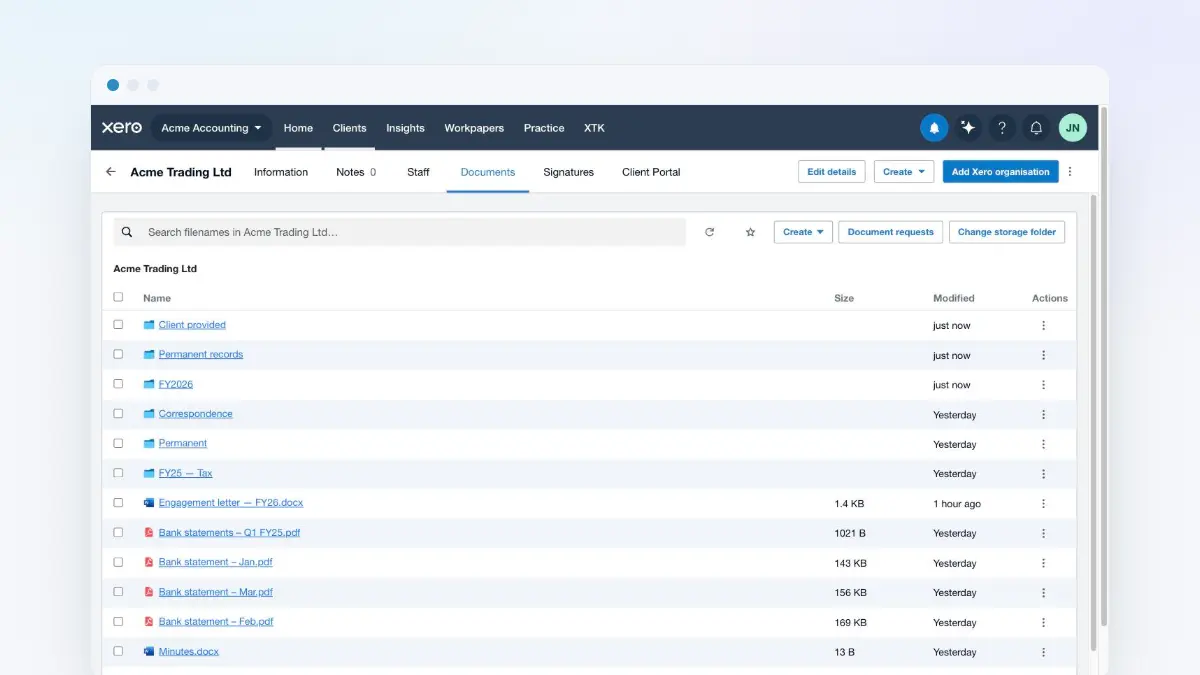
XTK is a browser extension that puts a Documents tab on each client in Practice Manager, showing that client's folder in your own storage. For a Microsoft practice, the Admin chooses SharePoint when connecting storage, signs in with a work account, picks the site — sites they follow are listed, and any other can be searched for — and then the library, which is chosen automatically when the site has only one. XTK then adopts your existing client folders by name the first time each client is opened. Nothing is copied or migrated, and the files remain ordinary SharePoint files you can still open, sync and share exactly as before.
- It asks Microsoft for Files.ReadWrite.All, User.Read and offline_access, plus Sites.Read.All for SharePoint. The last is read-only and is used to list your sites and libraries while you choose one; file work runs through the first.
- Only the Admin connects. Everyone you invite works through that one connection, so staff can browse, upload and download a client's files from XPM without signing in to Microsoft for it. Opening a file by its name hands off to SharePoint's own viewer, which checks that person's own access — so anyone who edits in Word for the web still needs access to the library.
- Clients never need a Microsoft account. A client portal share is a marker XTK keeps, not a SharePoint sharing link, and an upload through a request link goes from the client's browser straight to Microsoft. No guest accounts are added to your tenant and no “Anyone” links are created.
- Uploads through XTK are capped at 100MB per file, against XPM's own 16MB.
- Signed documents, generated letters and requested files land in the same client folder, in the same library.
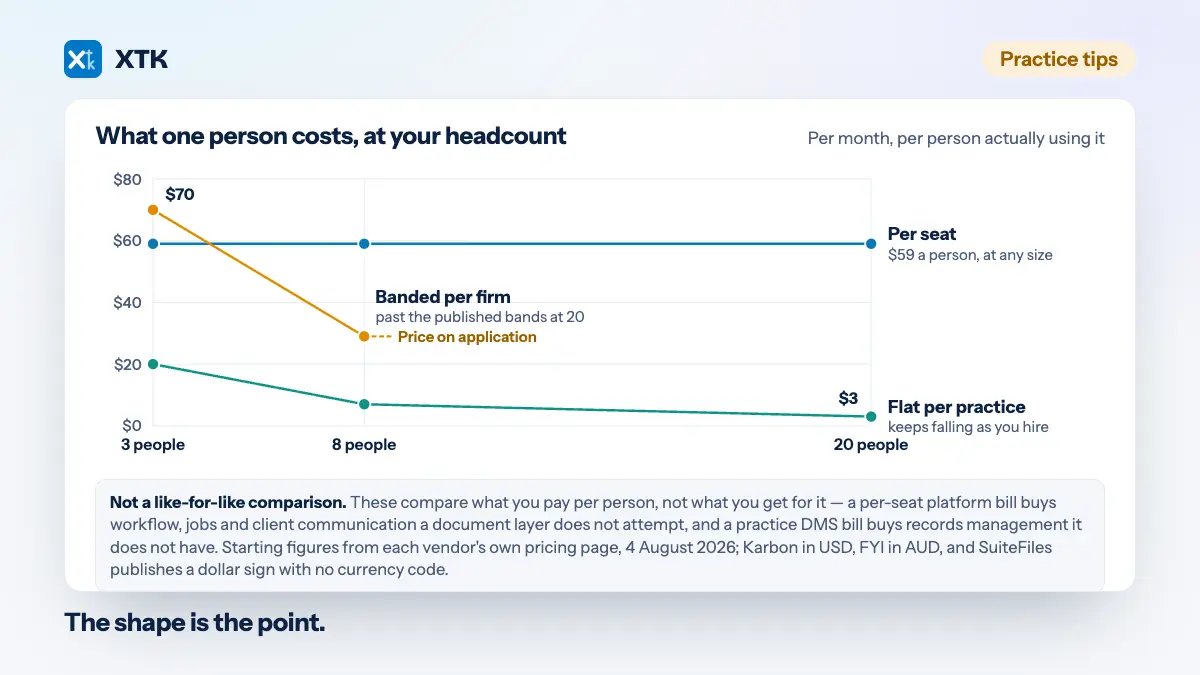
XTK is $59 USD a month for the whole practice after a 30-day trial, with no per-user charge — the pricing page has the detail.
The checklist
- Find out where client files live today. If the honest answer is “in three people's OneDrives”, that is the job.
- Check that every user has a manager set, or that a secondary owner is named, so a departure never deletes a OneDrive nobody is watching.
- Create one client site and one library, with one top-level folder.
- Rename client folders to match XPM exactly.
- Move client files out of personal OneDrives and into the library.
- Ask your Microsoft 365 administrator to turn on the admin consent workflow before you try any app.
- Then decide whether separate tabs are enough, or whether each client's folder should open inside Practice Manager.
Frequently asked questions
Does Xero Practice Manager integrate with SharePoint?
No. XPM stores uploaded files in Practice Manager itself, up to 16MB each, unless you integrate one of the document management systems it supports, and Microsoft 365 is not among them. A request to add SharePoint has been on Xero's product ideas board since August 2023 and was still marked submitted in September 2026. Practices on Microsoft 365 either keep SharePoint open in a separate tab, move to a document management system with its own storage, or use a tool that shows each client's SharePoint folder inside Practice Manager.
Should an accounting practice store client files in OneDrive or SharePoint?
SharePoint, once the practice has staff. A OneDrive belongs to one person's Microsoft 365 account and is deleted after a retention period — 30 days by default — once that account is deleted. A SharePoint document library belongs to a site the practice owns, so it is unaffected when anybody leaves. Every Microsoft 365 Business plan includes SharePoint, with a shared pool of 1 TB plus 10 GB per licence. A sole practitioner can reasonably use their own OneDrive.
What happens to OneDrive files when an employee leaves?
When the user is deleted from Microsoft 365, their manager is given access by default and warned that the OneDrive will be deleted at the end of the retention period, which is 30 days unless an administrator changes it. A reminder is sent seven days before. The OneDrive then sits in a recycle bin for 93 days and can only be restored with PowerShell. If no manager or secondary owner is set, nobody gets access or a warning. Blocking sign-in or removing the licence does not start the deletion, but Microsoft archives a OneDrive after 93 unlicensed days.
Why does Microsoft 365 say an app needs admin approval?
Because Microsoft's default consent setting, described as “Let Microsoft manage your consent settings”, stops ordinary users approving apps that ask for broad access to files and sites, including Files.ReadWrite.All and Sites.Read.All. It is the default for new tenants and was applied to existing tenants on the default setting from mid-July 2025. A Global Administrator can approve the app for the organisation, and turning on the admin consent workflow lets users send the request to an administrator instead of stopping.
Do clients need a Microsoft account to upload documents to our SharePoint through XTK?
No. Clients use a request link or XTK's client portal, neither of which involves a Microsoft account, a guest account in your tenant or a SharePoint sharing link. A file uploaded through a request link goes from the client's browser directly to Microsoft and lands in that client's folder in your library. Portal shares are records XTK keeps, not SharePoint permissions, so removing a share changes nothing in SharePoint itself.