Updated 12 min read
Is XTK safe? Xero data privacy and where files live
XTK is built on two promises. First, it has no connection to Xero of its own — no Xero sign-in, no Xero token, no server-side access to your practice's Xero data. It reads the client you have open inside your own authenticated Xero Practice Manager (XPM) tab. Second, your client documents live in your practice's own Google Drive, OneDrive or SharePoint, and are never copied to XTK's servers. This page explains how both work, what XTK's database really holds, and the places where data does move — so you can answer “is XTK safe?” with specifics rather than reassurances.
XTK is an independent product and is not affiliated with or endorsed by Xero Limited.
How does XTK read our Xero data?
Over your shoulder, in your own browser tab. When you open a client in Practice Manager, Xero's own pages fetch that client's details in order to render them. XTK's extension watches those responses arrive and keeps the answer — the Client Snapshot — so the panel can show the client's name, fill a template, or pre-fill a signer's email without you typing anything twice.
That design is why the privacy story is short: XTK's backend has no Xero identity at all, so there is no server-side path to your Xero data — not a restricted one, not an audited one, none. Four details are worth knowing:
- The extension only runs on Practice Manager. Its content scripts are limited to Practice Manager's own two hosts — practicemanager.xero.com, which is also where Xero serves Partner Hub, and the older app.practicemanager.xero.com that job and quote pages still come from — plus XTK's own portal on octabyte.app. It cannot see Xero Blue, your bank's website, or any other tab.
- Only client, job and quote data is read, from a fixed list. Seven Practice Manager endpoints are allowed for client data: a client's details, contacts and custom field values; the practice-wide custom field definitions; client and contact search; and the signed-in user and practice summary. Two more answer a narrower question — which client owns this job — and are used only when the page cannot answer it for free. Every other request the page makes passes through untouched, and timesheets, invoices and ledgers are never read.
- Xero's credentials never leave your tab. Client data is read from responses inside Xero's own JavaScript context, so the token authorising it is never touched at all. The two job lookups are the exception worth stating plainly: they need Xero's short-lived shell token, so XTK reads it fresh from the page at the moment of use and discards it. It is never written to extension storage, and never sent to XTK's servers.
- The snapshot is memory-only. It lives in the tab while you work and disappears on refresh or when you close it. Close your Xero tab and XTK simply has no client data to show.
Where client details do reach XTK's servers
Being precise matters more than sounding absolute. The snapshot itself is never uploaded, but some values in it travel when you act on them. Generating a document from a template sends the finished list of filled-in values — the ones you reviewed in the fill dialog — to the backend, because that's where the Word engine runs; they render your file and are not saved. Sending a signature or document request saves that request: the client's name, the recipient's name and email, your subject and message. Inviting a portal contact saves their name and email. Each notification keeps a snapshot line naming the client and files involved. All of it is data you typed or confirmed on the way to sending something — but it is on XTK's servers, and this page would be dishonest not to say so.
One more record exists that you never type. Opening the Documents tab on a job or a quote stores the fact that this job number belongs to that client, alongside the job's or quote's name and Xero's own identifiers for it. It is the practice-wide index that lets the same job open the same folder from either of the two web addresses Practice Manager serves it at, and it is why the second visit needs no lookup. It holds numbers, names and the link between them — never the job's financial detail, and never a document.
Where do our client files live?
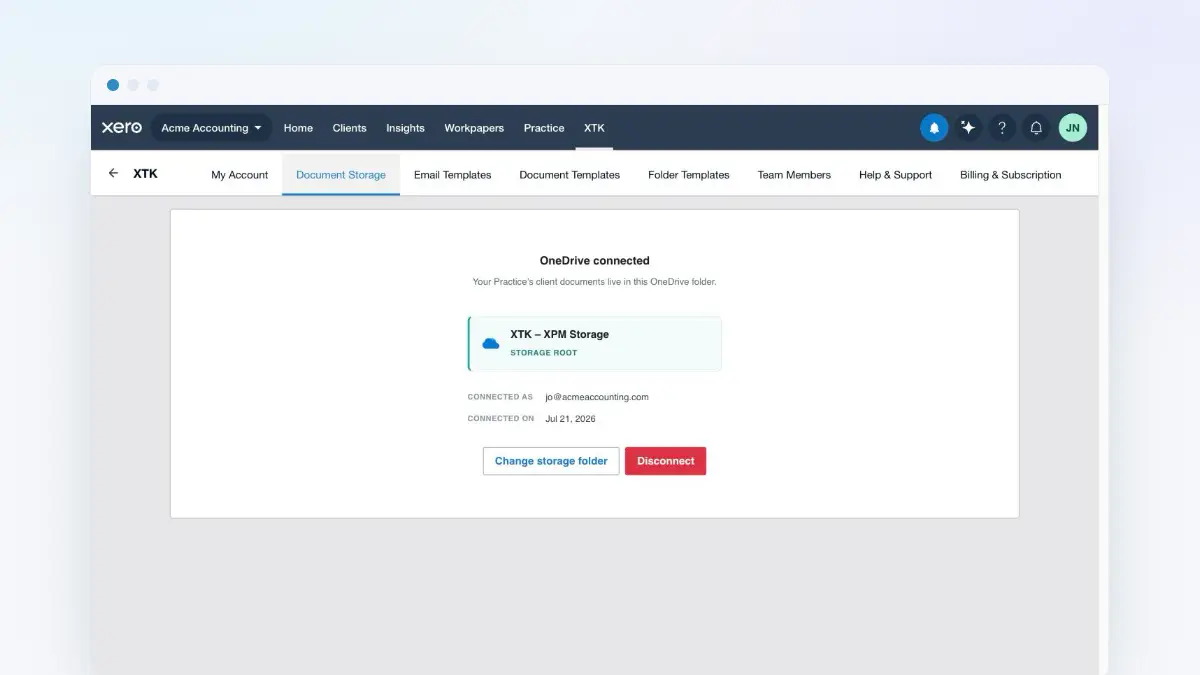
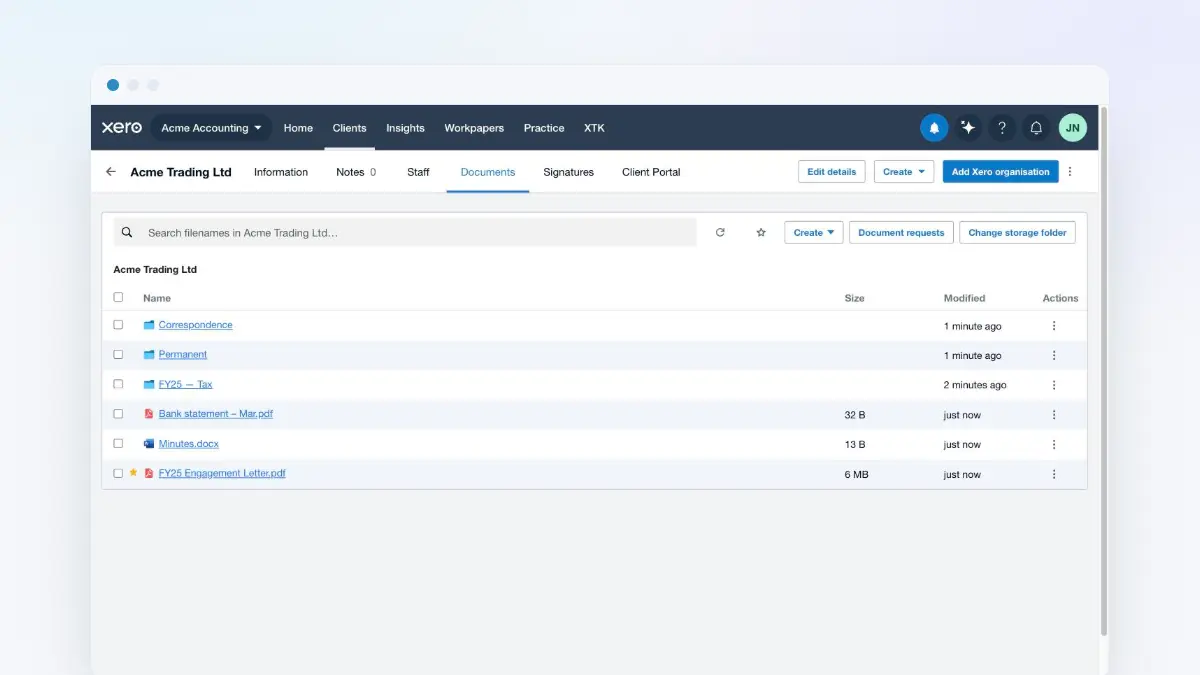
In your practice's own storage. Your Admin connects one provider — Google Drive, OneDrive or SharePoint — and picks one Main Storage Folder, usually named “XTK – XPM Storage”. Inside it each client gets a folder, adopted by name if you already have one. Everything in the Documents tab happens in those folders, as ordinary files you could open or move in Drive tomorrow without XTK's help. XTK's database holds the identifiers it needs to find them again — pointers, not contents.
Transfers take the shortest route available. When you upload, your browser asks the backend for a single-use, destination-scoped upload link and then sends the bytes straight to Google or Microsoft, so they never pass through XTK at all. That covers staff uploads in Practice Manager and your clients' uploads through the portal and document-request links.
Some operations can't work that way, because they need a document engine. Downloading a file, downloading a selection as a zip, merging PDFs, generating from a template and flattening a completed signature all stream through XTK's backend. “Stream” is the important word: the bytes pass through in flight, are never written to disk or stored in the database, and the finished file is written back into the same client folder.
The containment rule
Storing files in your Drive would mean little if XTK could then wander around it. So there is a hard rule: every operation stays inside the folder of the client you're looking at. Uploads, new folders, renames, merges, generated documents, moves and copies are all checked on the server before your provider is called — XTK confirms the items and the destination both sit inside the current client's folder, and inside your Main Storage Folder, and refuses anything that doesn't. The “Move to…” and “Copy to…” pickers only offer folders from that same subtree, so there is no way to push one client's document into another client's folder, or out into the rest of your Drive.
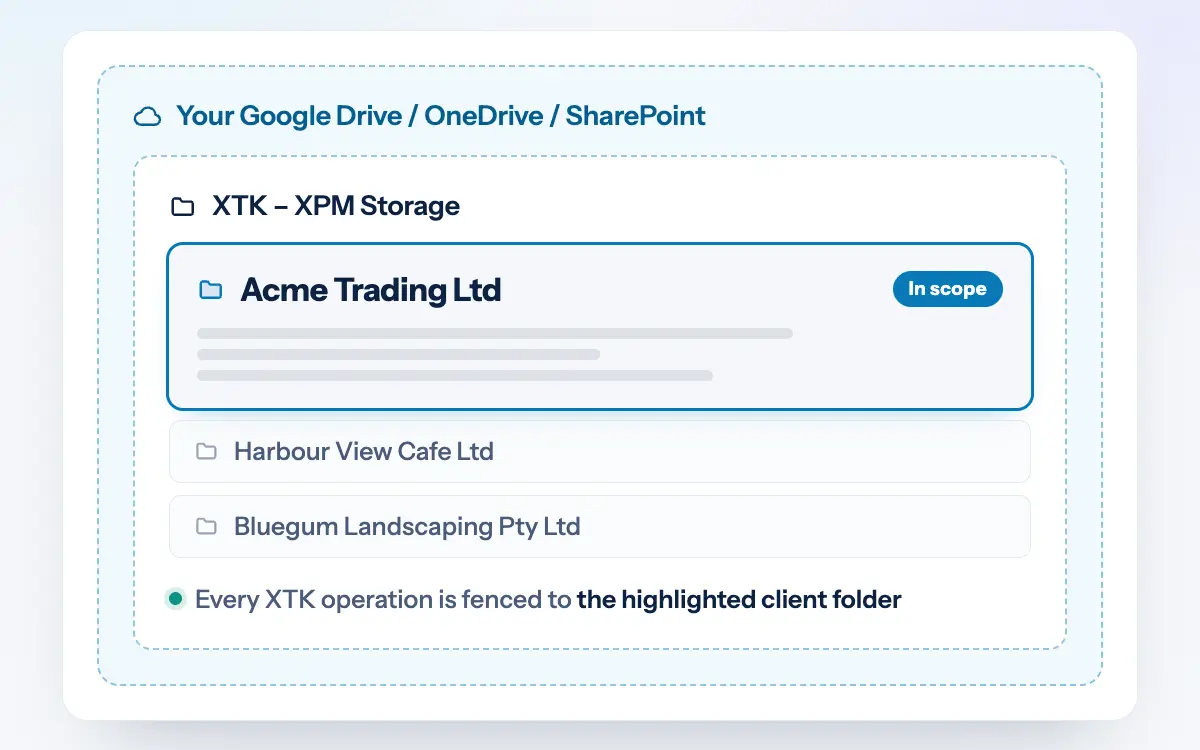
- Document templates are the one exception. A template belongs to your practice rather than any client, so template files live in a single “XTK – Templates” folder beside your client folders — fenced to that folder in exactly the same way. Generated documents land inside the client's folder as normal.
- Files elsewhere in your Drive are invisible to XTK. Anything outside your Main Storage Folder, or sitting loose at its root rather than in a client folder, simply doesn't appear — by design.
- Changing a folder never moves files. Re-pointing one client, or your whole practice, changes a pointer only. Nothing is moved, copied or deleted, so switching back restores the previous mapping.
Client portal shares are markers, not copies
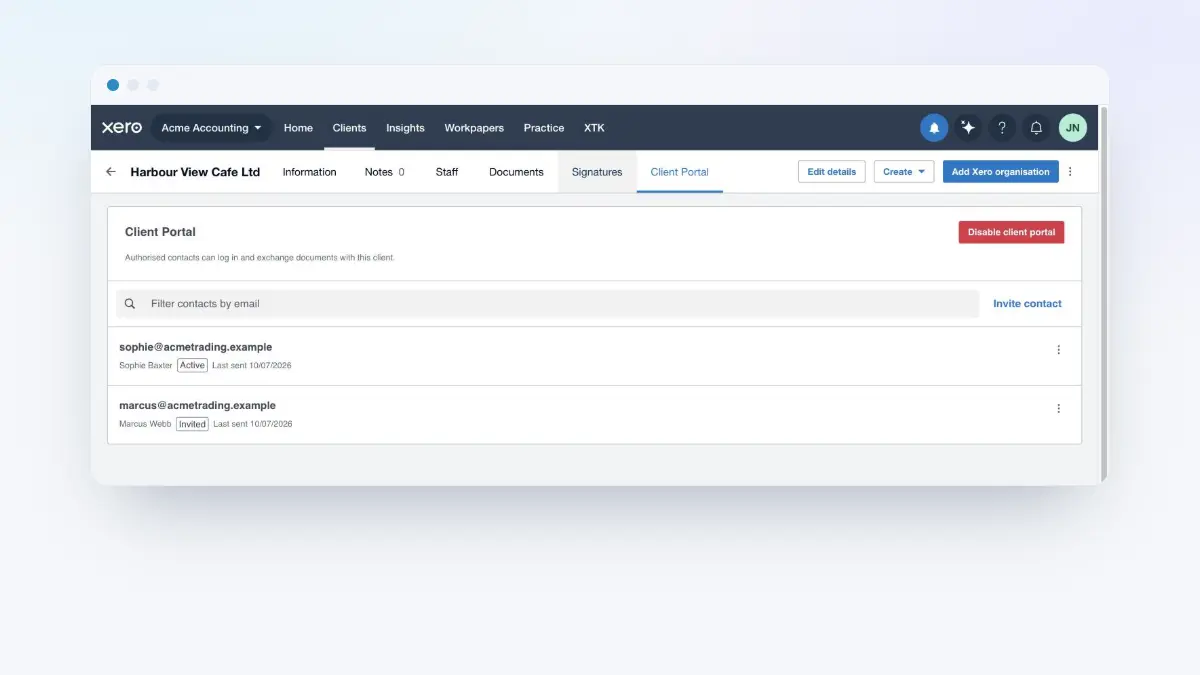
When you share a folder or file with a client through the Client Portal, nothing is duplicated and nothing moves: XTK records a marker saying “this item is visible to this client's portal” over a file already sitting in that client's folder. Your client sees the shared folder as the top of their world and cannot see, name or reach anything above or beside it — not the client folder, not your Main Storage Folder, not another client. Every portal request is checked against the share on the server, not merely hidden in the interface.
Because a share is only a marker, taking it back is undramatic too. Unsharing, disabling a contact or removing them from the roster never deletes anything — including files your client uploaded, which stay in the client's folder and visible to your team.
What does XTK's backend actually store?
XTK runs a Postgres database on its own servers. It holds your practice's accounts, your connections, and the records behind every request you send — but no document contents. The full picture, honestly drawn:
| Data | On XTK's servers? | Where it really lives |
|---|---|---|
| Document contents | No | Your Google Drive, OneDrive or SharePoint |
| Folders and files | Identifiers only, so XTK can find them | Your storage provider |
| Staff accounts | Yes — name, email, hashed password, role, sessions | XTK's database |
| Storage and mailbox connections | Yes — OAuth tokens, encrypted at rest (AES-256-GCM) | XTK's database |
| Client identity from Xero | The Xero client id; the client's name on requests you send | Xero — read in your own tab |
| Signature requests | Yes — title, signer names and emails, field values, signature images | The signed PDF is filed in your client folder |
| Signing audit trail | Yes — each event's time, IP address and browser | Also printed on the Certificate of Completion |
| Document requests | Yes — the checklist, recipient name and email, your message | Uploaded files go to your client folder |
| Portal contacts | Yes — name, email, hashed password, a fingerprint of the invite link | XTK's database |
| Portal shares | Yes — one marker per shared item | Nothing is copied |
| Notifications | Yes — a snapshot line naming the client and files involved | XTK's database |
| Email and folder templates | Yes — the text and folder names you wrote | XTK's database |
| Document templates | The name and description only | The .docx sits in your “XTK – Templates” folder |
| Support messages | No — sent as email, nothing kept | The XTK team's inbox |
| Card details | No | Stripe |
One row deserves a word more. Signature records are deliberately detailed, because that is what makes a signature defensible: each signer's captured values, the times they acted, and the IP address and browser they used are kept, and printed on the Certificate of Completion filed alongside the signed PDF. Every link XTK emails — portal invites, signing links, upload links — is stored only as a fingerprint, never in full, so a copy of the database is no use to anyone: the trade-off is that XTK cannot show you a link again after it has gone out, and sending an invite again replaces the earlier one.
What access does XTK ask for?
- Storage: full access to the connected drive. Google's consent screen reads “see, edit, create, and delete all your Google Drive files”, and Microsoft's is comparable. A narrower permission can only touch files XTK itself created, which makes the whole point — showing a client's existing documents — impossible for any practice that already keeps client files in Drive. The containment rule above is what keeps that broad permission pointed at one folder, and it is enforced by XTK's own server-side checks on every operation, not by Google.
- Email: send-only. If you connect Gmail or Microsoft so invites and requests come from your own address, only the send permission is granted. XTK cannot read your mailbox, and sent messages land in your own Sent folder.
- Browser permissions: storage (your XTK session and preferences), tabs (to focus your Practice Manager tab when you click a notification), alarms and notifications (desktop alerts). The extension runs on Practice Manager and XTK's own portal, nowhere else.
Diagnostics, and how much of your screen XTK sees
XTK uses an error-monitoring service to learn when something breaks in production. Error reports carry a stack trace, your practice id and the signed-in user's email so the team can tell who is affected; a scrubber strips tokens, passwords and secrets before anything is sent, and IP addresses, cookies and raw headers are not attached.
Session replay — a recording of the page around an error — deserves a straight answer, because inside the extension the page in question is Xero's, showing your client's data. So it is off: replay in the extension is disabled by default and gated behind a flag XTK controls on its own server, so it stays off until the disclosure and consent work it depends on is complete, and can be switched off for everyone without shipping a new version. Where replay does run, text and inputs are masked and media is blocked. The sub-processor list, with each provider's region, is linked at the end of this guide.
What happens when you leave?
- Disconnect storage: XTK's access to the account is removed. Every folder and file stays where it is, and your client-to-folder mapping is remembered if you reconnect with the same account.
- Trial lapses or subscription cancelled: the practice becomes read-only, enforced on the server. Everyone can still browse and download; nothing can be created or changed, and your clients can't upload or sign either. Billing, sign-out and Help & Support keep working so you can put it right.
- Close the account: XTK deletes your accounts, your encrypted connection tokens, and the practice records, requests and signature metadata it holds. Documents in your own Drive are untouched — closing an XTK account never deletes a file from your storage provider.
That is the part worth checking against your own obligations rather than taking on trust, because a retention period usually outlives a subscription: how long you must keep client records, and whether you could still open them in year seven is a separate article.
How do I ask a privacy question?
Open the XTK panel
In Practice Manager, click the XTK launcher — the last item in the main navigation.
Go to Help & Support
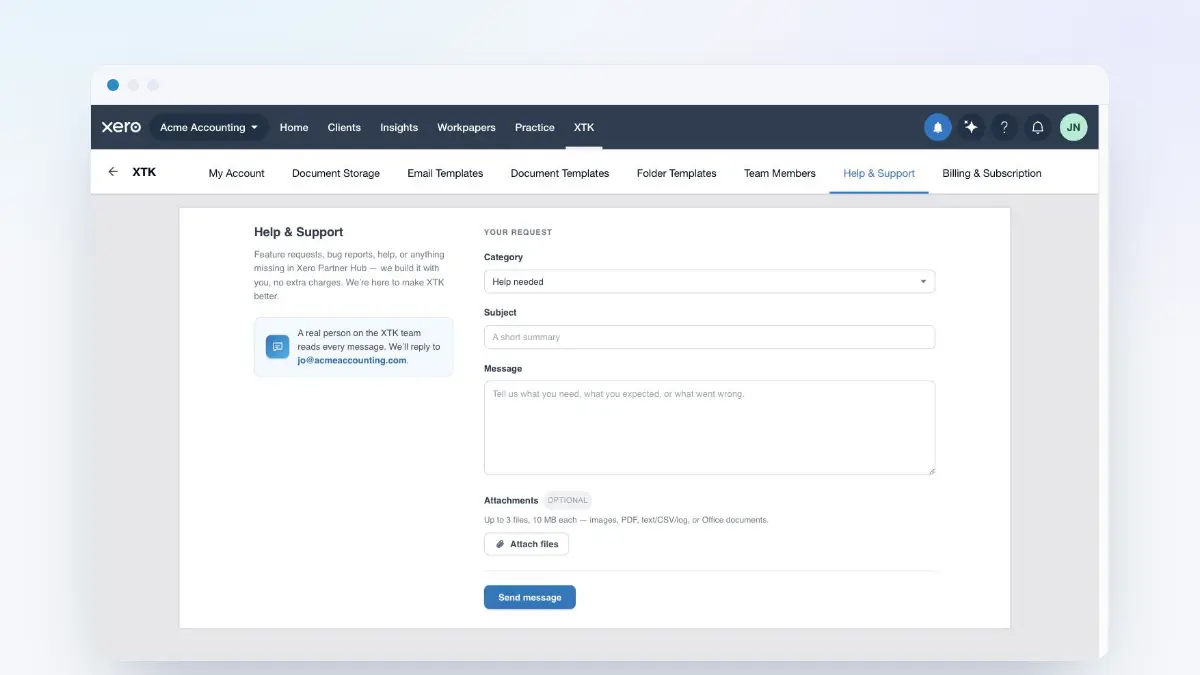
Click “Help & Support” in the panel's sidebar. The tab names the address a reply will go to: your own XTK sign-in email.
Choose a category and write your message
Pick a “Category” — “Feature request”, “Bug report”, “Help needed”, “Feedback” or “Other” — then fill in “Subject” and “Message”. You can attach up to 3 files, each up to 10 MB (images, PDFs, Word or Excel documents, or plain text, CSV and log files).
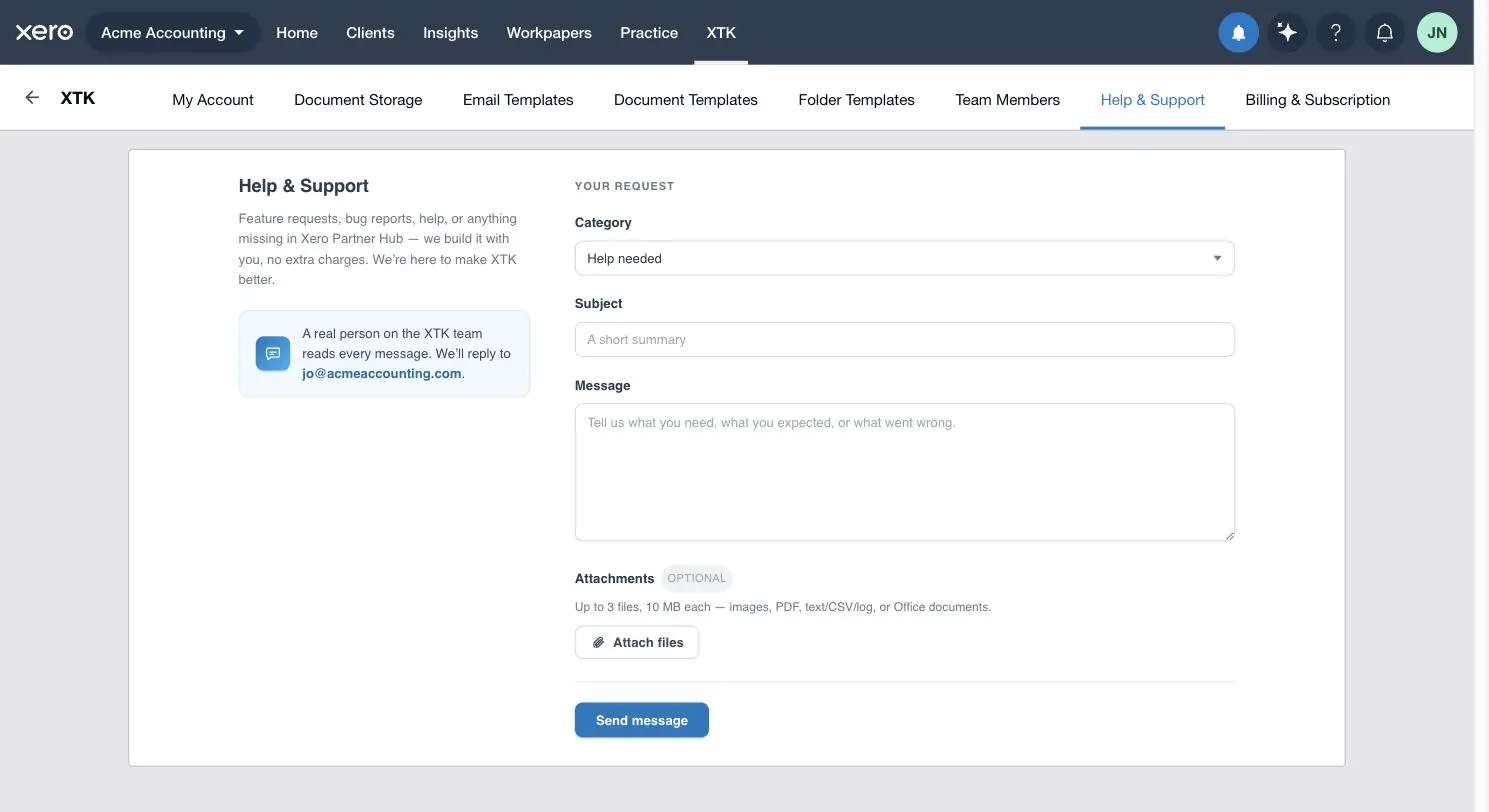
Click “Send message”
The panel confirms it's been received and offers “Send another”. Your message is emailed to the XTK team from XTK's own address with your email as the reply-to, so a reply lands in your inbox. Nothing about the request is stored — there is no ticket record beyond the email itself.
For formal requests — a signed copy of the Data Processing Addendum, sub-processor change notifications, or a data access or deletion request — email support@octabyte.io. The Privacy Policy, linked at the end of this guide, sets out the full picture, including which parts of XTK's processing your practice controls and which parts XTK controls on its own behalf.
Where next
If storage isn't connected yet, the guide on connecting Google Drive, OneDrive or SharePoint is where the choices on this page are actually made. The document management guide shows what daily work inside a client folder looks like, and the client portal guide covers what your clients can and can't see.
Frequently asked questions
Is XTK safe to install if we handle sensitive client data?
XTK is built so the two most sensitive things stay out of its hands. It has no connection to Xero of its own — it reads client details inside your already-signed-in Practice Manager tab, so no XTK server can read your Xero data even in principle. And client documents live in your practice's own Google Drive, OneDrive or SharePoint; XTK stores pointers to your folders and files, never their contents. What it does store is your staff accounts, your encrypted storage and mailbox tokens, and the records behind requests you send: signatures, document requests, portal contacts, share markers and notifications.
Does XTK connect to Xero, or see our whole Xero account?
No. XTK is not a Xero OAuth app and holds no Xero credentials — there is no Xero client id, secret or token anywhere in its backend. The extension reads the client data Xero's own pages have already loaded, inside your tab, from a fixed list of seven Practice Manager endpoints covering client details, contacts, custom fields, client and contact search, and the signed-in-user summary. Job and quote pages need one thing more — which client owns this job or quote — read off the page itself where possible, and otherwise from two job-lookup endpoints. Xero's credentials never leave your tab and never reach XTK's servers. Timesheets, invoices and the ledger are never read at all.
Do our files ever pass through XTK's servers?
Mostly no: when you upload, the bytes go straight from your browser to Google or Microsoft. Downloads and a handful of server-side jobs are the exception — merging PDFs, zipping a multi-file download, generating a document from a template and flattening a signed PDF all stream through XTK's backend, because that's where the document engines run. Those bytes are streamed, not stored: nothing is written to disk or kept in XTK's database.
Does anything leave our storage provider entirely?
One feature does: “Convert to PDF”. Converting a Word document sends that file's bytes to CloudConvert, a third-party conversion service, and writes the returned PDF back into the same client folder. It is the only XTK operation that hands a document to a service other than your own storage provider, it only runs on a file you explicitly choose, and nothing else depends on it. If your practice would rather no document left Google or Microsoft, don't use that action.
What happens to our data if we cancel or disconnect?
Your files are unaffected in every case. Disconnecting storage removes XTK's access to the account; every folder and file stays where it is, as ordinary files. Letting the trial lapse or cancelling puts the practice into read-only — you can still browse, but nothing can be changed. Closing your account deletes your accounts, your encrypted tokens and the workflow records XTK holds, and never touches anything in your Drive. Steps and timings are on the “Your data rights & deletion” page, linked at the end of this guide.