Updated 6 min read
Job documents in Xero Practice Manager
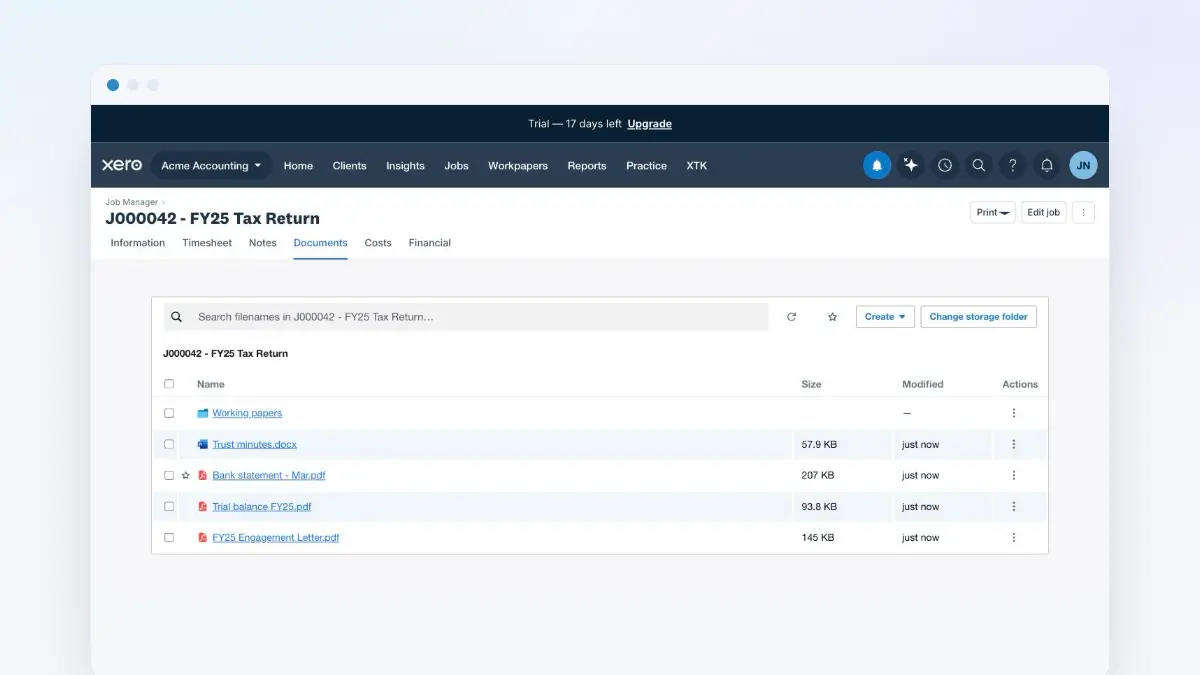
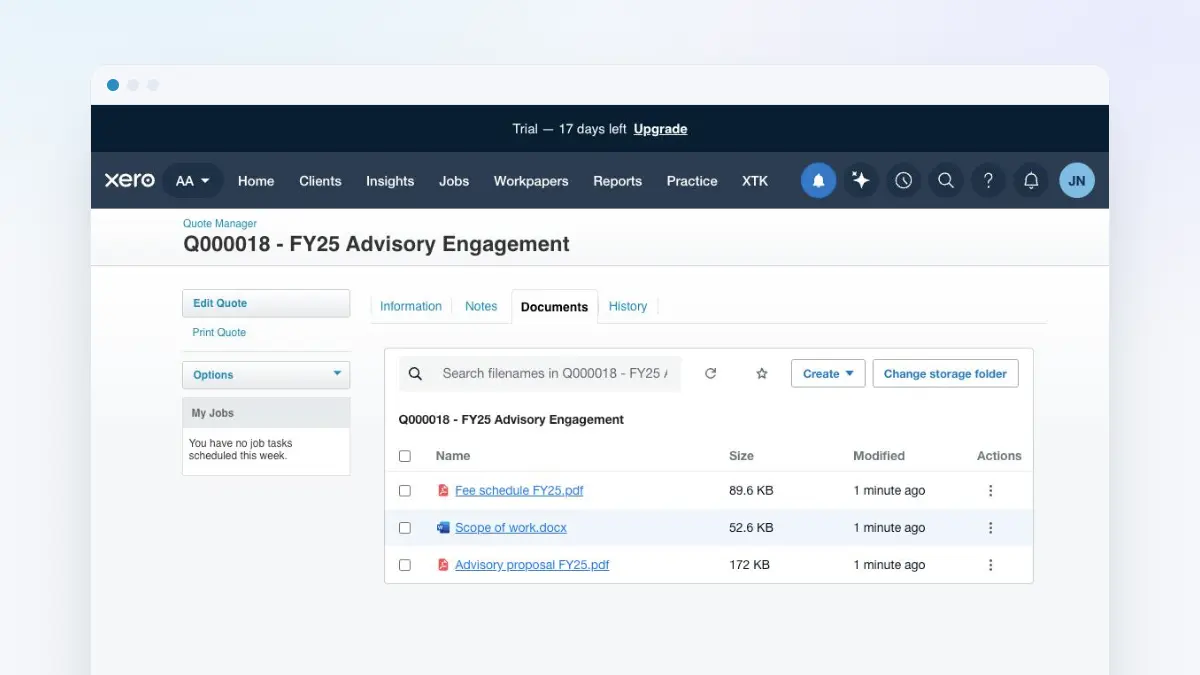
XTK adds its own Documents tab to every job page in Xero Practice Manager (XPM), so a job's engagement letter, working papers and bank statements sit on the job itself instead of in a shared pile under the client. The files live in your practice's own Google Drive, OneDrive or SharePoint, in a folder XTK creates for the job the first time you open the tab.
XTK is an independent product and is not affiliated with or endorsed by Xero Limited.
Where the Documents tab appears on a job
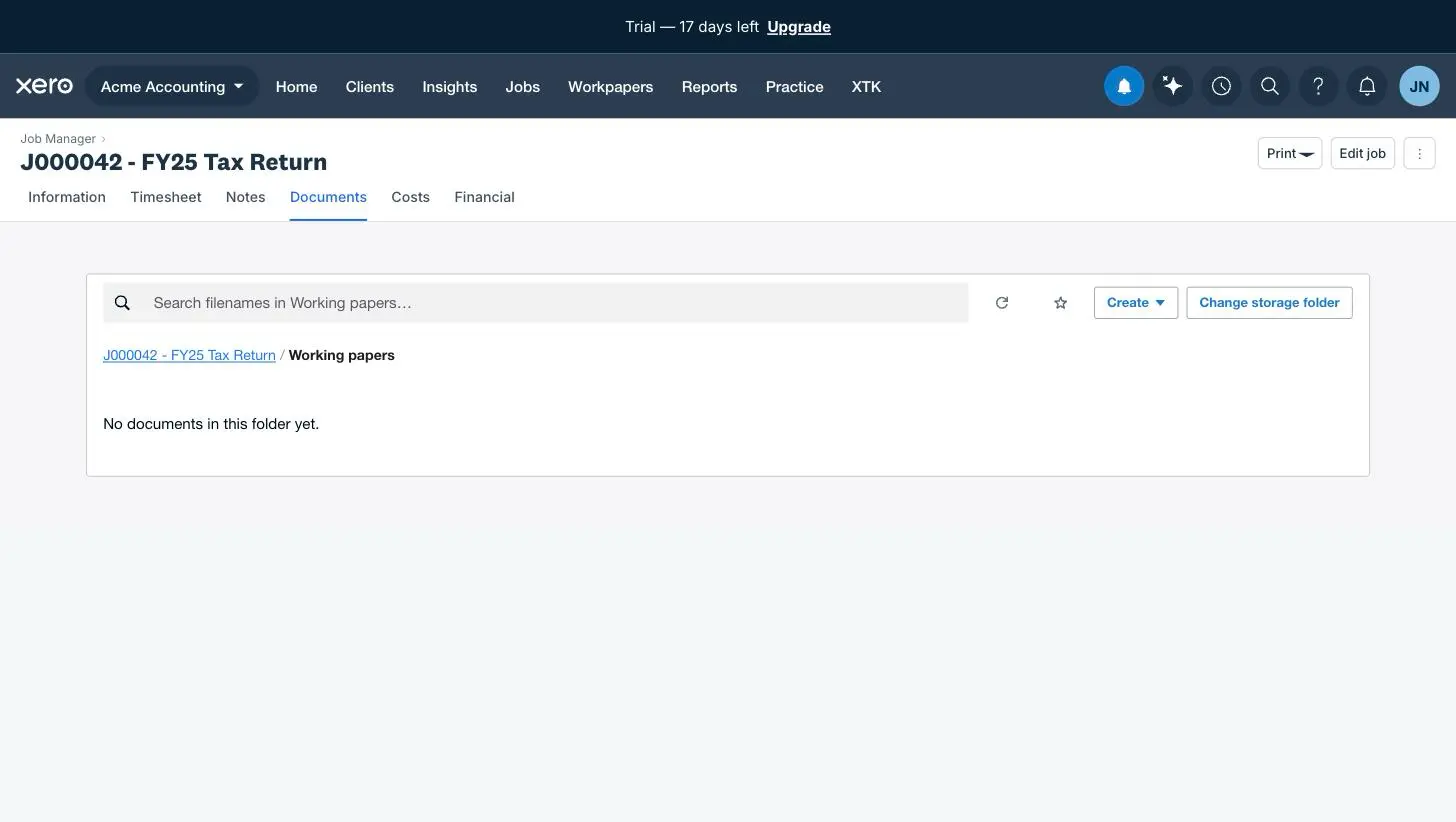
Open any job — from Job Manager, or from a client's Jobs tab — and look at the job's tab strip. XTK's Documents tab sits where Xero's own Documents tab was, fourth along, between Notes and Costs. It looks like the tabs either side of it because it is meant to: this is the job's Documents tab now, not a bolted-on panel.

Clicking it opens the job's folder straight away, with no page reload — every other tab on this page is a full round trip to Xero's server, so the difference is obvious the first time. Click Notes or Costs afterwards and Xero's page comes back exactly as it always did.
Where do a job's files actually go?
Inside the client's folder, under a Jobs layer:
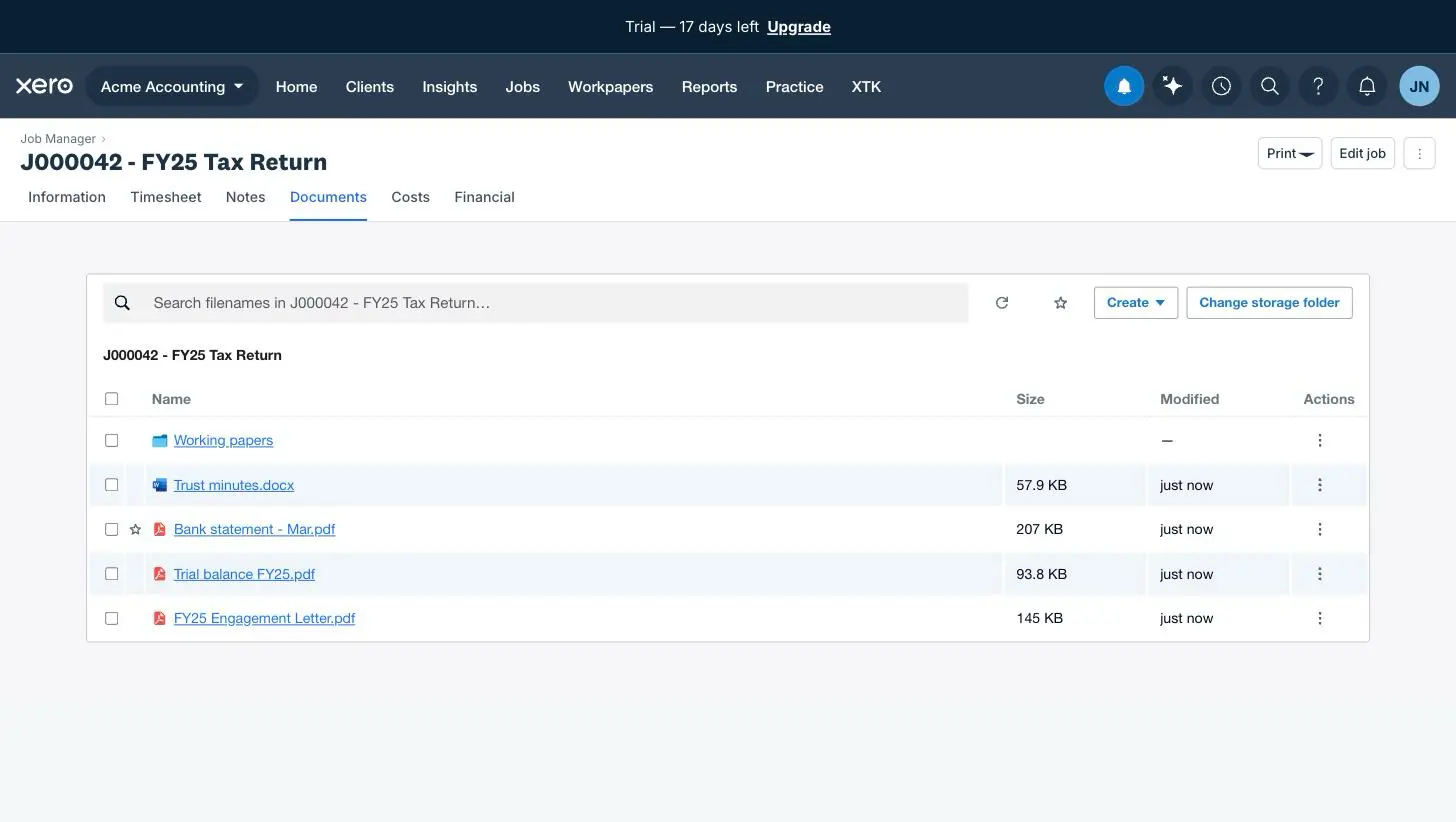
Acme Trading Ltd / Jobs / J000042 - FY25 Tax Return
The folder name is composed from the job's number and name, so it always matches what the job header says. That matters more than it sounds: XPM has two different URLs for the same job depending on whether you arrived from Job Manager or from a client's Jobs tab, and both open the same folder. One job, one folder, however you got there.
- If a correctly-named folder already exists — because your practice has been filing by hand for years — XTK adopts it, contents and all. No second folder, no migration.
- If nothing matches, XTK creates the Jobs layer and the job folder silently the first time someone opens the tab. Jobs nobody opens get no folders at all.
- If two folders match the name, XTK stops and asks you to choose. It never guesses, and it creates nothing while it's asking.
- Rename the folder in Drive afterwards and XTK keeps pointing at it — it follows the folder, not the name.
How do I file a document on a job?
Open the job in Xero Practice Manager
From Job Manager, or from the Jobs tab on the client — either route works, and both land on the same folder.
Click the Documents tab
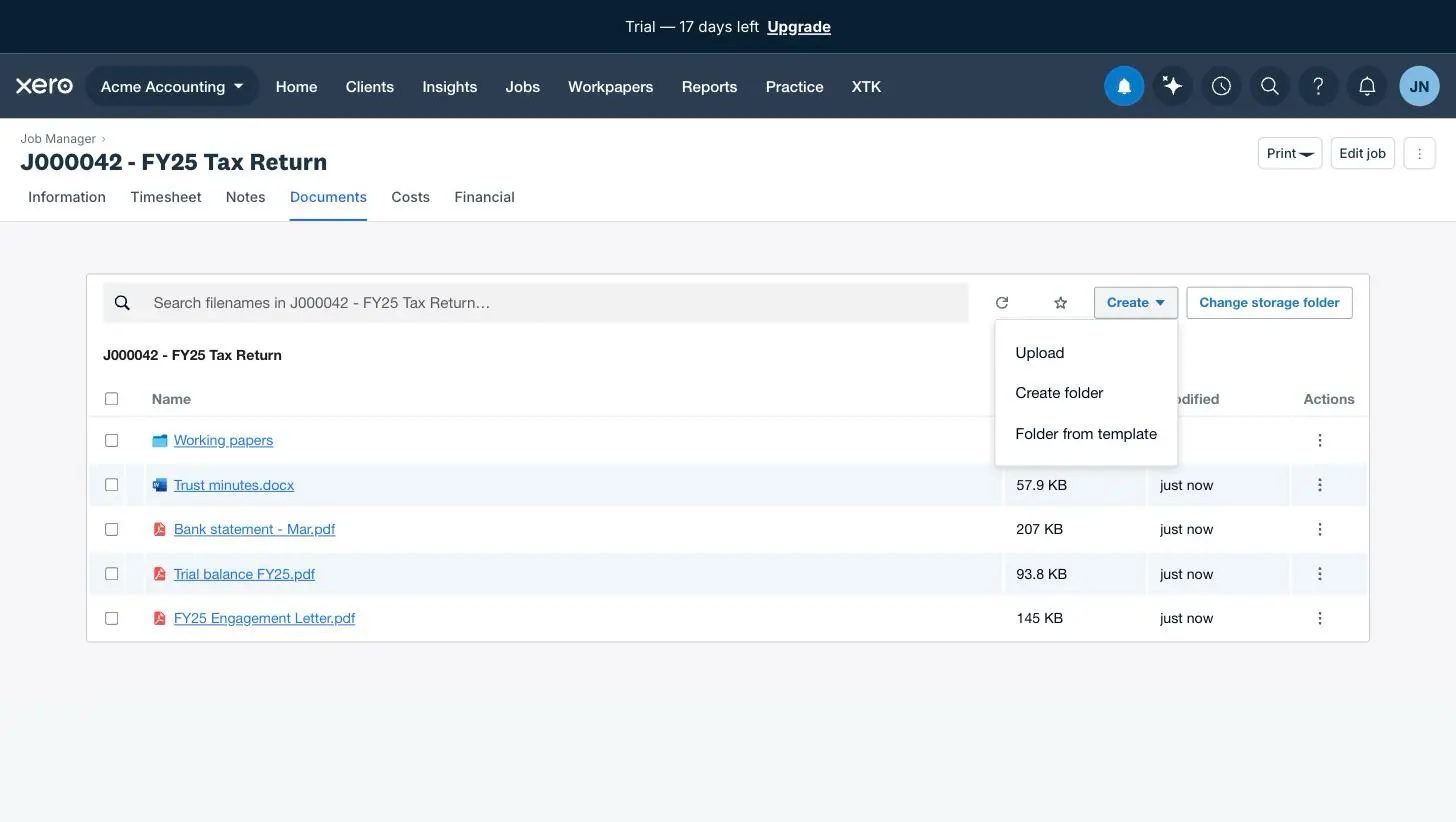
Fourth in the job's tab strip, between Notes and Costs. It opens without reloading the page, on the job's own folder.
Click Create ▾ → Upload
Pick one file or several. Uploads go straight from your browser to your practice's Drive, with a progress tray at the bottom of the panel.
Organise as you go
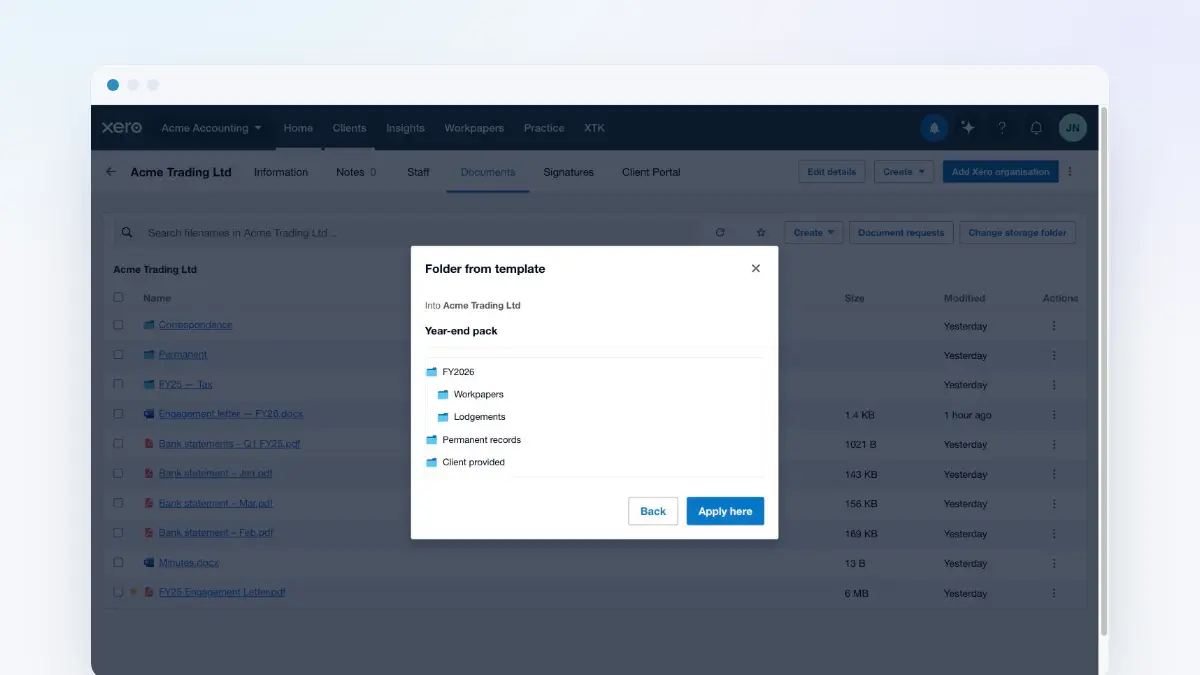
Create folder adds a subfolder inside the job — “Working papers”, “Correspondence” — and Folder from template lays down your practice's standard structure in one action.
What else you can do on a job's Documents tab
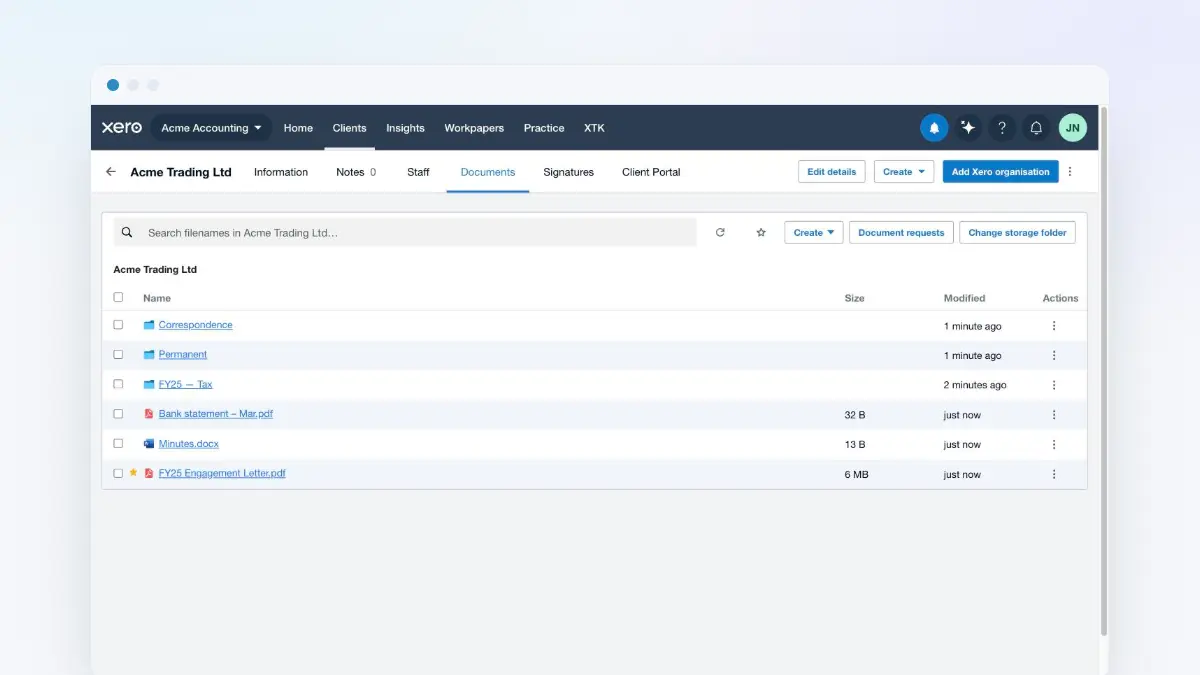
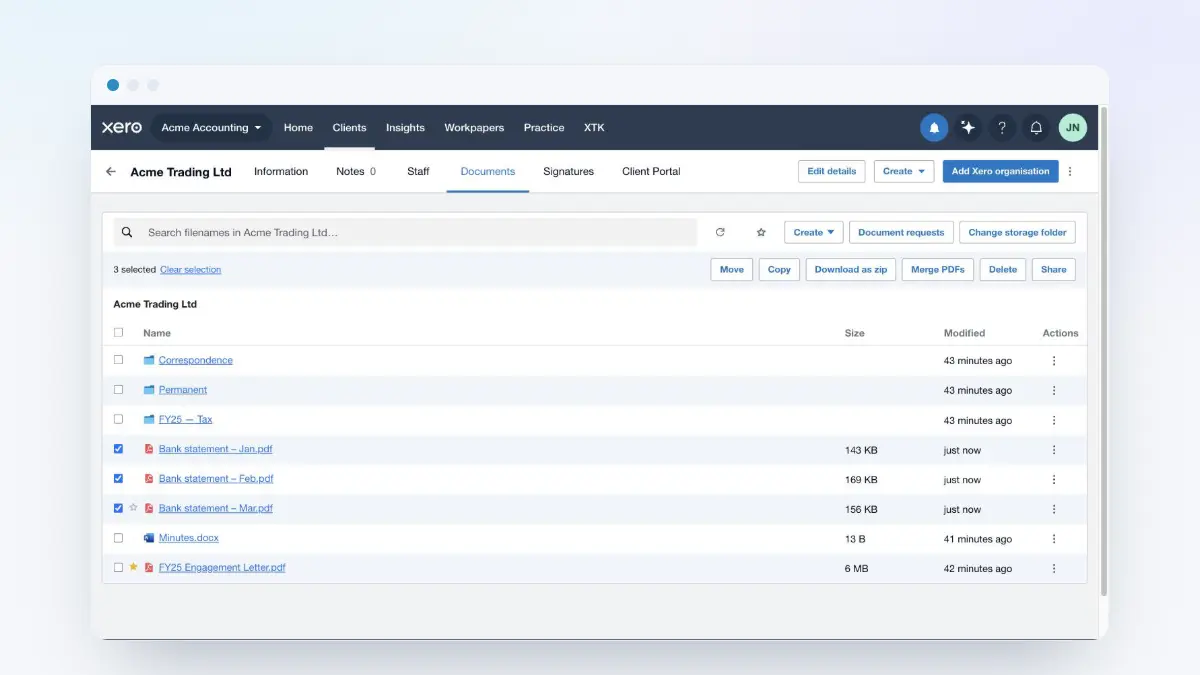
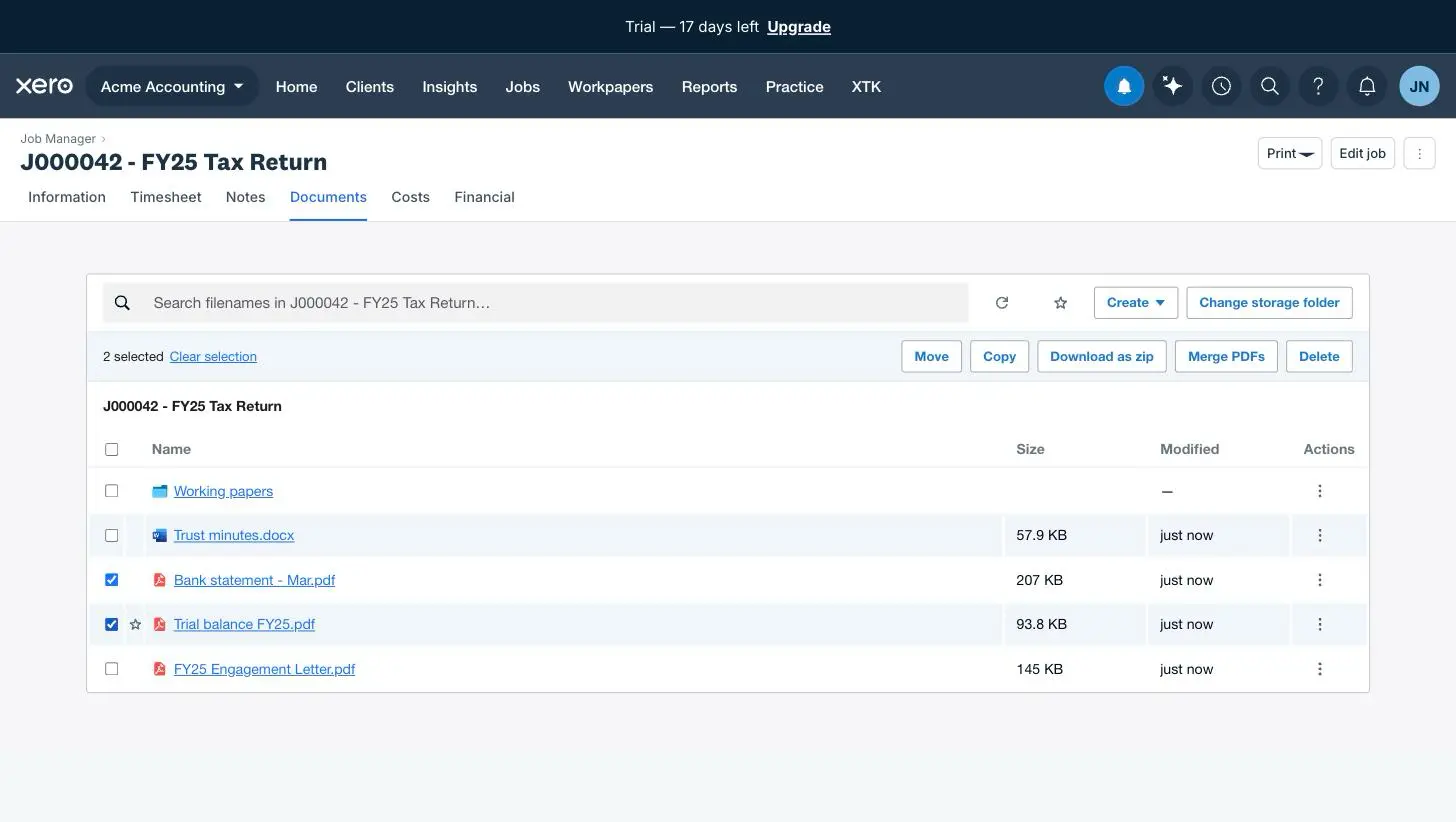
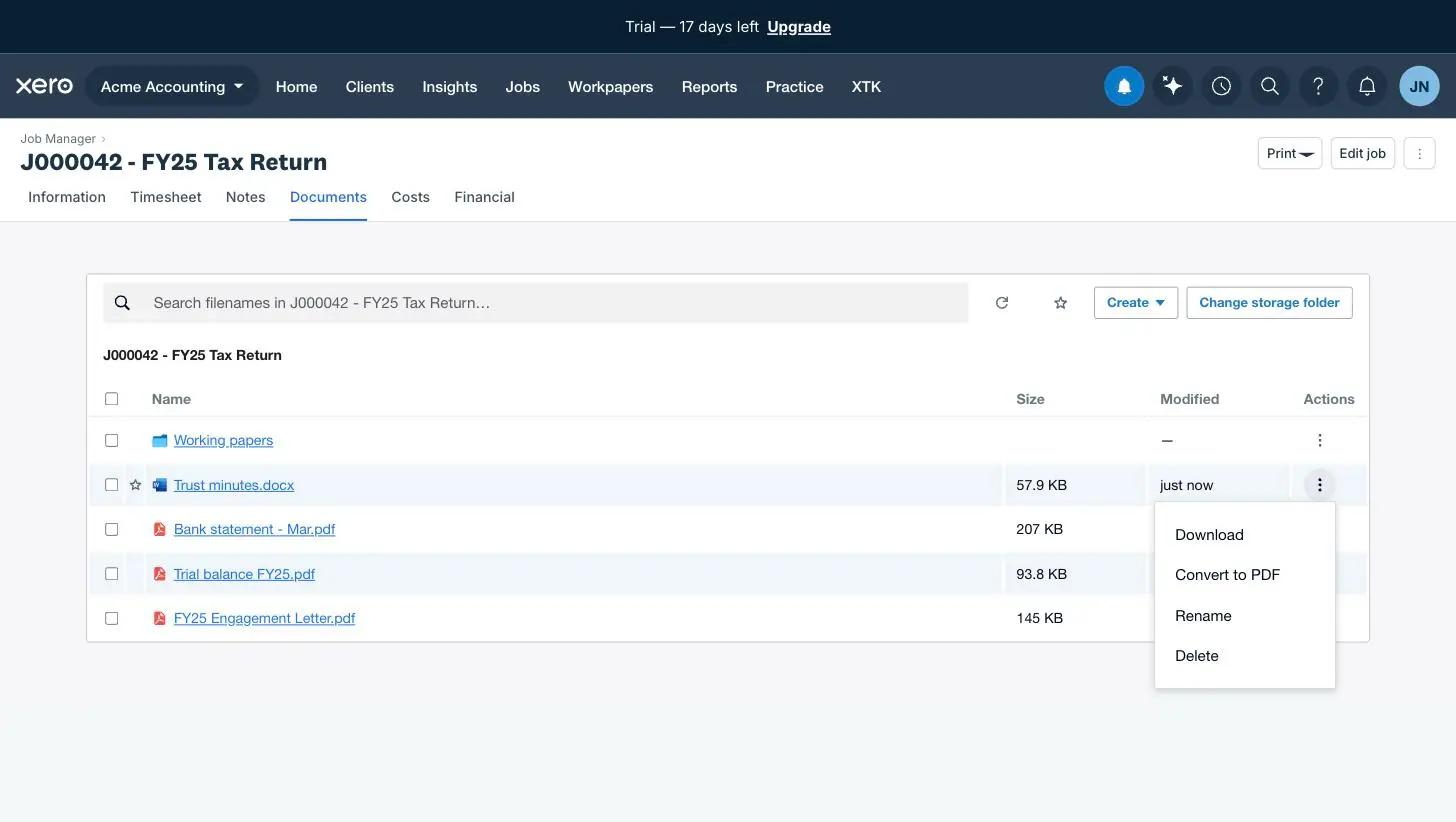
It's the same document manager as the client Documents tab, pointed at the job's folder. Upload files, create subfolders, rename, move, copy, download, delete to the provider's trash, star favourites, and search by filename. The bulk actions are all here too — tick two or more rows and the selection bar appears with Move, Copy, Download as zip, Merge PDFs and Delete.
Applying a folder template to a job is safe to repeat: it merges by name, so a second run reports what already existed rather than creating a duplicate set.
Everything stays inside the client's folder
Move, copy and merge destinations are rooted at the job's own folder, and so is search — searching a job's folder never turns up a file from somewhere else in your storage. There is no path through the job tab that files a document into another client's folder, which is the whole point of filing by job rather than by habit. Re-pointing is the one exception, and it browses one level wider: the client's folder.
Re-point a job to a different folder
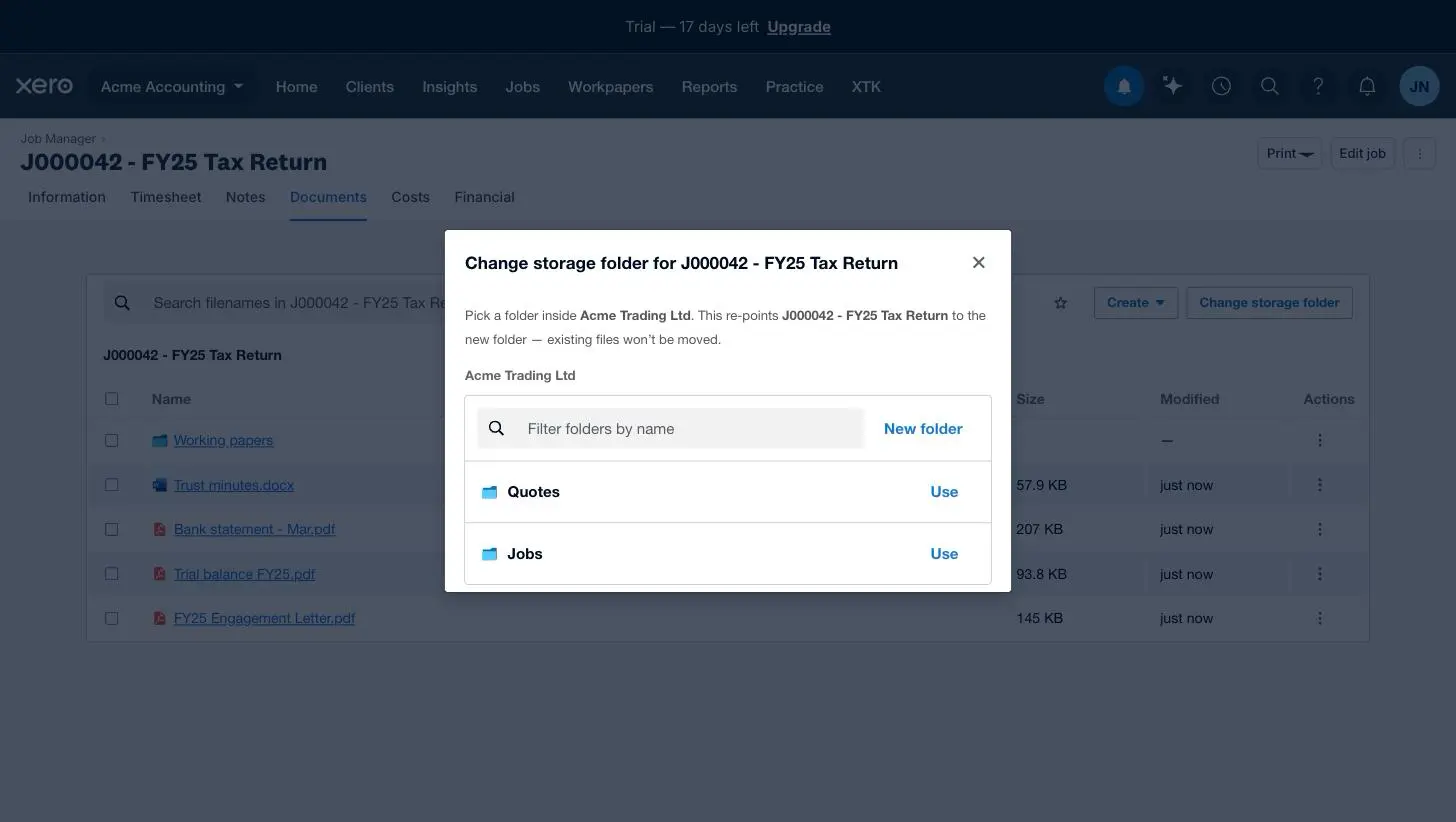
If XTK adopted the wrong folder, or your practice reorganises, use “Change storage folder” in the toolbar. The picker is rooted at the client's folder and can't leave it. Existing files aren't moved — XTK just points at the new folder from now on.
Open a subfolder, and link straight to it
Subfolders work as you'd expect, with a breadcrumb back to the job's folder. The address bar updates as you move around, so a subfolder deep inside a job can be bookmarked or pasted into a note — the link reopens the job page with that folder showing.
When XTK can't open the folder
A few situations stop XTK short of showing you files. Each one says what's happening in plain words, and each one keeps a way forward — there's an “Open XPM's own Documents” link beside every single one, because hiding Xero's tab is only fair if the way back is always there.
| What you see | What it means |
|---|---|
| “Filing paused — upgrade to continue.” | Your trial has ended or the subscription lapsed, and this job has no folder yet. Jobs already filed are unaffected — you can still open and download those. |
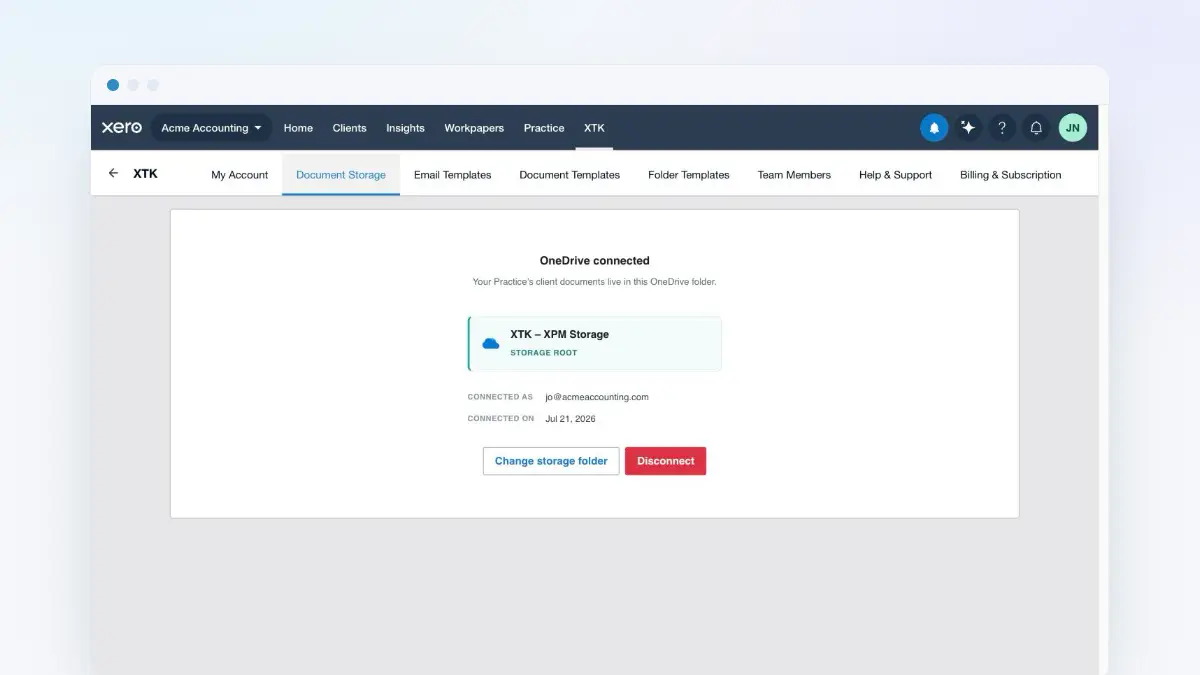
| “Drive isn't connected for this Practice yet.” | Nobody has connected document storage yet. Admins get a link to do it; everyone else is told who to ask. |
| “Two or more folders match…” | There's more than one candidate folder with that name. Pick the right one and XTK remembers it. Nothing is created while it asks. |
| A folder picker instead of the files | XTK couldn't work out which client this job belongs to. Choose the folder yourself and it files correctly from then on. |
In a read-only practice you can still browse and download everything already filed; it's only new folders and uploads that stop. And if you sign out of XTK entirely, the job page goes back to exactly how Xero serves it — Xero's own Documents tab included. The same tab, and the same rules, are on every quote page too: see quote documents in Xero Practice Manager.
Frequently asked questions
Where does XTK put a job's files?
In your practice's own storage, inside the client's folder: <client folder>/Jobs/<job number> - <job name>. So J000042 - FY25 Tax Return for Acme Trading Ltd lands in Acme Trading Ltd/Jobs/J000042 - FY25 Tax Return. The Jobs layer and the job's own folder are created the first time someone opens the Documents tab on that job — never before.
I already made a folder for this job by hand. Will XTK make a second one?
No. XTK looks for a folder with exactly that name (trimmed, case-insensitive) and adopts it, files and all. It only creates a folder when there's nothing to adopt. If two folders match the name, XTK stops and asks you to pick one rather than guessing — and creates nothing while it waits.
Why is “File from template” missing on a job?
A job's Documents tab is deliberately files-only. Generating a document from a template fills in the client's details, and Xero's older job pages don't carry those details for XTK to read. The same goes for document requests, sending for signature and sharing to the client portal — all four live on the client's own Documents tab, which is one click away.
What happened to Xero's own Documents tab on the job?
XTK hides it and stands in its place, so there's one Documents tab rather than two. It isn't gone: whenever XTK can't show you the folder, it renders an “Open XPM's own Documents” link beside the explanation, and Xero's tab reappears the moment you sign out of XTK.
Does opening the Documents tab reload the job page?
No. Every native job tab — Information, Timesheet, Notes, Costs — is a full page load. XTK's Documents tab opens instantly without reloading, and leaving it puts Xero's page back exactly as it was served.