Updated 10 min read
XTK pricing, your trial, and what read-only mode means
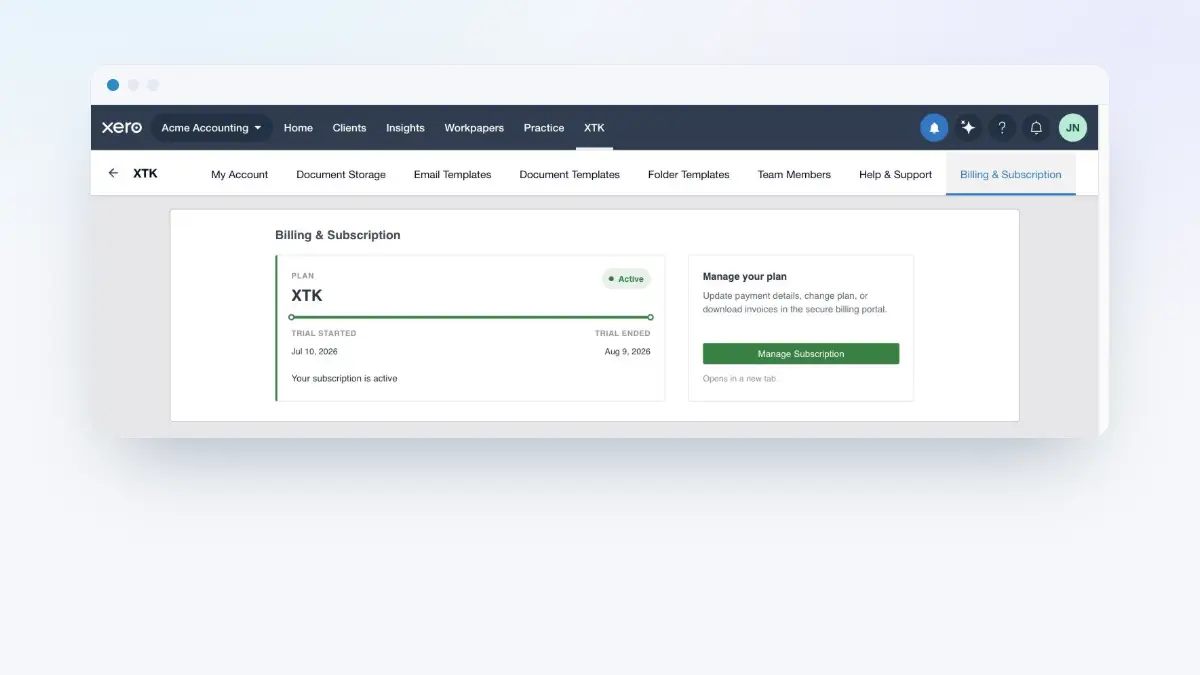
XTK is one plan: $59 USD a month for your whole practice, every feature included, after a 30-day free trial that needs no credit card. The trial starts when you verify your email address, and if it ends without a subscription the practice becomes read-only — everyone can still browse and download, but nothing can be created or changed until an Admin subscribes. This guide covers what you pay for, how an Admin upgrades and manages the subscription, and exactly what read-only does and doesn't block.
XTK is an independent product and is not affiliated with or endorsed by Xero Limited.
What does XTK cost, and what does the trial include?
- One plan, one price: $59 USD per month, billed in advance. No tiers, no per-seat charges, no features held back — the same price for a practice of two or twenty.
- The subscription belongs to the practice. One Admin pays and everyone you invite works under it, so adding a team member costs nothing extra.
- The trial is 30 days of the full product with no credit card: e-signatures, the client portal, document requests, templates, all of it.
- Nothing is charged automatically. XTK holds no card during the trial, so there is no silent conversion at day 30 — you subscribe deliberately, or the practice goes read-only.
- The clock starts at email verification, not registration, and only runs forward: it never pauses or resets.
How do I tell where my trial stands?
By the bar XTK adds across the top of Practice Manager. While the trial runs it reads “Trial — 12 days left”, re-drawing every half minute so the number is current without a reload; in the final day it switches to hours. If you are the Admin the bar carries one action, “Upgrade”; Members see the message with no button. Once you subscribe the bar disappears — no banner is XTK's way of saying all is well.
How do I upgrade to a paid subscription?
Sign in as the practice Admin
Open Practice Manager with XTK signed in. If the trial bar shows no “Upgrade” action you are signed in as a Member — XTK refuses billing requests from Members, so ask whoever holds the Admin role.
Click “Upgrade” on the banner
XTK opens Stripe's secure checkout in a new tab, tagged with your practice so the payment lands on the right account. Your Practice Manager tab stays where it was.
Pay by card on Stripe's page
Card details are entered on Stripe's own page and held by Stripe — XTK never sees or stores a card number. The charge is the first month, in advance.
Expect to stay on Stripe's confirmation page
A successful payment lands you on Stripe's “Thanks for subscribing” page, with no link back to XTK. That is how it works, not a failure: nothing more is required of you there, and you can close the tab.
Go back to Practice Manager and reload the page
Stripe notifies XTK in the background and the practice flips to active within moments, but your open tab was drawn before that, so it needs a reload. Activation doesn't depend on your browser — you could close the checkout tab mid-confirmation and still be subscribed. After the reload the trial bar is gone, every write control is live, the “Billing & Subscription” tab has appeared, and XTK has emailed the Admin a confirmation.
What's on the Billing & Subscription tab?
Open the XTK panel
In Practice Manager, click “XTK” in the main navigation. The panel opens on “My Account”.
Click “Billing & Subscription”
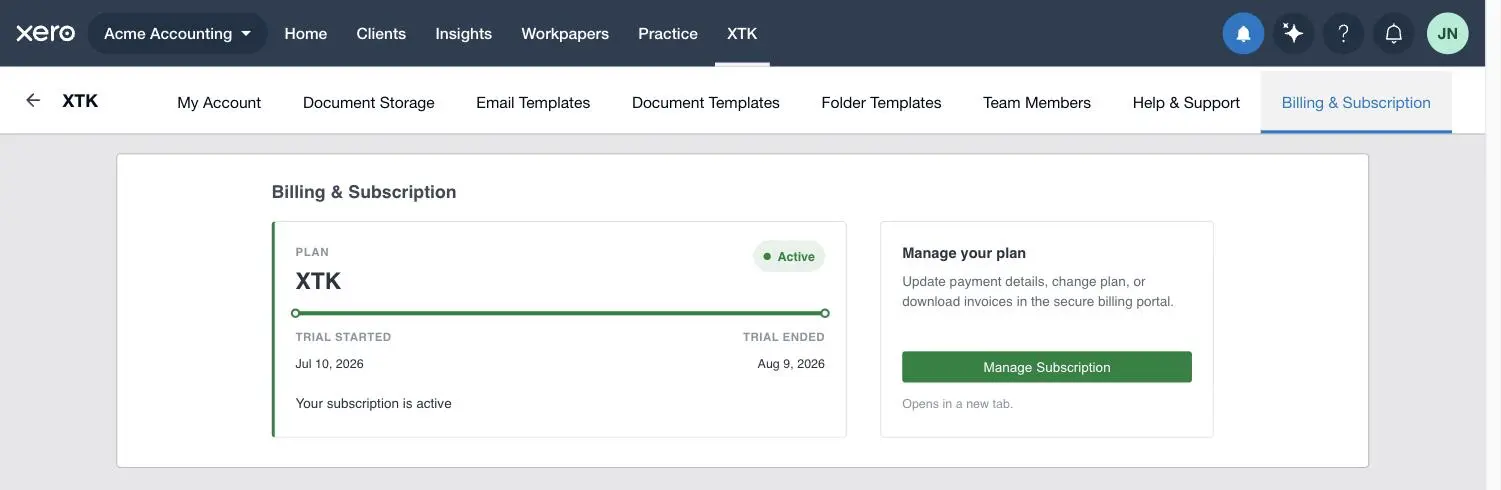
It is the last tab along the top of the panel, visible only to the Admin of a practice that has a subscription — active, in payment trouble, or cancelled.
Read the plan card
The card names your plan (“XTK”) with a status pill beside it — “Active”, “Payment failed” or “Subscription ended” — a progress strip, two dates, and a one-line summary: “Your subscription is active”.
Use “Manage your plan” for anything else
The rail on the right explains itself: “Update payment details, change plan, or download invoices in the secure billing portal.” The “Manage Subscription” button underneath opens Stripe's billing portal in a new tab.
How do I change our card, get invoices, or cancel?
All three happen in Stripe's billing portal, which “Manage Subscription” opens in a new tab as a one-off, expiring session — no second password to remember, and nothing sensitive kept in XTK. There you can update the card, download every invoice, and cancel.
Cancelling takes effect at the end of the period you have already paid for, so you keep full access until then; after that the practice becomes read-only. Fees are billed in advance and are generally non-refundable, because the trial exists to let you evaluate XTK before paying — the “Refund & cancellation policy”, linked at the end of this guide, gives the full terms. If the button answers “No active subscription found for this Practice.”, the practice has never paid, so Stripe has nothing to manage yet.
What happens if a payment fails?
Nothing stops working. A declined card puts the practice into a grace state where the banner reads “Payment failed — manage your subscription” for the Admin, or “Payment failed — your Admin needs to update billing” for everyone else, while Stripe retries in the background and access stays completely full. Your clients notice nothing. Only if Stripe eventually gives up does the subscription end and read-only begin — so fix the card while the banner is still asking nicely.
What does read-only mode actually mean?
Read-only is XTK's answer to a lapsed account: everything stays visible, nothing changes. It is enforced on XTK's servers rather than merely greyed out in the interface, and it applies to two states — a trial that ended without a subscription, and a cancelled subscription.
| Your practice's state | The banner says | What you can do |
|---|---|---|
| Email not verified yet | Nothing — you can't sign in | Nothing. Use the verification link to start the trial |
| Trial running | “Trial — 12 days left” | Everything, exactly as a paying practice |
| Subscribed | No banner at all | Everything |
| Payment failed | “Payment failed — manage your subscription” | Everything — a grace period, not a lockout |
| Trial ended | “Trial ended — upgrade to keep using XTK” | Read-only: read, search and download only |
| Subscription cancelled | “Subscription ended — upgrade to keep using XTK” | Read-only: read, search and download only |
What still works in read-only
- Signing in, for everyone. Read-only is about the practice, not about people: nobody is locked out and no session is revoked.
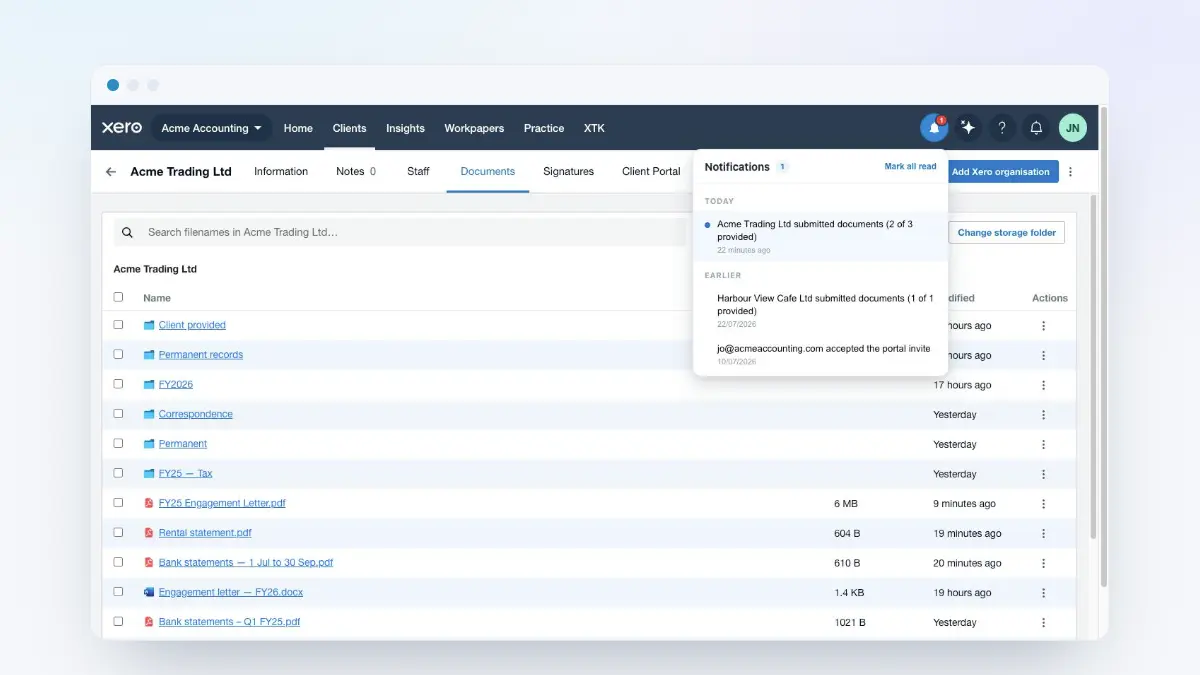
- Browsing and searching every client's documents, opening files in Google's or Microsoft's viewer, and downloading — single files and multi-file zips alike.
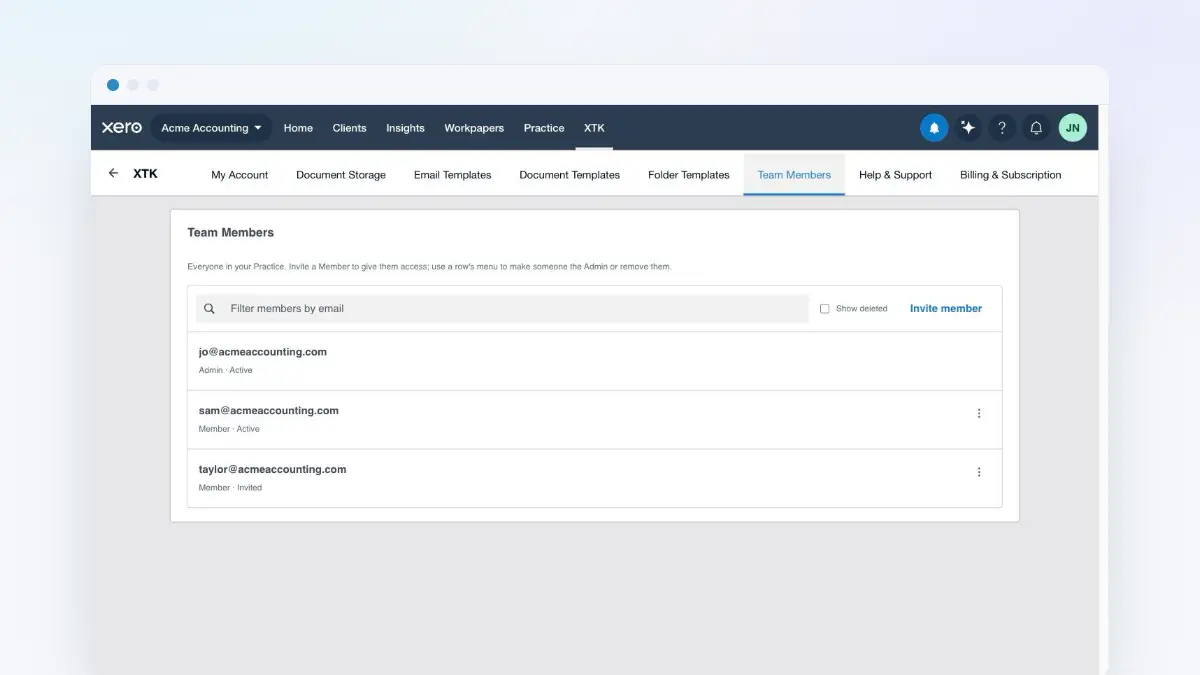
- Reading your history: the Signatures tab, document-request tracking, notification dialogs, your connections and your team list.
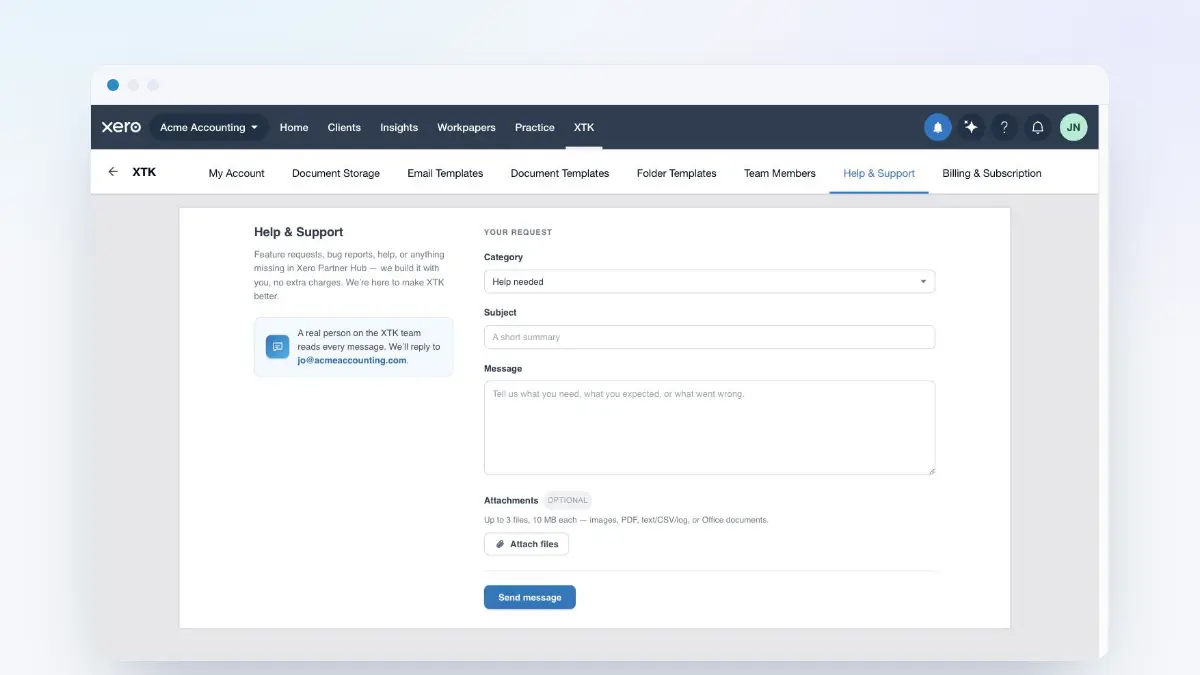
- The three exits, kept open deliberately: billing, so an Admin can upgrade; signing out; and “Help & Support”.
What read-only blocks
Anything that would change something. In the Documents tab the “Create” menu is disabled outright — no uploads, no new folders, no documents or folders from templates, no document requests — along with move, copy, rename, delete, convert to PDF, merge PDFs, “Send for signature” and “Change storage folder”. Elsewhere you can't invite or remove a team member, or write a template. Hover any of them and XTK explains itself: “Mutations are unavailable in this access state”. If a write does reach the server it is refused there too, and XTK says “Your Practice is read-only. Reactivate your subscription to make changes.”
How do we get back to full access?
The same way you would have subscribed in the first place. The banner keeps its “Upgrade” action for the Admin in both read-only states, leading to the same Stripe checkout — there is no separate reactivation path to hunt for. Pay, return to Practice Manager, reload, and every disabled control is live again.
Nothing was lost while you waited. Your documents never belonged to XTK — they live in your practice's own Google Drive, OneDrive or SharePoint throughout — and every signature request, document request, portal contact, share and template is where you left it. Read-only pauses your practice; it doesn't unpick it.
Where next
If XTK isn't set up yet, the getting-started guide covers registration, verification and the trial's first hour. The team guide explains who the Admin is and how to hand that role — and with it billing — to someone else. The data guide answers the question that usually follows this one: what XTK holds, and what happens to it if you leave.
Frequently asked questions
How much does XTK cost?
One plan at $59 USD per month, billed in advance, covering your whole practice — every feature, every team member, no per-seat charge and no tiers. Before that you get a 30-day free trial with full functionality and no credit card. Nothing is charged automatically when the trial ends: if you don't subscribe, the practice becomes read-only. Current pricing lives on XTK's pricing page, linked at the end of this guide.
When does the free trial start, and how long is it?
It starts when you verify your email address, not when you register, and runs for 30 days. Registering alone leaves the practice locked — you can't even sign in until the verification link is used, so the clock cannot start without you. From then it runs forward continuously: it never pauses, resets or extends.
What happens at the end of the trial if we don't subscribe?
The practice becomes read-only, and you are never charged automatically. Everyone can still sign in, browse every client folder, search and download; nothing can be created, changed or deleted, and your clients can't upload or sign either. Nothing is deleted — your documents live in your own Google Drive, OneDrive or SharePoint, and every request and signature record survives.
I paid, but XTK still says my trial has ended. What now?
Reload your Practice Manager tab. Stripe tells XTK about the payment in the background, usually within moments, but the banner you're looking at was drawn before that happened. A reload re-reads your practice's state and the banner goes. If it survives two reloads a minute apart, contact XTK through the panel's Help & Support tab, which keeps working in every state.
Do our clients notice if our subscription lapses?
Yes, if they try to act. Your clients can still open a portal, a document-request link or a signing link and read what's there, but uploading and signing are refused with “This practice's account is inactive — signing is temporarily unavailable.” or its uploading equivalent. Links aren't broken and nothing already uploaded is lost.