Updated 10 min read
Request documents from clients in Xero Practice Manager
A document request is a checklist you send a client with one secure link. You list what you need — bank statements, a logbook, a signed letter — and XTK emails your client a page where they upload against each line. No account, no password. Files land in that client's folder in your own Google Drive, OneDrive or SharePoint, and in Xero Practice Manager (XPM) each item turns from Outstanding to Provided as it arrives. The mechanics are below; the five-step system that stops the chasing is the practice habit to build around them.
XTK is an independent product and is not affiliated with or endorsed by Xero Limited.
How do I request documents from a client?
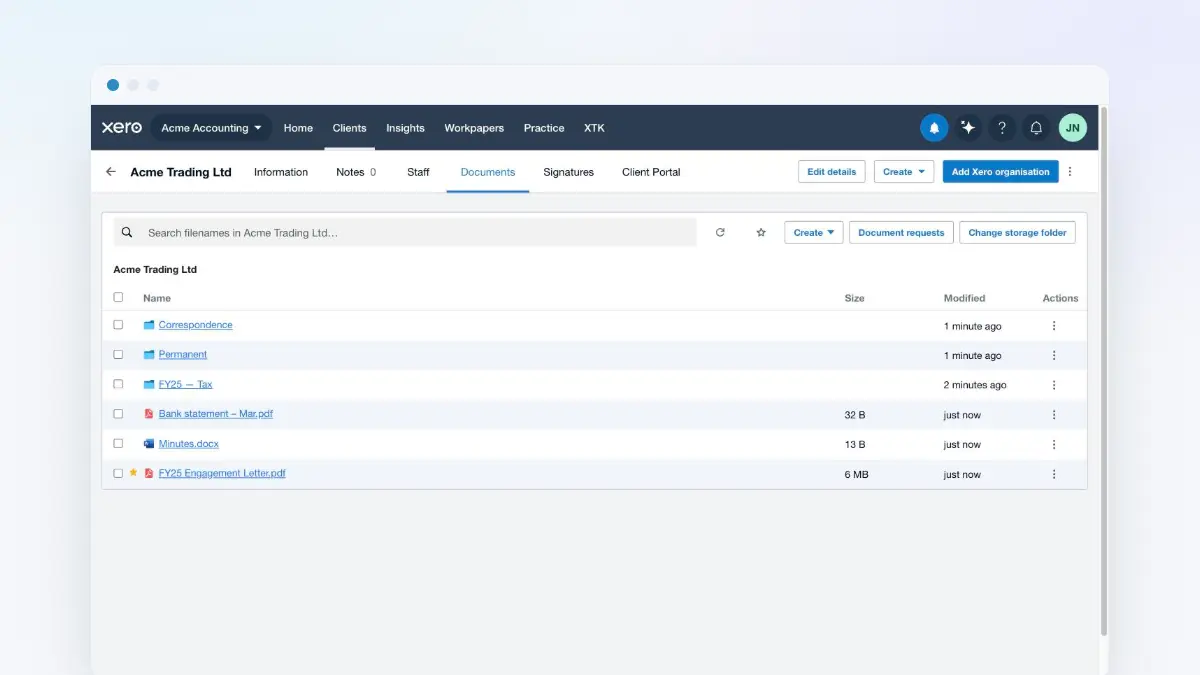
Requests start in the client's Documents tab, because that's where the files end up: one wizard, three steps — “1. Recipient”, “2. Items”, “3. Email” — under a live line reading “Ask Sophie Baxter to upload files into Client provided.”
Open the client's Documents tab
Browse into the folder the files should arrive in — say “Client provided”. That becomes the default destination.
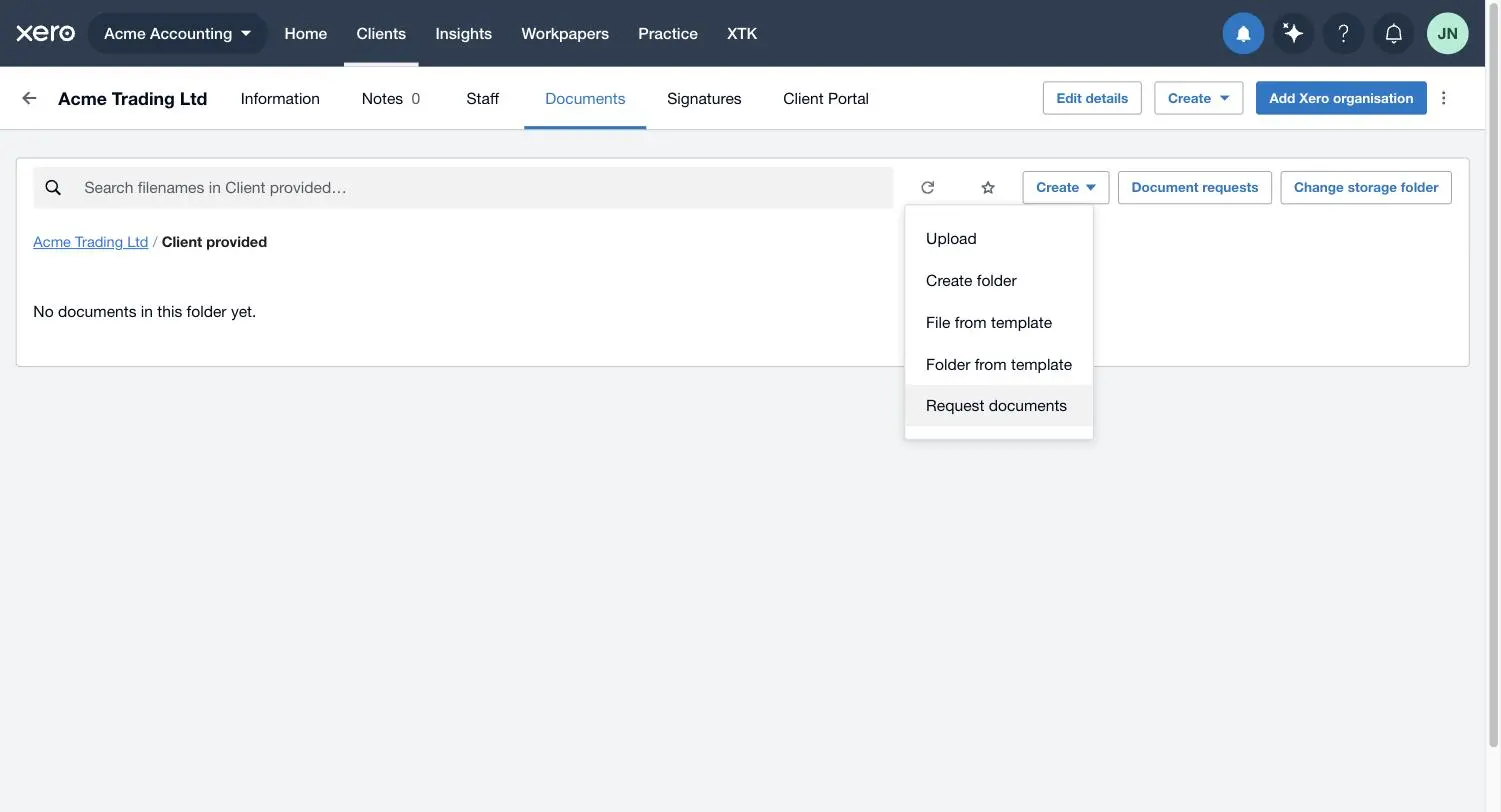
Click “Create ▾ → Request documents”
Last item in the Create menu, under “Upload”, “Create folder”, “File from template” and “Folder from template”.
Check the recipient
Both fields arrive prefilled from the client's record — the client's own name and primary email. Overwrite them with whoever will actually upload, for example Sophie Baxter and sophie@acmetrading.example; the request stays filed under this client either way.
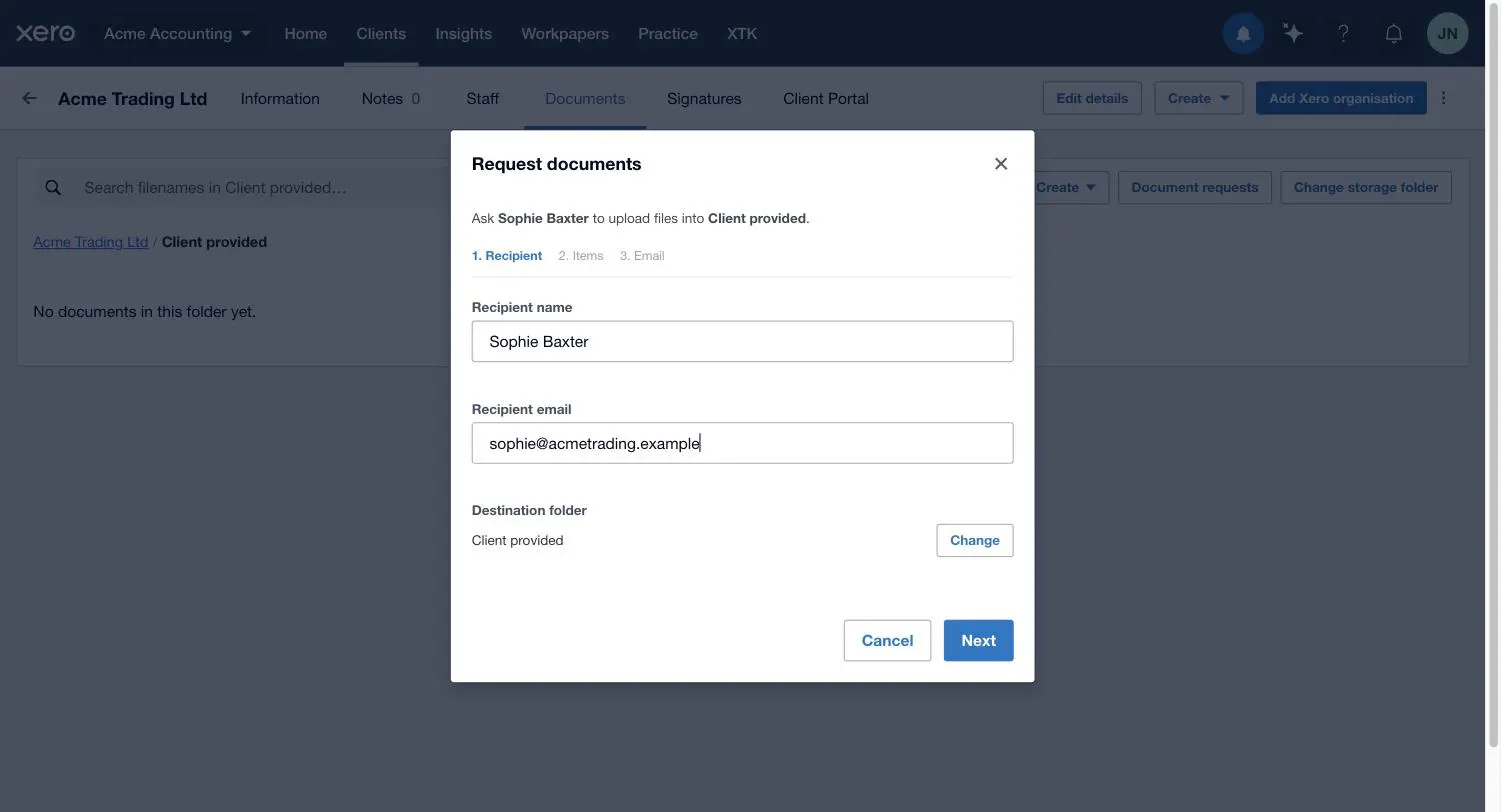
Confirm the destination folder, then click “Next”
“Destination folder” shows where uploads land, with “Change” beside it. The picker is confined to this client's folder — browse it, create a subfolder, pick one or “Use current folder”. Uploads can't reach anywhere else in your storage.
Write the list of requested items
Each row is one thing you're asking for. Type a name — “Bank statements — 1 Jul to 30 Sep” — then “Add item” for the next. “↑”/“↓” reorder, “Remove” deletes, and the on-screen order is what your client sees. One named item is the minimum.
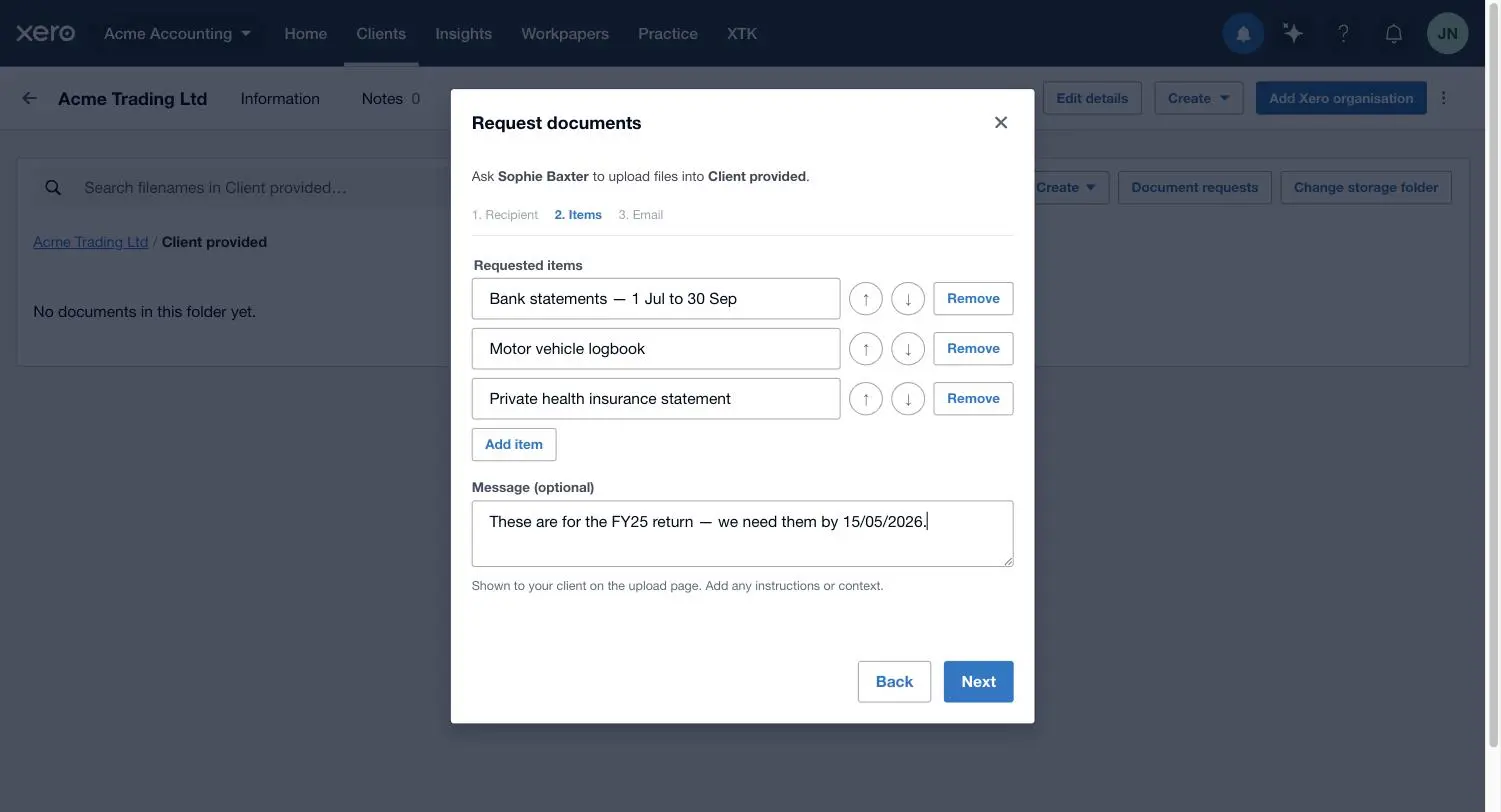
Add a message for the client (optional)
It isn't part of the email — it appears above the checklist on your client's upload page, so use it for context like “These are for the FY25 return, due 15/05/2026.” XTK reuses it if you resend.
Compose the email
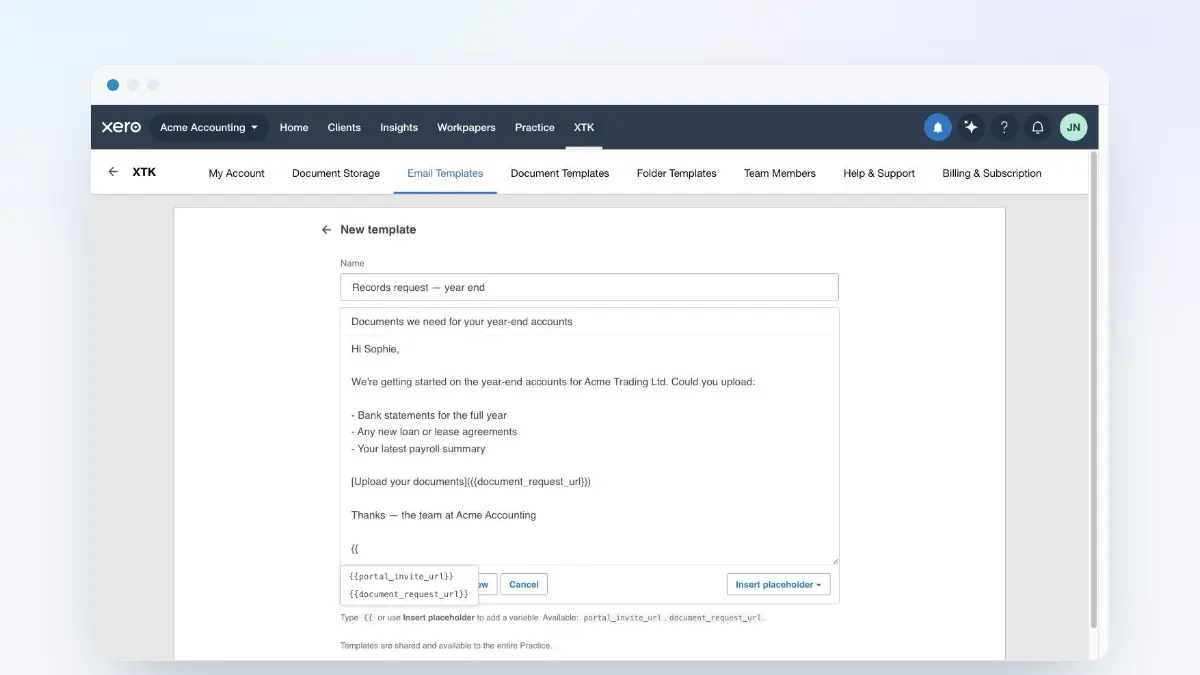
If your practice has email templates, an “Email template” dropdown appears, starting on “No template (custom)”; picking one replaces subject and body. Otherwise you get XTK's default: subject “Documents requested for Acme Trading Ltd” and a body containing {{document_request_url}}, which XTK swaps for the link at send time. “CC (optional)” takes comma-separated extras.
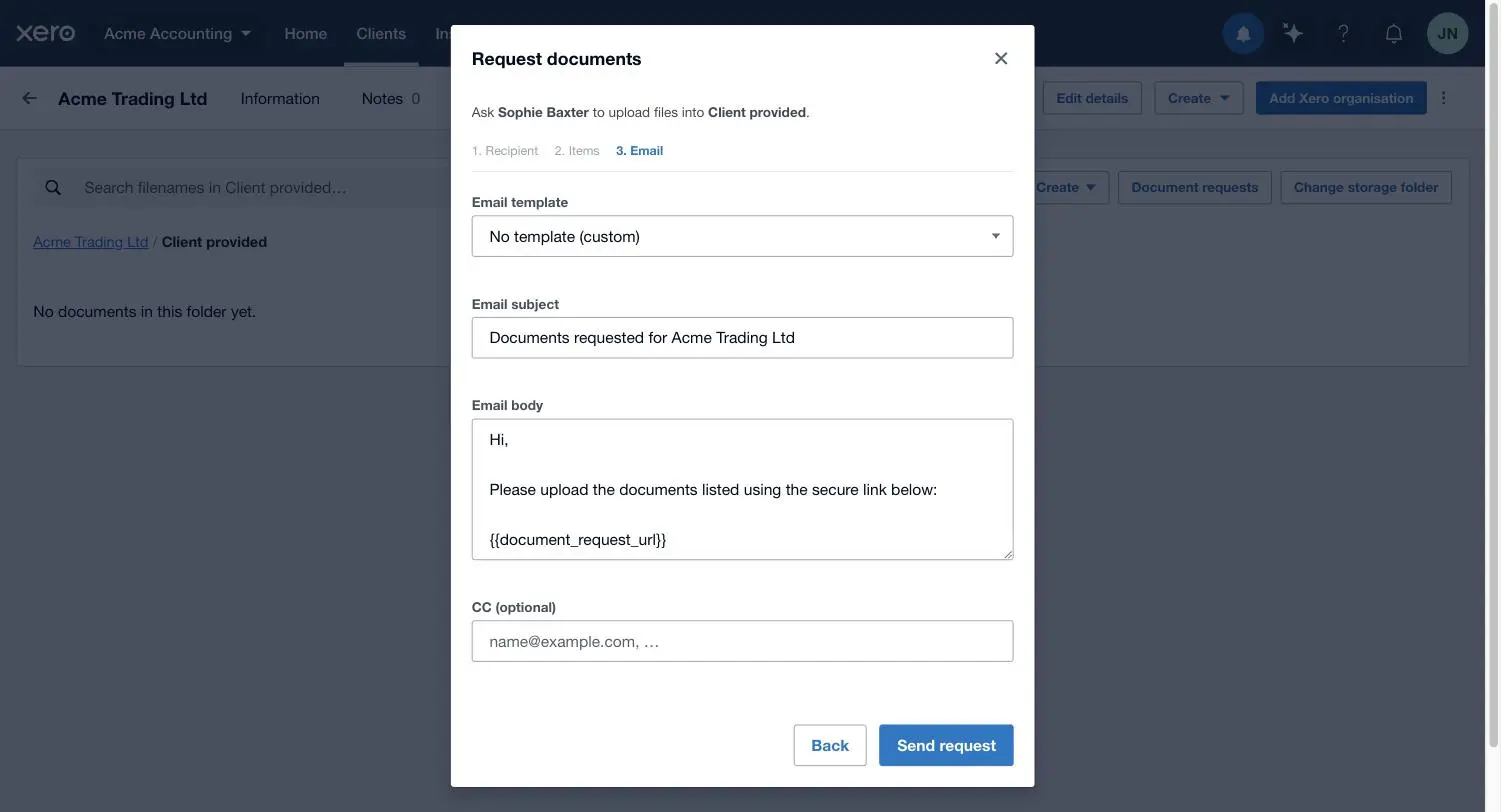
Click “Send request”
Request created and email sent in one action — there's no draft. The dialog closes and the request appears in the client's list as “Sent”.
What does my client actually see?
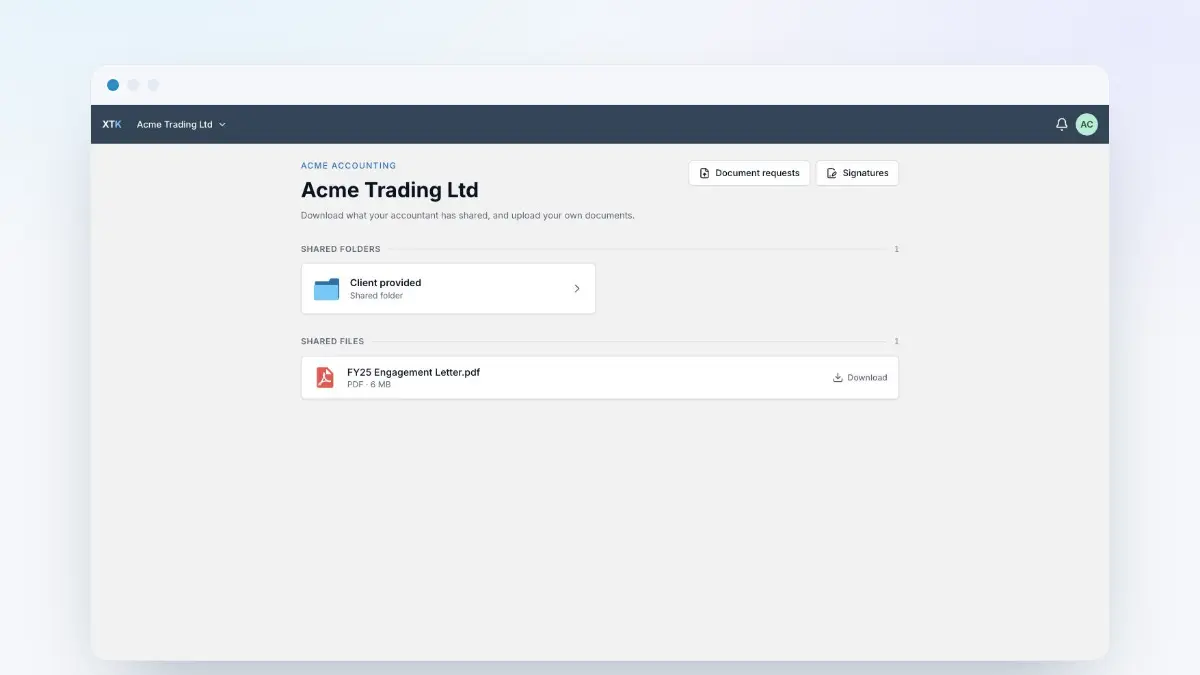
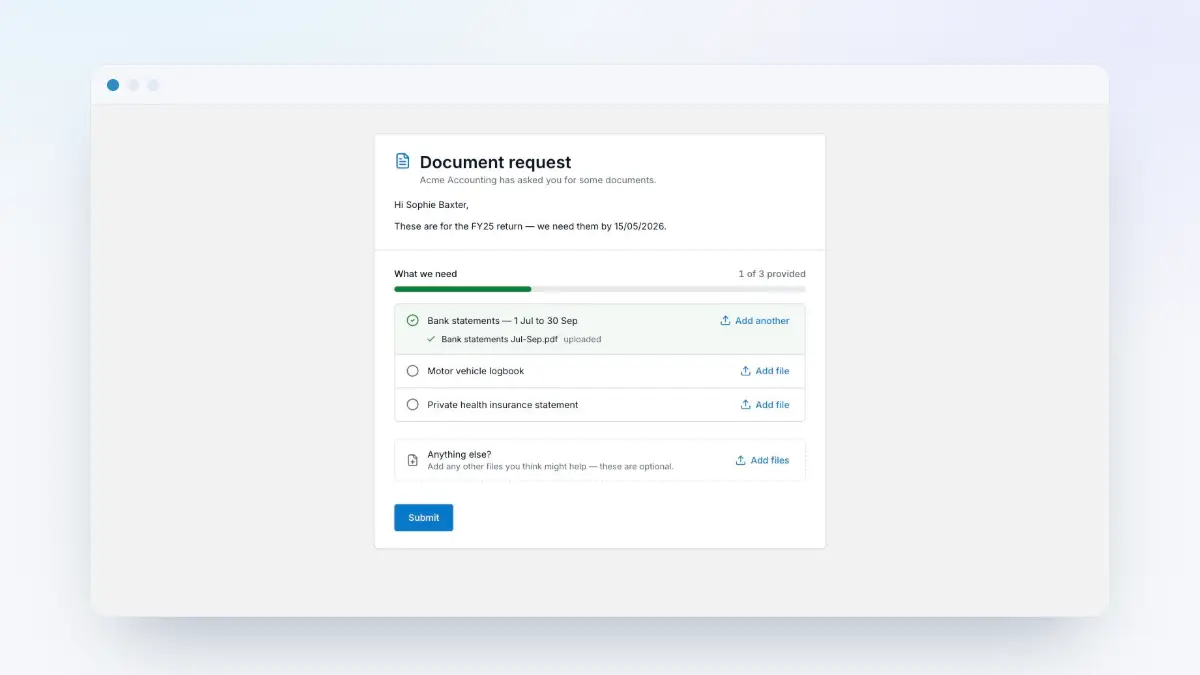
The email arrives from whichever mailbox your practice sends through, wearing your practice name. The link opens one plain page: “Document request”, “Acme Accounting has asked you for some documents.”, “Hi Sophie,”, your message, the checklist.
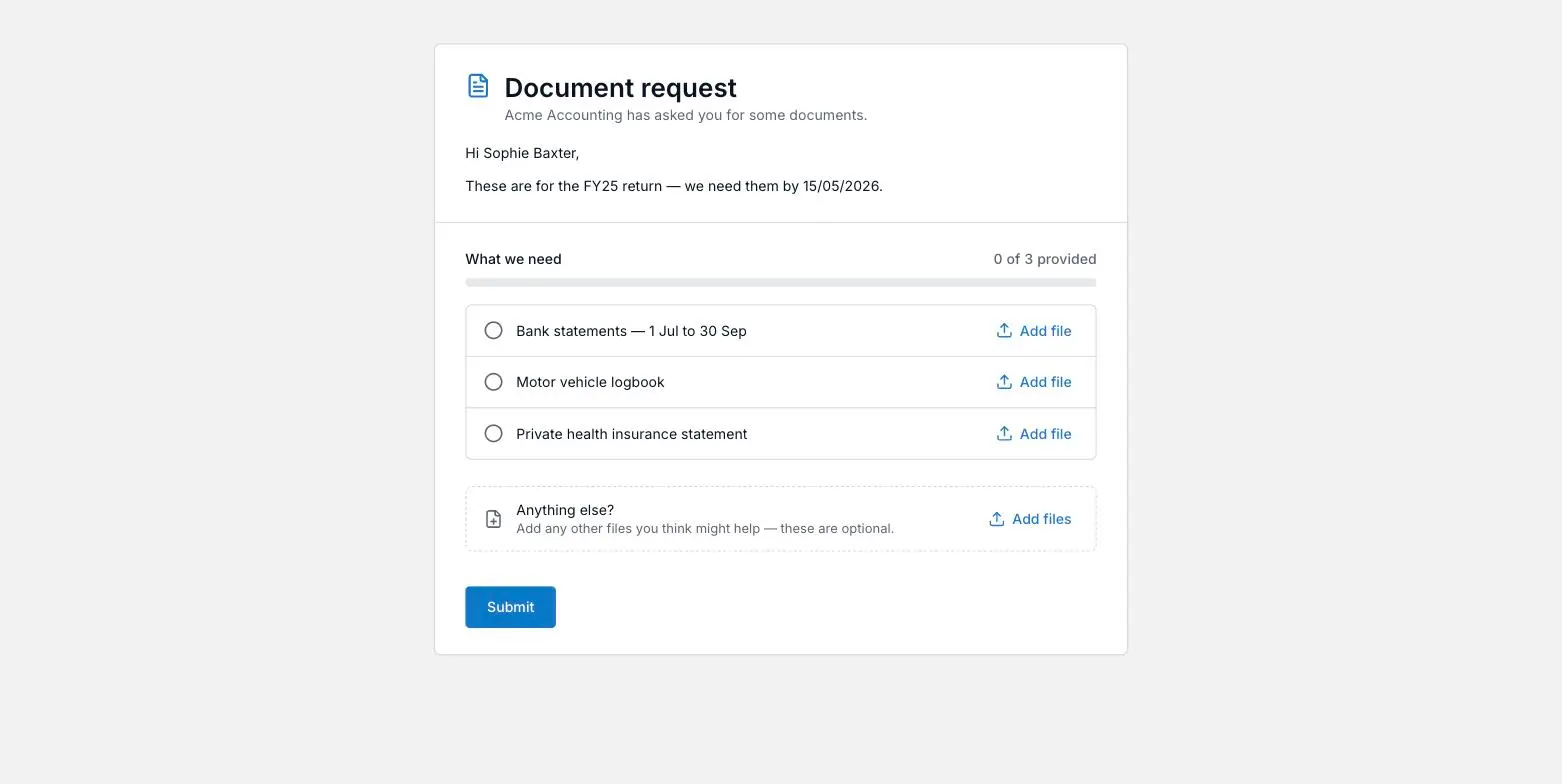
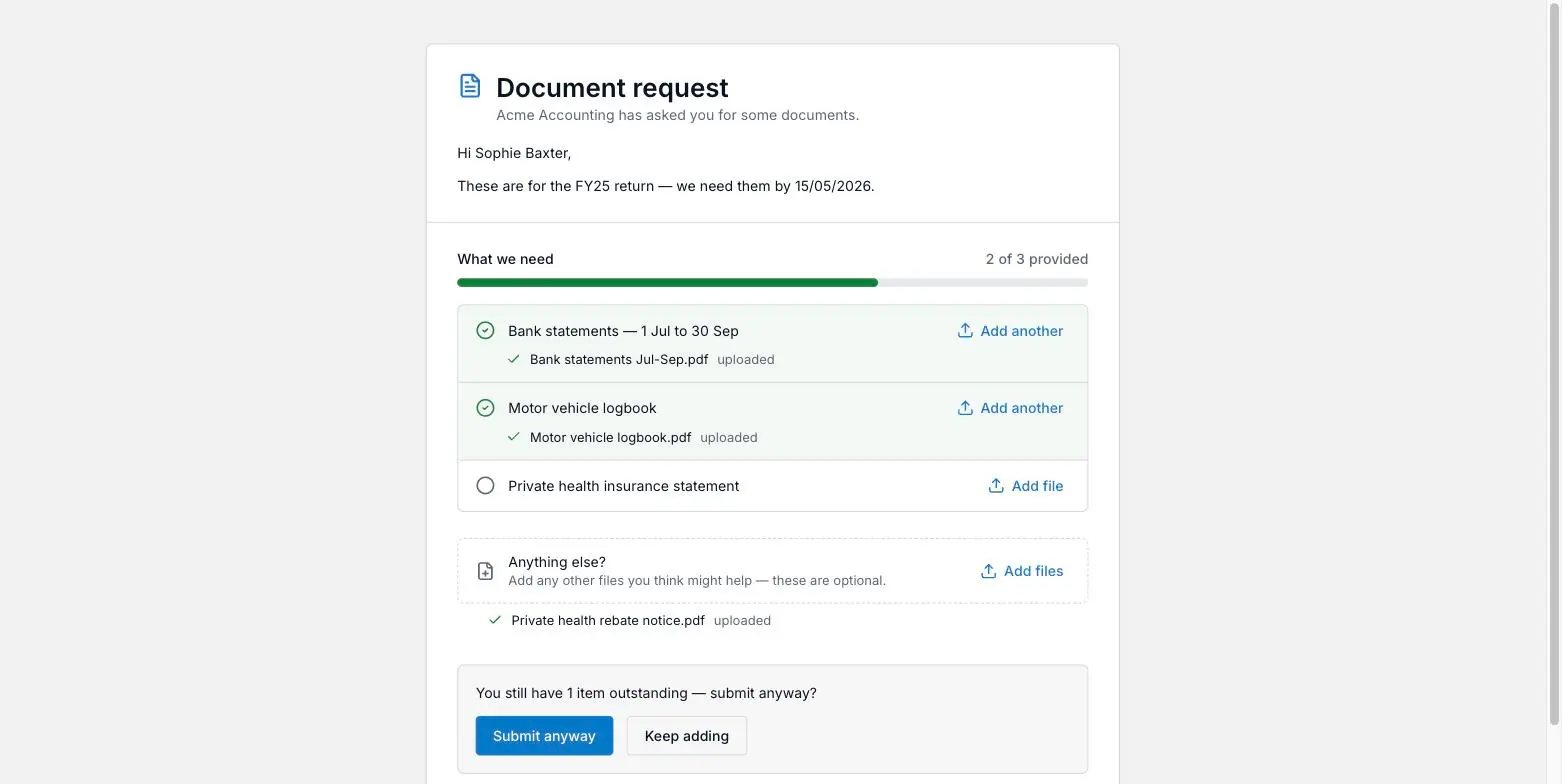
- Every item takes as many files as your client wants — “Add file” becomes “Add another” once one is in.
- A counter and green progress bar track completion — “1 of 3 provided”, then “Everything's provided — ready to submit.”
- One catch-all dropzone sits below: “Anything else? Add any other files you think might help — these are optional.” Extras land in the same folder and you can see them, but never count toward the progress.
- Each file shows a spinner, then a tick and “uploaded”. Reopen the link later and files already sent are still named.
- Files travel straight from your client's browser to your Drive — the bytes never pass through XTK's servers.
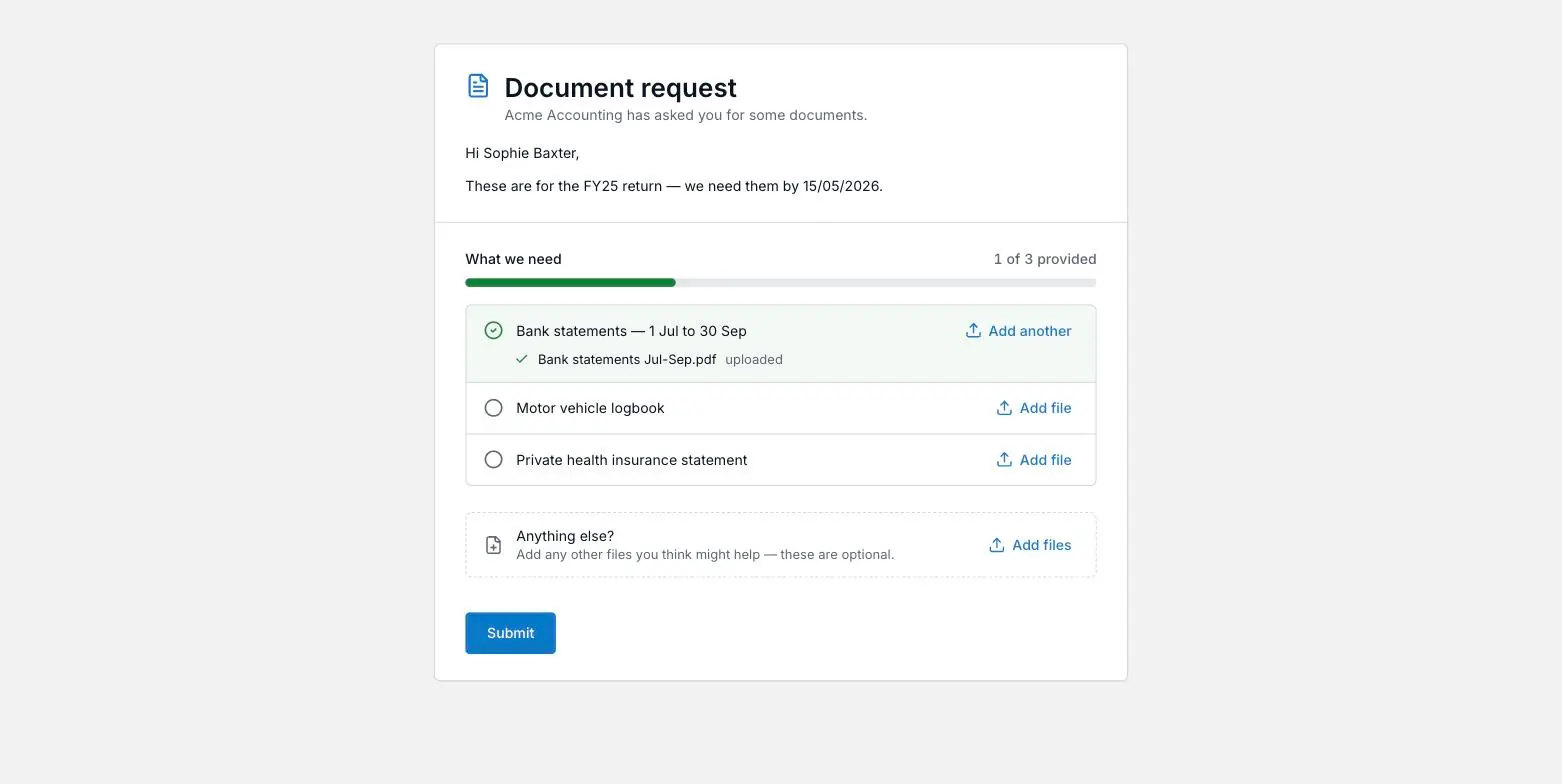
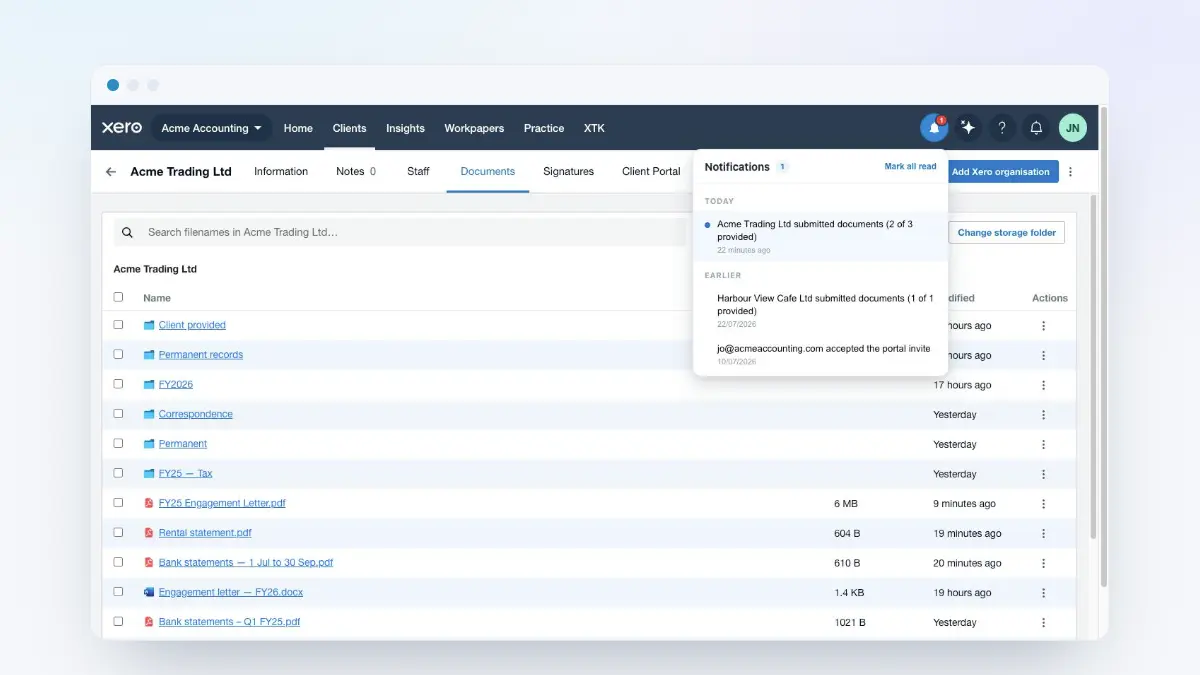
“Submit” closes the link, and your client can submit at any point — with items outstanding they get a prompt first: “You still have 1 item outstanding — submit anyway?”, offering “Submit anyway” and “Keep adding”. The count is recorded either way, so “2 of 3 provided” shows something is missing.
They then see “Thank you — your documents have been sent to Acme Accounting.” No further email goes out; reopening the link shows “This request is complete”.
Which file types can a client upload?
Because the link needs no account, XTK refuses anything outside everyday client formats — at the point of upload, before touching your storage.
| Kind | Accepted file extensions |
|---|---|
pdf | |
| Images | jpg, jpeg, png, gif, webp, heic, heif, tif, tiff, bmp |
| Word | doc, docx |
| Excel | xls, xlsx |
| PowerPoint | ppt, pptx |
| OpenDocument | odt, ods, odp |
| Text and data | txt, csv |
Where do the uploaded files go?
Into the destination folder you chose, inside that client's own folder — and renamed. A file uploaded against an item takes the item's name, keeping its extension: “IMG_4471.HEIC” on “Motor vehicle logbook” becomes “Motor vehicle logbook.HEIC”, a second becomes “Motor vehicle logbook (2).HEIC”. Your naming wins, almost always: the rename happens just after the upload lands, and if it fails — for example on OneDrive or SharePoint, which won't hold two files of the same name in one folder, when an earlier request already left one there — the upload is kept under the client's own name rather than lost. Extras keep the name your client gave them, since there's no item name to use.
How do I track what's outstanding?
The Documents toolbar's “Document requests” button swaps the file browser for that client's request list, with “Back to Documents” and a “Request documents” button.
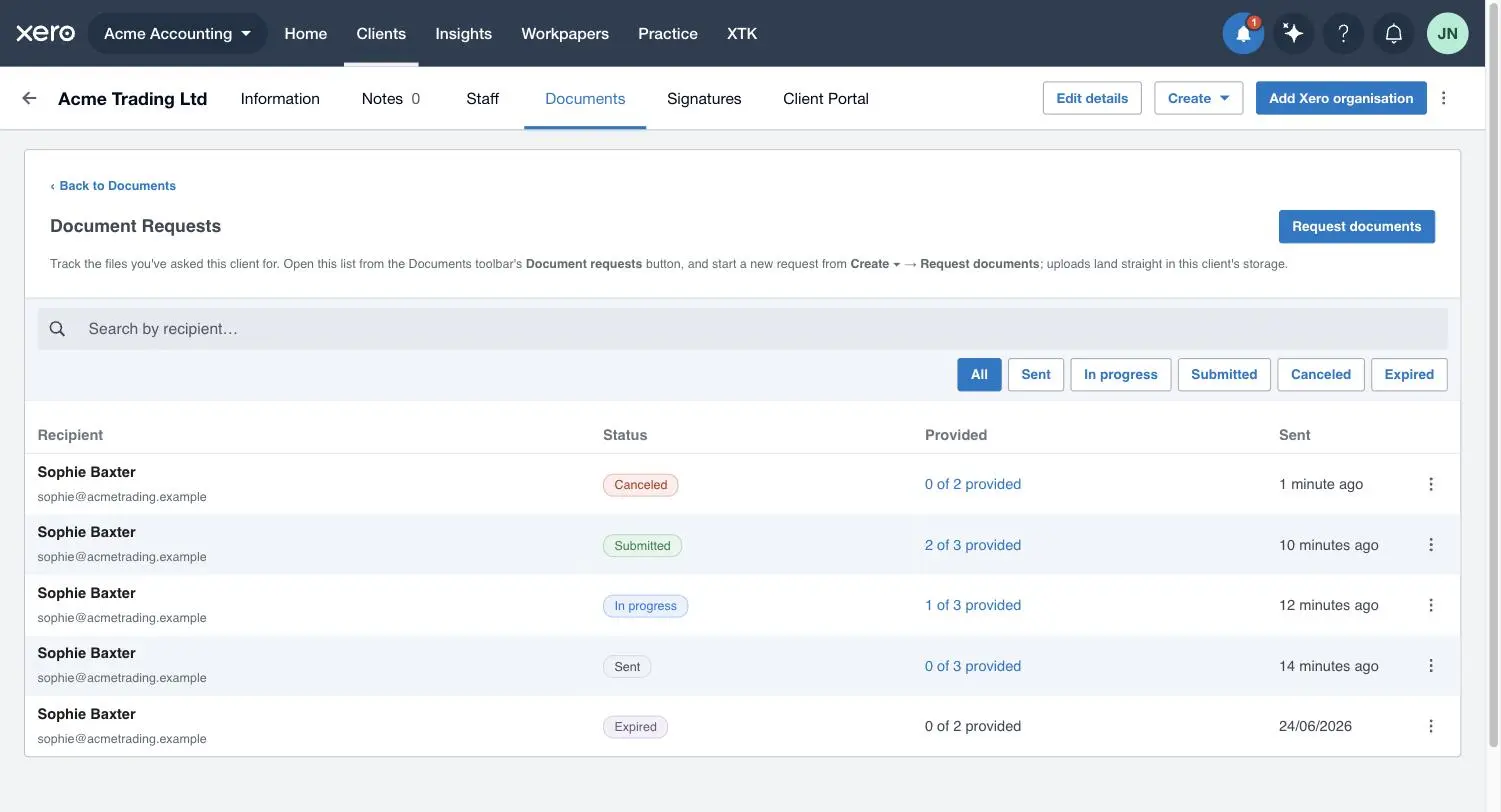
A “Search by recipient…” box sits above filter buttons — “All”, “Sent”, “In progress”, “Submitted”, “Canceled”, “Expired”. Each row carries a colour-coded status pill and an “X of Y provided” count; both the name and the count open the status view.
The five statuses, and what each one lets you do
| Status | What it means | Actions on the row |
|---|---|---|
| Sent | The email has gone, the link is live, nothing uploaded yet | View status · Open folder · Resend email · Cancel request |
| In progress | At least one file has arrived; the link is still open | View status · Open folder · Resend email · Cancel request |
| Submitted | Your client pressed “Submit” and the link is closed | View status · Open folder |
| Canceled | You closed the link early; this can't be undone | View status · Open folder |
| Expired | 30 days passed with no submit or cancel; the link is closed | View status · Open folder |
The link never closes by itself when the last item is provided — that would lock out a client mid-way through a multi-file item — so a fully provided request sits at “In progress” until someone submits. “Fulfilled” isn't a status, just the state of every item being provided.
Checking a single request in detail
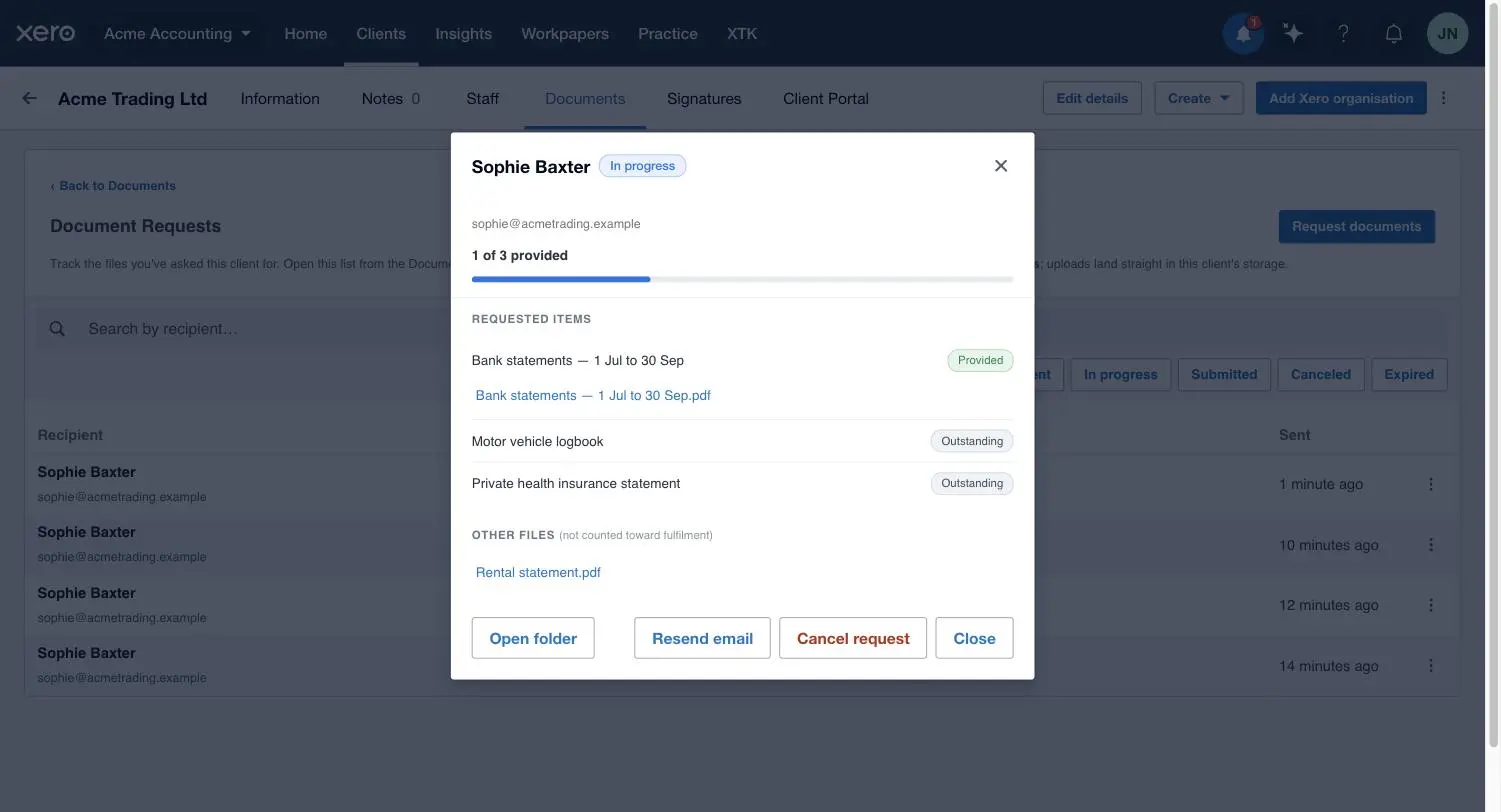
The status view leads with the recipient, a status pill and a progress bar, then lists each item badged “Provided” or “Outstanding” with the files that came in, each a link into your provider. Extras sit under “Other files (not counted toward fulfilment)”; the footer repeats the row actions.
Nudging, cancelling and expiry
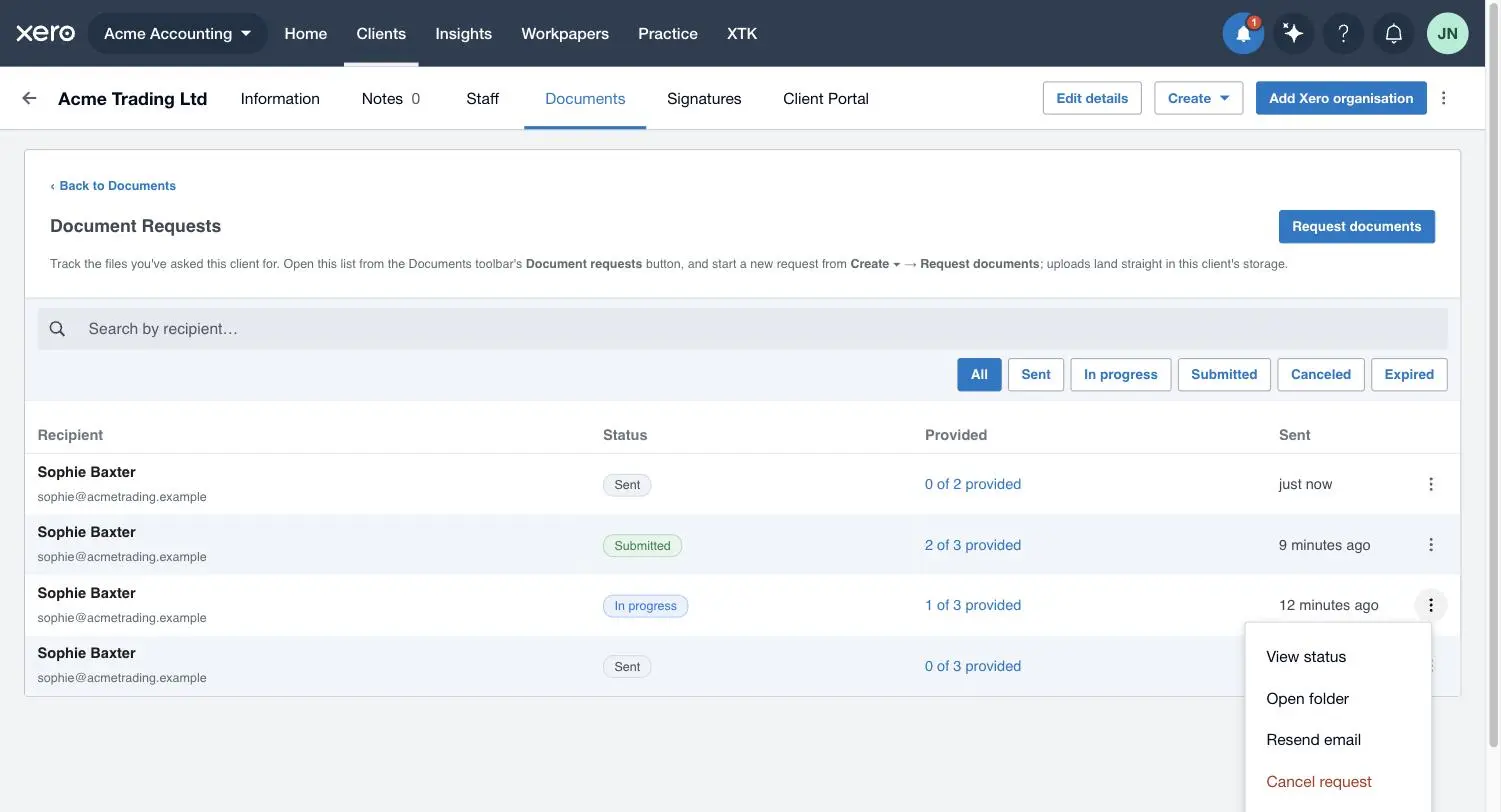
- “Open folder” jumps to the destination folder and briefly pulses the files that arrived through it.
- “Resend email” sends a fresh nudge — subject “Reminder: documents requested”, carrying your original message if you wrote one. The button reads “Resending…”, then “Email resent.”
- “Cancel request” closes the link immediately: no confirmation, no undo. Uploaded files are kept.
With no submit and no cancel, the link expires 30 days after sending and the row reads “Expired”; your client sees “This request link has expired — ask the sender to resend a fresh link.” Like cancelling, expiry stops new uploads and deletes nothing, and can't be undone.
What if the email doesn't send?
If your mailbox connection has gone stale the request is still created, and XTK says so: “The request was saved but the email couldn't be sent. Reconnect Gmail and try again.” Don't press “Send request” again — that creates a duplicate request. Close the dialog, reconnect your mailbox, then “Resend email” on the row already in the list. A notification about the failed send arrives too.
Notifications you'll get
Four notification types feed the XTK bell, switchable in My Account: a client submitted (one per submit, however many files), a colleague cancelled and a request expired are on by default; a client's first upload is off.
Tips from practice
- One item per thing, not per document: an item takes many files, so “Bank statements — Q1” holds three PDFs as one line.
- Name items precisely — the uploaded file inherits the name, so a vague “Statements” gives you a vague document.
- Put the deadline in “Message (optional)”, not the email — it stays on screen every time they reopen the link.
Where next
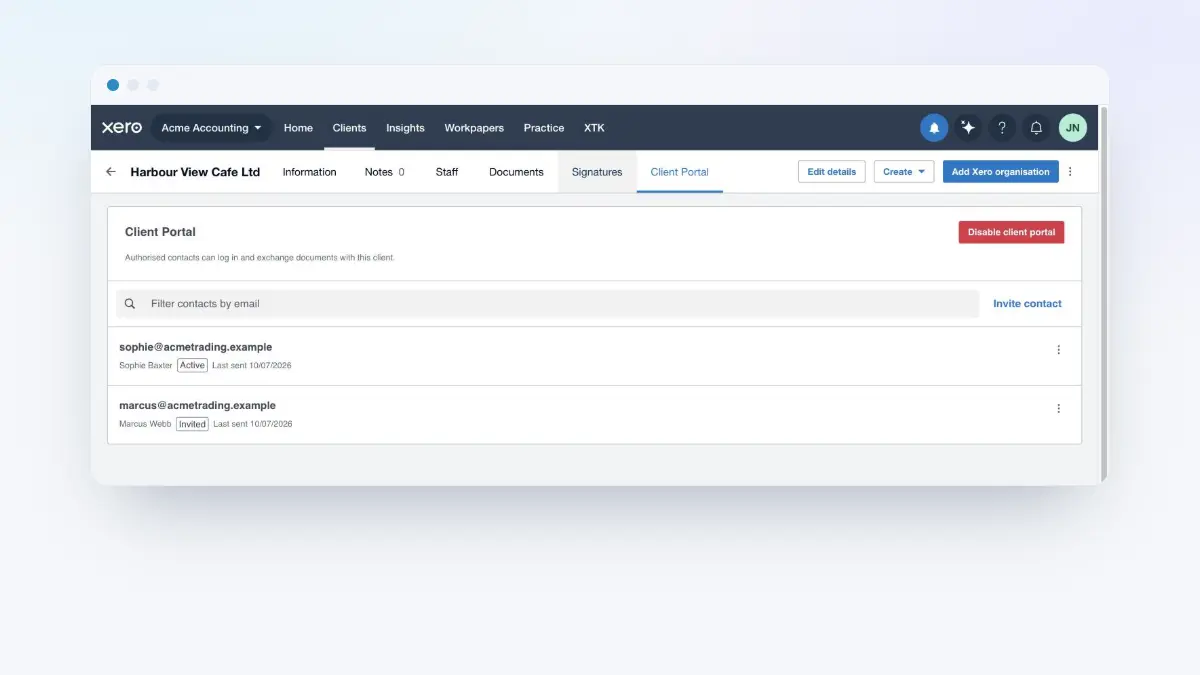
Write your request wording once with email templates so composing becomes two clicks, and turn on the notifications you want. If a client sends records regularly, a client portal gives them a permanent, logged-in place to do it — requests suit the one-off ask, the portal the ongoing relationship.
Frequently asked questions
Does my client need an XTK account or password to upload files?
No. The link's one-off token is the authorisation, so clicking it opens the upload page — no account, nothing to install. That's deliberate: clients you ask for records are often one-off contacts. The trade-off is that anyone holding the link can upload, so treat it as private. Its reach is bounded — it only adds files to that request's destination folder, can't read your existing storage, and expires after 30 days or on submit or cancel.
How big a file can my client upload, and which file types are allowed?
Up to 100 MB per file, with no limit on how many. Accepted: PDF, images (including iPhone HEIC), Word, Excel, PowerPoint, OpenDocument, text and CSV. Anything else is refused before it reaches your storage: “That file type isn't supported. Please upload a PDF, image, Office document (Word, Excel, PowerPoint, OpenDocument), or a text/CSV file.” The allowlist bounds an un-authenticated link — it stops one being used to park an executable in your Drive.
What happens to files my client already uploaded if I cancel the request?
They stay exactly where they are. Cancelling closes the link so nothing more arrives; it deletes nothing, and nor does expiry or your client's submit. Everything that came in is already filed in the client's folder and visible in the Documents tab and the status view — a sent request is an audit record. To remove a file, delete it like any other.
Does XTK chase the client for me?
No — there are no automatic reminders. Nudging is deliberate: open the Document Requests list and choose “Resend email” on the row. Know this first: resending mints a fresh link and the previously emailed one stops working, so a client with an older email open will need the new one. A resend doesn't extend the 30-day deadline.
Can I edit a request after I've sent it, or save it as a draft?
Neither. The wizard builds the request and sends the email in a single action, so there's no draft and no editing afterwards: the checklist, recipient and destination folder are fixed the moment you press “Send request”. If something's wrong, cancel and send a new one; files already uploaded to the cancelled request stay put.