Updated 8 min read
XTK placeholder reference (complete list)
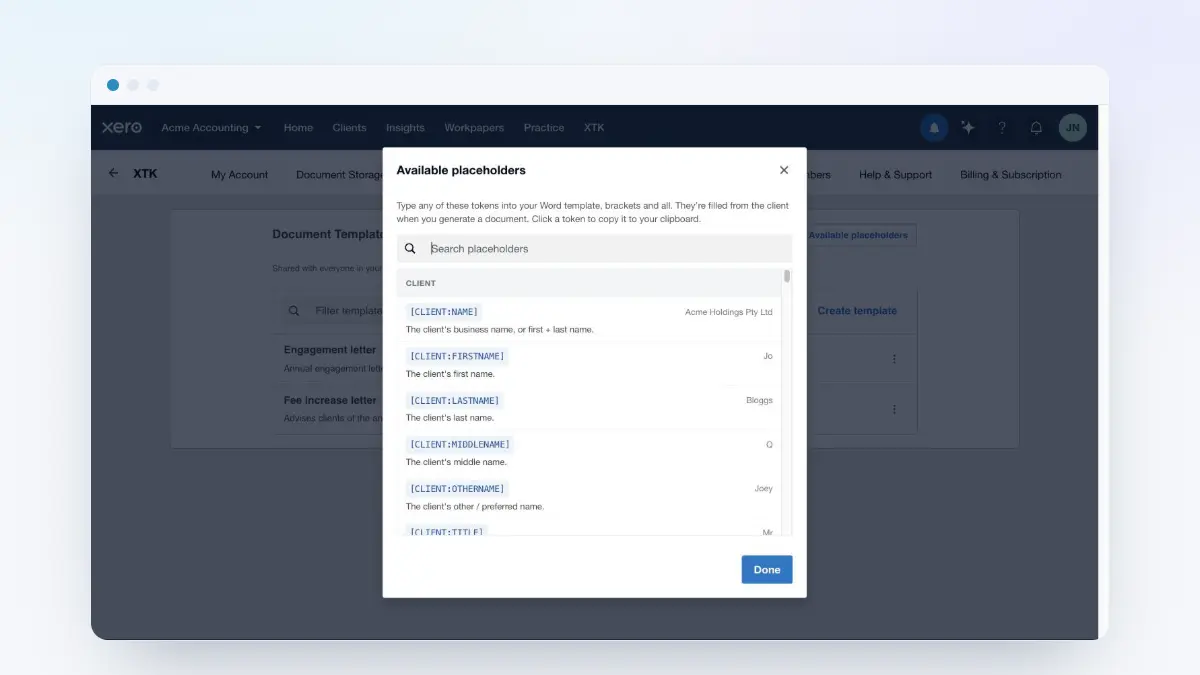
This is the complete reference for XTK placeholders — every token you can type into a document template and have XTK fill from a client's live details in Xero Practice Manager (XPM). It covers the client, contact, address, custom-field and date tokens, the :LASTn modifier, and the [IF …] … [ENDIF] conditional blocks, each with sample output.
XTK is an independent product and is not affiliated with or endorsed by Xero Limited.
How placeholders work
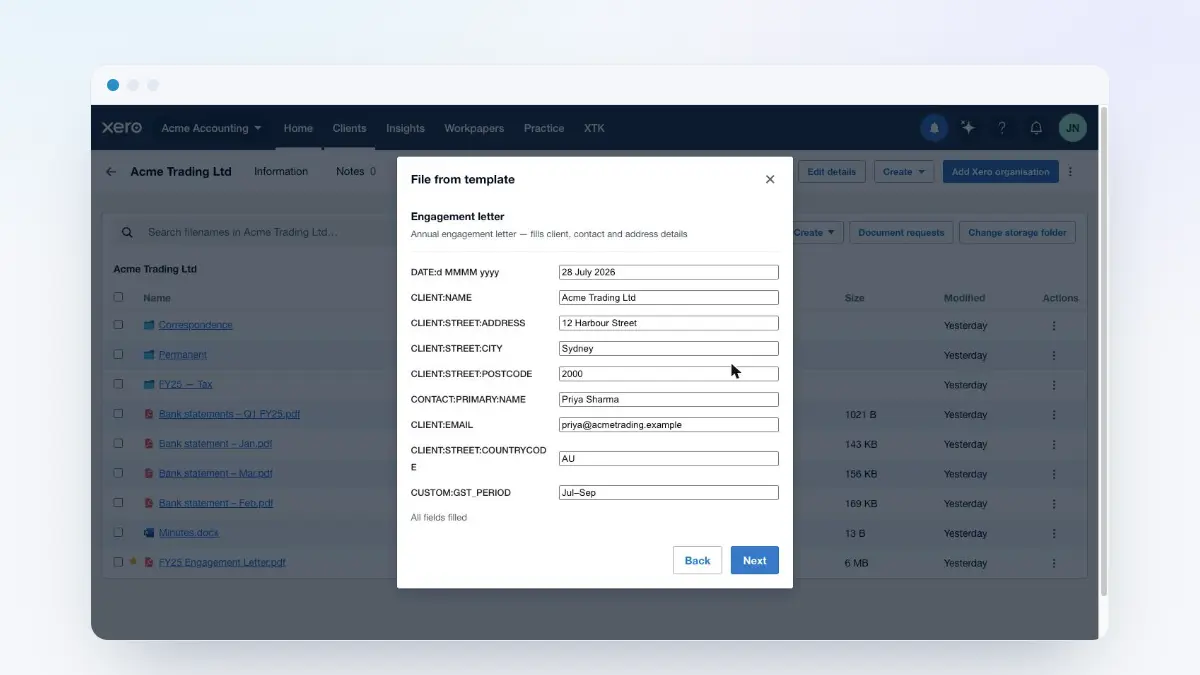
A placeholder is a NAMESPACE:FIELD name in square brackets, typed straight into your Word document — [CLIENT:NAME], [CONTACT:PRIMARY:EMAIL], [DATE]. When someone generates a document from the template, XTK scans it for tokens, pre-fills each one from the client's details in a fill dialog you review, and stamps the confirmed values into a new .docx. Three rules cover the whole grammar:
- Tokens are uppercase. [CLIENT:NAME] is recognised; [client:name] is left as ordinary text.
- Each distinct token becomes one editable field in the fill dialog, however many times it appears in the document — and every pre-filled value can be overridden before you generate.
- Anything XTK can't fill stays put. Unknown tokens, plain bracketed prose like [see note], and fields you leave empty all render as their literal text. Generation never fails because of a placeholder.
Placeholders work anywhere Word puts visible text — the document body, headers and footers. And it doesn't matter if Word has invisibly split a token into pieces while you were typing or formatting: XTK reads each paragraph as a whole, so tokens always resolve.
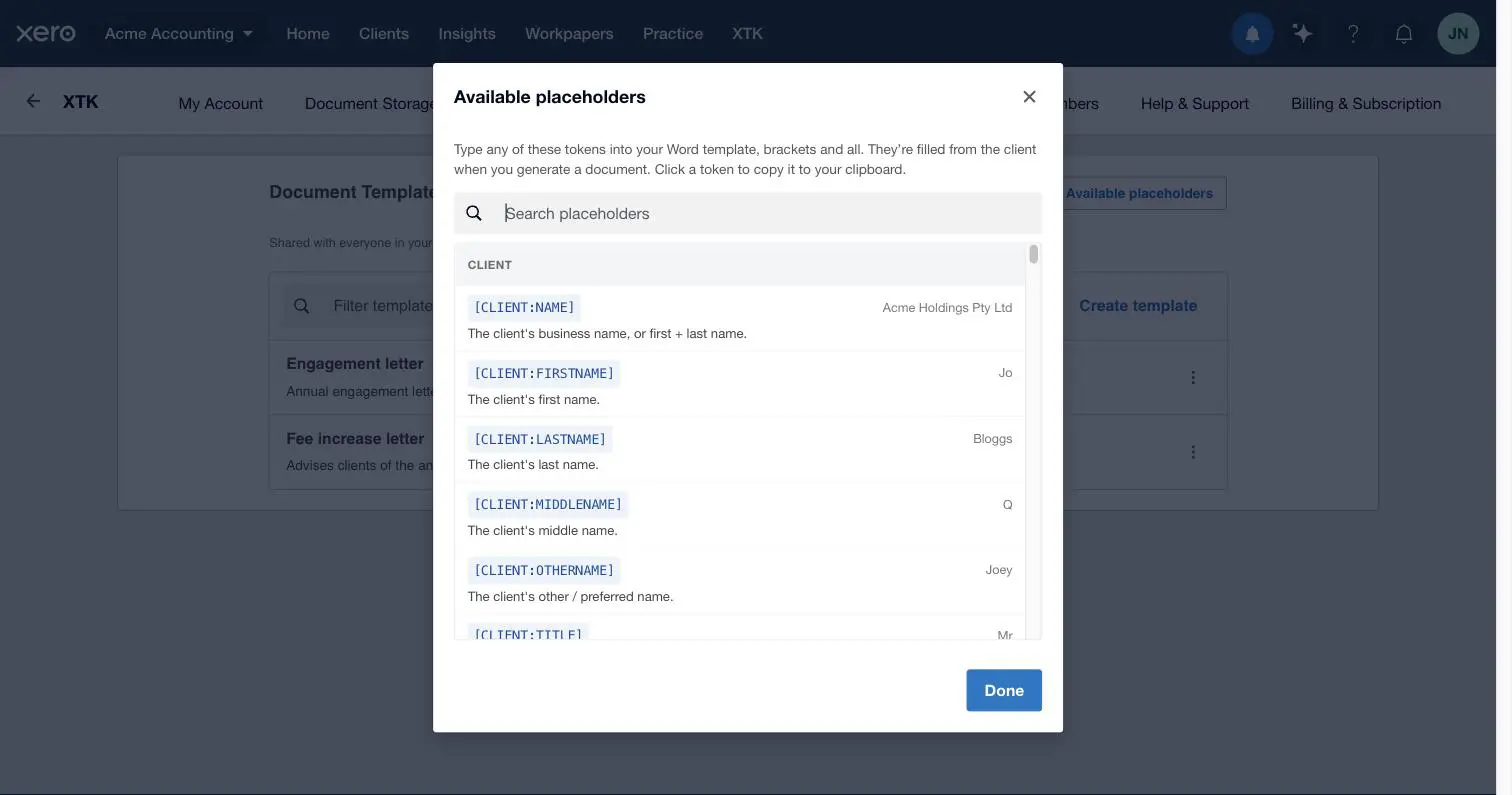
Client details — [CLIENT:FIELD]
The CLIENT namespace reads the record of the client you're generating for. Names and identity first:
| Placeholder | What it fills | Example |
|---|---|---|
[CLIENT:NAME] | The client's business name, or first + last name for individuals | Acme Trading Ltd |
[CLIENT:TITLE] | Title (Mr, Ms, Dr, …) | Ms |
[CLIENT:FIRSTNAME] | First name | Sam |
[CLIENT:MIDDLENAME] | Middle name | J |
[CLIENT:LASTNAME] | Last name | Taylor |
[CLIENT:OTHERNAME] | Other / preferred name | Sammy |
[CLIENT:GENDER] | Gender | Female |
[CLIENT:DATEOFBIRTH] | Date of birth — dd/MM/yyyy unless you add a format (see Dates) | 15/01/1990 |
[CLIENT:DATEOFDEATH] | Date of death — formats like date of birth | 03/07/2024 |
[CLIENT:PLACEOFBIRTH] | Place of birth | Melbourne |
[CLIENT:ID] | The client's unique identifier | CL-123 |
Email, phone and web
| Placeholder | What it fills | Example |
|---|---|---|
[CLIENT:EMAIL] | Primary email address | accounts@acmetrading.example |
[CLIENT:SECONDARY_EMAIL] | First non-primary email address | info@acmetrading.example |
[CLIENT:PHONE] | Main phone number | 03 9555 1000 |
[CLIENT:MOBILE] | Mobile number | 0412 555 222 |
[CLIENT:WORK] | Work / office phone number | 03 9555 1011 |
[CLIENT:DDI] | Direct-dial (DDI) number | 03 9555 1012 |
[CLIENT:FAX] | Fax number | 03 9555 1099 |
[CLIENT:OTHERPHONE] | The “other” phone number | 03 9555 1013 |
[CLIENT:ANY:PHONE] | The first phone number listed, whatever its type | 03 9555 1000 |
[CLIENT:WEBSITE] | Website (first listed) | https://acmetrading.example |
Business and tax
| Placeholder | What it fills | Example |
|---|---|---|
[CLIENT:TAXNUMBER] | Tax number (TFN / ABN-style tax identifier) | 123 456 789 |
[CLIENT:IRD] | The same tax number — an alias of TAXNUMBER | 123 456 789 |
[CLIENT:COMPANYNUMBER] | Company number | 604 123 456 |
[CLIENT:BUSINESSNUMBER] | Business number (e.g. ABN) | 12 345 678 901 |
[CLIENT:BUSINESSSTRUCTURE] | Business structure | Company |
[CLIENT:CLIENTTYPE] | Client type | COMPANY |
[CLIENT:INDUSTRY] | Industry | Retail |
[CLIENT:BALANCEMONTH] | Month number of the financial balance date (1–12) | 3 |
[CLIENT:COUNTRYCODE] | The client's country code | AU |
[CLIENT:STATUS] | Raw status | ACTIVE |
[CLIENT:ISARCHIVED] | Whether the client is archived | false |
Practice fields
| Placeholder | What it fills | Example |
|---|---|---|
[CLIENT:ACCOUNTMANAGER] | Account manager (engagement partner) | Jo Nguyen |
[CLIENT:JOBMANAGER] | Job manager | Sam Carter |
[CLIENT:REFERRALSOURCE] | How the client was referred | Existing client |
[CLIENT:EXPORTCODE] | Export code | EXP-01 |
[CLIENT:REFERENCECODE] | Reference code | REF-77 |
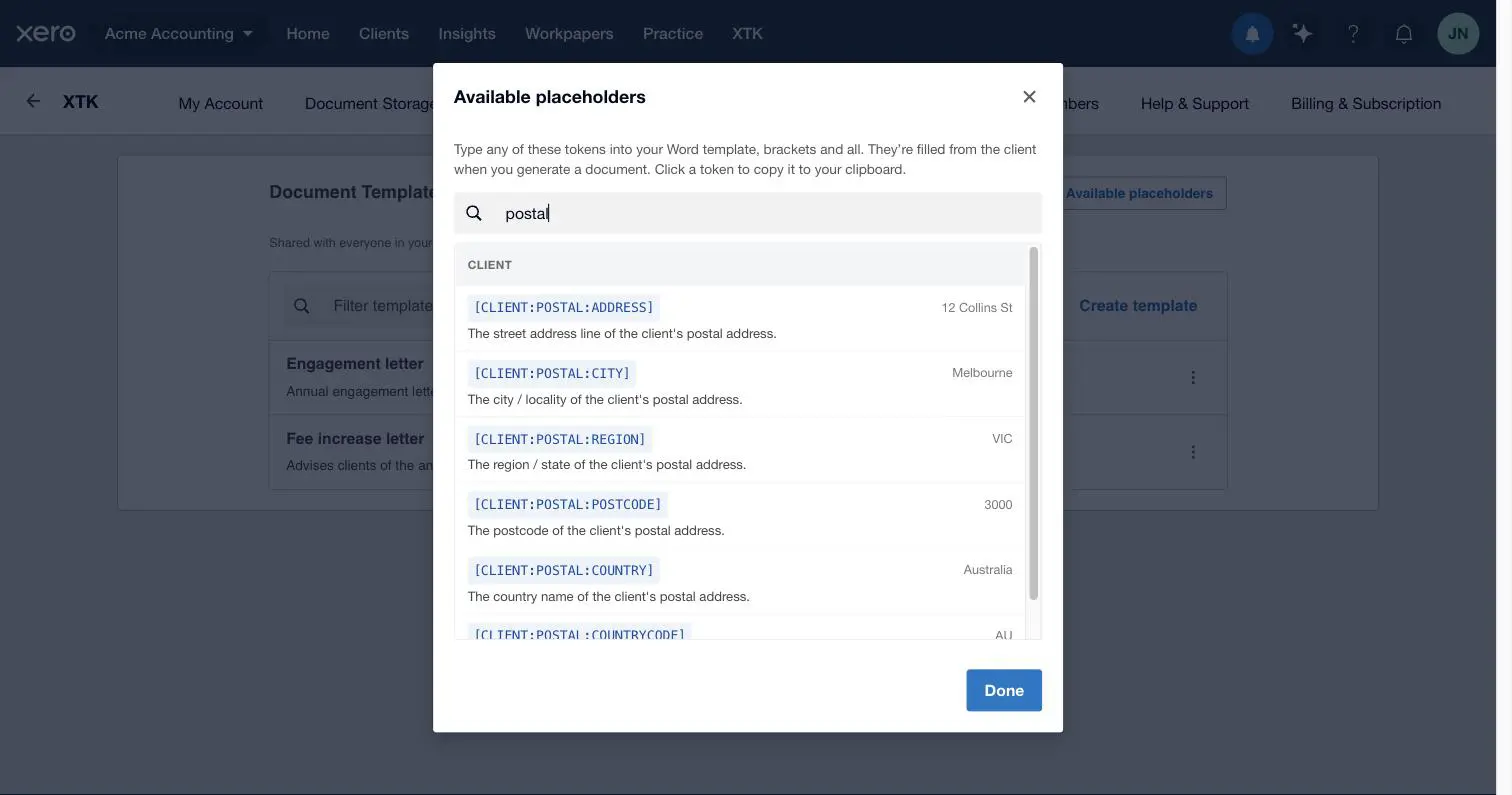
Addresses — [CLIENT:TYPE:FIELD]
Addresses use a three-part token: which address, then which piece of it. Pick a type…
| Type | Which address it reads |
|---|---|
STREET | The street (physical) address |
POSTAL | The postal address |
DELIVERY | The delivery address |
OTHER | The address filed under “other” |
ANY | The first address on the record, whatever its type |
…and combine it with any of the six fields:
| Field | What it fills | Example |
|---|---|---|
ADDRESS | Street address line | 12 Collins St |
CITY | City / locality | Melbourne |
REGION | Region / state | VIC |
POSTCODE | Postcode | 3000 |
COUNTRY | Country name | Australia |
COUNTRYCODE | Country code | AU |
So [CLIENT:POSTAL:POSTCODE] is the postal address's postcode, and a full address block in a letter looks like this:
| You write | The letter says |
|---|---|
[CLIENT:POSTAL:ADDRESS] | 12 Collins St |
[CLIENT:POSTAL:CITY] [CLIENT:POSTAL:REGION] [CLIENT:POSTAL:POSTCODE] | Melbourne VIC 3000 |
[CLIENT:POSTAL:COUNTRY] | Australia |
Contacts — [CONTACT:SELECTOR:FIELD]
The CONTACT namespace reads the client's contact people. It's also a three-part token: pick a contact, then a field.
| Selector | Which contact it reads |
|---|---|
PRIMARY | The contact flagged as primary in XPM |
SECONDARY | The first contact that isn't the primary |
ANY | The first contact listed |
| Field | What it fills | Example |
|---|---|---|
NAME | The contact's name | Sophie Baxter |
EMAIL | Email address | sophie@acmetrading.example |
POSITION | Position / role | Director |
SALUTATION | Salutation | Ms |
ADDRESSEE | Addressee line | Ms S Baxter |
PHONE | Phone number | 03 9555 1234 |
MOBILE | Mobile number | 0412 999 888 |
WORK | Work phone number | 03 9555 1211 |
DDI | Direct-dial (DDI) number | 03 9555 1212 |
FAX | Fax number | 03 9555 1299 |
OTHERPHONE | The “other” phone number | 03 9555 1213 |
Custom fields — [CUSTOM:FIELD NAME]
Any custom field your practice has defined in XPM can be referenced by name: [CUSTOM:GST Period] fills the “GST Period” field's value for this client. Matching is forgiving — case doesn't matter, and underscores read as spaces, so [CUSTOM:GST_PERIOD] finds the same field. The value is rendered exactly as stored; a field with no value for this client is left for you in the fill dialog.
Dates — [DATE] and formats
[DATE] fills today's date, computed on your clock at the moment you generate the document, written out in full — for example 9 June 2026. Like everything else it lands in the fill dialog first, so you can override it when a letter needs a different date.
Add a colon and a pattern to control the format. A pattern mixes these tokens (shown for 9 June 2026) with any separators you like — slashes, dashes, dots and spaces pass through as-is:
| Token | Meaning | Renders |
|---|---|---|
yyyy | Four-digit year | 2026 |
yy | Two-digit year | 26 |
MMMM | Month written out | June |
MMM | Month, short | Jun |
MM | Month number, zero-padded | 06 |
M | Month number | 6 |
dd | Day, zero-padded | 09 |
d | Day | 9 |
| You write | The letter says |
|---|---|
[DATE] | 9 June 2026 |
[DATE:dd/MM/yyyy] | 09/06/2026 |
[DATE:d MMM yy] | 9 Jun 26 |
[DATE:yyyy-MM-dd] | 2026-06-09 |
[DATE:MMMM yyyy] | June 2026 |
Formatting stored dates
The client's stored dates — [CLIENT:DATEOFBIRTH] and [CLIENT:DATEOFDEATH] — render as dd/MM/yyyy by default and take the same patterns: [CLIENT:DATEOFBIRTH:d MMMM yyyy] gives 15 January 1990. They're read date-only, so a birthday never shifts a day because of timezones. Stored dates take a date format, not the :LASTn modifier below.
Last characters — the :LASTn modifier
Append :LAST and a number to any text placeholder to render only the last few characters. The classic use is quoting a tax number without printing all of it: if the stored number is 123456789, then [CLIENT:TAXNUMBER:LAST4] renders 6789.
- It counts characters, not digits — spaces stored in the value count too.
- The output is plain text, not a mask: it renders 6789, not *****6789. Put your own “ending in” wording around it.
- A value shorter than n renders whole.
- It works on any text field — client, contact, address or custom — but not on the stored-date fields, which take a date format instead.
Conditional blocks — [IF …] … [ENDIF]
Wrap a passage between [IF condition] and [ENDIF] and it's kept or dropped per client when the document is generated. Conditions come in exactly three shapes:
| You write | The passage is kept when… |
|---|---|
[IF CLIENT:MOBILE] | …the field has any value at all |
[IF CLIENT:STREET:COUNTRYCODE = "AU"] | …the value matches the quoted text |
[IF CLIENT:STREET:COUNTRYCODE != "AU"] | …the value differs (an empty value counts as different) |
- Comparisons ignore case and surrounding spaces, and the quotes are optional (single or double both work).
- The field a condition tests shows up as an ordinary field in the fill dialog, so the condition acts on the value you see and confirm.
- A kept block loses just its two markers; a dropped block vanishes entirely — markers, content and any paragraphs in between, with no blank lines left behind.
- Blocks nest inside each other, which is how you get an AND. There is no AND/OR syntax and no [ELSE] — for either/or text, write two back-to-back blocks, one with = and one with !=.
- An unmatched marker — an [IF] with no [ENDIF], or a stray [ENDIF] — is left as literal text in the output, which makes the mistake easy to spot.
- Keep both markers in ordinary paragraphs; splitting a block across table cells in Word isn't supported.
For a worked example — an Australian-only GST paragraph in an engagement letter — see the document templates guide.
Where next
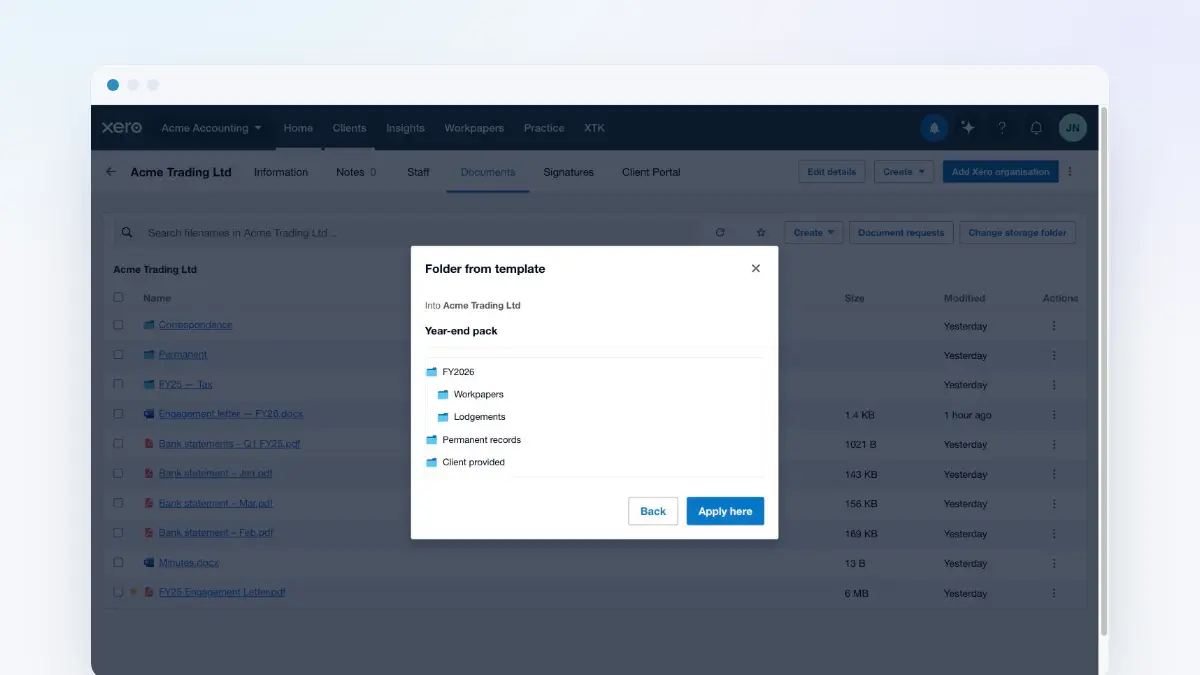
The document templates guide walks through uploading a template and generating a letter from it, with these tokens doing the filling. Folder templates use the same [DATE] tokens inside folder names, so a standard client folder structure can stamp itself with the right year as it's created.
Frequently asked questions
What happens to a placeholder XTK can't fill in?
Nothing breaks. A recognised token XTK can't resolve from the client's record shows as an empty field in the fill dialog for you to type; anything still empty when you generate is stamped into the document as its literal text, like [CLIENT:MOBILE]. A token XTK doesn't recognise at all is simply left as-is. Generation never fails because of a placeholder.
Can I invent my own placeholders?
Yes, through XPM custom fields: define a field in Xero Practice Manager and reference it as [CUSTOM:Field Name]. Anything else you make up isn't an error — it just renders as literal text — but only the tokens in this reference (plus your custom fields) are filled automatically.
Why does [CONTACT:PRIMARY:NAME] come out blank?
PRIMARY means the contact actually flagged as primary in XPM. If no contact carries the flag, XTK deliberately leaves the field empty rather than silently guessing the first one. Flag a primary contact in XPM, type the value in the fill dialog, or use [CONTACT:ANY:NAME] to take the first contact listed.
Can I combine two conditions with AND or OR?
No — a condition tests exactly one field, and there's no [ELSE] either. Nest one [IF] block inside another to get an AND, and write two back-to-back blocks (one with =, one with !=) for either/or text.
Does [CLIENT:TAXNUMBER:LAST4] mask the rest of the number?
It renders only the last four characters, plainly — 6789, no asterisks. Write your own wording around it (“the account ending in …”). Note it counts characters, not digits, so spaces stored in the number count too.
Do placeholders work in headers and footers?
Yes. XTK fills tokens anywhere Word puts visible text: the document body, headers and footers. It also copes with Word invisibly splitting a token into pieces as you type or format — tokens always resolve whole.