Updated 7 min read
Folder templates: one standard client folder structure
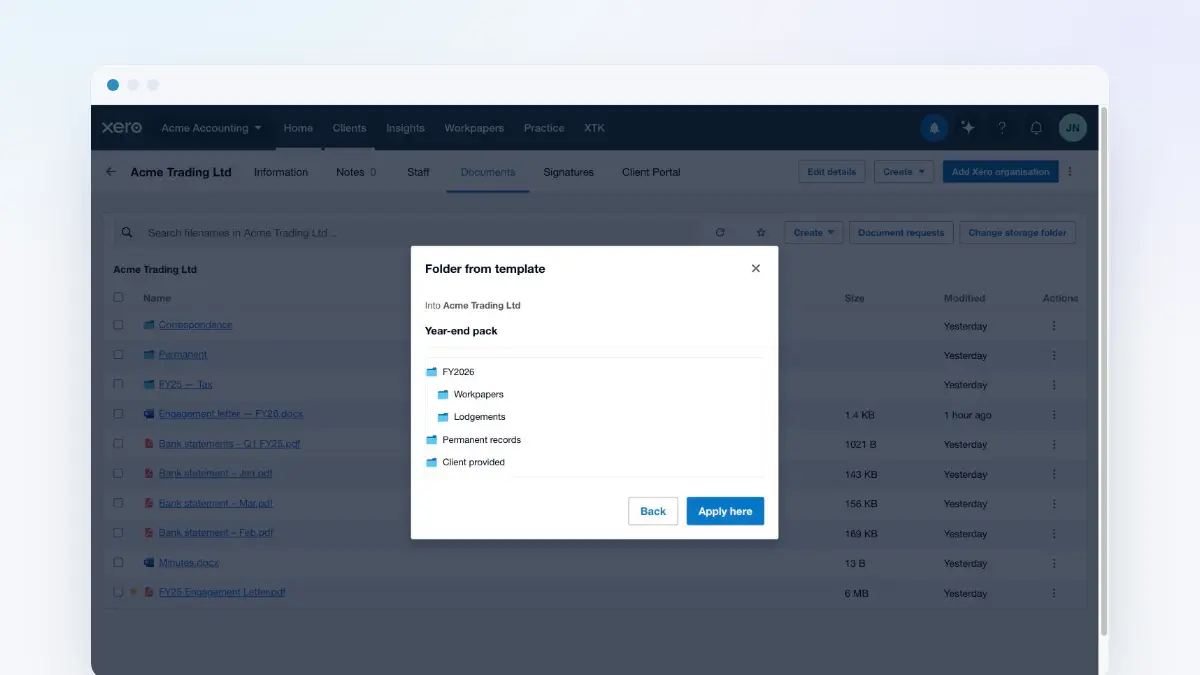
A folder template is your practice's standard client folder structure, saved once and applied to any client in a couple of clicks. You build the tree in the XTK panel — “Permanent”, “FY[DATE:yyyy] — Tax”, “Correspondence” and whatever else your workflow needs — and then, from a client's Documents tab, “Create ▾ → Folder from template” creates the whole structure inside that client's folder. Apply it as often as you like: XTK matches folders by name, so re-applying fills in what's missing and never duplicates anything. Applying one is usually step two of onboarding a new client.
XTK is an independent product and is not affiliated with or endorsed by Xero Limited.
What a folder template is
Two things make folder templates different from creating folders by hand. First, they're practice-shared: one library, the same structure for everyone, so a client's files end up in the same place no matter who set them up. Second, applying one is idempotent — XTK compares each folder in the template with the folders already in the client's storage and reuses any name that matches instead of creating a second one beside it. Applying twice looks the same as applying once.
A folder template holds no files. It's a saved tree of folder names living with your practice's settings, which is why creating, editing and deleting templates never touches a document in Google Drive, OneDrive or SharePoint.
How do I create a folder template?
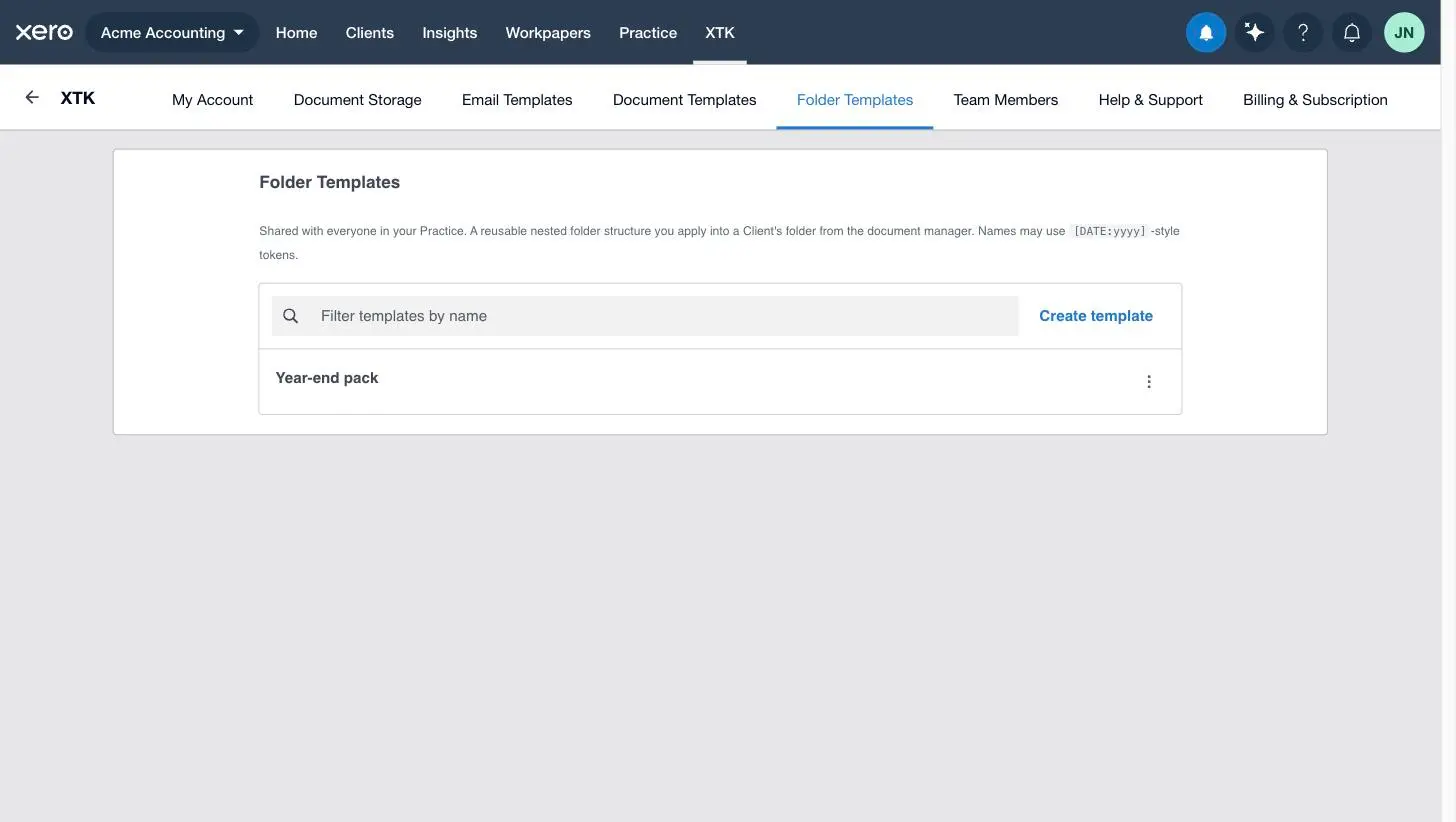
Open the Folder Templates tab
In Xero Practice Manager (XPM), click “XTK” in the main navigation to open the panel, then choose the “Folder Templates” tab. Templates already in the library are listed here, with a filter box for when the list grows.
Click “Create template”
Give the template a name your team will recognise in the apply dialog — “Year-end pack”, “New client onboarding”, “Annual accounts”.
Add your top-level folders
Click “+ Add folder” for each one. A new folder opens straight into a text box: type the name and press Enter. Click any name again to rename it.
Nest the subfolders
“+ Sub” on a folder's row adds a child inside it, drawn indented underneath. Keep going until the tree matches how your practice files work — up to 10 levels deep and 100 folders in total.
![XTK's folder template tree editor showing a nested client folder structure with a FY[DATE:yyyy] folder resolved to its year and Add folder, Sub, reorder and delete controls](/images/guides/folder-templates/nextImageExportOptimizer/02-tree-editor-opt-1600.WEBP)
Put the folders in the order you want them created
Drag the “⋮⋮” handle to reorder folders among their siblings, or use the “↑” and “↓” buttons. “✕” removes a folder and everything under it.
Click “Save”
The template joins the practice-shared list, ready for anyone on your team to apply to any client.
The editor checks the structure as you type and blocks “Save” with the reason spelled out underneath if something won't work: a blank folder name, two folders with the same name under one parent (case doesn't count — “Tax” and “tax” clash), a name over 256 characters, more than 10 levels, more than 100 folders, or a template with no folders at all. Fix the message and “Save” comes back.
Each row's ⋮ menu holds “Edit” and “Delete” (clicking the row opens the editor too). Deleting asks you to confirm and removes the template from your practice's library — the folders it has already created stay exactly as they are.
Putting the year in a folder name with [DATE]
Folder names can carry a date token, resolved on your own clock at the moment you apply the template — not when you saved it. That's what lets one template serve every year: “FY[DATE:yyyy] — Tax” becomes “FY2026 — Tax” today and “FY2027 — Tax” next year, with nothing to edit in between. It's the same [DATE] grammar document templates use, and it's the only variable a folder name understands.
| In the folder name | Folder created on 28 July 2026 |
|---|---|
[DATE] | 28 July 2026 |
[DATE:yyyy] | 2026 |
FY[DATE:yyyy] — Tax | FY2026 — Tax |
[DATE:yyyy-MM] | 2026-07 |
[DATE:MMM yyyy] | Jul 2026 |
[DATE:dd-MM-yyyy] | 28-07-2026 |
[CLIENT:NAME] | [CLIENT:NAME] |
The pattern letters are the same set as everywhere else in XTK: yyyy and yy for the year, MMMM, MMM, MM and M for the month, dd and d for the day. Dashes, spaces and full stops in the pattern are kept as typed. Words are not safe inside the brackets — a d, an M or a yy in a word is read as a date letter, so [DATE:Updated yyyy] comes out mangled; put words outside, as in FY[DATE:yyyy] — Tax. Leave slashes out too, since OneDrive and SharePoint don't allow a slash in a folder name. Every folder name in the tree editor shows you its resolved name as you build it, so what you see in the editor is what the folder will be called.
How do I apply a folder template to a client?
Open the client's Documents tab
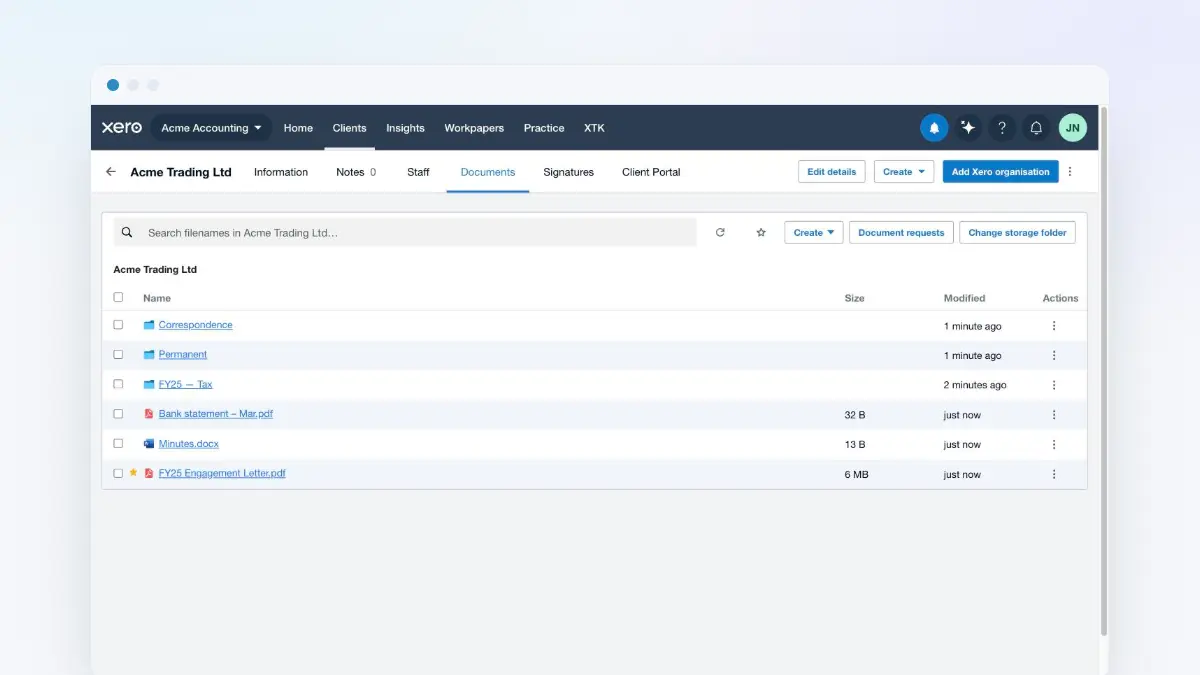
Find the client in XPM and open the Documents tab. The structure is created inside the folder you're currently viewing, so stay at the client's top level for a standard set-up, or browse into a subfolder first to build the tree in there.
Click “Create ▾ → Folder from template”
The dialog opens on your practice's shared template list, with a filter box and a line at the top confirming where the folders will go — “Into” followed by the folder you have open.
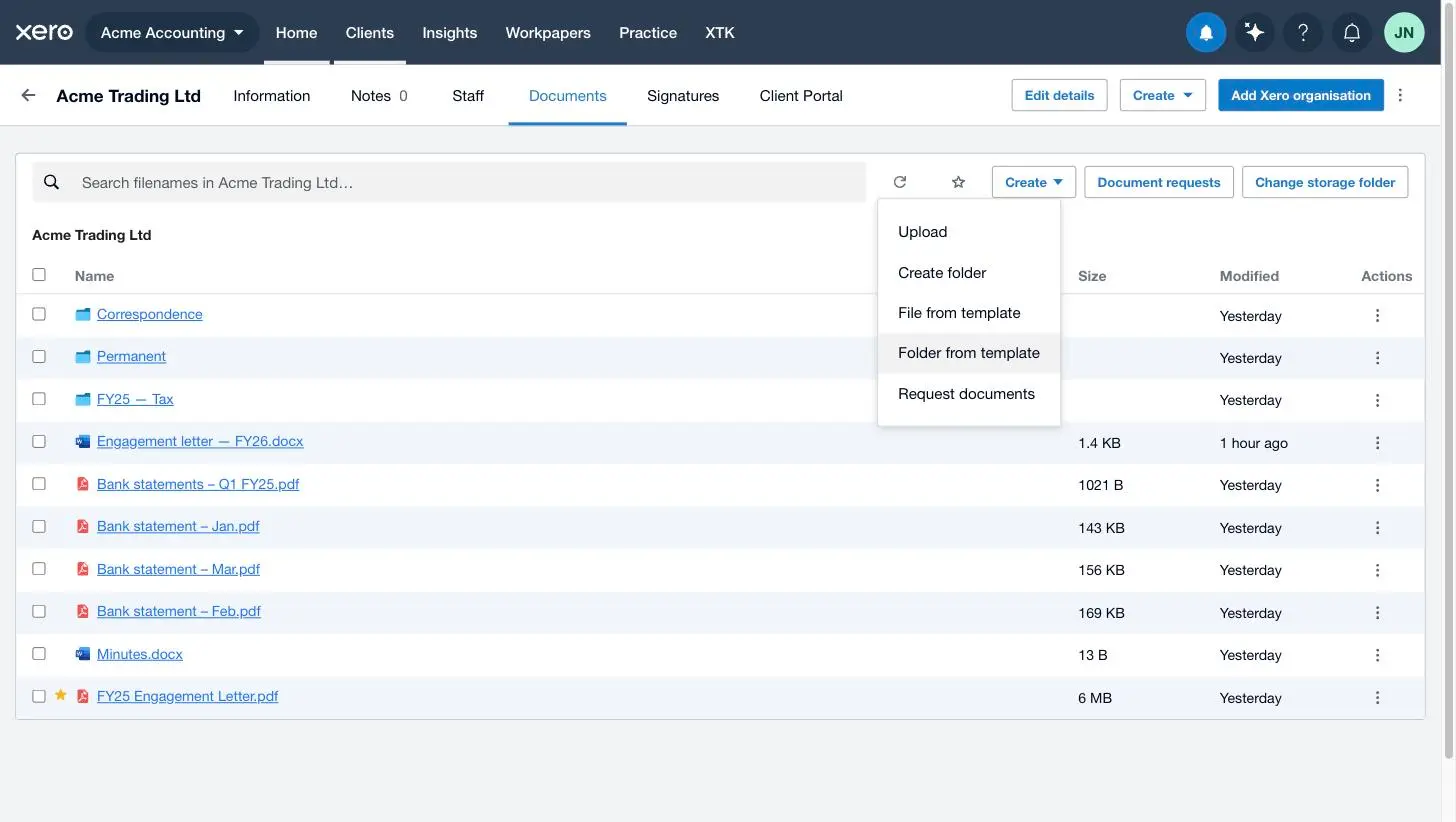
Click “Use template” on the one you want
XTK shows the full structure it's about to create, with every [DATE] token already resolved, so you can check the names before anything is created. “Back” returns to the list.
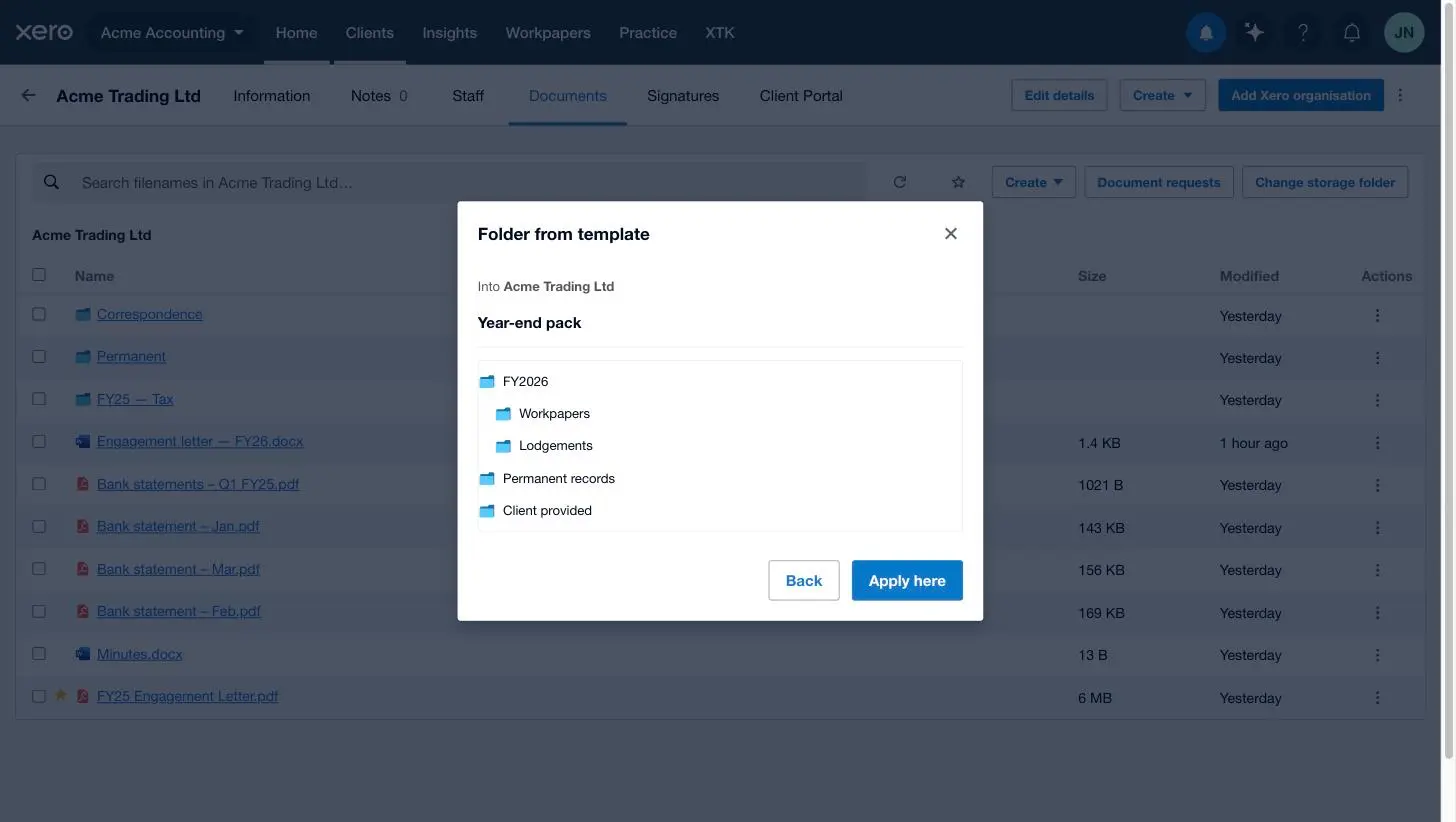
Click “Apply here”
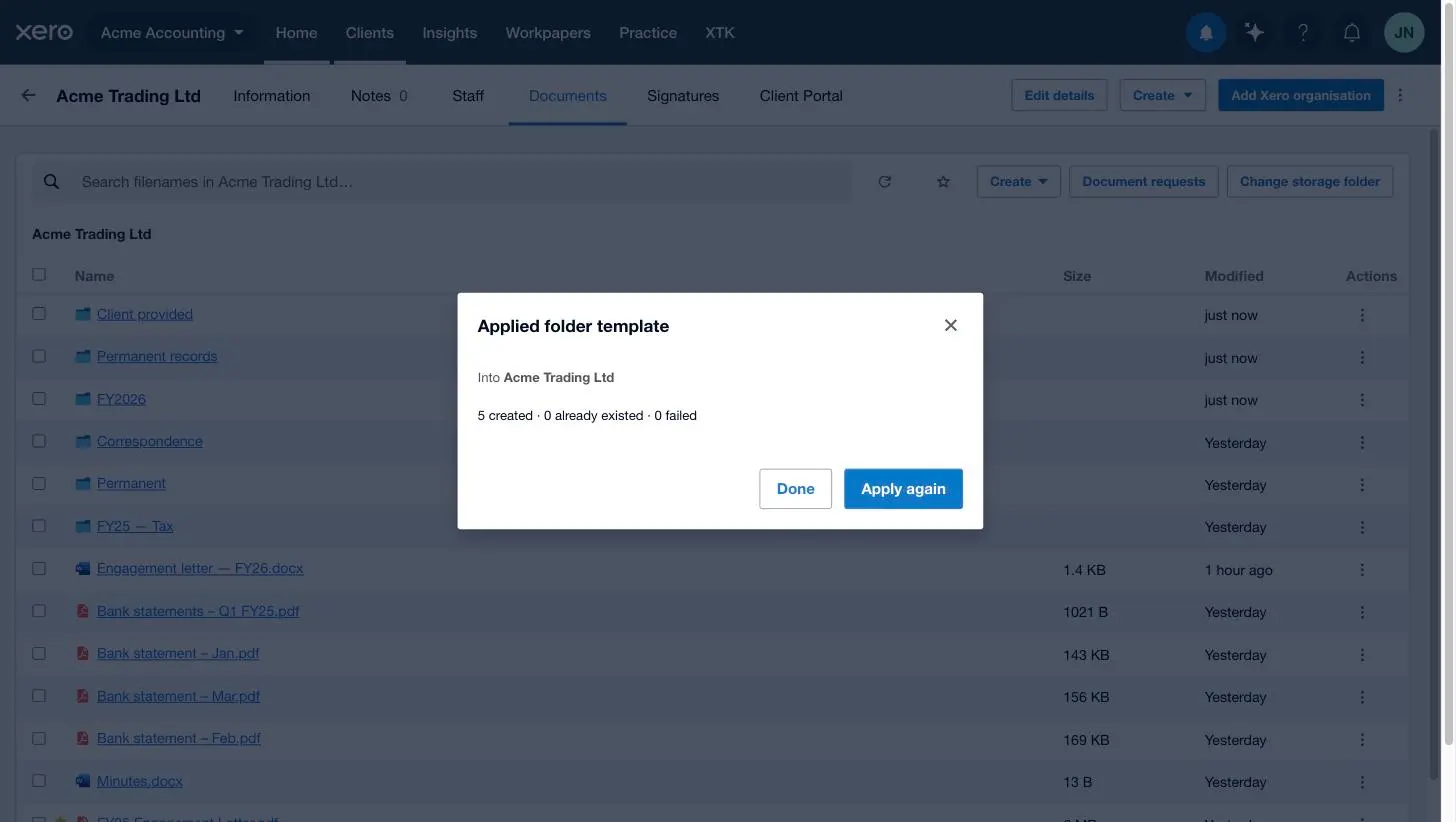
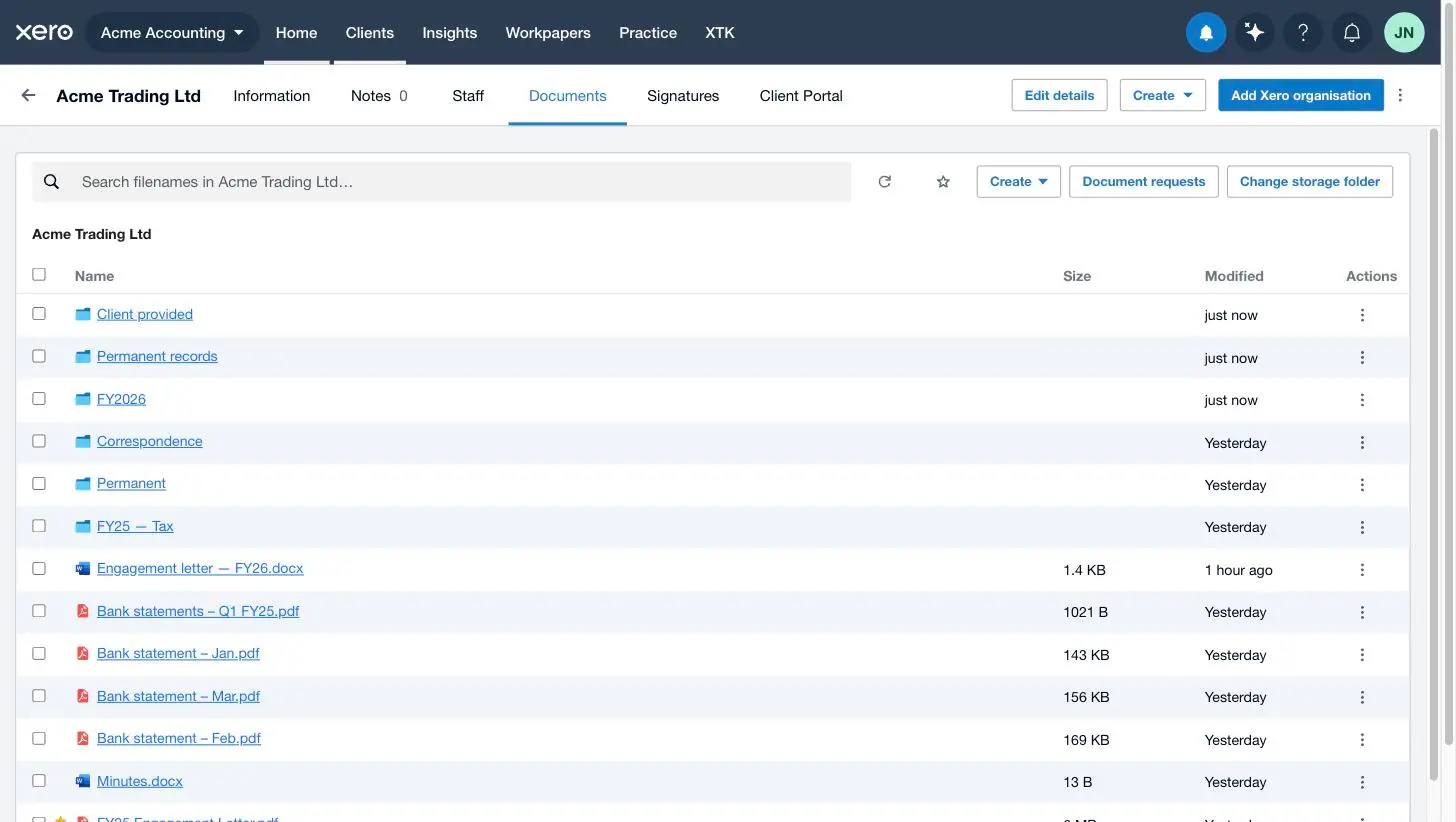
The folders are created top to bottom in the order you arranged them, and the dialog reports back — “5 created · 0 already existed · 0 failed”. Click “Done”.
What if a folder already exists, or something fails?
Both cases are handled quietly, and the result panel is where you see them:
- Already existed — a folder whose name matches one in the template is reused, and the template's subfolders are created inside it. It doesn't matter who made that folder: one you created by hand, or one that predates XTK entirely, is adopted just the same.
- Failed — if one folder can't be created, XTK records it with the reason, skips what was nested inside it and carries on with the rest. Nothing is rolled back; apply the template again once the cause is cleared.
- Everything stays inside the client's own folder. Applying a template can never create folders elsewhere in your storage — the same containment rule that governs every other XTK file action.
Tips for a folder structure that lasts
- Start smaller than you think. Five or six folders everyone actually uses beat twenty that get ignored — and you can add to the template later and apply it again.
- Keep the year in one place. A single “FY[DATE:yyyy]” folder with subfolders inside it ages better than a year token repeated at three levels.
- [DATE:yyyy] is the calendar year on the day you apply, with no arithmetic — so if you set up next year's pack in June, or the year just ended in July, name that folder explicitly instead of using the token.
- Put permanent records outside the year folders. A “Permanent” folder for constitutions, trust deeds and IDs saves hunting through five years of tax folders.
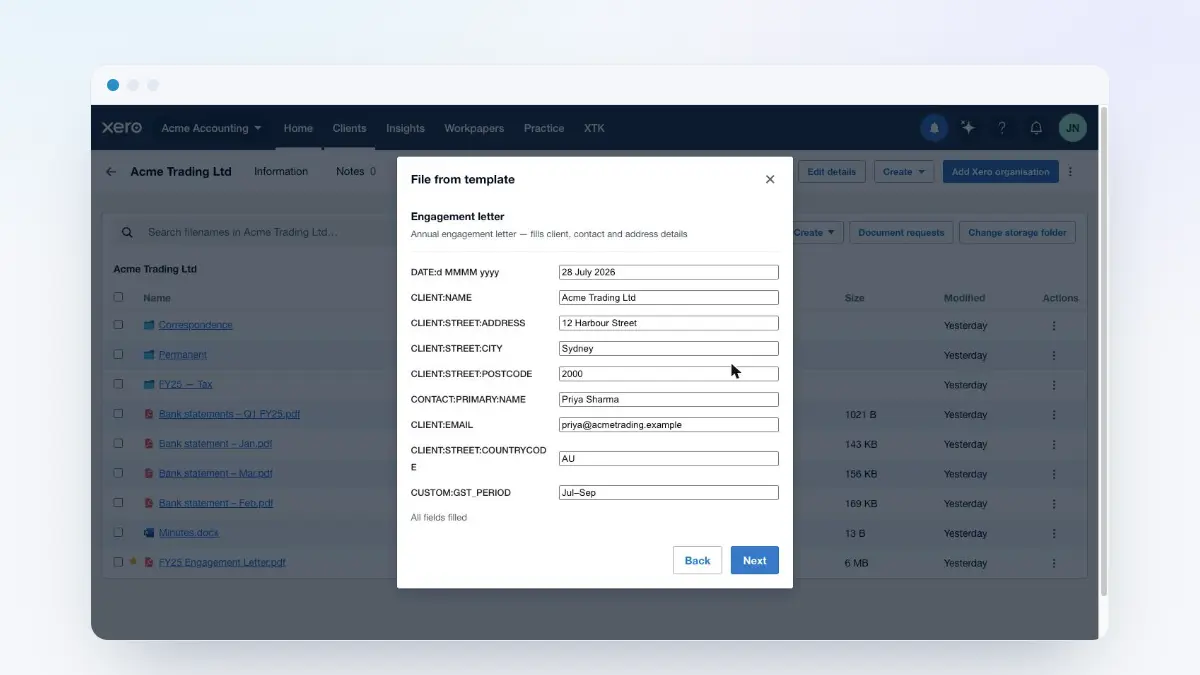
- Folder templates pair well with document templates: lay down the structure, then generate the engagement letter straight into the folder you just created.
Where next
The placeholder reference covers the [DATE] patterns in full, alongside every token document templates understand. And if you haven't set up the Documents tab itself yet — uploading, searching, sharing and the rest — start with the client documents guide.
Frequently asked questions
What happens if I apply the same folder template twice?
Nothing is duplicated. XTK matches each folder in the template against the folders already there by name (ignoring case and surrounding spaces), reuses every match, and creates only what is missing. That makes re-applying safe and useful: add a folder to the template later, apply it again, and only the new folder appears. The result panel tells you exactly what happened — for example “2 created · 5 already existed · 0 failed”.
Can folder names include client details, or only dates?
Only dates. [DATE] and [DATE:pattern] are the one variable a folder name understands — you don't need the client's name because the structure is created inside that client's own folder. Anything else in square brackets, including a document-template token like [CLIENT:NAME], is created literally as part of the folder name, brackets and all. Tokens must be uppercase.
If I rename or delete a folder after applying, what happens next time?
The match is purely by name, so a folder you renamed no longer matches its template entry and XTK creates a fresh folder under the template's name the next time you apply — your renamed folder and its files stay exactly where they are. A folder you deleted is simply re-created, empty. If you want a different name, change it in the template rather than in the client's storage.
Does deleting a folder template delete folders in my clients' storage?
No. A folder template is pure structure — a saved list of folder names, with no files behind it. Deleting it removes it from your practice's library only; every folder it ever created, and everything filed in those folders, is untouched. The same goes for editing a template: it changes what future applies create, never what already exists.
How big can a folder template be?
Up to 100 folders in total, nested at most 10 levels deep, with each folder name up to 256 characters. Two folders under the same parent can't share a name, and no name can be blank. XTK checks all of this while you edit and shows the problem inline, so you can't save a template that would fail when applied.