14 min read
The accounting client onboarding checklist: seven steps
By The XTK team · Product
A new client should be fully set up — engagement letter signed, folder structure created, portal access live and the first records requested — within one working day of accepting your proposal. That assumes exactly two things: your templates are already built, and the client answers their email. What turns one day into three weeks is never the volume of work. It is four handoffs and two waits.
The actual labour in onboarding a company client comes to under two hours: check the entity details, create the folders, produce the engagement letter, send it, invite the client, ask for last year's records, schedule the jobs. Now count the elapsed time in your own practice. The gap between those two numbers is the subject of this article.
Below are the seven steps, each with the place it usually stalls and what removes the stall — then a timeline that makes the one-day claim checkable, the five templates that make it repeatable, and a checklist you can paste into your own process document.
What does “onboarded” actually mean?
Onboarded means a specific list of things is true — and most practices have never written the list down, which is why onboarding drifts. Define done as a target state rather than a set of activities and the process becomes checkable by anyone, including the person who joined last week.
- Client and contacts in Practice Manager, with the correct legal entity name and one contact flagged as primary.
- A signed engagement letter for the current period, filed in the client's folder.
- Anti-money-laundering and identity checks complete where your jurisdiction requires them, with the evidence filed.
- A folder structure that matches every other client of the same type.
- Prior-year records received — accounts, tax returns, ledgers, permanent documents — not promised.
- Software access granted, and confirmed by somebody in your practice logging in.
- One named owner in the practice, and the client told who it is.
- Recurring jobs scheduled in Practice Manager with real dates.
Notice how few of those are documents and how many are states. “Sent the client a request” and “have the records” are not the same fact, and only one means you can start work.
The seven steps, and where each one stalls
Each step has one characteristic failure, and in five of the seven it is a person deciding something that should already have been decided. The exceptions are the two waits — the client signing and the client uploading — which are legitimate.
Step 1 — get the client record right, once
Enter the entity name exactly as it will appear on every document, because every later step copies it from here. The client record is the origin of the folder name, the engagement letter, the portal invitation and the request email, so a name typed in a hurry has to be corrected in all four.
Where it stalls: a placeholder name — “Smith (new)”, or “ABC Trading” for A.B.C. Trading Pty Ltd — typed while somebody waits for the constitution. Remove it by treating three fields as blocking: the legal entity name, the primary-contact flag, and each contact's own email rather than a shared office address. If your letters read anything else — a balance date, a GST period — put it in a custom field now. The argument for never retyping any of it starts here.
Step 2 — create the folder structure from a template
Apply a saved skeleton rather than building folders by hand. The value is not the seconds you save; it is that the fifteenth client of the year has the same structure as the first, so anyone can find last year's workpapers without knowing who filed them.
Where it stalls: the person onboarding invents the structure. Two people onboarding two clients in one week produce “2026 Tax” and “FY26 — Tax”, and neither is wrong, which is what makes it unfixable a year later. Remove it by keeping one named folder template per client type in a shared library.
Step 3 — generate the engagement letter, don't rewrite it
Produce the letter from a template that reads the client record, not from the last client who looked similar. A generated letter cannot carry the previous client's name in paragraph two — the most common embarrassment in practice correspondence, and the hardest to catch, because the document is otherwise perfect.
Where it stalls: somebody opens last year's letter for a comparable client and starts editing a copy. It works, it takes twenty minutes, and it fails about one time in fifteen. Remove it with one document template per service line, with the entity name, addresses, contacts and dates as placeholders. One warning for the build: a primary-contact placeholder resolves to nothing at all if no contact is flagged as primary in Practice Manager, which is why step 1 treats that flag as blocking.
Step 4 — send it for signature in the right order
Send the letter for signature within the hour you generate it, with each signer's fields placed for them and the order set. Print, scan, sign and post adds two days and a scanner queue for no compliance benefit — an e-signed engagement letter is valid in every jurisdiction an accounting practice is likely to work in, on terms worth understanding rather than assuming.
Where it stalls: the letter goes out as an attachment with “please print, sign and return”. Remove it by sending a signing link that needs no account, and by setting the order explicitly where two directors sign — one first, then the other — rather than both at once with neither knowing whether the other has done it.
Step 5 — file the signed letter where the work is
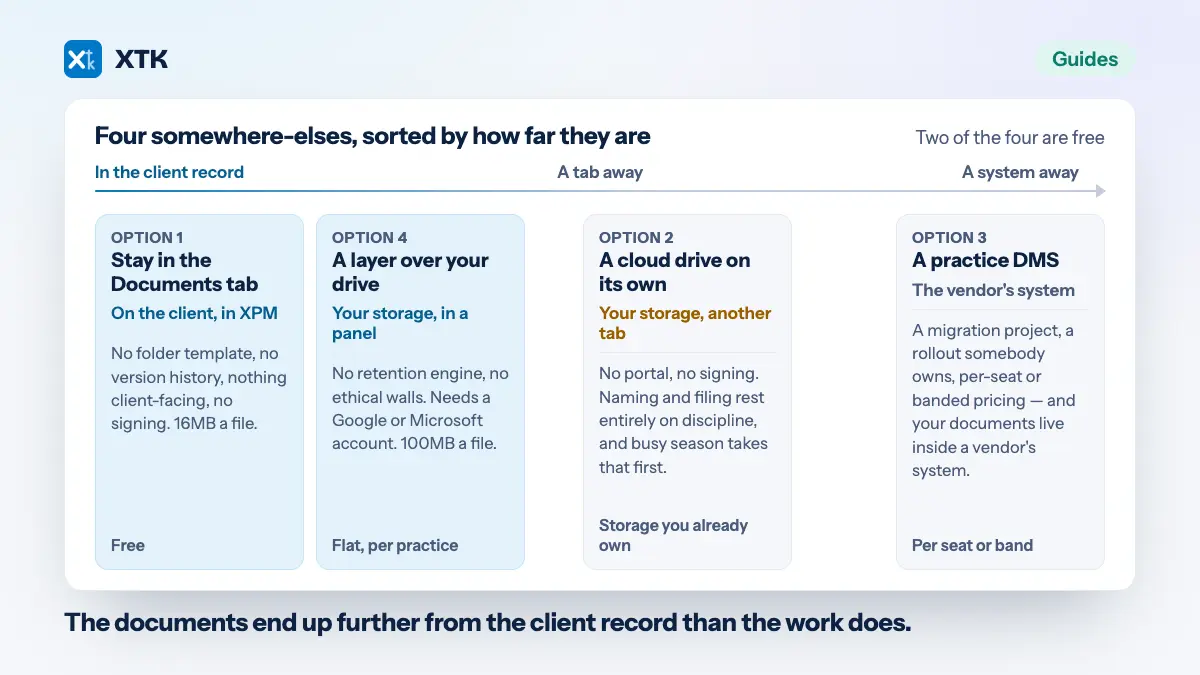
The completed letter belongs in the client's folder, beside everything else about that client. If it lives in a signing tool's dashboard, or the inbox of whoever downloaded it, then in eleven months nobody finds it and somebody asks the client to sign a fresh one. The wider question of where client documents should live has four common answers.
Where it stalls: the signed PDF is an email attachment, so filing it competes with the next client. Remove it with a signing flow that files the result itself. Be precise about what the result is: one file per document — the flattened PDF with every field value stamped in and the Certificate of Completion appended as its final page — saved alongside the original, which is never altered or replaced. One artefact to file, not two to keep together.
Step 6 — invite them to the portal and ask for records the same day
Send the portal invitation and the first records request within an hour of the signature, not after the internal kick-off meeting. This is the single biggest timing change available to you and it costs nothing: the client has just signed, they are thinking about you, and the request lands while that is still true. Ask a week later and you are competing with their actual job.
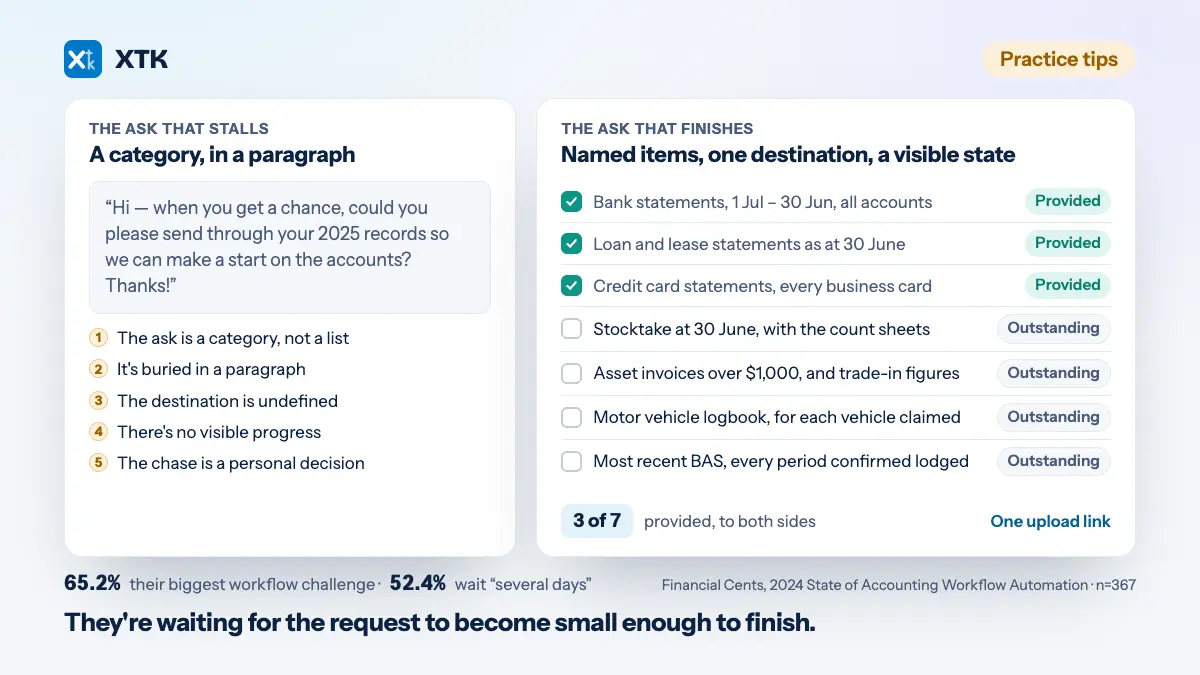
Where it stalls: the practice waits to be internally ready before asking the client for anything. Remove it by making the ask a template — a standing first-request checklist per engagement type. Then chase on a habit rather than on hope: assume nothing sends the reminder for you, so “check what is still outstanding” belongs on a named person's Monday list. The mechanics of not chasing clients are a read of their own.
Step 7 — schedule the work and name an owner
Create the recurring jobs in Practice Manager with real dates, and write one person's name against the client. Jobs, time and deadlines already live in XPM and that is where they should stay — this is not a document problem, and no document tool should own it.
Where it stalls: nobody owns the client until the first deadline, at which point ownership falls to whoever notices. Remove it by making the owner a field somebody has to fill before onboarding can be closed, and by naming that person in the welcome email. A client who knows who to email does not email five people.
How long should client onboarding take?
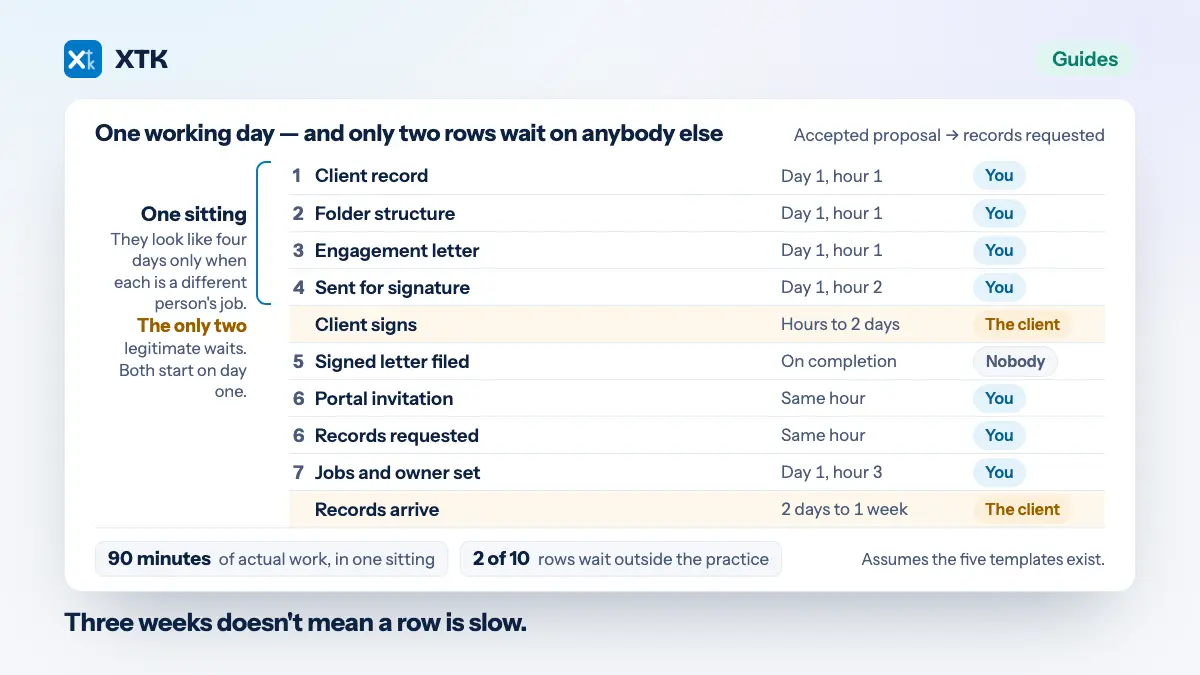
One working day from accepted proposal to records requested, and two days to a week until the records are in. Both figures assume the five templates below already exist and that the client replies — those assumptions are doing real work, so here is the sequence with the waiting made explicit.
| Step | Elapsed time | Waiting on |
|---|---|---|
| 1. Client record | Day 1, hour 1 | You |
| 2. Folder structure | Day 1, hour 1 | You |
| 3. Engagement letter | Day 1, hour 1 | You |
| 4. Sent for signature | Day 1, hour 2 | You |
| Client signs | Hours to 2 days | The client |
| 5. Signed letter filed | On completion | Nobody |
| 6. Portal invitation | Same hour | You |
| 6. Records requested | Same hour | You |
| 7. Jobs and owner set | Day 1, hour 3 | You |
| Records arrive | 2 days to 1 week | The client |
Two properties matter more than the times. Only two rows wait on anybody outside the practice, and both begin on day one — starting them early is the only lever you have. And steps 1 to 4 are a single sitting of about ninety minutes; they look like separate days only when each is a different person's job.
So if your elapsed time is three weeks, it is not because a row is slow. It is because rows 1 to 4 are spread across three people and two calendars.
Which five templates are worth building first?
Five, and they are the same five in every practice. Build them once and onboarding becomes a sequence of choices. Skip them and every new client is a small design project, improvised under time pressure by whoever picked up the file.
- A folder skeleton per client type — company, trust, partnership, individual. Four small templates beat one that covers all four with folders most clients never use.
- An engagement letter per service line, with the entity name, addresses, contacts and dates as placeholders rather than typed text.
- A welcome email that names the client's owner in your practice, says what happens next and by when, and sets one expectation about how you will ask for things.
- A standard first document request per engagement type — the records you always need for a company year-end or a trust distribution — as a reusable checklist rather than a remembered list.
- A portal invitation message, because “you have been invited to a portal” is not a sentence that earns a login.
The cost of not having them is measurable: time one person onboarding one client from a blank page, honestly, including the interruptions. It is most of a day. The five take an afternoon between them, and two — the welcome email and the invitation — are email templates picked from a dropdown after that.
What should you standardise, and what should you leave alone?
Standardise structure, wording and sequence. Leave judgement alone. The distinction is not philosophical — it is the difference between a process people follow and one they quietly abandon in the second month.
- Standardise: folder names, letter wording, the order of the steps, who is asked for what, and the point at which onboarding counts as finished.
- Leave to a human: the scope of the engagement, the fee, the risk assessment, whether the client's records are in a state you can work with, and whether to take the client at all.
A process that tries to automate the second list gets ignored, because the first time it produces a wrong answer the person holding the file has to override it — and once you have overridden a process, you are no longer using it. A template that produces a draft for a human to approve survives for years; a workflow that decides a fee does not survive its first unusual client.
How does this look in XTK?
XTK runs the middle five steps inside the Practice Manager tab you already have open, against the client already on screen — an extension panel backed by your practice's own Google Drive, OneDrive or SharePoint, so nothing is re-keyed and no files move.
Steps 2 and 3 are templates. A folder template is a saved tree of folder names your practice shares, applied from the client's Documents tab; folders are matched by name, so re-applying fills gaps rather than duplicating anything, and “FY[DATE:yyyy] — Tax” resolves to the current year as it is created. A document template is a .docx you upload once with placeholders where client data belongs: [CLIENT:NAME], [CLIENT:POSTAL:ADDRESS], [CONTACT:PRIMARY:NAME] and [DATE] fill from the client's live XPM details as you generate, and a custom field defined in XPM is readable as [CUSTOM:GST Period]. Every value lands in a fill dialog you review first; anything left empty is stamped as its literal token.
Steps 4 and 5 are one motion. The generated PDF goes for signature from the same panel — fields placed per recipient, signers arranged into steps so two directors sign in sequence rather than at once, and an emailed link needing no client account. When the last signs, XTK produces one new file per document: the flattened PDF with the Certificate of Completion appended as its final page, filed beside the original, which is never replaced.
Step 6 goes from the same place, through your shared practice Gmail or Outlook in your branded email shell. A document request is a checklist behind a link with no account attached; items flip from Outstanding to Provided as files land in the client's folder, and a file uploaded against an item is renamed to that item's name, so the naming convention stays yours. Two honest notes: there are no scheduled reminders anywhere in the product, and resending a request mints a fresh link, killing the one you sent before.
Two things XTK does not do, and they are the point rather than an omission. It does not create the client record in Practice Manager and it does not schedule jobs — XPM owns both, and XTK reads the client you have open rather than keeping a second client list. Nor does it do anti-money-laundering or identity verification; that stays wherever your practice does it today. Everyone you invite to your team shares the same templates, folders and portals on one subscription rather than per seat — $59 a month for the practice, after a 30-day trial.
One hedge worth carrying: uploads travel from the browser straight to Google or Microsoft, but downloads, PDF merges, template generation and signature flattening stream through XTK's backend in flight, and “Convert to PDF” hands that one file to CloudConvert, an external service. The full account of what moves where is worth reading first. And if you are choosing between products rather than fixing a process, the comparison of the options for a Xero practice is the better starting point.
The client onboarding checklist
Here is the whole process as one list, in order. It assumes the five templates exist; if they do not, build those first and this list becomes a day's work rather than a fortnight's.
- Confirm the legal entity name and enter it in Practice Manager exactly as it will appear on documents.
- Add every contact with their own email address, and flag one as the primary contact.
- Fill the custom fields your templates read — balance date, GST period, industry — before generating anything.
- Apply the folder template for this client type.
- Complete anti-money-laundering and identity checks where required, and file the evidence in the permanent folder — its retention clock starts when the client leaves, not when you did the work.
- Generate the engagement letter from the template for this service line, and read it once.
- Send it for signature, with the signers in the order they should sign.
- Confirm the completed letter is filed in the client's folder — not in an inbox.
- Invite the client's contacts to the portal, checking the primary email on the client record first — that is the address a first invitation goes to.
- Send the standard first document request, addressed to whoever holds the records rather than whoever signed.
- Request access to the ledger, payroll and other software, and log in once to confirm it works.
- Schedule the recurring jobs in Practice Manager with real dates.
- Write the owner's name against the client, and tell the client who it is.
- Send the welcome email: who owns the relationship, what happens next, and by when.
- Put a date in one named person's calendar to check what is outstanding — nothing chases for you.
- Close onboarding only when the records are in and the first job has a date. Sent is not received.
Sixteen lines, and only two of them wait on the client. Everything else waits on a decision somebody in the practice has already made once.
The question to ask on Monday
How many days passed between your last new client saying yes and your practice having their records? Ask three people and see whether the answers agree. If nobody knows, that is the first thing to fix — more useful than any of the seven steps above, because a process nobody measures is one nobody can prove is broken.
The real number is usually worse than the partner's estimate and better than the junior's. Measure it for the next five clients and the bottleneck names itself. In most practices it is step 3 or step 6: nobody has a letter template, or nobody asks the client for anything until the internal meeting.