Updated 10 min read
How to use your accountant's client portal
Your accountant has given you a client portal: one web page where you can pick up the documents they have prepared for you, send them the paperwork they have asked for, and sign what needs signing — without email attachments, file-size limits or a stack of scanned PDFs. This guide walks through the whole thing, from the invitation email to changing your password.
It is written to be handed straight to a client. If you are the accountant setting the portal up, the companion guide on setting up the client portal is the one you want. XTK is an independent product and is not affiliated with or endorsed by Xero Limited.
How do I set up my access?
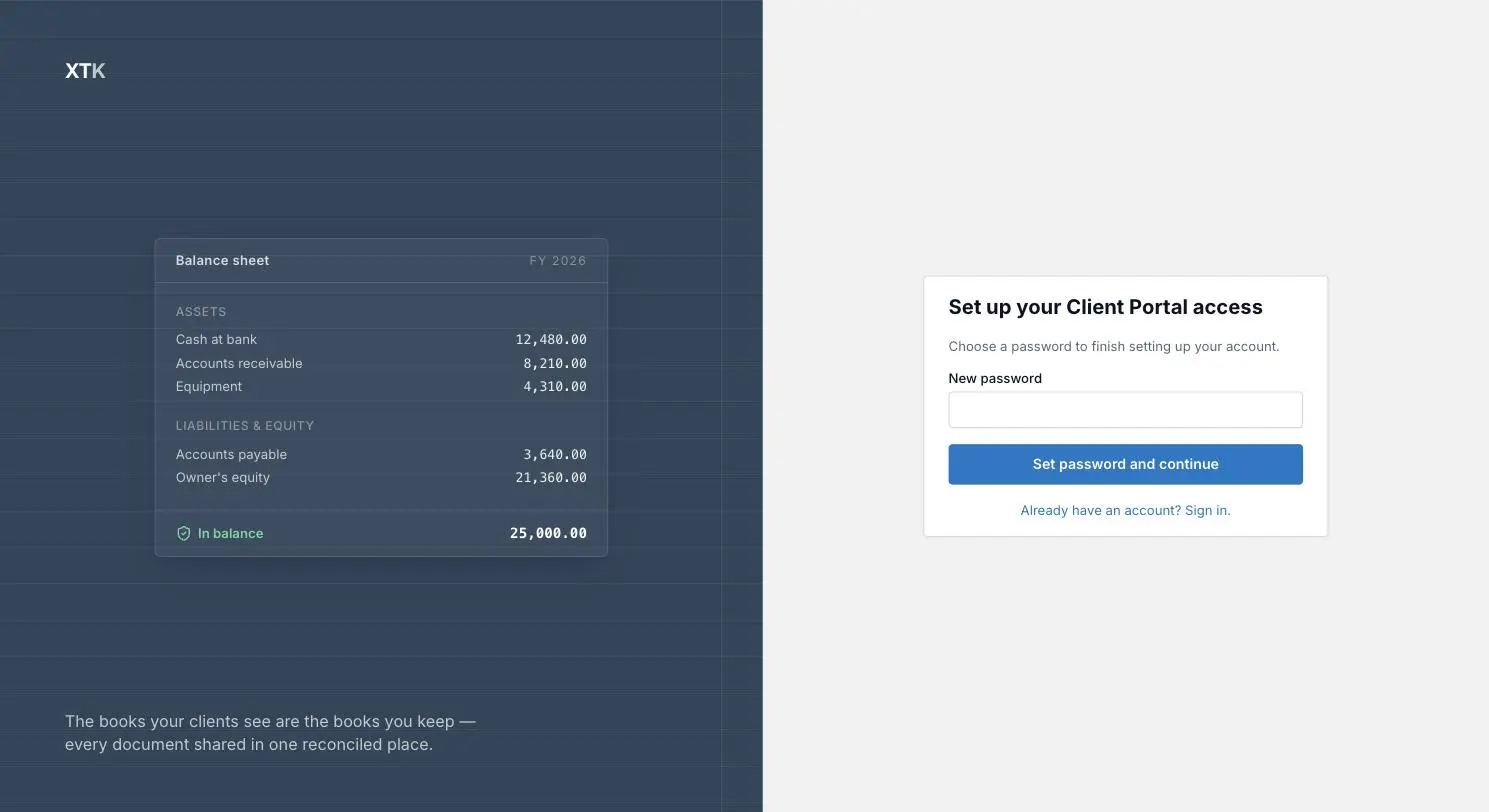
The invitation email comes from your accountant's practice, not from XTK, and carries one link. Opening it lands you on a page headed “Set up your Client Portal access”. What it asks for depends on whether this email address has used an XTK portal before.
Open the link in your invitation
The link is personal to your email address and can only be used once, so do not forward it to a colleague — ask your accountant to invite them properly instead.
Choose a password
If this is your first XTK portal, the page reads “Choose a password to finish setting up your account.” Pick a password of at least 8 characters and click “Set password and continue”. That creates your account and signs you straight in — there is no separate verification email to wait for.
Or reuse the login you already have
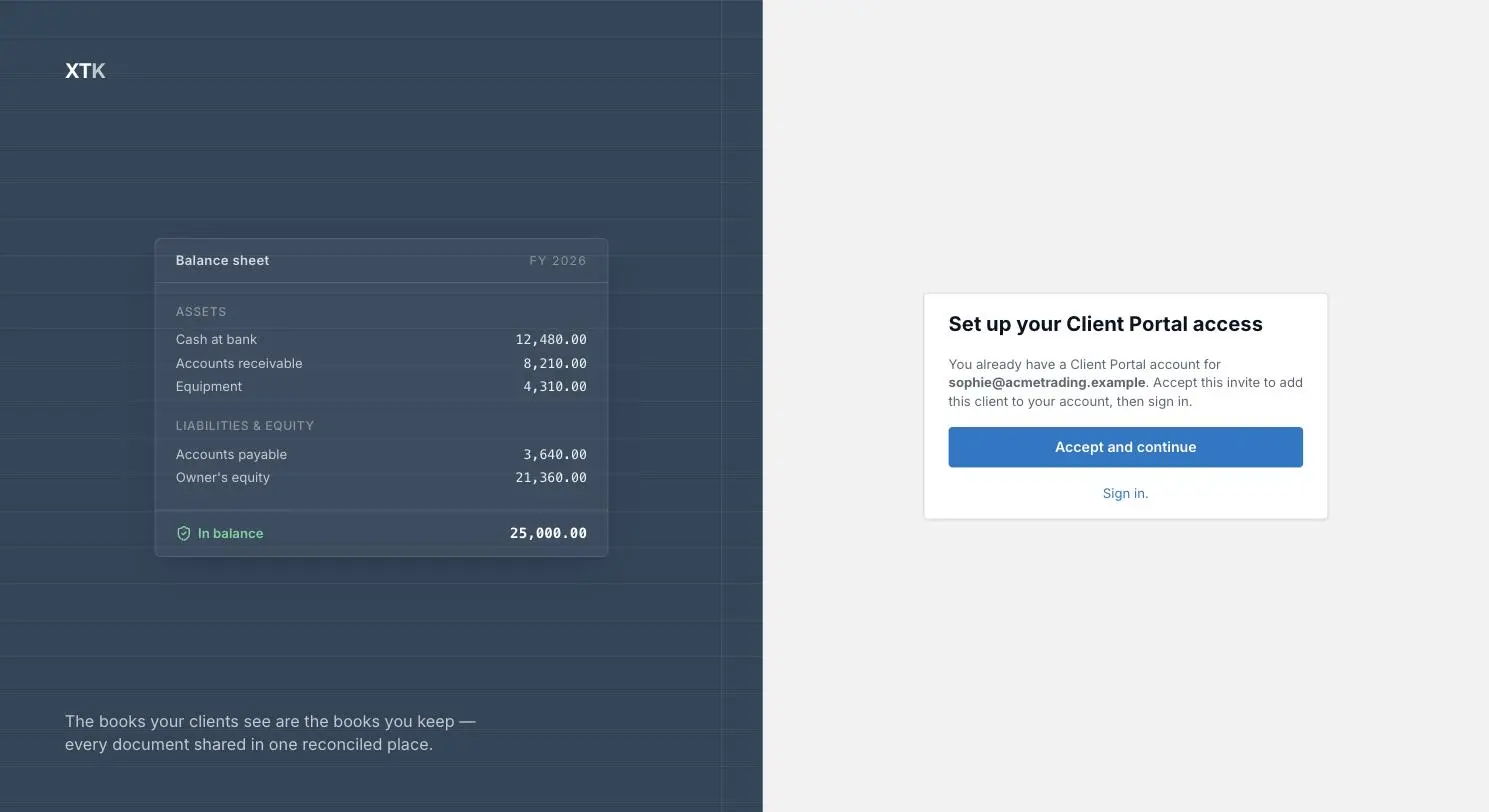
If you have used an XTK portal before — for another business, or with another practice — the page recognises your address instead: “You already have a Client Portal account for …”. Click “Accept and continue” and the new portal is added to your existing login. No second password, no second account.
Sign in
You land on the sign-in page with “Invite accepted. Sign in with your existing password to enter this client portal.” Sign in with your email and password. A session lasts 30 days, so on your own device you will rarely be asked again.
Which business am I looking at?
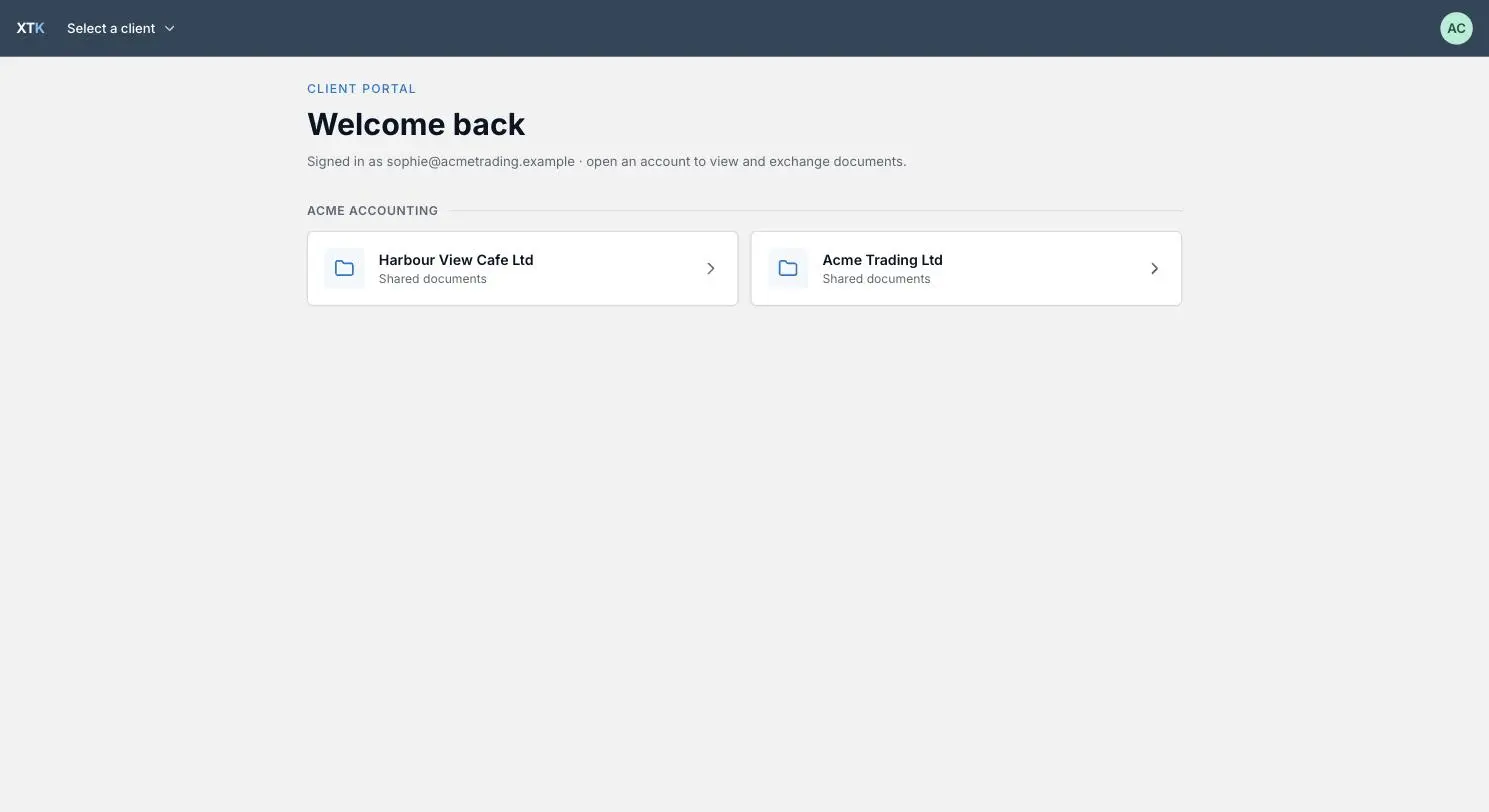
Signing in shows a hub headed “Welcome back”, with your portals grouped under the practice that shared them. Each card is one business, labelled with the name your accountant put on your contact, and marked “Shared documents”. Click one to go in.
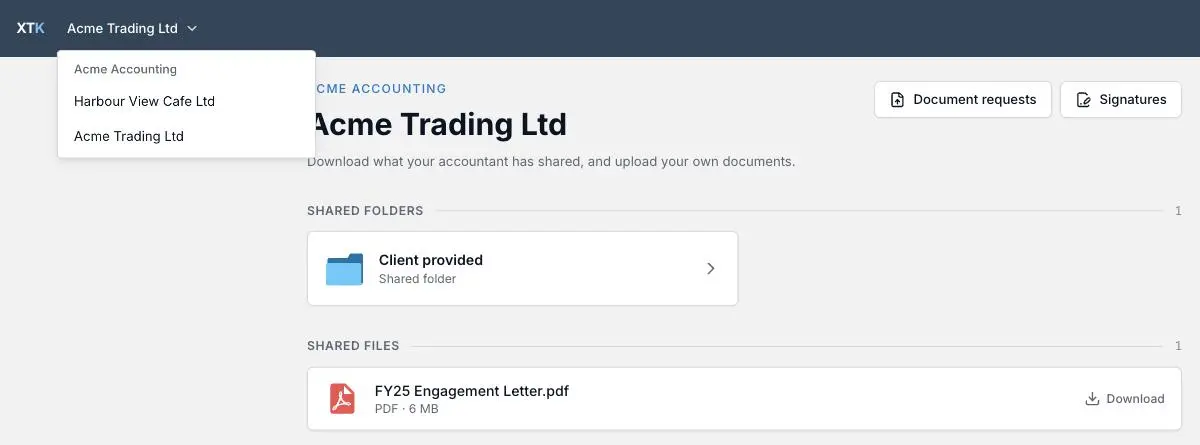
Once you are inside, the name in the top bar is also the switcher: click it to jump between businesses without going back to the hub. Everything below the bar — documents, signatures, requests, notifications — always belongs to the business named there.
If you see “No portals shared with you yet”, your account exists but nothing has been shared — that is a nudge to your accountant, not something you can fix from here.
How do I find the documents my accountant shared?
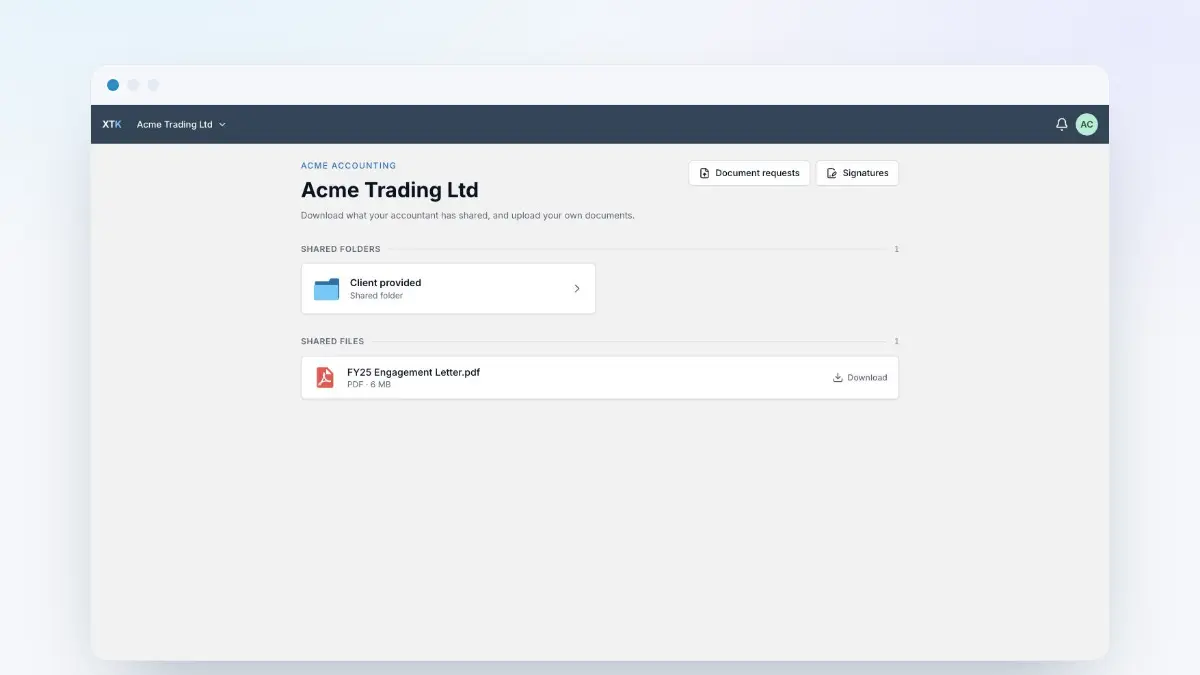
The main page of each portal has two sections. “Shared folders” holds the folders you can browse and add to. “Shared files” holds individual documents your accountant has sent you to read — each is a download, not a folder, so there is nothing to open into. The number on the right of each heading is how many there are.
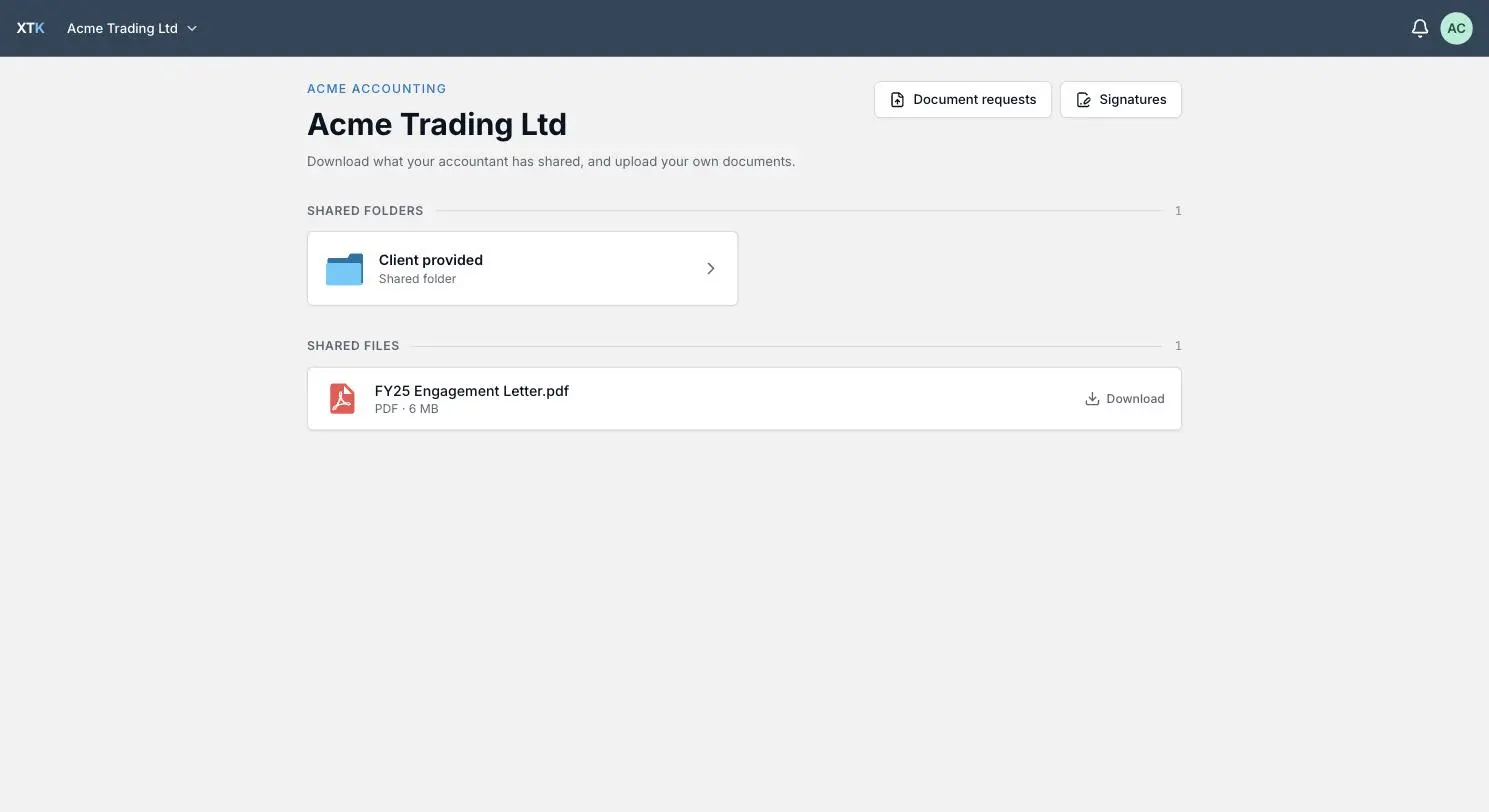
Clicking a folder opens its contents, with a trail at the top starting from “Shared folders”. That trail is as far up as you can go: the folder your accountant keeps your records in, their other clients, and anything they have not shared are not just hidden from the list — they are unreachable. Nothing you do here can stray outside what was shared with you.
If a portal shows “Nothing shared yet”, or you can see files but there is no folder to put anything in, the page will tell you to ask your accountant to share a folder. Only they can do it.
How do I send documents to my accountant?
Inside a shared folder there is a card headed “Add to this folder” with everything you can do: name a folder and click “Create”, or drop files onto “Drag files here or browse”. It sits above the file list on purpose, so it is still there when the folder gets long.
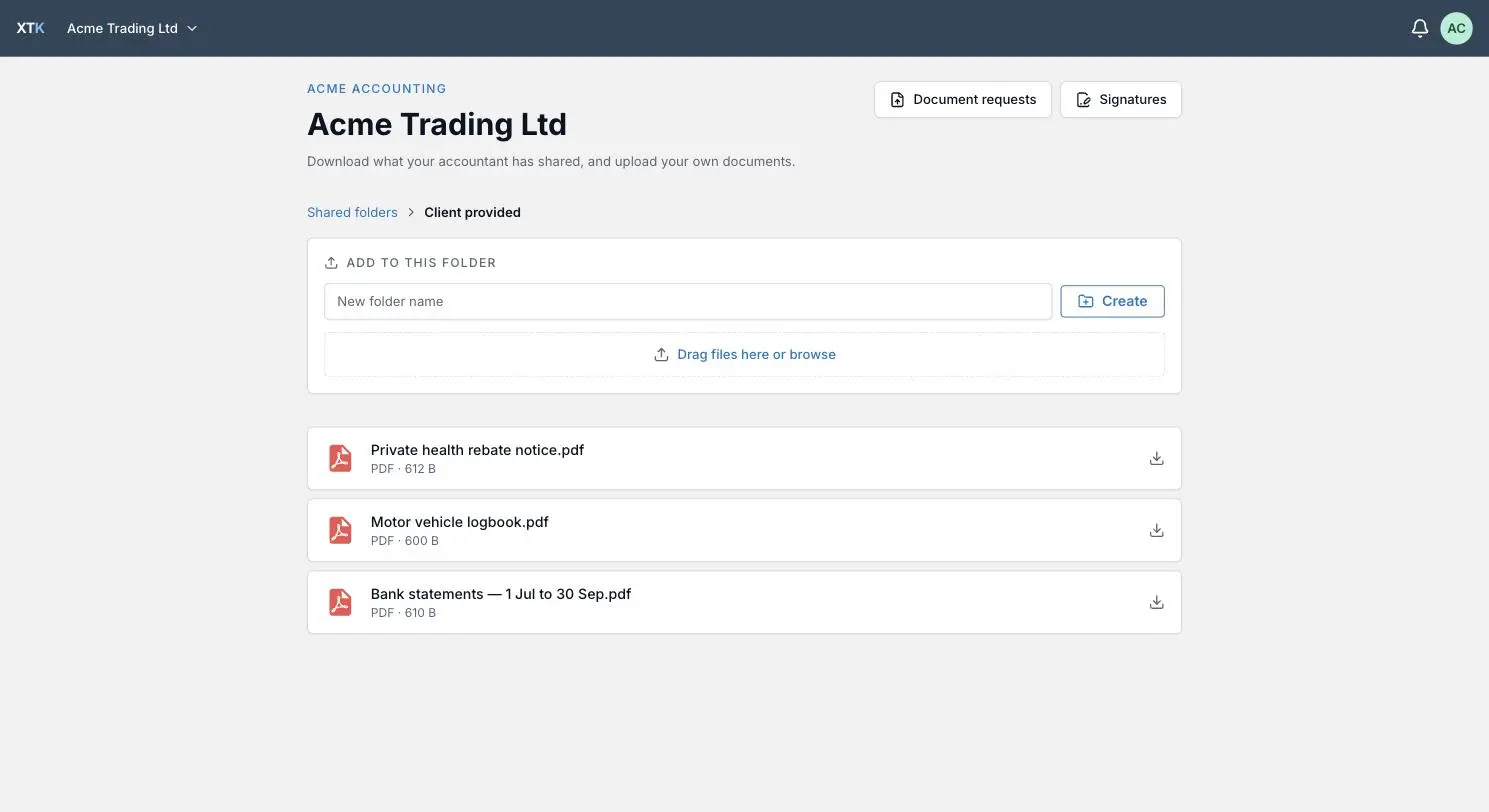
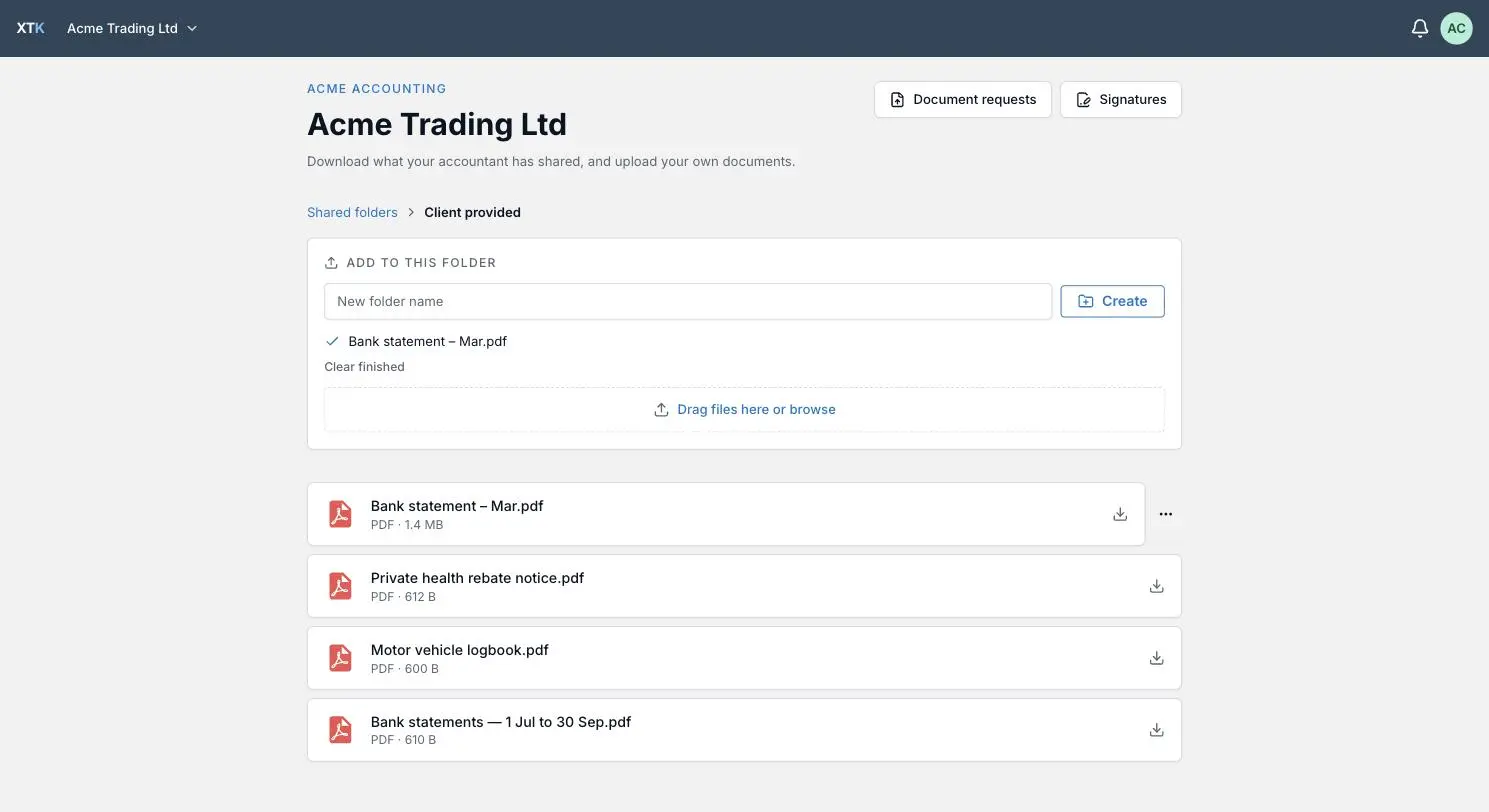
You can select several files at once; a few upload at a time and each gets its own line with a spinner, then a tick. A line only ticks when the file has genuinely arrived and appeared in the list below — so a tick is your receipt. “Clear finished” tidies the list away. Single files can be up to 100 MB, which is far more than a scanned bank statement needs.
Can I rename or delete something I uploaded?
For 10 minutes, yes. Anything you create — an upload or a folder you made — carries a “…” menu for 10 minutes with “Rename”, “Move to” (any other shared folder you can reach) and “Delete”. It is there to fix the ordinary mistakes: the wrong file, a typo in a folder name, something dropped in the wrong place.
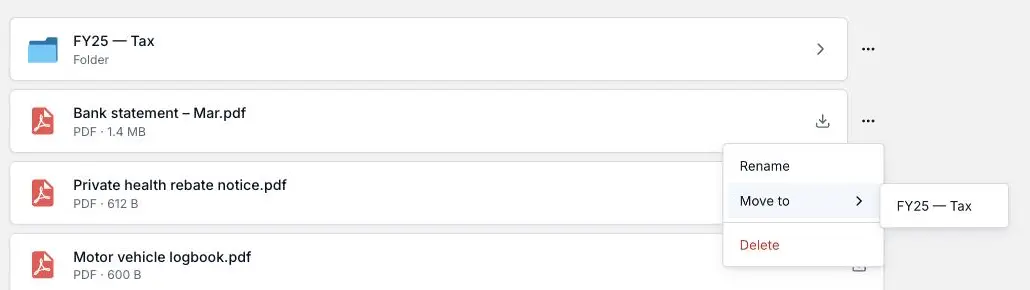
After 10 minutes the menu goes, and if you try anyway the portal says so plainly: “You can only change items you created, and only within 10 minutes of creating them.” The documents your accountant shared never carry the menu at all — you can read and download them, but not change or remove them. Deleting your own upload moves it to their storage bin rather than destroying it, so a genuine accident is still recoverable at their end.
How do I sign a document?
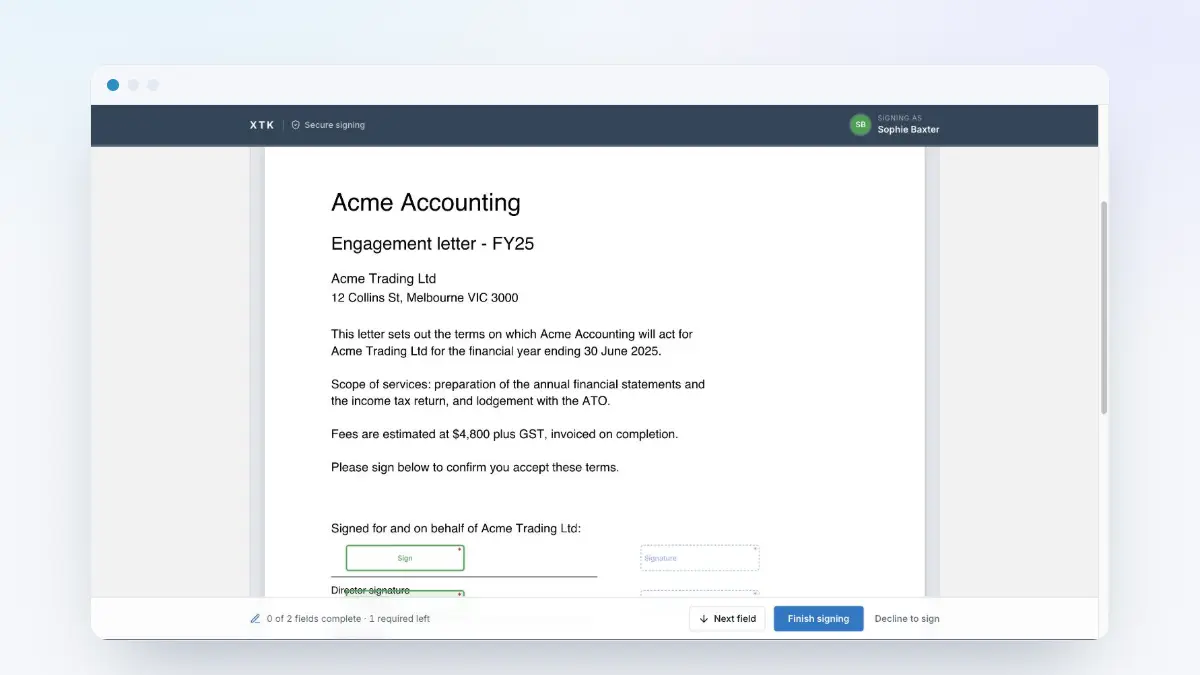
“Signatures”, at the top right of your documents page, lists everything your accountant has sent you to sign for this business, split into “Awaiting your signature” and “On file”. Anything still waiting on you has a “Review & sign” button that opens the signing page.
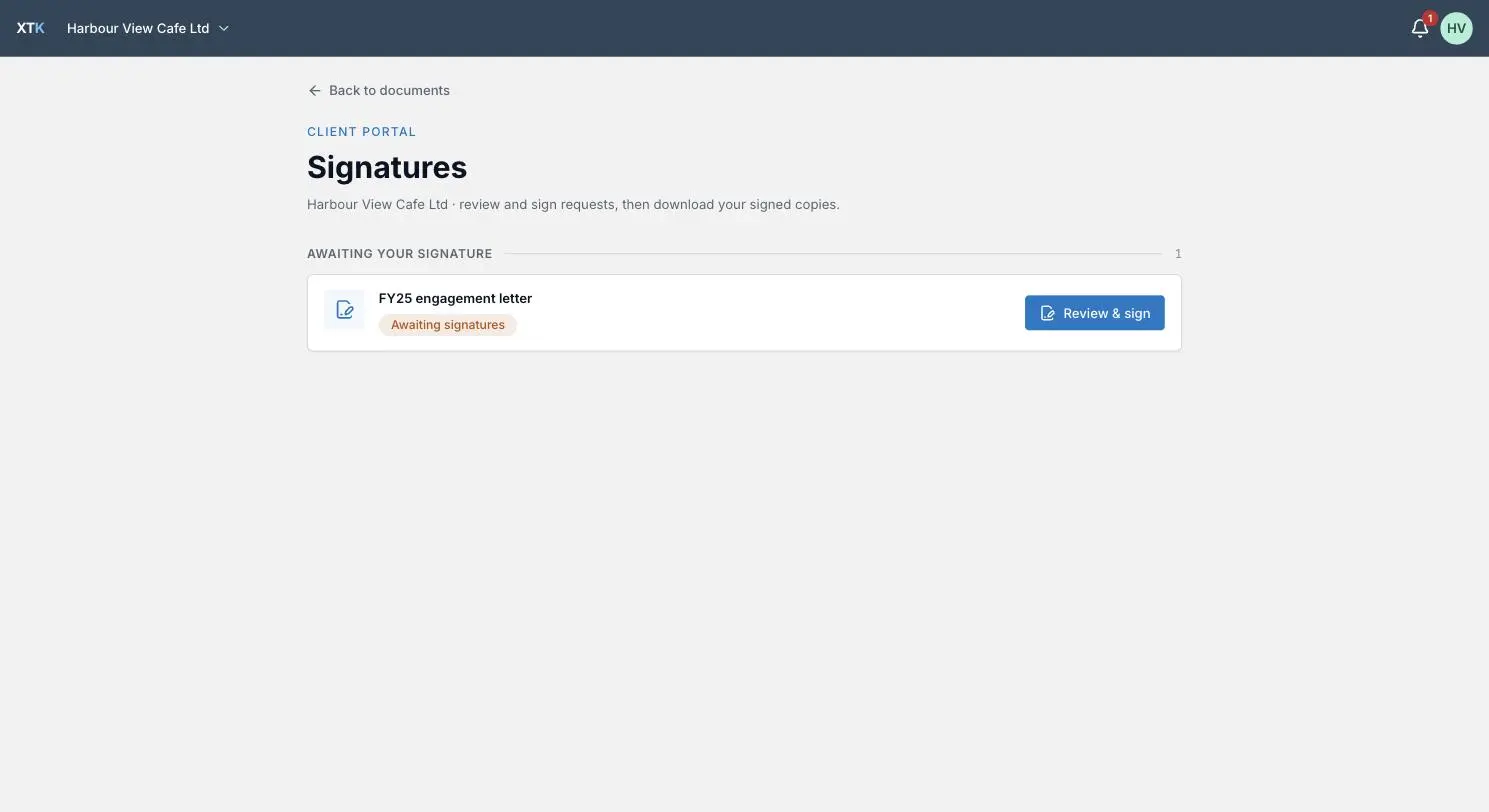
Signing itself happens on the same page you would reach from an emailed signing link, and the companion guide on what your client sees walks through it in detail. The portal simply means you do not have to find the email: everything addressed to you is in this list.
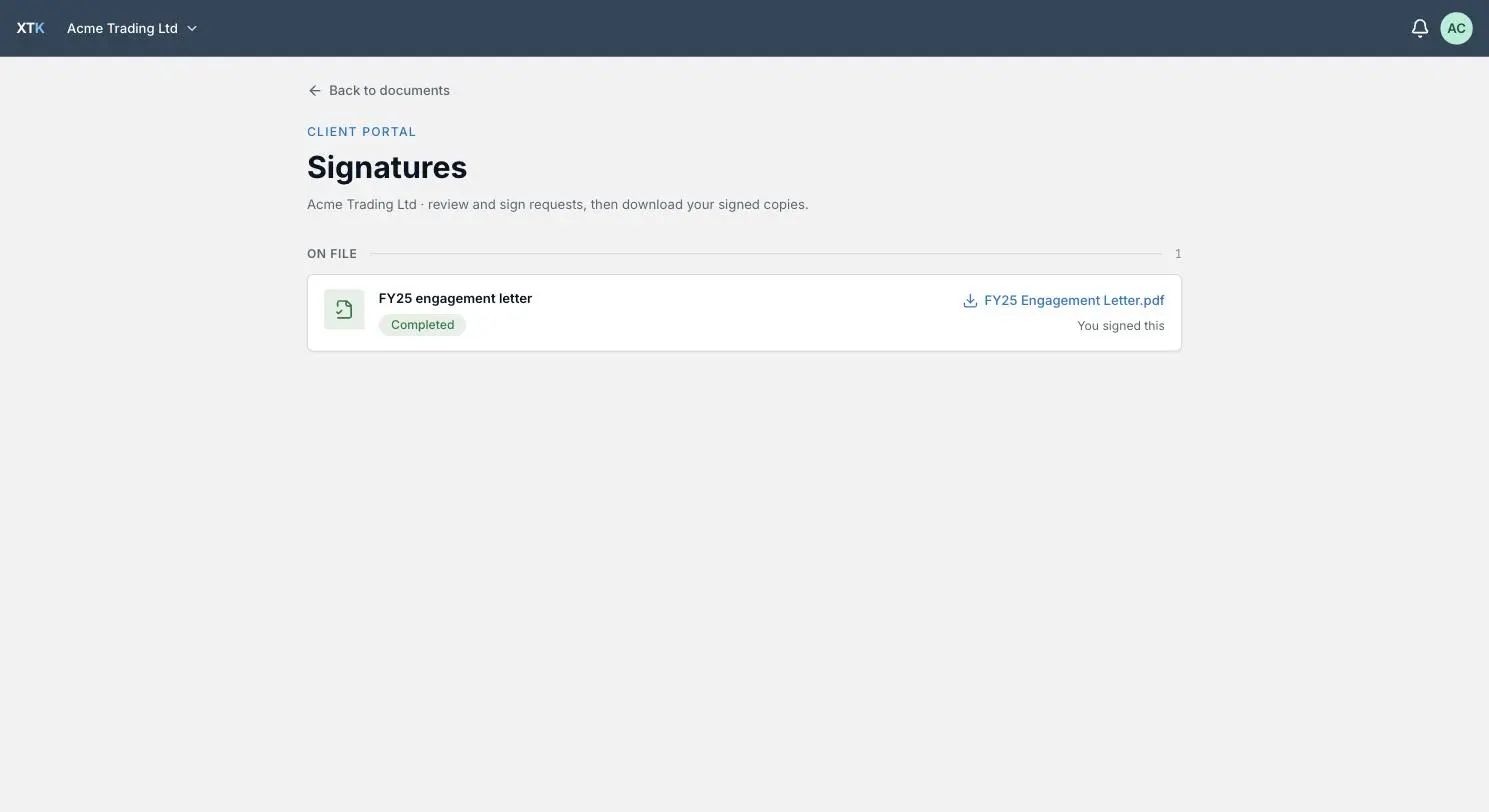
Once everybody has signed, the request moves to “On file”, marked “Completed” and “You signed this”, with the signed PDF — the original with every signature stamped in and a certificate as its last page — there to download whenever you need it. That is worth knowing at tax time: this list is a permanent record, not a to-do list that empties.
What are document requests?
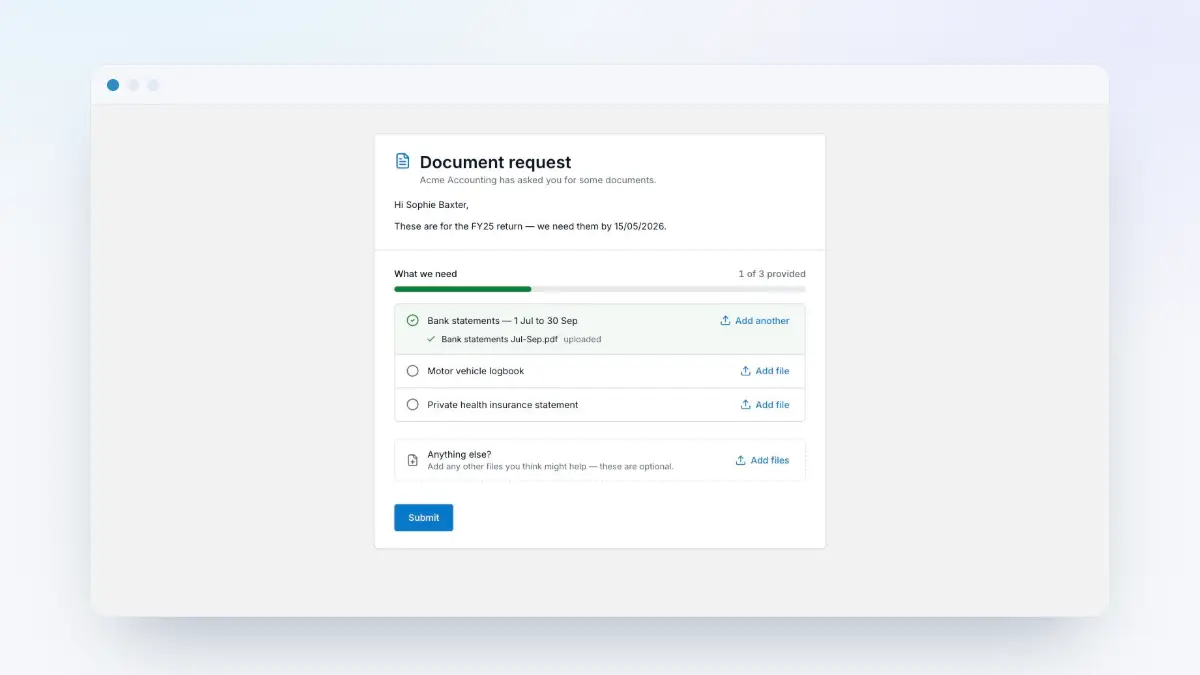
When your accountant needs a specific list of things — last year's bank statements, a logbook, a rebate notice — they send a document request instead of an email asking for “everything”. “Document requests” beside “Signatures” lists the ones addressed to you, each showing how far along it is: “Awaiting your upload”, “In progress”, “Submitted”, “Cancelled” or “Expired”, with a count such as “1 of 1 provided”.
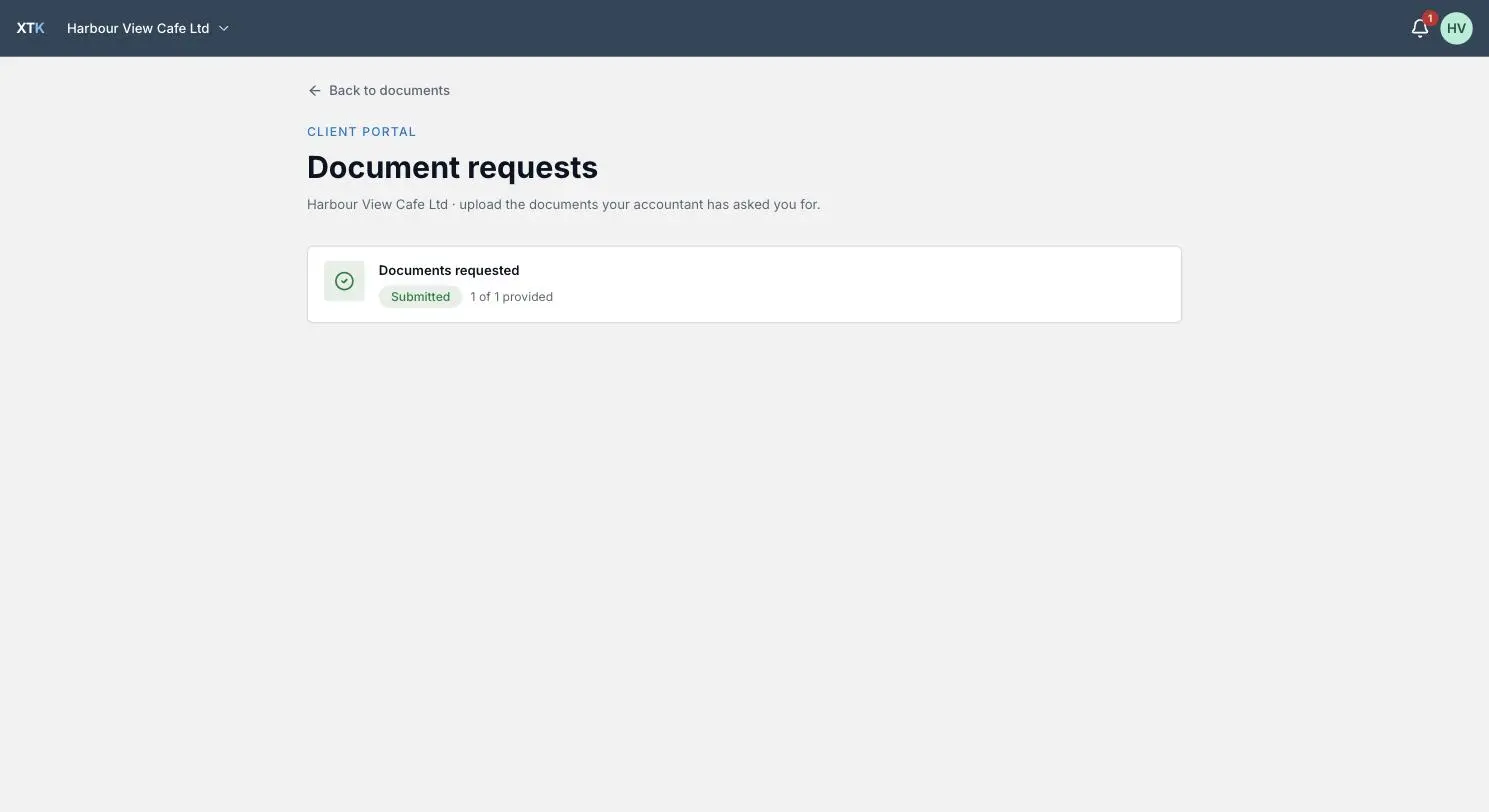
A request still needing you shows “Open →”; opening it gives you a checklist with an upload button against each item, so you can see what is still outstanding and finish in more than one sitting. Submitting tells your accountant you are done. Once it is submitted, cancelled or expired the row stops being a link and simply reports where it ended — a submitted one reads “This request is complete” if you open it.
How do I know when something arrives?
The bell in the top bar carries a count of anything new for the business you are currently in — a document to sign, or a new document request. Opening it lists them newest first under “Today”, “Yesterday” and “Earlier”; clicking one takes you to it, and “Mark all as read” clears the count. When there is nothing, it says “You're all caught up”.
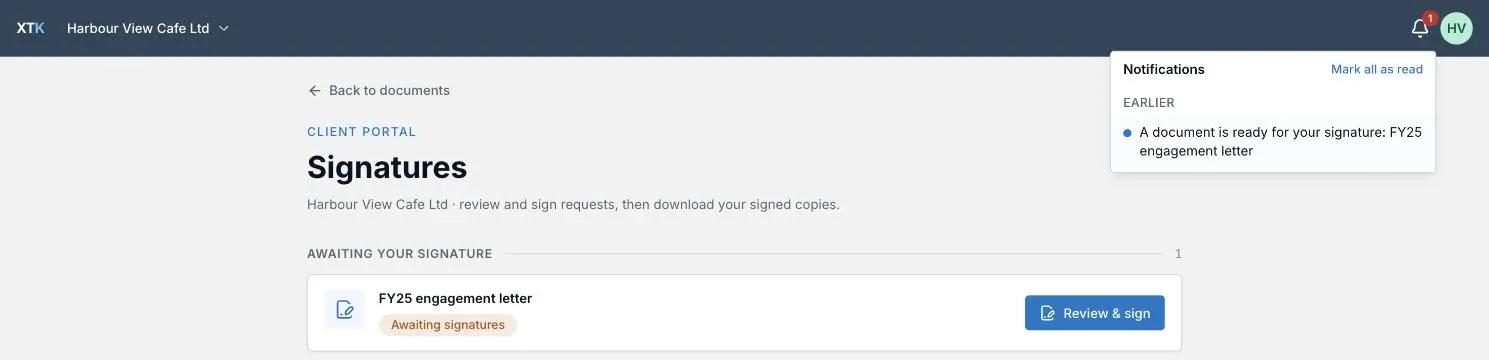
The count refreshes on its own about once a minute and whenever you come back to the tab, so you can leave the portal open. It only covers signing and document requests: files your accountant drops into a shared folder appear quietly, without a notification.
Settings, passwords and signing out
The circle at the top right of the bar holds your email address, “Settings” and “Sign out”. Settings has exactly two things: your account, and your password.
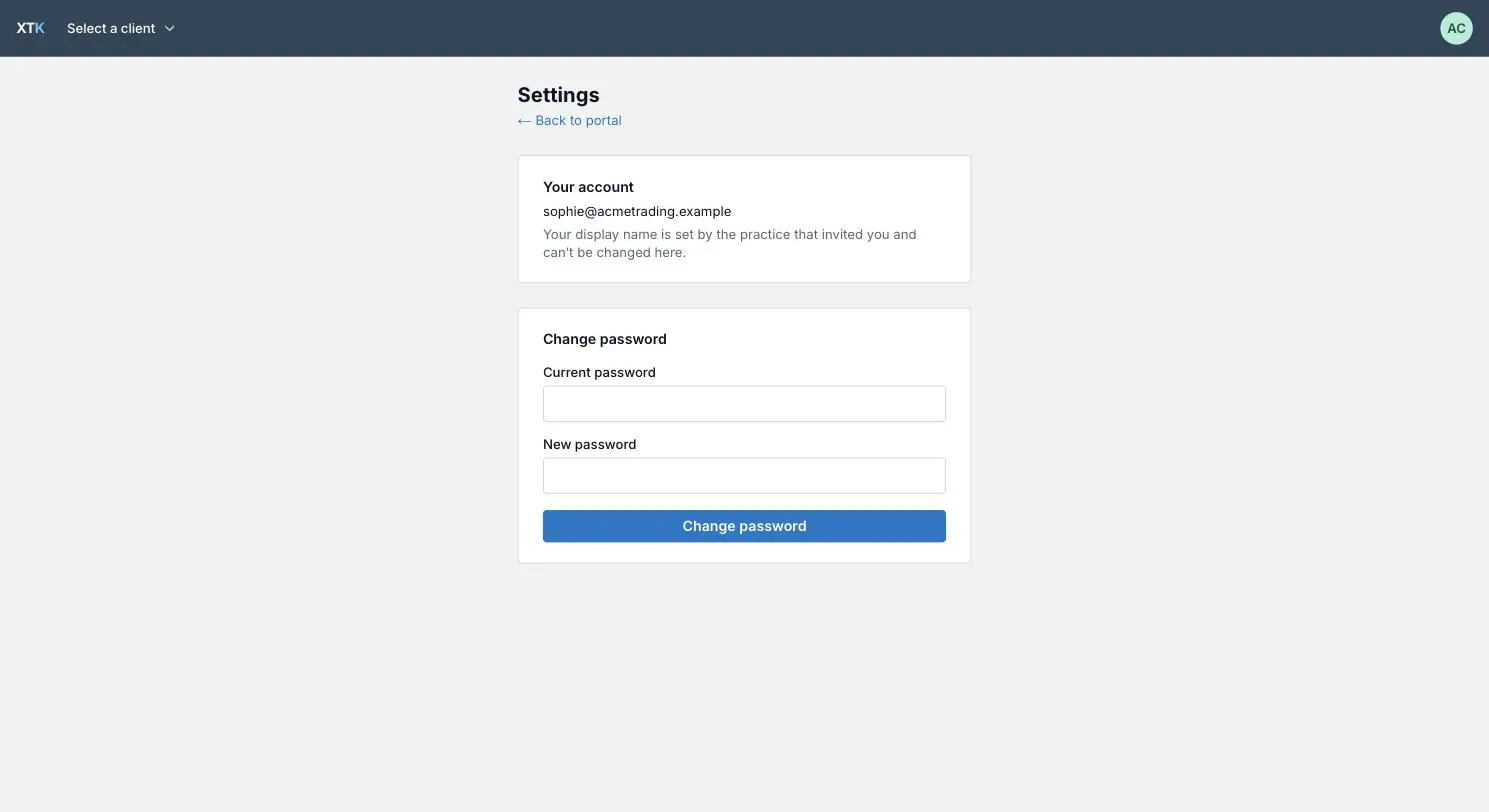
To change your password, type the current one and a new one of at least 8 characters. Doing so signs out every other device but keeps you signed in here — useful if you have ever signed in on a machine you would rather not be signed in on.
If you cannot get in at all, use “Forgot your password?” on the sign-in page. Enter your email and XTK sends a link that lasts one hour and can be used once; whether or not the address has an account, the page says the same thing, so nobody can use it to discover who has a portal. Setting a new password signs out every existing session. Your accountant cannot look up or set your password — if you would rather start over, ask them for a fresh invitation instead.
Where next
If you have a document waiting, the guide on how clients sign documents online covers the signing page screen by screen. If you have been sent a document request, the guide on requesting documents shows the same checklist from your accountant's side. And if you are the accountant reading this to decide what to send out, the guide on setting up the client portal covers enabling it, inviting contacts and choosing what to share.
Frequently asked questions
Do I need to create an account or install anything?
You need a password, and nothing else. The invite link from your accountant is where you choose it — there is no sign-up form to find, no software to install, and no app to download. If you have been invited by more than one practice, or for more than one business, the same email and password covers all of them.
Can my accountant see everything in my portal, and can I see everything in theirs?
No, in both directions. You only ever see the folders and files your accountant has deliberately shared with you: the folder that contains them, their other clients, and anything they have not shared stay invisible, and you cannot browse upwards out of a shared folder. Anything you upload goes into the shared folder, where they can see it.
I uploaded the wrong file. Can I delete it?
Yes, within 10 minutes of uploading it. Your own uploads carry a “…” menu with “Rename”, “Move to” and “Delete” for those 10 minutes; after that they are fixed, like everything else in the folder, and you should ask your accountant. The 10 minutes runs from when the file was created and is not extended by renaming it.
What happens if I forget my password?
Use “Forgot your password?” on the sign-in page. XTK emails a link that lasts one hour and works once, and setting a new password signs you out everywhere else. Your accountant cannot see or set your password — they can only re-send the original invite, which is a different thing.
Why is my name wrong, and how do I change it?
The name on your portal is the one your accountant typed when they invited you, and Settings deliberately does not let you edit it — it is their record of who you are, not your profile. Ask them to change it. Your email address and password are yours to manage.