Updated 8 min read
How clients sign documents online with XTK e-signatures
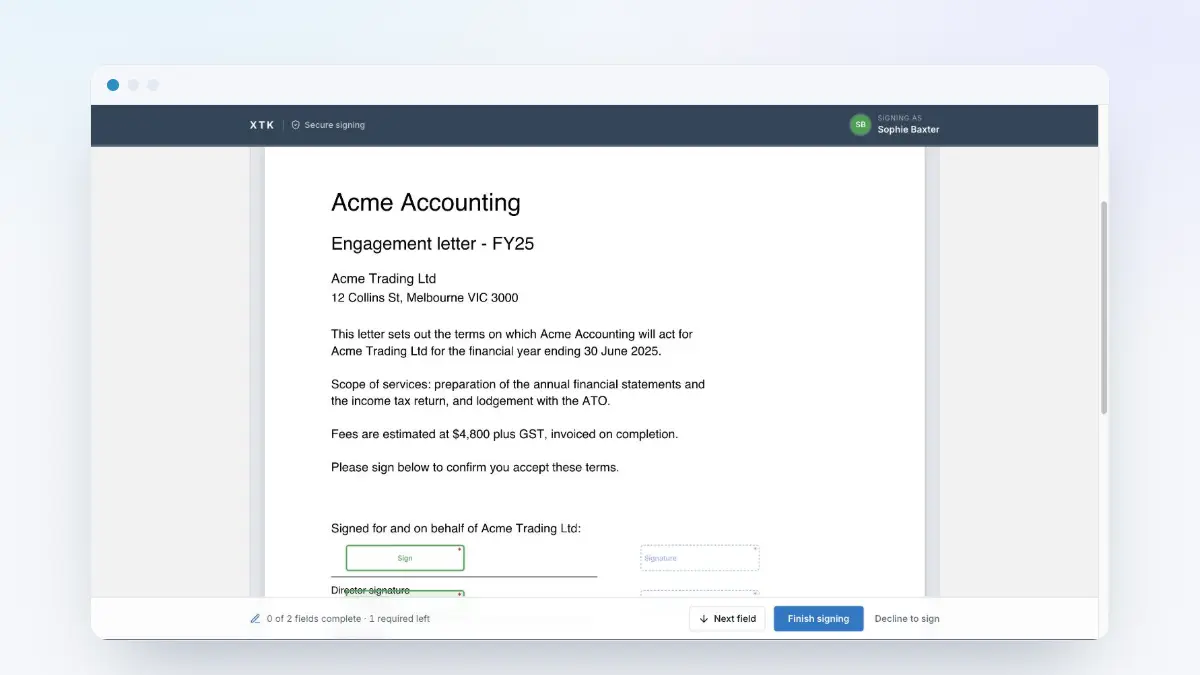
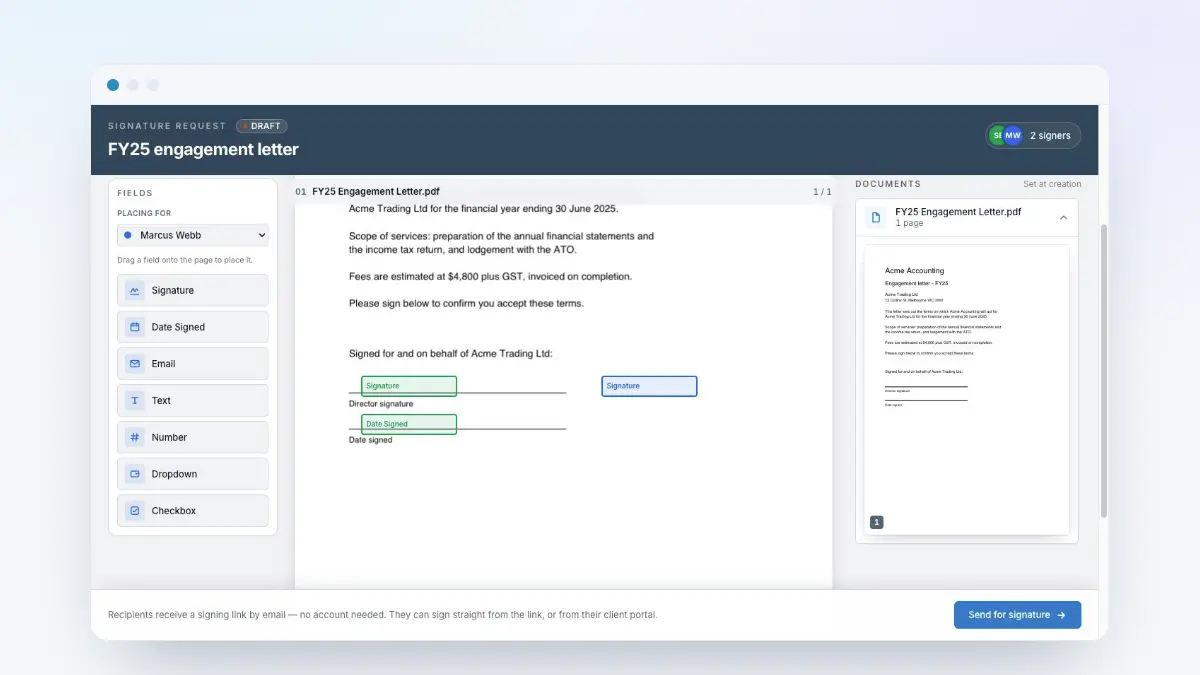
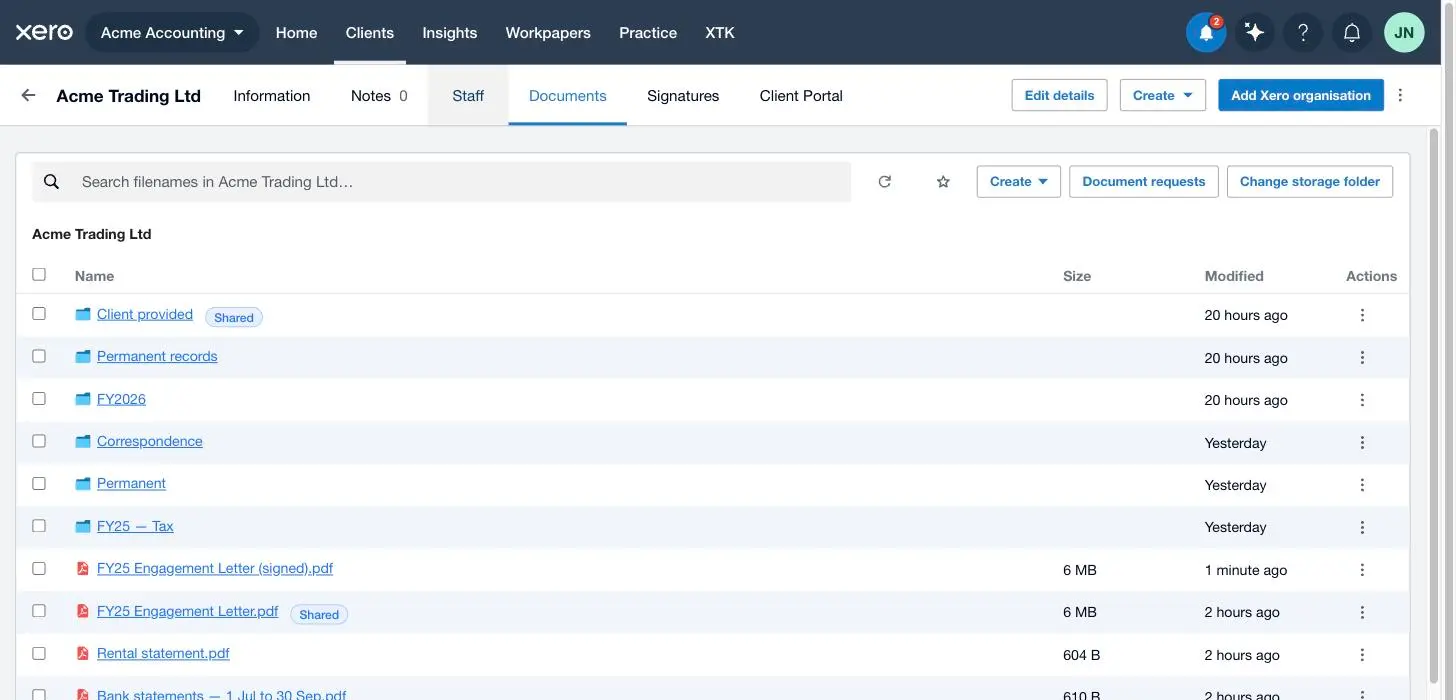
When you send a document for e-signature from XTK, your client gets an email with a link. They open it in whatever browser they already have, fill in the fields you placed, add a signature — reused, typed or drawn — and click “Finish signing”. There is no account to create, no password and nothing to install. When the last signer finishes, each document comes back as a flattened “… (signed).pdf” with a Certificate of Completion appended as its final page, filed beside the original in the client's folder and emailed to everyone who signed.
This guide walks that journey screen by screen, so you know what you are asking someone to do — and it is written to be shareable with a client who wants to see the process first. XTK is an independent product and is not affiliated with or endorsed by Xero Limited.
What your client gets in their inbox
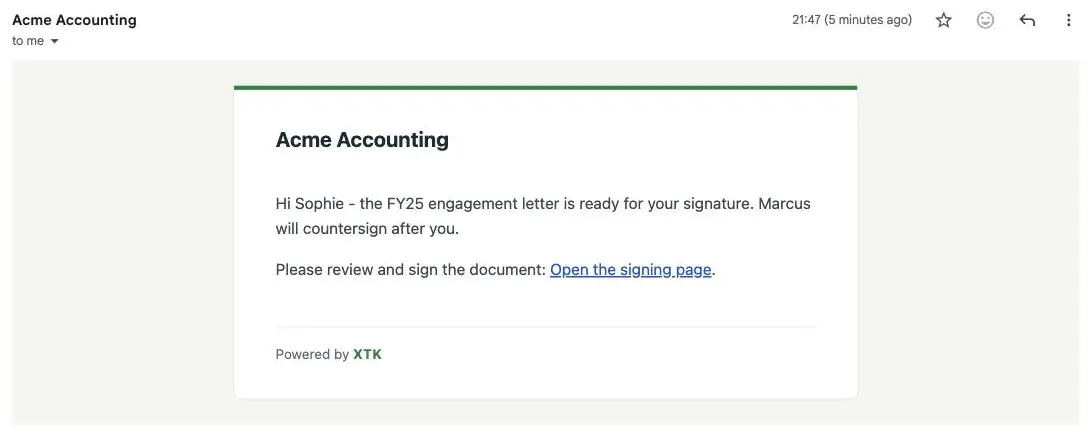
One email per signer, sent the moment you press send. The subject is the one from the send panel, which defaults to your request title — so a request titled “FY25 engagement letter” arrives with that in the subject unless you changed it. It leaves from your practice mailbox if you connected one and from XTK's address if not, but always wears your practice's name at the top rather than XTK's.
The body is short on purpose: anything you typed in the optional message box, then one line — “Please review and sign the document” — with “Open the signing page” as a clickable link, and a “Powered by XTK” footer. Every signer gets their own link.
What the signing page looks like
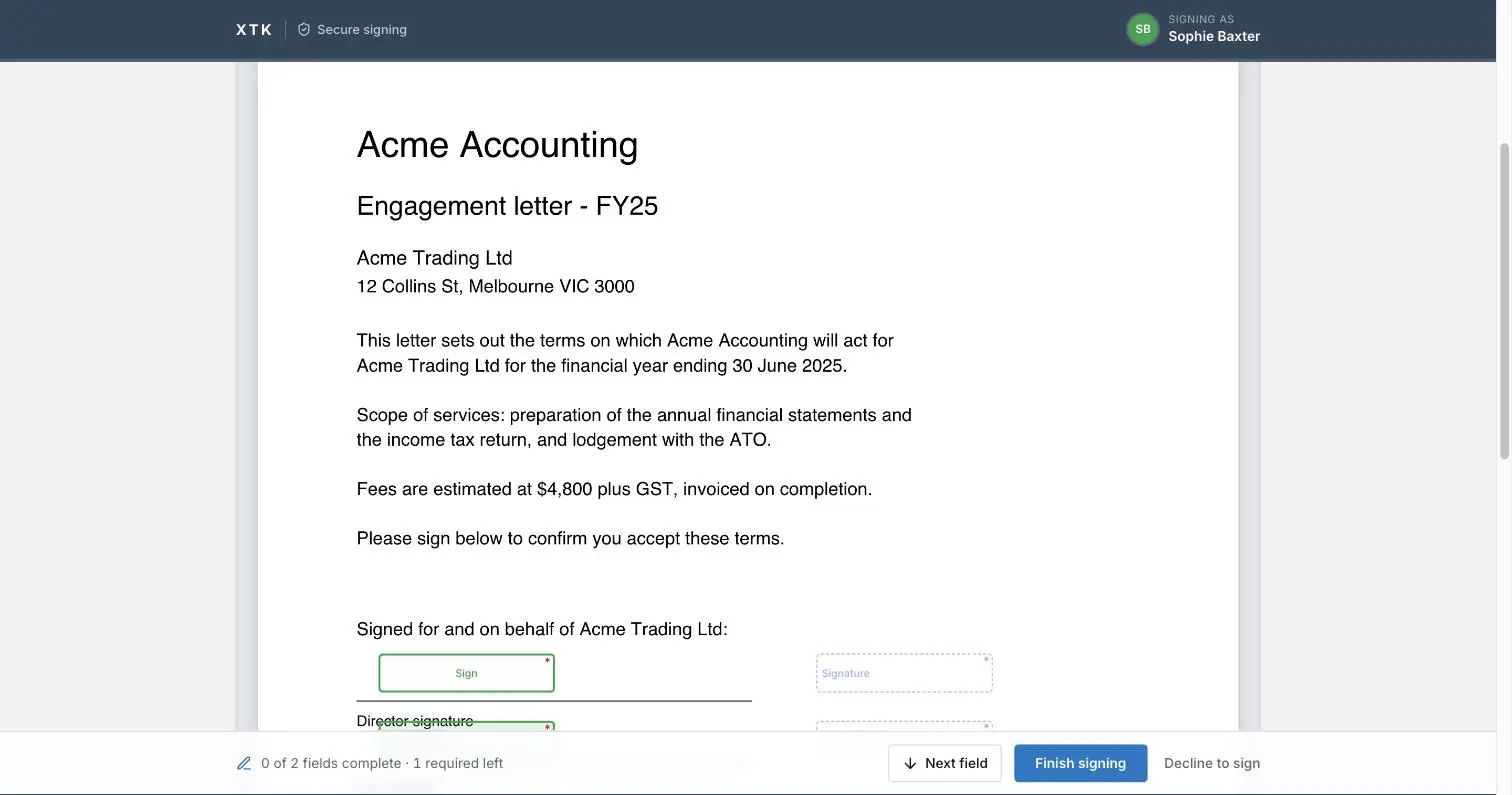
There is no sign-in step: the single-use token in the link is the authorisation, which is why it opens on a phone in a car park with nothing to remember. A navy bar runs across the top — “XTK · Secure signing” on the left, “Signing as” plus their name on the right, and a hairline beneath that fills in as they complete fields. Below it a card carries the eyebrow “Signature request”, your subject as the heading, your message underneath, and — when anything is compulsory — “Fields marked with an asterisk are required. You can leave the rest blank.”
Then the documents, numbered and named, stacked as one scroll with a page counter such as “1 / 2” on each page. This signer's fields are solid in their colour and live; everyone else's are dimmed, dashed and labelled with their type, so a countersigning partner sees where the client signed without being able to touch it. Any tooltip you wrote appears on hover.
How does your client actually sign?
Open the link
They click “Open the signing page” and land on the document, with no login wall in between. XTK records that the request was viewed, which shows in its history.
Walk to the first field
“Next field” in the sticky bottom bar jumps to the first thing still empty, in reading order down the pages, and rings it — so nobody hunts for a signature box on page 7.
Fill in the ordinary fields
Text, Number, Email, Dropdown and Checkbox fields behave the way they look. Two fill themselves and cannot be edited: “Date Signed”, set from the moment they submit, and “Name”, the name you addressed the request to.
Click a signature box
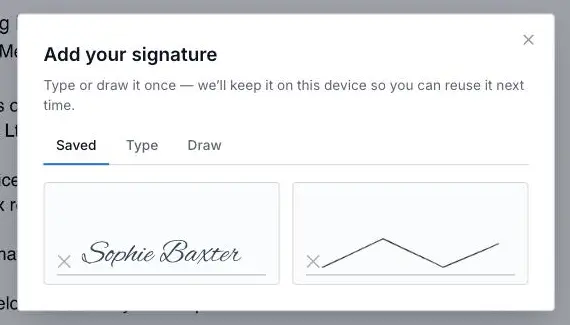
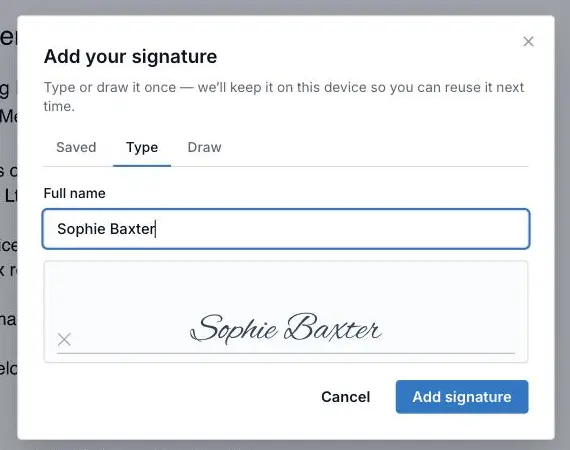
An empty signature field reads “Sign”. Clicking it opens the “Add your signature” dialog, with up to three tabs — “Saved”, “Type” and “Draw”. Saved appears only once they have signed something on that device before.
Reuse a signature they already have
The “Saved” tab shows the signatures kept on that device, each on a ruled signing line; one click applies one. None of it reaches XTK's servers — the gallery lives in that browser, so it is empty the first time and populated the second.
Or type a name
The “Type” tab is pre-filled with the name the request was addressed to and previews it in a handwriting face as they edit. On a phone this is by far the easiest option.
Or draw one
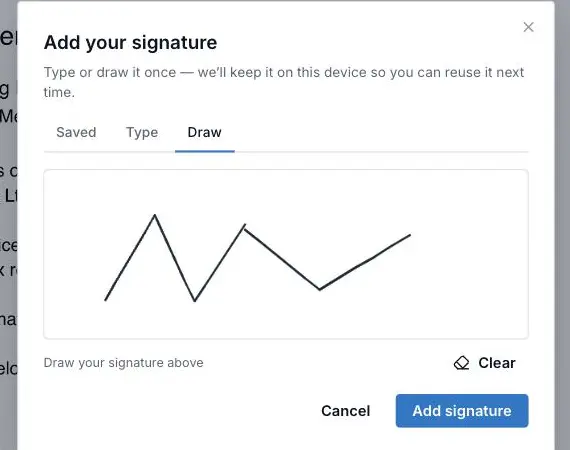
The “Draw” tab gives them a pad to sign with a mouse, a trackpad or a finger, and “Clear” to start again. The stroke is trimmed to its ink, so it fills the field box on the finished PDF instead of floating in white space.
Click “Finish signing”
“Add signature” drops it into the box and remembers it on that device. The bottom bar keeps a running count — “2 of 3 fields complete · 1 required left”. A blank required field or a malformed email address stops the submission, rings the offender in red and says what is wrong; nothing is recorded until it all passes.
Done
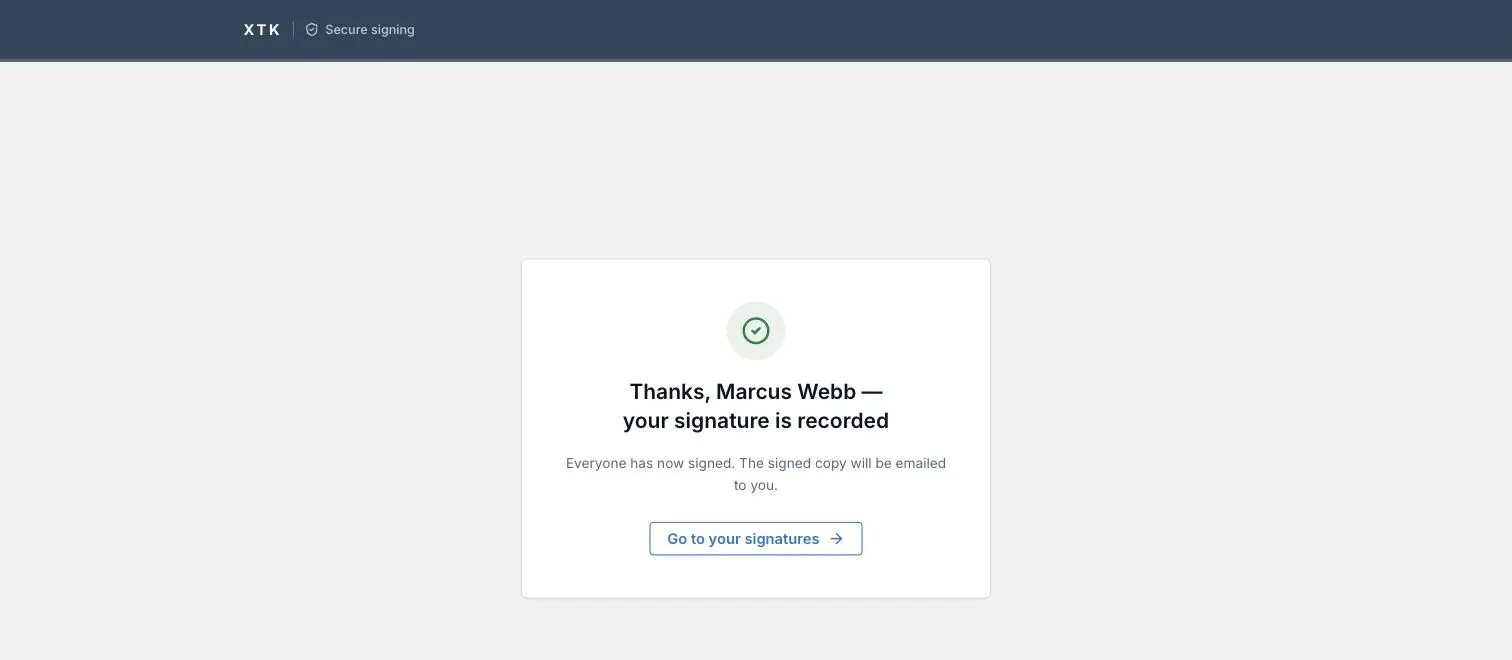
The page becomes a confirmation that thanks them by name — “… your signature is recorded”. If they were the last signer it adds that everyone has signed and the signed copy will be emailed to them. There is no file for them to send back.
What if your client does not want to sign?
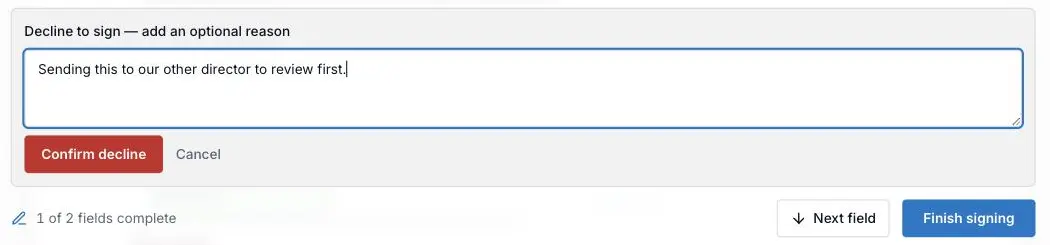
“Decline to sign” sits in the bottom bar, understated and deliberately two steps. It opens a panel headed “Decline to sign — add an optional reason”, with a box for the reason and a “Confirm decline” button; they can cancel out of it without anything happening.
Confirming is final, and it halts the whole request rather than just that person's part: every outstanding link stops working, nobody further is emailed, and the signer sees “You declined to sign”.
On your side the row flips to Declined, the Status dialog shows that signer with a red “Declined” pill and a “Declined” entry in the history, and your XTK bell reads, for example, “Sophie Baxter declined to sign — Acme Trading Ltd”.
Who gets a link, and when
Everyone on the first signing step is emailed the instant you send and can sign in any order. A signer on a later step gets nothing then: their invitation goes out the moment every signer on the step before has finished. Signatures drive it, not a timer — so if one person never signs, the next step never opens, and the fix is “Resend link” rather than waiting.
Links are single-use and last 30 days, so a client who signs and clicks the same link again gets a message rather than a second chance to edit. These are all the messages a link can show instead of the document.
| What your client sees | Why | What to do |
|---|---|---|
| This signing link isn't valid | Mistyped, broken by their mail client, or replaced by a newer link | Resend the link |
| This signing link has expired | More than 30 days since it was issued | Resend the link |
| This document has already been signed | They signed already, or opened an older email | Nothing — their signature is recorded |
| This request has been voided | You cancelled it | Start a new request |
| This request was declined | Someone declined to sign | Read the decline email, then start again |
| This request is complete | Everyone finished; the signed copy was emailed out | Point them at that email |
What lands back in the client's folder
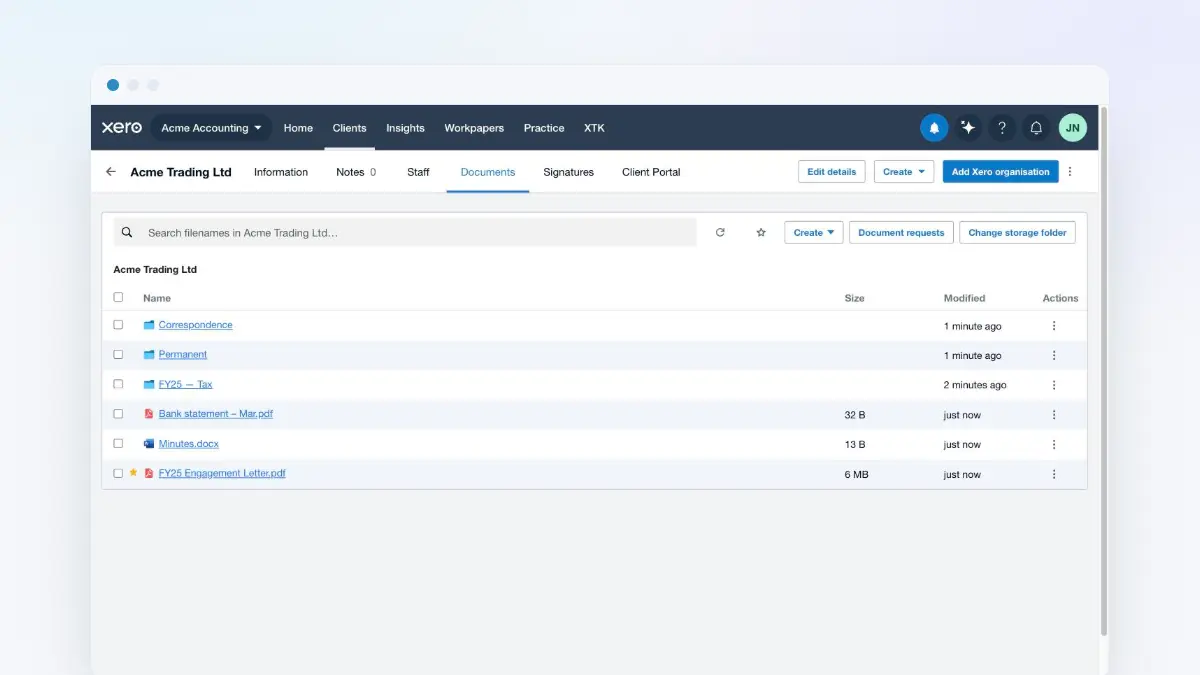
The last signature triggers everything at once. For each document XTK stamps the captured values into a copy of the original, appends the Certificate of Completion as a new final page, names it after the original with “ (signed)” added, and saves it beside it in the client's folder. One file per document — not a signed PDF plus a separate certificate. The original is never altered, and the same PDFs are emailed to every signer.
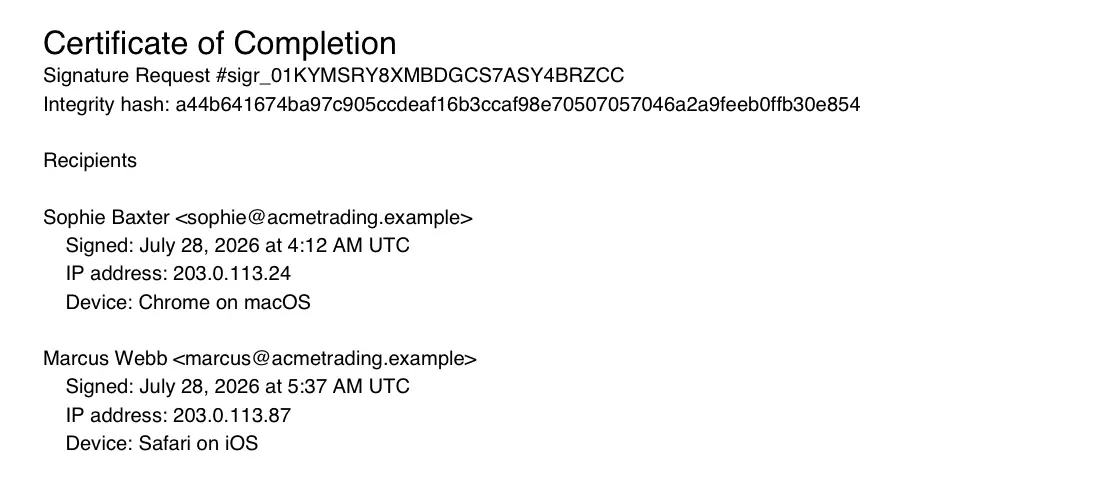
That page is a plain, printable record: the heading “Certificate of Completion”, the request's id, an integrity hash, then a block per signer.
- Their name and email address, as the request was addressed.
- “Signed:” the date and time in UTC, written out in full — the stored instant, not the reader's clock.
- “IP address:” where they signed from, or “unknown”.
- “Device:” a plain summary such as “Chrome on macOS”, read from their browser as they signed.
What you see while it runs
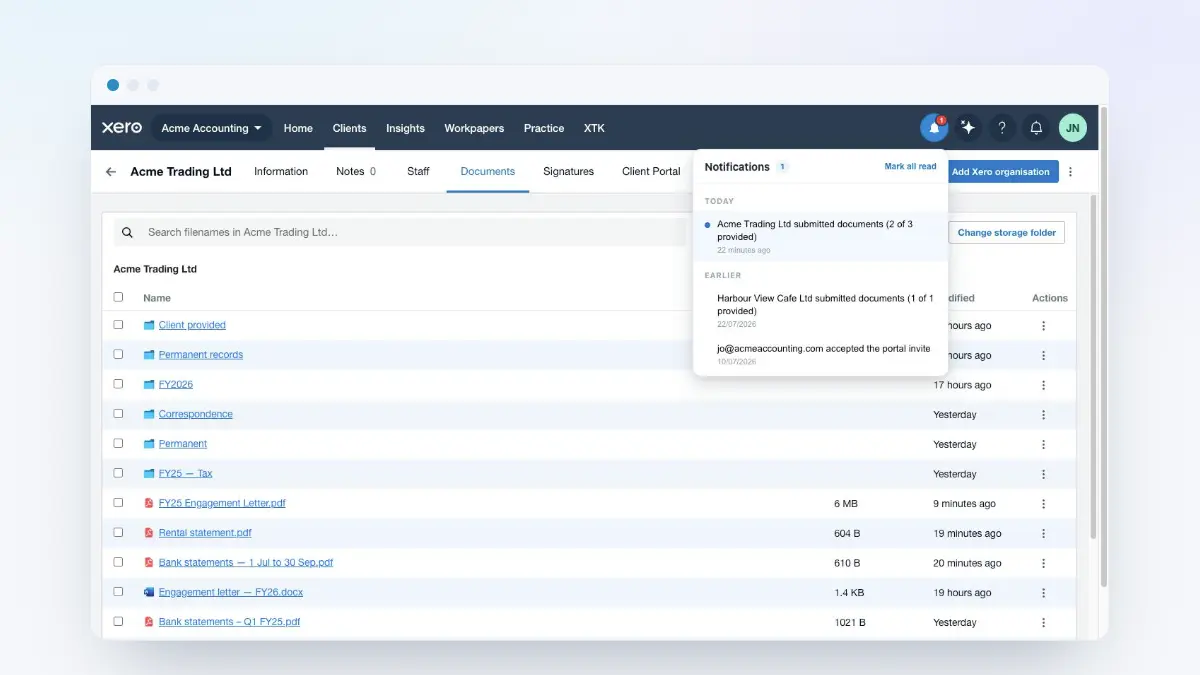
You do not have to watch the Signatures tab. XTK's bell in Practice Manager tells you as things happen: “Sophie Baxter signed — Acme Trading Ltd” as each person finishes, “FY25 engagement letter for Acme Trading Ltd is fully signed” at the end, and matching lines for a decline or a void. Clicking one opens that request's Status dialog.
One useful switch is off until you turn it on: “A recipient opens a request”, in My Account, which tells you when a client views the document without signing it. Turn it on when a request has gone quiet and you want to know whether the email was opened at all.
None of this costs your client anything, and nothing is billed per signature or per envelope: e-signatures come with the practice subscription. So the small things are worth sending too — a one-line authority, a change of details.
Where next
The companion guide on sending documents for e-signature covers your side of the same flow: documents, signers, order, fields, sending, tracking and voiding. The notifications guide explains the bell, and the client documents guide covers the folder the signed PDF lands in.
Frequently asked questions
Do my clients need an account or any software to sign?
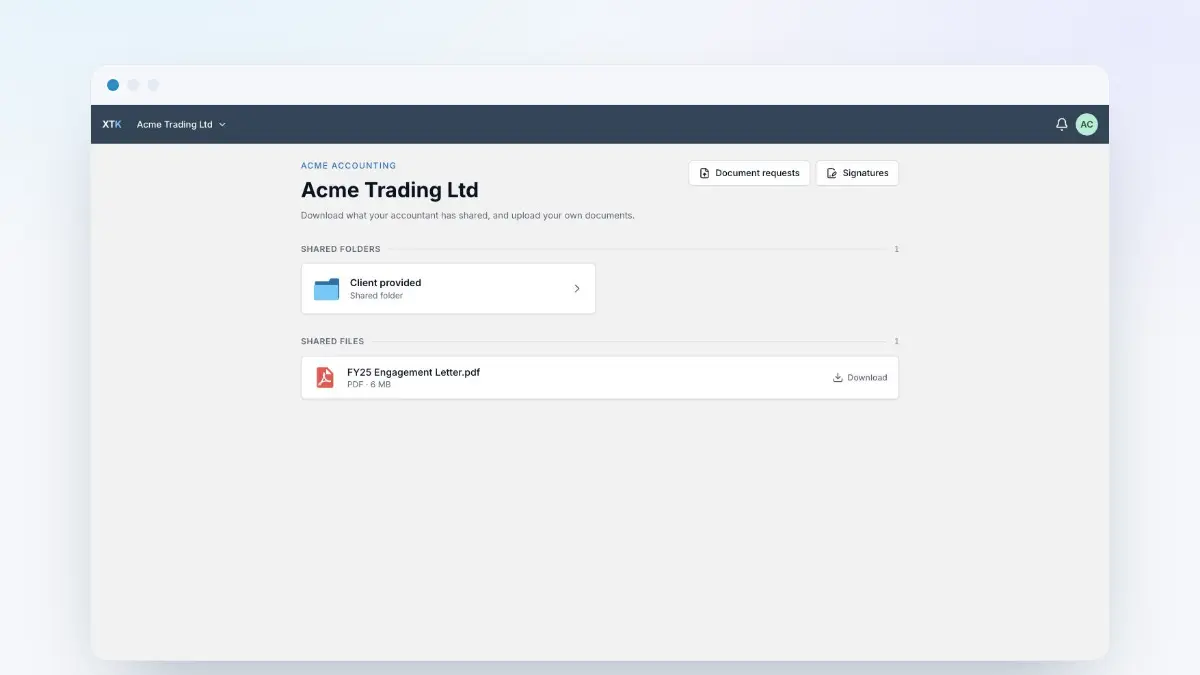
No. The link in their email is the authorisation, so the signing page opens in whatever browser they already use — no password, no XTK account, nothing to install, no printing and scanning. If that address also belongs to an active contact on the client's Client Portal, the request appears in their portal Signatures list too.
Can my client sign on a phone?
Yes. The document scales to the width of the screen, “Next field” walks them through their fields in order, and the signature pad takes a fingertip as readily as a mouse. Typing a name is easier than drawing on a phone, and both look the same on the signed PDF.
How long is a signing link valid?
Thirty days from the moment it is issued, and it works once. Signing consumes it, so re-opening the same link afterwards shows “This document has already been signed”. If a client loses the email, use “Resend link” in the Status dialog: that issues a fresh link and retires the previous one, so only the newest email works.
Is the Certificate of Completion a separate file?
No — this is the common misunderstanding. Completion produces one file per document: the original flattened with every signed value stamped in, and the certificate appended as its final page. It is named after the original with “ (signed)” added, filed beside it, and emailed to every signer.
What happens if my client declines to sign?
The whole request stops: every outstanding link dies, the row flips to Declined, and you get a notification. XTK emails you — and anyone who already signed — with the subject “Declined: ” plus your subject line, carrying the reason they typed, if any. Declining is final; to try again, create a new request.