10 min read
Keeping a record of what you sent a client: the message, the documents and the proof
By The XTK team · Product
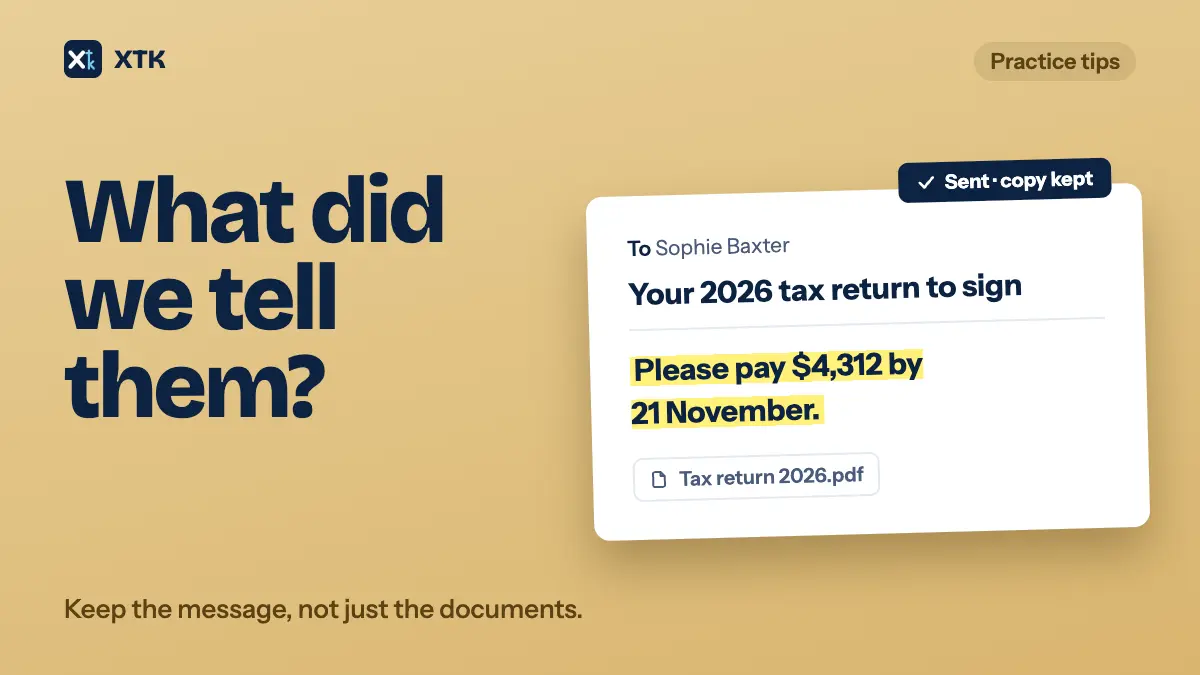
A record of something you sent a client has three parts: the message you wrote, the documents exactly as they went, and the facts of delivery (who it went to, when, and whether it was opened or signed). They usually end up in three different places, and the message is the part most often lost. Decide where each part lives before the next send. Then, when a client rings to ask what you told them, the answer is one search away.
This article covers why the message goes missing with Xero document packs and Xero Sign, what each part of the record is for, where to keep it, and what to do so the record doesn't leave with a member of staff.
Why can't we see what we sent with a document pack?
Because the email a document pack or Xero Sign request sends goes out from Xero, and practices report that no copy comes back to them. The Xero Product Ideas idea Xero Sign – Send copy to self has asked for one since April 2022. It had 80 votes when we read it on 7 October 2026, is marked Submitted, and its latest comment is from January 2026. A second idea, Document Packs – Send me a copy of the email, had 49 votes the same day and is also Submitted. A third, Document packs – Record of messages sent, had 11.
The reasons in the comments are practical. A client rings with a question and the person taking the call can't see what the client is looking at. A client disputes an instruction, such as a payment date, that was written in the message and nowhere else. A firm that edits the wording for each client has no trail of the edits. One commenter says their practice doesn't use document packs at all for this reason. Several call keeping a copy of client correspondence a professional requirement.
Xero's own help doesn't fill the gap. Its Xero Central article Request an e-signature for a return form says you can edit the message text before sending, and that when the return is signed the tax agent gets an email confirmation and a time-stamped note is added to the return's history. It doesn't mention keeping a copy of the message you sent.
The workaround commenters describe is to copy the email text and paste it into a note on the client in Xero Practice Manager before sending. It works when somebody remembers. The rest of this article is about not having to remember.
What makes up the record of a send?
Treat every send as three separate things, because each one answers a different question and each one is kept somewhere different.
| Part | Answers | Usually lives in |
|---|---|---|
| The message | What did we tell them? | A mailbox, if anywhere |
| The documents as sent | What exactly did they get? | The client's folder |
| Delivery facts | Who, when, opened, signed? | The sending tool's log |
Most practices have the second part covered, because the documents are filed anyway. The third part usually exists in the e-signing tool's history. The first part is the one that depends entirely on how the email was sent.
Where should the message be kept?
In a mailbox the whole practice can search, and in the client's folder when the message is one you might need to rely on.
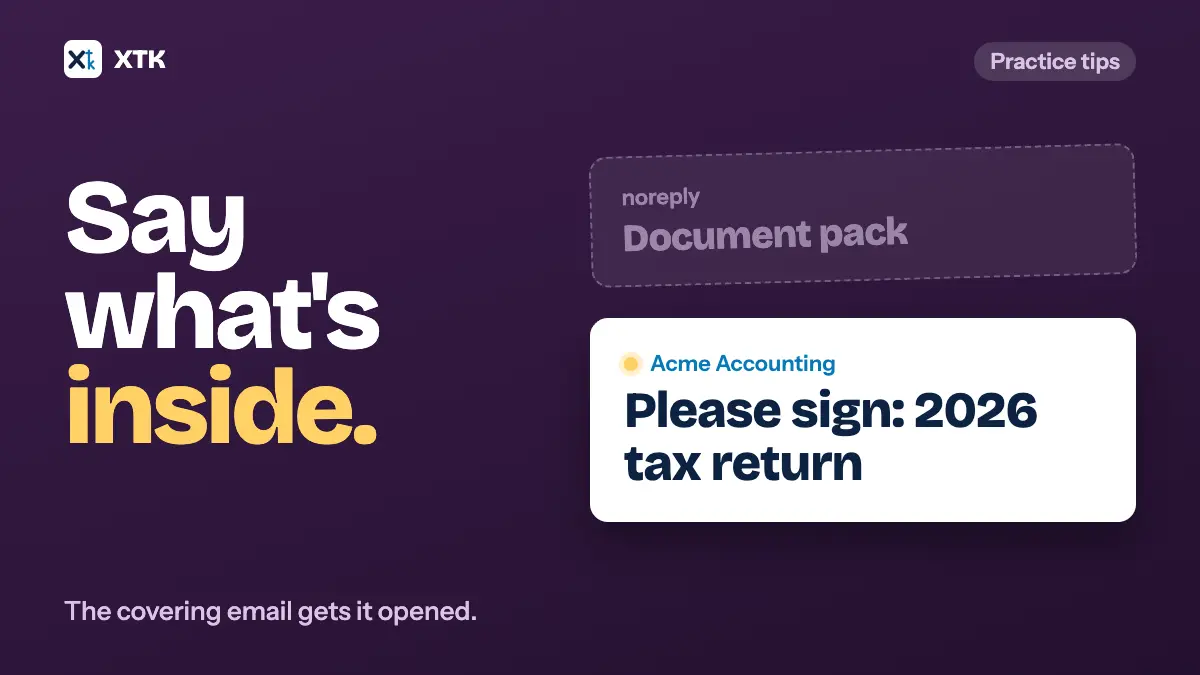
The simplest arrangement is for client email to go out from a shared practice mailbox, such as info@ or admin@, rather than from each person's own. Every message then lands in one Sent folder, which anyone with access can search by client name or email address. That only works if the sending tool really sends through your mailbox. A tool that sends from its own address leaves nothing in your Sent folder at all, which is exactly the document pack complaint.
Where you can't send from your own mailbox, the next best thing is a copy to an address the practice controls. Some tools offer a CC or BCC field. If yours doesn't, the copy has to be made by hand, and the note in Practice Manager is the usual place for it. If you do that, paste the whole message, not a summary, and add the date, the address it went to and the name of the person who sent it.
For the sends that carry an instruction, save the sent email into the client's folder as a PDF as well. Gmail and Outlook can both print a message to PDF. That puts the message next to the document it carried, so nobody has to go looking in a mailbox for it. It also makes the message part of the client file, so it goes wherever the file goes, including to the next accountant if the client leaves.
Which sends need a copy in the client's folder?
Not every email does. A Sent folder is enough for routine notices. Save a PDF to the client's folder when the message itself says something the client might act on or dispute.
- An amount or a date: “pay $4,312 by 21 November”, “sign by Friday so we can lodge”.
- A condition or an instruction: “we have lodged on the basis that the rental was available all year”.
- Anything you wrote differently for this client from your standard wording.
- An engagement letter or a change to terms, along with the version of the letter that went out.
- A request for records that sets a deadline you may later need to point to.
If the same instruction goes out in the same words every time, it is already recorded in your standard wording. The covering email article suggests keeping a small set of standard wordings in one shared place. That set doubles as the record of what clients were told, as long as you keep old versions when you change it.
The documents exactly as they went
The documents part is mostly a filing habit. The rule is that the file in the client's folder must be the one that was sent, not a later edit of it.
- Send from the copy in the client's folder, not from a download or a desktop copy.
- Once a document has gone out, don't edit that file. If it needs changing, save a new version with a new name and send that.
- Put the date and version in the file name. Our article on naming client files suggests a pattern.
- Keep the signed copy as well as the one you sent. They are two records: what you asked the client to sign, and what came back.
Sending a link instead of an attachment helps here too. When the email only points to the file, there is one copy to keep track of, not one in your folder and another in the client's inbox. Our article on sending documents without attachments covers the trade-offs.
Delivery facts: sent, opened, signed
E-signing tools keep a history for each request: when it was sent, when each signer opened it, when they signed, and whether it was cancelled. That history is the proof that a client received something, and it is usually more reliable than an email read receipt.
Two cautions. First, “opened” means the signing link was opened, not that the client read every page. Some email security filters open links on arrival to scan them, so an early open may be a machine. Second, the history lives in the tool. If you might need it after you stop using the tool, the certificate or audit page that comes with the signed PDF is the copy to keep, because it travels with the document.
When the person who sent it leaves
A Sent folder in one person's mailbox is a record only while that mailbox exists. When the person leaves and their account is deleted, their Sent folder goes with it, unless someone exports it or transfers it first. That is the strongest reason to send client email from a shared practice mailbox.
- Send client email from the practice mailbox by default, and let people send from their own only where there's a reason.
- Make exporting or transferring the mailbox part of every leaver's checklist, alongside their files.
- Copies saved into client folders don't depend on anyone's mailbox, which is another reason to save the ones that matter.
How does XTK keep a record of what you sent?
XTK is a browser extension that adds a Documents tab to each client in Practice Manager, where you send documents for signature, request records and invite clients to a portal. Every email it sends goes through a Gmail or Microsoft 365 mailbox you connect, and that mailbox keeps a copy in its Sent folder (Sent Items in Outlook).
- Your practice Admin can connect one shared “Practice account”, which becomes the sender for the whole team. Anyone can also connect their own mailbox and choose to send from it instead. XTK's access is send-only. It can't read your mailbox.
- Signature invites, resent links, invites to later signers, and cancellation and decline notices all go through that mailbox, so each one lands in its Sent folder with your message in it.
- When the last signer finishes, the completion email goes to every signer with the signed PDF and its Certificate of Completion attached, and opens with the same message you wrote when you sent the request. So the Sent folder holds the message and the signed copy together. The signed PDF is also filed beside the original in the client's folder, and the original isn't changed.
- Document requests and portal invites have a CC field, so you can copy in a colleague or a filing address as well.
- Each signature request has a History list: Created, Sent, Link resent, Viewed, Signed, Declined, Completed and Voided, each with its date and time, and the signer's email address where a signer did it. Viewed is recorded the first time each signer opens their link.
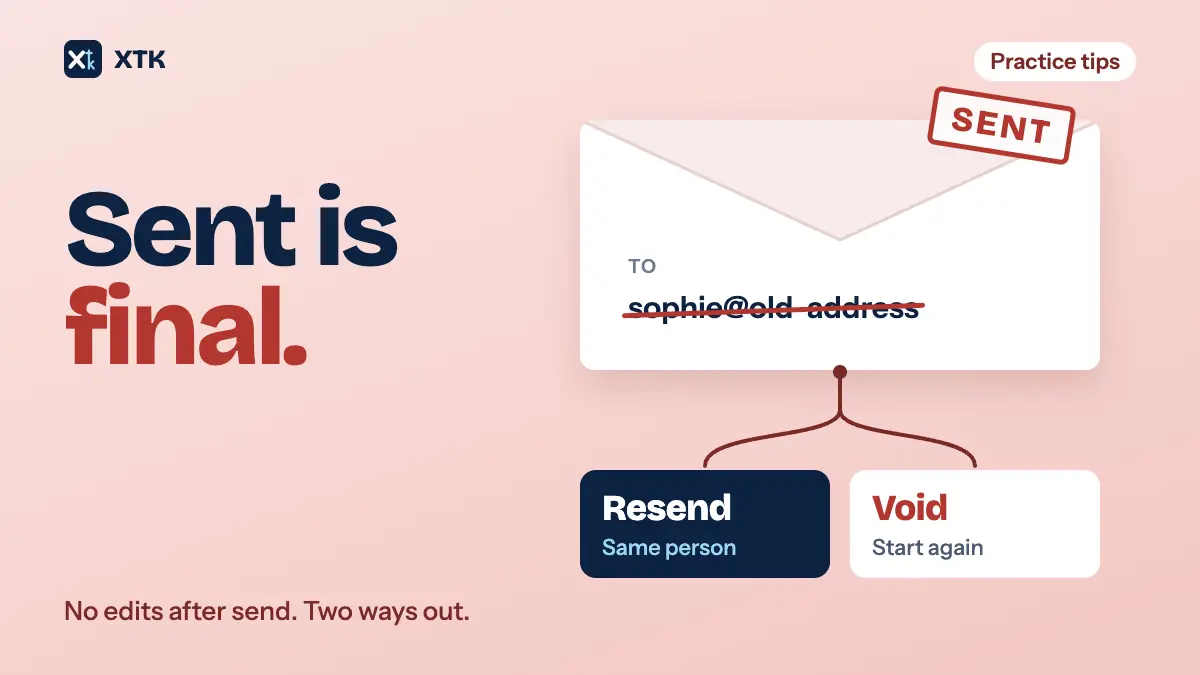
In practice: connect the Practice account, make it everyone's sender, and save the emails that carry an instruction into the client's folder as a PDF. If a request goes out wrong, our article on fixing a sent signature request covers resending and voiding.
The short version
- A record of a send has three parts: the message, the documents as sent, and the delivery facts.
- Send client email from a shared practice mailbox, so every message lands in one searchable Sent folder.
- If your tool sends from its own address, copy the whole message into a note before sending, with the date, address and sender.
- Save any email that gives an amount, a date or an instruction into the client's folder as a PDF.
- Never edit a document after it has gone out. Save a new version instead.
- Keep the signing certificate with the signed PDF. The tool's history stays behind in the tool.
- Make the leaver's mailbox part of the leaver's checklist.
Frequently asked questions
Can I get a copy of the email a Xero document pack sends?
Practices report that they can't. The idea asking Xero for a copy of the document pack email (Document Packs – Send me a copy of the email) had 49 votes on 7 October 2026 and is marked Submitted, and a similar Xero Sign idea had 80. The usual workaround is to paste the message into a Practice Manager note before sending.
What should an accounting practice keep as a record of a document it sent?
Three things: the message, the documents exactly as they were sent, and the delivery facts (recipient, date, opened, signed). Keep the message in a shared mailbox's Sent folder, the documents unedited in the client's folder, and the signing certificate with the signed PDF.
Should client emails go out from a shared mailbox or each person's own?
A shared practice mailbox, for anything the practice may need to refer back to. Every message then lands in one Sent folder the team can search, and the record doesn't disappear when a member of staff leaves and their account is deleted.
Does “viewed” in an e-signature history mean the client read the document?
No. It means the signing link was opened. Some email security filters open links automatically to scan them, so an open soon after sending may not be the client. A signature is the reliable sign that the client went through the document.