11 min read
One client, two records: where their documents end up
By The XTK team · Product
Part of our series on document management for Xero practices. Start with the overview for the full picture.
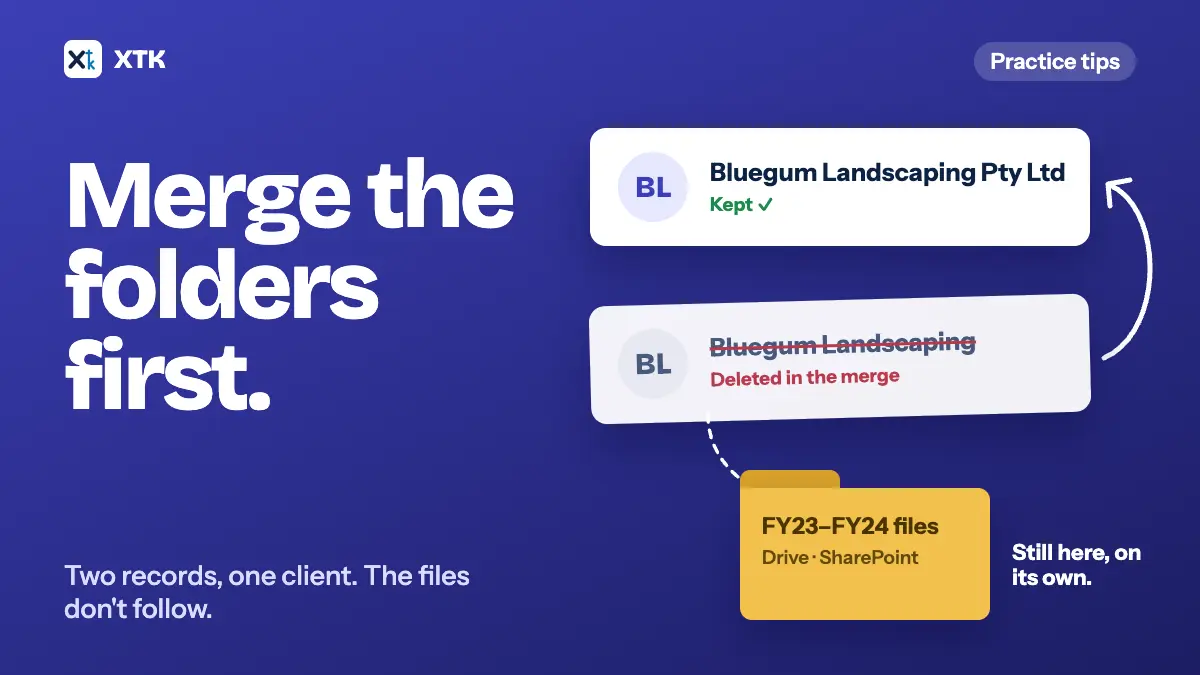
When the same client has two records in Xero Practice Manager, each record collects its own jobs, returns and documents. Merging the records in Xero Partner Hub moves Xero's own client documents and notes to the record you keep, but a folder in Google Drive, SharePoint or another document system is not part of the merge. Merge the folders first, in your storage, and the records second. Better still, search the archived clients before you create a new one, and restore the old record instead.
This article covers how a second record happens, what a Partner Hub merge does and doesn't carry across, the order to merge in, and how to stop the next duplicate before it starts.
How does one client end up with two records?
Nobody sets out to create a duplicate. It happens at a busy moment, when searching takes longer than typing a new name. The common routes are:
- A returning client. They left two years ago, their record was archived, and when they come back someone creates a new one, because the old record sits on the Archived clients tab, out of the everyday list.
- A change of name. A client entered under their maiden name and later under their married name, or a company recorded as “Pty Ltd” in one place and without it in another.
- A migration or an import. Moving from other software, or accepting a Xero organisation invitation, can create a record alongside one you already had.
- Contacts, not clients. With reusable contacts, the same person can appear several times, once for each entity in their group, each with slightly different details.
Practices ask Xero about this often. On 16 October 2026 the idea Warning when creating client record with same TFN as archived client had 94 votes and was marked In development. Ability to merge contacts (not clients) had 78 votes and was marked Not in pipeline, with one practice reporting more than 2,000 contact records it expected to shrink to under 500. Merge clients, with 26 votes, gives the maiden-and-married-name example. Taken together, these and four related ideas come to about 290 votes.
The cost isn't the extra record itself. Last year's signed engagement letter is filed under one record and this year's return under the other. Whoever opens the newer record sees half the client's history and assumes it's all of it.
What does merging clients in Partner Hub do to their documents?
Partner Hub can merge clients: tick the records on the client list and choose “Merge clients”, or work through the “Review duplicate clients” list, which suggests possible duplicates by name, TFN, business structure and linked Xero organisation. You pick the record to keep, and the other is deleted. Xero Central's Merge duplicate clients sets out what happens to each kind of data. Read on 16 October 2026, it splits them like this:
| What happens | Examples from Xero Central |
|---|---|
| Moved to the kept record | Client documents and notes, jobs, quotes, invoices, tax returns and notices |
| Added to the kept record | Addresses, contacts, groups, relationships |
| Added only if the kept record has none | Email address, Xero organisation connection, import code |
| Lost with the deleted record | ABN and ACN, date of birth, business structure, manager and partner, all custom fields, TFN and the other tax details |
Two rules on the same page decide which record you keep. You can't merge if the record you want to remove has tax returns or a TFN, or if more than one of the records is connected to a Xero organisation. And a merge can't be undone. So the record that holds the tax history is usually the one that has to survive, even if the other one has the better name.
Deleting is harsher still. Xero Central's Archive, restore or delete clients says that when you delete a client, their associated documents are permanently deleted. Archiving keeps everything and can be reversed at any time.
Why doesn't a Drive or SharePoint folder follow the merge?
Because the merge only knows about Xero's own data. A folder in Google Drive, OneDrive, SharePoint or a document system such as SuiteFiles or FYI belongs to that system, and it is linked to the client record in that system's own way: by the record's ID, by its name, or by a code you typed in. When Partner Hub deletes the losing record, nothing tells your storage. The folder is still there with every file in it, but the record it belonged to no longer exists, so nobody opening the kept client will be shown it. For most practices the client's name is the only link between the two, which is why matching names is the first rule of document management in Practice Manager.
That is why the folder has to be dealt with first, while both records still exist and you can see which folder belongs to which. Afterwards, you are hunting for an orphaned folder by name, and the name may be the very thing that differed. Groups go the same way. In the Xero thread on archiving client groups, a practice that had deleted the groups of archived clients, then changed document software, said it could no longer search archived documents by group.
How do you merge two client records without losing documents?
Treat it as a filing job that ends with a merge, not a merge with some tidying after it. For two records of the same client:
- Decide which record survives. If only one has tax returns, a TFN or a connected Xero organisation, that is the one. Otherwise keep the one with the correct legal name.
- Open both folders side by side. Note what is in the losing folder: years, document types, anything signed.
- Look for the same file twice. Two copies of the same engagement letter, one in each folder, is common. Keep one, and keep the signed copy over the draft.
- Move the files into the surviving folder, into the same year and type folders the rest of the client uses, and rename any that don't follow your file naming rules. Move, don't copy, so there is one copy of each file.
- Leave the old folder empty with a short note in it, or rename it “MERGED into Acme Trading Ltd, 16/10/2026”, so anyone who finds it later knows where its files went. Delete it only once you are sure nothing links to it.
- Check anything that lives in the losing record outside the folder: open signature requests or document packs, document requests waiting on the client, portal access. Xero's list doesn't mention document packs, and outside tools don't know about the merge, so finish or cancel them now.
- Merge the records in Partner Hub, keeping the survivor.
- Add a client note on the kept record: what was merged, when, by whom, and where the old files went.
- Open the kept client in your document tool and check that it shows the folder you just filled.
How do you stop the second record being created?
Merging is the expensive fix. The cheap one is a habit at the point of creation.
- Search the Archived clients tab before you create anyone. Search by surname, by business name without its suffix, and by TFN or ABN if you have it.
- Restore, don't re-create. A restored client comes back with their Xero organisation (unless it was moved or cancelled) and into the client groups they were in, so their history stays on one record.
- Archive leavers, don't delete them. A deleted client takes their Xero documents with them, and you lose the record a returning client would be restored from.
- Record name changes on the existing record. A client who marries or renames their company keeps their record. Update the name, add the old one to a note, and rename the folder to match if your document tool allows it.
- Work through “Review duplicate clients” on a schedule, after a migration or an import especially, before the two records have years of separate filing in them.
Duplicate contacts are a smaller problem for documents, because Xero files documents against clients rather than contacts. They matter for sending, though: a stale duplicate is often where an old email address lives, and that's the address the next request goes to. Our article on which client contact gets which document covers choosing the right one.
How does XTK handle duplicate and merged clients?
XTK is a browser extension that adds a Documents tab to each client in Practice Manager, backed by a folder in your practice's own Google Drive, OneDrive or SharePoint. The link between a client and its folder is made the first time anyone opens that client. As the storage connection guide explains, XTK looks directly inside your Main Storage Folder for a folder with the client's Practice Manager name, ignoring capital letters and stray spaces at either end:
- One folder matches, so XTK uses it, with everything already in it.
- None match, so XTK creates a new folder named after the client.
- Two or more match, so XTK asks you to pick one, or to create a new one.
That has three consequences for duplicates. A returning client re-created under the same name opens straight onto their old folder, files and all, so the documents come back even though the record is new. Two records with exactly the same name share one folder, so there is nothing to move before you merge them. And a record under a different name, such as a married name or a dropped “Pty Ltd”, gets a new, empty folder, which is where the split starts.
- To fix a client that opened onto the wrong folder or a new empty one, click “Change storage folder” on its Documents tab and pick the right folder. XTK warns you first that files in the current folder will no longer appear under that client, and that nothing is moved. See managing client documents.
- To bring two folders together, move the files in Drive or OneDrive itself. XTK reads each folder live, so the moved files appear on the client's Documents tab the next time it's opened. Job and quote folders sit inside the client folder, so they move with it.
- Once a client is linked, the link is to the folder itself, not its name. Renaming the client in Practice Manager, or renaming the folder to “MERGED…”, doesn't break or change it.
XTK is $59 USD a month for the whole practice after a 30-day trial, so tidying duplicate clients costs nothing per client.
The short version
- Two records for one client split the client's history, and whoever opens the newer one sees only half of it.
- A Partner Hub merge moves Xero's own documents and notes to the kept record, deletes the other, and can't be undone.
- A folder in Drive, SharePoint or another document system isn't part of the merge, so move its files first.
- Keep the record with the tax returns, TFN or Xero organisation; the merge won't let you remove that one anyway.
- Finish or cancel open requests on the losing record before you merge, because they don't move.
- Search archived clients before creating one, restore rather than re-create, and archive rather than delete.
Frequently asked questions
What happens to client documents when you merge clients in Xero Partner Hub?
According to Xero Central, client documents and notes, jobs, quotes, invoices and tax returns are updated to reference the client you keep, and the other record is deleted. Documents stored outside Xero, in Google Drive, SharePoint or another document system, are not part of the merge.
Which client record should I keep when merging duplicates?
The one with the tax returns, TFN or connected Xero organisation. Partner Hub won't let you remove a record that has tax returns or a TFN, and the merge can't be undone, so decide before you start and move the other record's files across first.
A former client has come back. Should I create a new client?
No. Search the Archived clients tab and restore their old record. A restored client keeps their history and goes back into their client groups. A new record starts an empty second history, and your document tool may give it a new, empty folder.
Should I delete or archive a client who has left?
Archive them. Xero Central says deleting a client permanently deletes their associated documents and can't be undone, and a client with a TFN or a tax return can't be deleted at all. An archived client can be restored at any time.