14 min read
The documents are the easy part: what leaving a document system costs
By The XTK team · Product
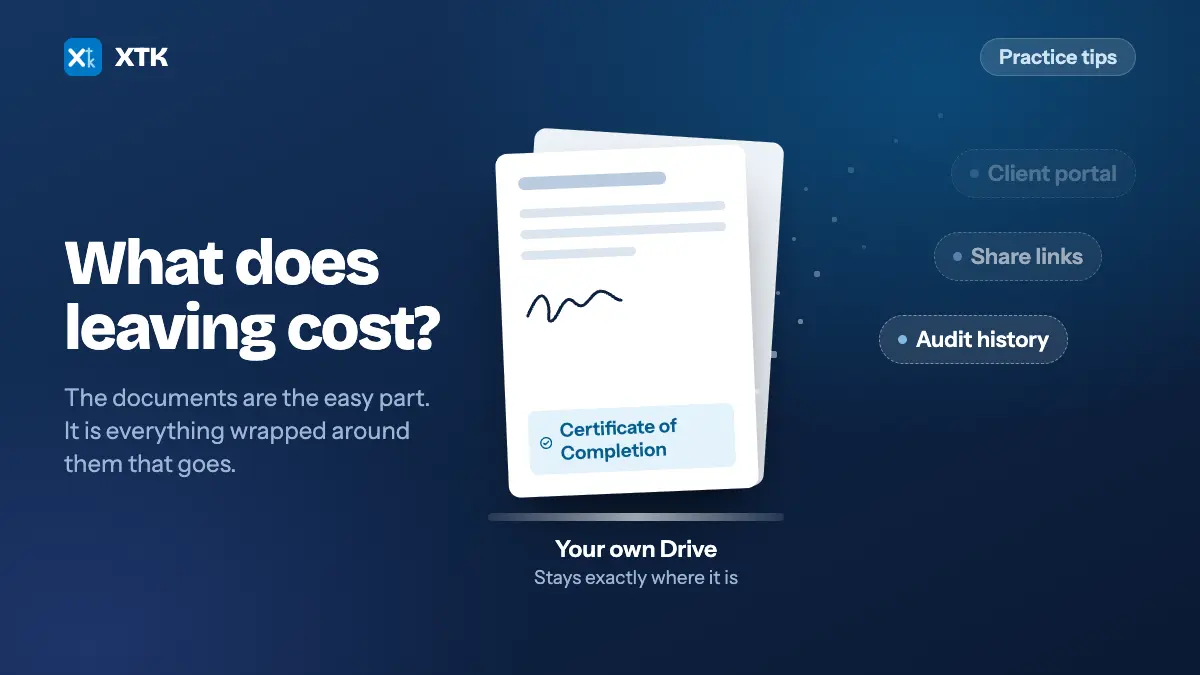
When a practice leaves a document system, the documents are usually fine. What goes is the layer wrapped around them: the audit trail behind every signature, the links your team has already pasted into job notes and emails, the client portals your clients are logged into, the templates, and anything still in flight. Vendors answer “can we export our data?” with a yes, because the answer is a yes. It is the wrong question.
The better question has a date on it: on the day we cancel, which of the things we rely on stop working, and which do you keep? This article covers what actually happens to the files, what two vendors publish about their own exits, where a signature's audit trail really lives, and six questions worth putting to any vendor in writing — including to us. Nearly all of it is worth doing whether or not you ever install anything of ours.
What actually happens to your files when you cancel?
It depends on one thing above all others: whose storage tenant the bytes are sitting in. There are three shapes, and most practices could not say for certain which one they are on without going and looking, because the answer was set during onboarding and has not been thought about since.
| Shape | Where files sit | On cancellation |
|---|---|---|
| Vendor-held | The vendor's storage | You export, or lose them |
| Your-storage-backed | Your own tenant | They stay put |
| Either, by setup | Depends how you set it up | Depends how you set it up |
A vendor-held system needs a real export, and an export is a project: it has to run before your access ends, it produces a folder tree that may or may not resemble the one you had, and the metadata that made the system useful — who approved what, when, against which job — is usually not in it. A system backed by your own Microsoft 365 or Google Workspace tenant needs nothing, because the files were never anywhere else. That single architectural choice is worth more at exit than any feature on a comparison page.
What does SuiteFiles say happens when you cancel?
SuiteFiles is the clearest published example, and it is a good result on the part that matters most. Because SuiteFiles is built on your practice's own SharePoint, its cancellation page says the site is decommissioned and “will revert to a SharePoint Online site”. The documents do not go anywhere. There is no export project, because there is nothing to export — the same reason we build the way we do, and it is worth saying plainly rather than grudgingly.
The same page then lists what the site loses access to, and this is the part worth reading twice:
- Your audit history on documents signed using SuiteFiles document signing
- The Xero integration, and file, email and folder templates
- Secure file sharing with SMS verification, and SuiteBackups
- The SuiteFiles Outlook add-in
- Links created with the Copy Links feature, which “will no longer direct you to the file or folder”
None of that is a criticism of SuiteFiles. It is a vendor documenting its own exit in public, in specific terms, which is more than most do — and every item on it is a thing that lives in the vendor's system by necessity rather than by choice. The point is that the list exists at all, and that a practice reading it before signing would ask different questions than one reading it during the notice period.
There is a clock, too. SuiteFiles requires 30 days' notice under its terms; the cancellation date is the day you tell them plus 30, and sites are usually decommissioned at the end of the month after the next billing cycle. Documents out for signing and client portal connections stop working once the site is decommissioned, so their own advice is to set signing due dates before the cancellation date, or withdraw what is out.
What does Karbon say?
Karbon's answer is “it depends”, and the dependency is a setup choice most practices made once and forgot. Karbon supports two arrangements: Karbon Storage, where files are uploaded into Karbon itself, and a Connected Folder pointed at OneDrive or Dropbox. Its document storage FAQ is unambiguous about the second: “Your files remain in your external storage, but you will no longer see or access them through Karbon until you reconnect.”
So the same product gives two different exits. A practice on Connected Folders is in the second shape above and has very little to do. A practice that has been dragging files into Karbon Storage for three years is in the first, and has an export project it has not scoped. Both are reasonable ways to run the product. Only one of them is a decision anybody made deliberately.
Two details from the same page are worth knowing while you are checking which one you are on: Karbon connects one external provider at a time, OneDrive or Dropbox, and deleting a file in Karbon does not delete it in the connected storage — deletions have to be managed in the storage provider itself.
Where does a signature's audit trail actually live?
This is the exit question with the longest tail, and almost nobody asks it. A completed e-signature is two things: a signed document, and the evidence of how it was signed — who, when, from which address, in what order. If the second one lives in the vendor's database rather than in the document, then it is a feature of your subscription, and it ends when the subscription does.
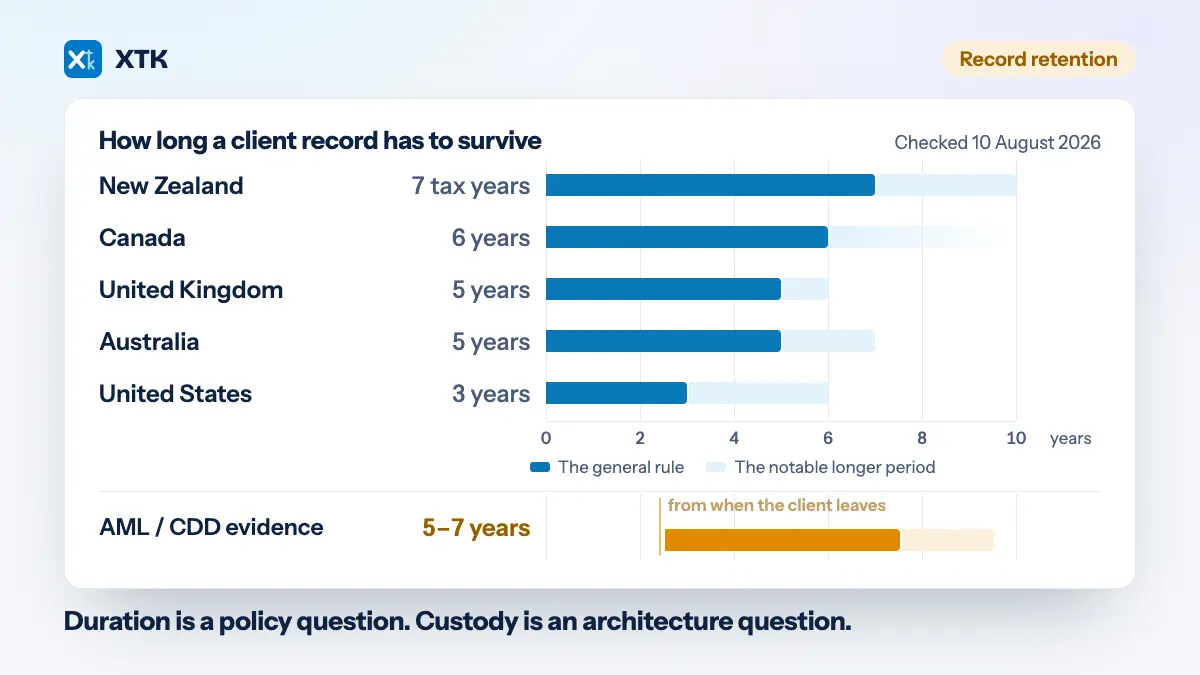
That matters because the retention clock outlives almost every software decision a practice makes. Set against the periods records actually have to be kept for, an engagement letter signed this year may need to be produced long after the tool that captured the signature has been cancelled, the vendor has been acquired, or the partner who chose it has retired. An audit trail you cannot produce in year six is not an audit trail. It is a screenshot you meant to take.
Almost every tool does the first, and XTK is no exception. It keeps an append-only log of a signature request — created, sent, link resent, viewed, signed, declined, completed, voided — each with its timestamp and, where a recipient drove it, the address and device it came from. That log is what the status screen shows you while a request is in flight, and it is a feature of the subscription. It ends with the subscription, here as anywhere else. Any vendor telling you otherwise is describing something else.
The question that decides what you keep is whether any of it is also written into the document. XTK does that as well: when the last signer finishes, each document comes back as a flattened PDF with a Certificate of Completion appended as its final page — the request id, an integrity hash of the captured values, and for each signer their name and email, the time they signed in UTC, the IP address and the device. It is named after the original with “ (signed)” added and filed beside it in that client's folder. The original is never altered, so you keep both.
So the honest version is a split rather than a clean win. The narrative — who opened it on Tuesday and did nothing, when you resent the link — lives in the vendor's system and goes when you go. The subset you would actually have to produce years later, which is who signed, when, from where, and a hash that shows the values have not been altered since, is a page of a PDF in your own Drive. Those are different things, and only one of them survives a cancellation.
There is a limit worth stating plainly, because it is the case where this offers nothing. A request that was declined, voided or simply abandoned never produces a signed PDF, so there is no page for the evidence to ride on. The whole record of that request lives in the vendor's system, and it is as mortal as the subscription. If a declined signature is something your practice would ever need to show, it needs exporting while you are still a customer — from any vendor, including this one.
What happens to links you have already pasted?
Links are the quiet one. Over a few years a practice sprays document links into places it does not control and cannot audit: job notes in Practice Manager, emails already sent to clients, engagement letters, workpapers, internal checklists, a spreadsheet somebody maintains. Every one of those is a small bet that the link will still resolve later.
SuiteFiles says plainly that its Copy Links stop directing to the file or folder after decommission. That is honest, and it is also the general case: any link whose host is the vendor's application dies with the subscription, while a link whose host is your own Drive or SharePoint does not. Before you sign, it is worth knowing which kind of link the “copy link” button produces — and worth telling your team, because the answer changes what they should be pasting into a client email.
What about signatures and portals still in flight?
A notice period and a busy practice collide badly. Thirty days is a normal notice requirement, and thirty days is also roughly how long an engagement letter can sit unsigned in a client's inbox. Anything out for signature when the lights go out is not merely delayed; the signing link stops working, and the client sees a broken page rather than a document. The same applies to client portals — from the client's side, a portal that stops resolving looks like your practice's failure, not your vendor's.
This has an unglamorous fix, which is why it is worth writing down: before you give notice anywhere, pull the list of open signature requests and open portal shares, finish or withdraw them, and tell any client who is mid-flow. Do it before the notice starts rather than during it, because during it you will be doing everything else as well.
Six questions to ask before you sign
These are answerable in writing by any vendor, in a few sentences, without a call. A vendor that answers all six crisply is telling you something good about itself regardless of what the answers are; a vendor that routes you to a salesperson is telling you something too.
- On the day we cancel, whose storage tenant are the document bytes in? Name it.
- Which features stop working while the documents stay? Ask for the list, in the vendor's own words — SuiteFiles publishes one, which is the standard to hold others to.
- Is any of a completed signature's audit trail written into the PDF itself, or does all of it live only in your database?
- Do links we have already pasted elsewhere keep resolving after we leave?
- How much notice do we owe, and what happens to signatures and portals in flight during it?
- What do you keep after we go, for how long, and how do we ask for it to be deleted?
How XTK answers the same six questions
In order, and including the two we do not win. First: the bytes are in your practice's own Google Drive, OneDrive or SharePoint, in a folder you nominate. XTK stores pointers to your folders and files, never their contents — the data guide sets out exactly what the backend does hold, and where bytes do stream through it.
Second: cancelling takes effect at the end of the period you have paid for, and after that the practice is read-only — everyone can still sign in, browse every client folder, search and download; nothing can be created or changed. Disconnecting storage removes XTK's access and leaves every folder and file exactly where it is, as ordinary files. Closing the account never touches anything in your storage.
Third: both, and only half of it survives — the event log goes, the certificate page stays, as set out above. Fourth is a loss: portal access is a marker XTK holds, so a shared portal stops when the account does, though nothing shared is deleted and the files stay in the client's folder for your team. Fifth is also a loss: in read-only your clients cannot upload or sign, so anything in flight has to be finished before the period ends. Sixth: closing your account deletes your accounts, encrypted tokens and workflow records — requests, event logs, share markers, notifications — within 30 days of a verified request, and never touches your Drive.
What to do this week
None of this requires a decision about software. It requires forty minutes and a document you can find again in two years.
- Find out which storage shape you are on, by opening a client's document in your current system and checking whose domain the URL belongs to.
- Send your vendor the six questions in one email, and file the reply with your practice's other supplier records.
- Open one completed signature from last year and see whether the evidence is in the file or only on a screen.
- Count the places your team pastes document links, and decide whether those links belong to you or to a subscription.
Frequently asked questions
If I cancel my document management system, do I lose my client files?
It depends whose storage the files were in, which is set at onboarding rather than at cancellation. If the system is backed by your own Microsoft 365 or Google Workspace tenant, the files stay where they are and there is nothing to export — SuiteFiles, for example, states that a cancelled site reverts to an ordinary SharePoint Online site. If the files were uploaded into the vendor's own storage, you need a real export completed before your access ends. Some products support both arrangements, so the answer can differ between two practices using the same software.
What is usually lost when you leave a document system, if not the documents?
The layer built around them. SuiteFiles' own cancellation page lists the audit history on documents signed through its signing feature, file, email and folder templates, the Xero integration, SMS-verified secure sharing, SuiteBackups, the Outlook add-in, and any links created with Copy Links, which will no longer direct to the file or folder. In-flight signing requests and client portal connections also stop working once the site is decommissioned. The general pattern is that anything hosted by the vendor's application ends with the subscription, while anything written into a file in your own storage does not.
Where should an e-signature audit trail be stored?
In two places, because it is really two things. Every tool keeps a server-side event log — created, sent, resent, viewed, signed, declined, completed — and that log is a feature of the subscription and ends with it. XTK keeps one too. What decides whether anything survives is if the essential facts are also written into the document. XTK appends a Certificate of Completion as the final page of the flattened signed PDF — the request id, an integrity hash of the captured values, and for each signer their name and email, the signing time in UTC, the IP address and the device — and files it beside the original in the client's folder. That page survives cancellation; the surrounding event log does not. Requests that were declined or abandoned produce no signed PDF at all, so their record is only ever in the vendor's system.
Does Karbon store documents in Karbon or in my own storage?
Either, depending on how it was set up. Karbon Storage holds files in Karbon itself; a Connected Folder points at OneDrive or Dropbox, and Karbon's own FAQ states that if you disconnect the document management system your files remain in your external storage, though you can no longer see or access them through Karbon until you reconnect. Karbon supports one external provider at a time, and deleting a file in Karbon does not delete it in the connected storage. Read as at 27 August 2026.
Does anything stop working if we cancel XTK?
Yes, and it is worth knowing which parts. Cancelling takes effect at the end of the period you have paid for, after which the practice is read-only: everyone can sign in, browse, search and download, but nothing can be created or changed, and clients cannot upload or sign. Client portal access stops, because a portal share is a marker XTK holds rather than a copy of anything. Closing the account also deletes XTK's own event logs — the viewed, resent and declined history behind each signature request — which is the same trade every vendor's audit screen carries. What does not change is the documents: they sit in your own Google Drive, OneDrive or SharePoint throughout, signed PDFs keep their Certificate of Completion page, and closing the account never touches anything in your storage.
What should I ask a document management vendor before signing?
Six things, in writing: whose storage tenant the document bytes are in on the day you cancel; which features stop working while the documents stay; whether any of a completed signature's audit trail is written into the PDF itself or all of it lives only in the vendor's database; whether links you have already pasted elsewhere keep resolving after you leave; how much notice you owe and what happens to signatures and portals in flight during it; and what the vendor keeps after you go, for how long, and how you ask for it to be deleted.